Archive
Arduino: Morse Code Blinking
Learning : ARDUINO, Morse-Code, Electronic Circuit
Subject: LED to Blink Morse Code
[NOTE: We are working on Electronic Devices, Voltage, Resistors and other Electronic Parts that may Become HOT due to un-stable current or Wrong Wire Connections.. PLEASE BE CAUTIOUS AND TAKE SAFETY NEEDED PROCEDURES.]
Some days ago I just went through some pages of Morse-Code. Then I got an idea to write a code for the ARDUINO to blink an LED for some letters.
Morse Code: In a basic and easy way, Morse code is a Dots (.) and Dashs (-) to present alphabet characters. So A = .- ; B = -… ; C = -.-. and so on (Morse code table in Wikipedia)
Morse Code Rules:
if we assume a unit is U, then :
- 1. A Dot is 1U.
- 2. A Dash is 3U.
- 3. A Space between a part of the same letter is 1U.
- 4. A Space between letters is 3U.
- 5. A Space between words is 7U.
In our project here, the Unite U will be the Delay in Arduino, so the LED will be High for 1U to represent a Dot (.) and will be High for 3U to represent the Dash (-).
What we will Need: I will use a Breadboard, ARDUINO Nano , One Red LED, One 300 ohm Resitro, Jumper Wire.
- A BreadBoard.
- ARDUINO Nano.
- 1 Red LED.
- 1 Resistor [I will Use 300 ohm]
- Some Jumper Wire.
Connection:
- The ARDUINO Nano will be on the Breadboard
- Connect D13 on Nano to Column 11 on the Breadboard using Jumper-wire.
- Connect the Resistor on Column 11 and Column 6 on the Breadboard.
- Connect the LED Anode (+) pin on the Column 6 on the Breadboard.
- Connect the LED Cathode (-) pin to the Column 4 on the Breadboard.
- Connect the Column 4 on the Breadboard to the Cathode Row on the Breadboard using Jumper-wire.
- Connect the Column 17 on the Breadboard (Nano GND pin) to Cathode Row on Breadboard using Jumper-wire.
- Connect the Column 19 on the Breadboard (Nano 5V pin) to the Anode Row on Breadboard using Jumper-wire.
Image of the Connected Breadboard. |
The Coding: First we need to define the Dots and Dashs for each Alphbets, in this example I will do only three carecters for my Name A L I, I will create an array of 0 and 1, 0 is a dot, 1 is a dash, here is the code:
int A [ ] = {0,1} ; // 0 = dot (1U), 1 = dash (3U)
int L [ ] = {0,1,0,0} ;
int I [ ] = {0,0} ;
Here is declearing the Unite, u as Delay time:
int u = 170 ; // 1U = 170 delay.
and here is the Arduino pin I will use:
int ledpin = 13 ;
in the void setup, we will only write one line to set the pinMode(ledpin, OUTPUT)
then I create a function to read the letter array-content
 // CODE: Function to read the letters contents.

void letter(int c [], byte s)
{
      if (c[s] == 0)   // dot
        {morse1(ledpin, 1) ;}
      if (c[s] == 1)   // dash
        {morse1(ledpin, 3) ;}
}
In this code, I will let the LED to Blink in Morse code saying “ALI” [My Name 🙂 ]. You may add the Morse code in the Application and making the LED to send you message. Code Available in Download Page.
RUN TIME.. |
:: ARDUINO PROJECTS LIST ::
[ Click Here to See all ARDUINO Projects ]
To Download the ARDUINO Project [Code and Diagram] files Click-Here
 Follow me on Twitter..
By: Ali Radwani
Python Project: Properties Maintenance System P12
Subject: Writing a Full Application for Properties Maintenance System [Delete Maintenance Request]
Learning : Python, Math, SQL, Logeic
[NOTE: To keep the code as simple as we can, We WILL NOT ADD any user input Varevecations. Assuming that our user will Enter the right inputs.]
In this part we will continue write the Functions in Maintenance Request Service. Here we will write the Function to Delete a Maintenance Request.
This is very easy and short Function, first we will list all the requests by calling the def show_maintenance_request, after that we will ask the user to Select the ID of the request to be Delete.
Validation
We will use simple validation code on the User input for the following aspects:
- If the user input E to Exit.
- If the user input digits or Not.
- If the ID is available in the system/Database.
- If the user input Y to confirm the Deleting prosses.
So if the user input pass all the Validations, and he confirm the Deleting, the Record will be Deleting using the following SQL Command:
c.execute (“delete from maint_request_t where m_r_id ={}”.format(int(delete_this)))
db_conn.commit()

|
We done with this part, Next we will write a code to change a request status.
:: PMS Parts ::
| Part 1 | Part 2 | Part 3 | Part 4 | Part 5 | Part 6 | Part 7 |
| Part 8 | Part 9 | Part 10 | Part 11 | Part 12 | Part 13 | Part 14 |
..:: Have Fun with Coding ::.. 🙂
To Download my Python code (.py) files Click-Here
By: Ali Radwani
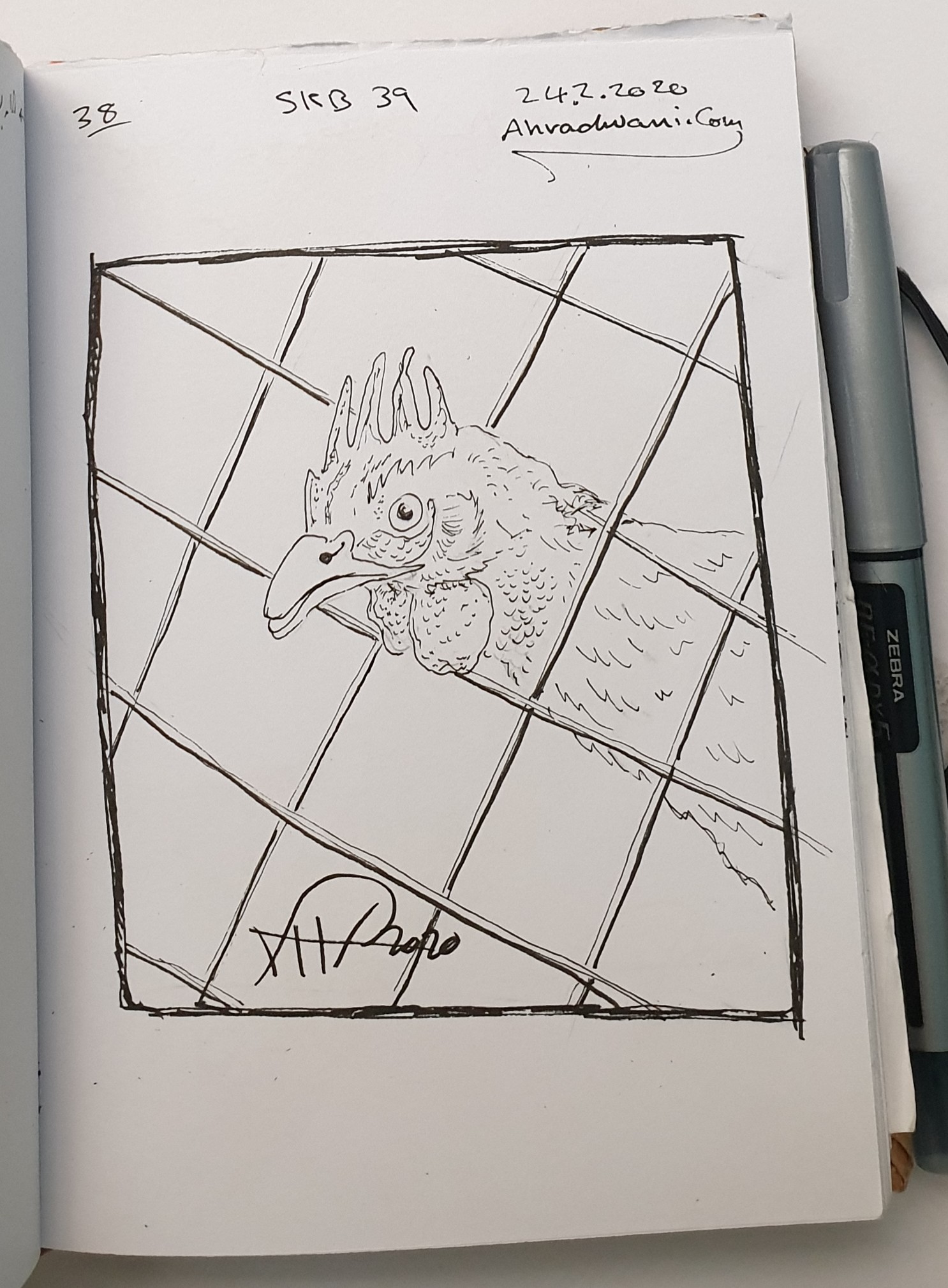
Sketch from Two Years Back -The Hen
Sketch No. 38
Sketchbook No. 39
Date: 24.3.2020
 |
..:: Have Fun with Sketching ::.. 🙂
By: Ali Radwani
Python Project: Properties Maintenance System P11
Subject: Writing a Full Application for Properties Maintenance System [Show Maintenance Request]
Learning : Python, Math, SQL, Logeic
[NOTE: To keep the code as simple as we can, We WILL NOT ADD any user input Varevecations. Assuming that our user will Enter the right inputs.]
In this part we will continue write the Functions in Maintenance Request Service. Here we will write the Function to Show Maintenance Request.
Show all Request In this Function we will display all the Properties we have in the system, then the user will Select the ID of the Property, after that we will display all Maintenance Jobs that we have in the system (Maintenance for); again the user need the Select the Job ID and if the required job is not in the list the user need to go-back and add it to the system first. After that the user will Select current Job-Status [also if not in the system we need to add it], then entering the Date of starting the Maintenance, finally the user can write any Notes or just press enter to save the request. With any question above the user can Exit the function by interning [E].
Here are some code sample..
Table header
print(‘ ‘*6,’ID’,’ ‘*3,’Property ID’,’ ‘*5,’Maintenance Date’,’ ‘,’Maintenance For’,’ ‘*7,’Job Status’,’ ‘*12,’Note’)
print(‘ ‘*4,’-‘*120)
Code to fetch-all data in the Maintenance Request Table.
c.execute (“select * from maint_request_t “)
dataset = c.fetchall()
To Get the Property Type, we call our get_lookup_values Function..
prop_type_id = get_lookup_values(‘properties_t’,’p_id’,dataset[each][1])
p_type_name = get_lookup_values(‘prop_type_t’,’pt_id’,prop_type_id[0][2])
To save the time, all the code is available in the Download Page.
:: PMS Parts ::
| Part 1 | Part 2 | Part 3 | Part 4 | Part 5 | Part 6 | Part 7 |
| Part 8 | Part 9 | Part 10 | Part 11 | Part 12 | Part 13 | Part 14 |
..:: Have Fun with Coding ::.. 🙂
To Download my Python code (.py) files Click-Here
By: Ali Radwani
Arduino Project: LED Fade-off in 60sec using BC547
Learning : Circutes
Subject: LED Fade-off in 60sec using BC547
[NOTE: We are working on Electronic Devices, Voltage, Resistors and other Electronic Parts that may Become HOT due to un-stable current or Wrong Wire Connections.. PLEASE BE CAUTIOUS AND TAKE SAFETY NEEDED PROCEDURES.]
In most Projects here i am using ARDUINO, but in this Project we will use a Transistor BC547 to make an LED Fade-off.
What we Need In this Project we will use the Following:
- 1 LED.
- 1 BC547 Transistor.
- BreadBoard
- 2 300 ohm Resistors.
- 1 Capacitor.
- 1 2pin push button.
- Some Jumper wires.
- 3V Battery.
Connections:
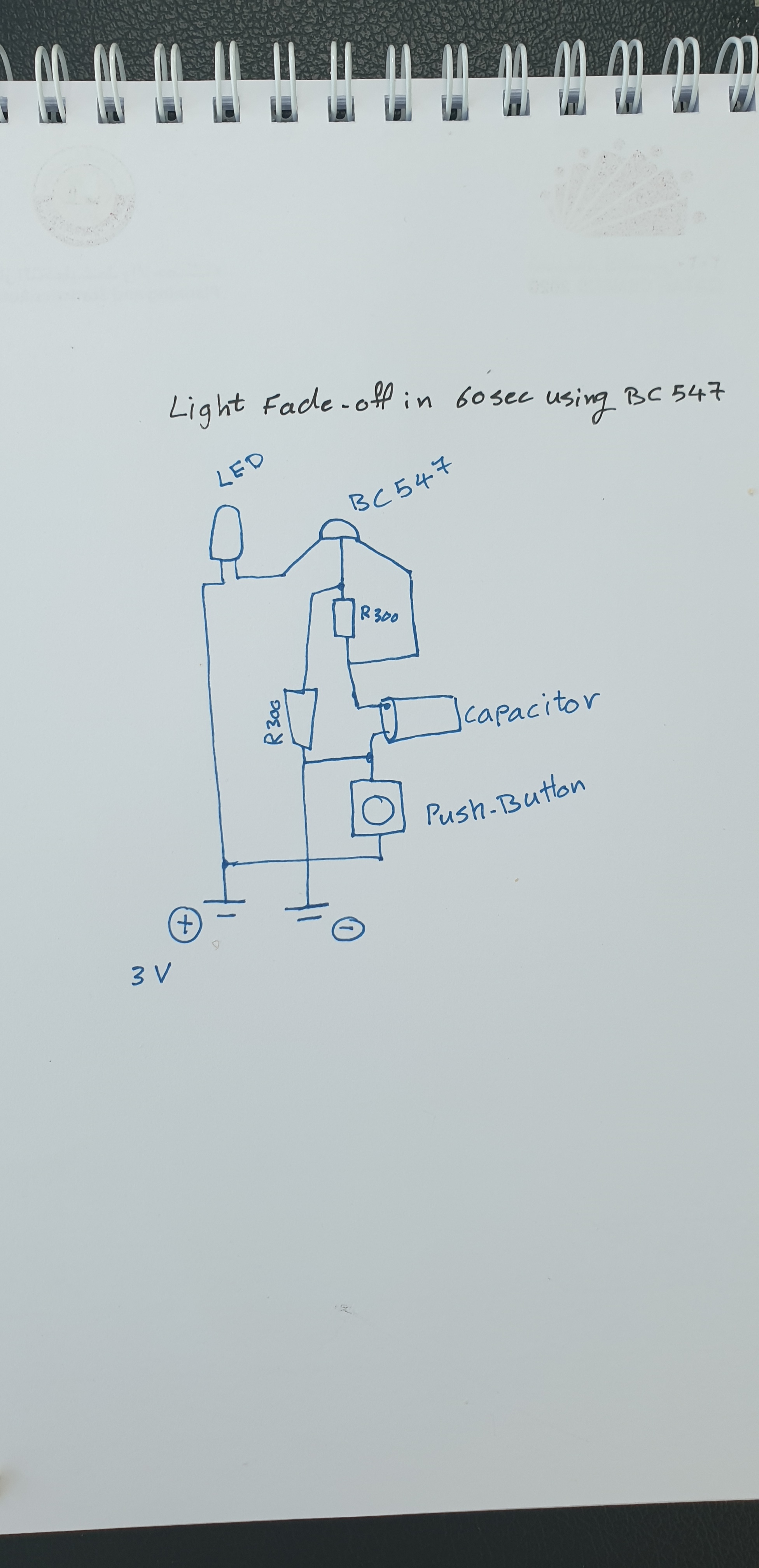
The BC547 has three legs,
Collector
Base
Emitter
So, Starting From BC547 Base will be connected to Resistor 1, and Resistor 2 [in Parallel], Resistor1 will connect to the Capacitor Anode(+), Capacitor Anode(+) also will be connected to the BC547 Emitter.
Capacitor Cathode(-) will be connected to pin1 Push-Button, also Capacitor Cathode(-) is connected to the Resistor 2.
Resistor 2 will be connected to the Battery (-)
BC547 Collector will be connected to LED Cathode(-), LED Anode(+) will be connected to the Battery(+). And the Push-Button Pin2 will be connected to Battery(+).
Here is the diagram:
 |
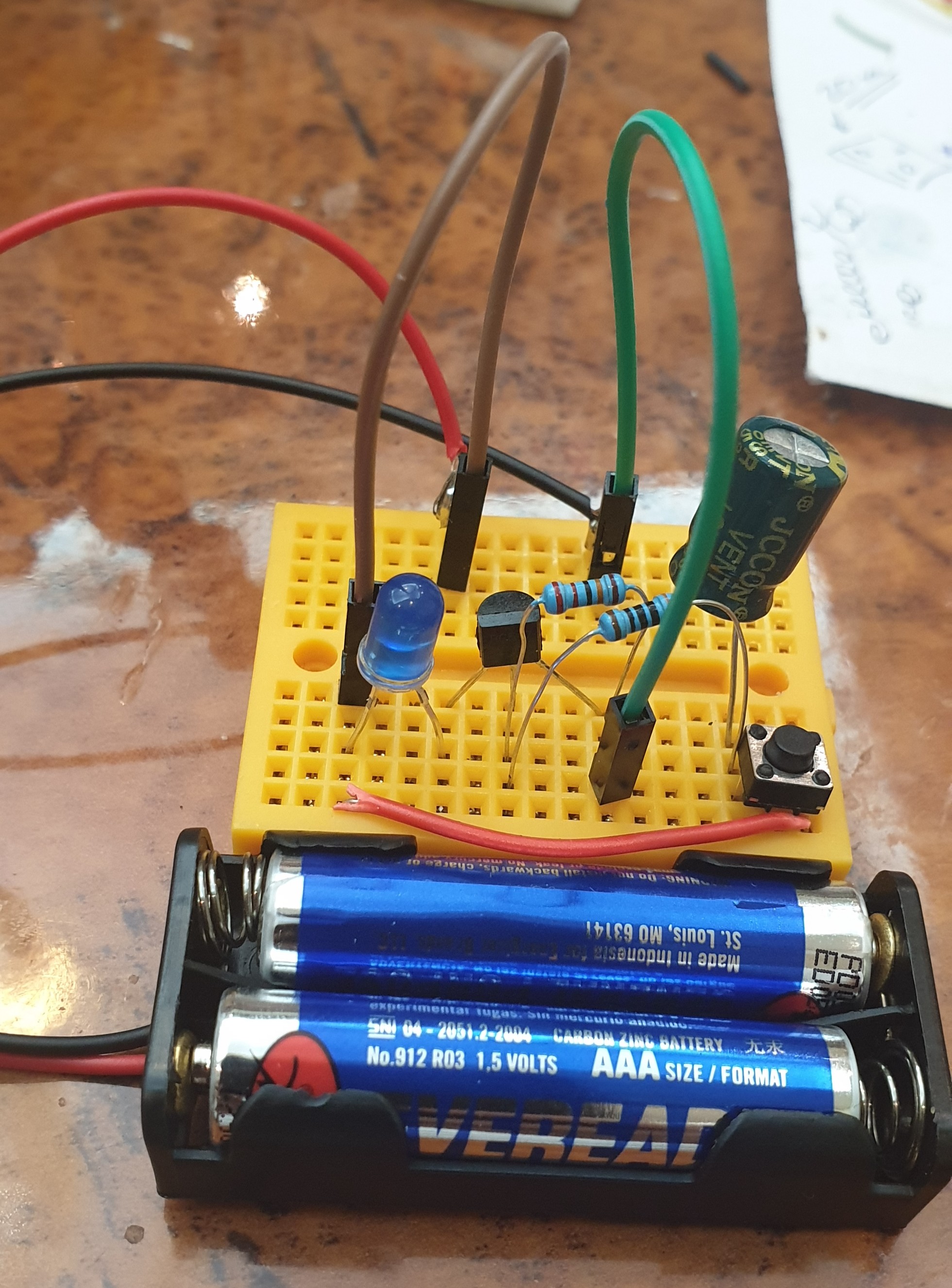 |
Push the Button Now if we Push the Button, the LED will Go NO, and start Fading-out (OFF), I start a stop-watch it count almost 60Sec. Here is a speed-up RUN video.
Speed-up Video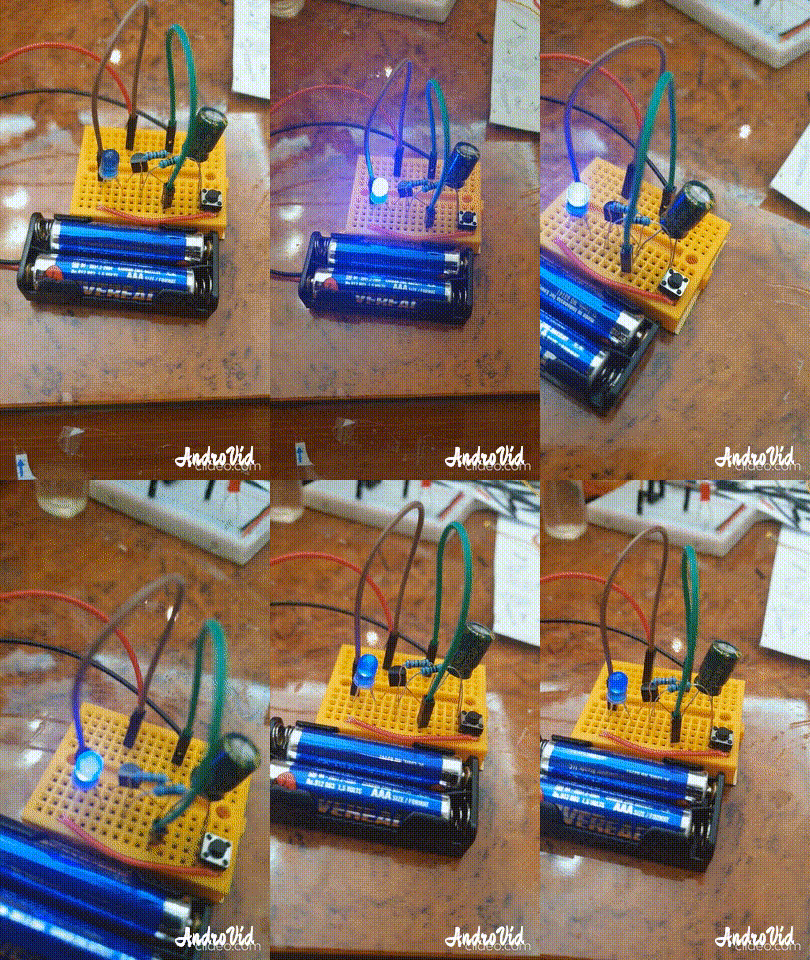 |
:: ARDUINO PROJECTS LIST ::
[ Click Here to See all ARDUINO Projects ]
To Download the ARDUINO Project [Code and Diagram] files {No Code in this Project}
By: Ali Radwani
Python Project: Properties Maintenance System P10
Subject: Writing a Full Application for Properties Maintenance System [Property: Delete a Record]
Learning : Python, Math, SQL, Logeic
[NOTE: To keep the code as simple as we can, We WILL NOT ADD any user input Varevecations. Assuming that our user will Enter the right inputs.]
In this part we will write the Following:
1. Writing the Maintenance Request Menu.
2. Writing the Functions header for Four Functions:
- Add a Maintenance Request.
- Edit a Maintenance Request.
- Delete a Maintenance Request.
- Show Maintenance Requests.
3. Writing the code for the first Function: Add a Maintenance Request.
4. Writing the code to Validate the Date.[The code will be coped in from my Archive]
First: Maintenance Request Menu: We will use our standard template in all application we write it, so here is the code ..

|
And here is the header of each Functions:
def add_maintenance_request() :
pass
def edit_maintenance_request() :
pass
def delete_maintenance_request() :
pass
def show_maintenance_request(inside) :
pass
First Function: def add_maintenance_request() : In this Function we will ask the user to select the ID of the Property that need Maintenance also to select the ID of Maintenance Job requered. If the Maintenance Job is Not Available in the List, then the user MUST go first to add it in the system, then come back and select it. During this Function coding we will use two Functions we have in this application [check_availability and show_lookup_data] also we will use the [Date Validation] Function we have develop some time ago [Click to Read the Post Ver.2019] {Updated Ver. used in this code.}
Here is a sample code for Selecting the Maintenance Job Requiered.
 # Selecting the Maintenance Job Requiered

 print('\n\t Select an Item from the List for the Maintenance Job Requiered:\n')
        show_lookup_data('Yes' ,'main_job_list_t', 'ml_id')
        main_j_id = input ('\n\t Enter the ID of the Maintenance Job. [E to Exit] > ')
        if main_j_id in ['e','E'] :
            input('\n\t You Select to Exit from the Function.. Press any Key .. ')
            return
        if	(check_availability('main_job_list_t', 'ml_id', int(main_j_id)) == None ) :
            input('\n\t The ID is NOT Available. Press any Key .. ')
            return
After collecting all information from the user, we will Insert/Add the data into the database using this SQL Statement..
# Add to the DataBase.
c.execute (“INSERT INTO maint_request_t (p_id , maint_for, date_time, job_s_id, notes) VALUES(:p_id , :maint_for, :date_time, :job_s_id, :notes)”,{“p_id”:mainte_req_id , “maint_for”:main_j_id, “date_time”:main_date, “job_s_id”:job_st_id, “notes”:the_note})
db_conn.commit()
Now we have the ability to add a Maintenance Request to our system.
NOTE: If you Download this Part you MUST Run the Option 82 (82. Delete the Data-Base and Start Again.) from the Main Menu to do the following Updates:
- Updates some attributes in the database level.
## Highly recommended ##
In Part-11 In the Next Part, we will write a function to show all Maintenance Request in the system.
:: PMS Parts ::
| Part 1 | Part 2 | Part 3 | Part 4 |
| Part 5 | Part 6 | Part 7 | Part 8 |
| Part 9 | Part 10 | Part 11 | Part 12 |
..:: Have Fun with Coding ::.. 🙂
To Download my Python code (.py) files Click-Here
By: Ali Radwani
Python Project: Properties Maintenance System P9
Subject: Writing a Full Application for Properties Maintenance System [Property: Delete a Record]
Learning : Python, Math, SQL, Logeic
[NOTE: To keep the code as simple as we can, We WILL NOT ADD any user input Varevecations. Assuming that our user will Enter the right inputs.]
In this part we will write a Function to Edit a record on the database, first we will call the def show_property(inside) to display all the records on the screen and ask the user to Select [enter] the ID of the Property to be Edited. Next we will Display the Record again on the screen and ask the user to Confirm the Editing by entering [Y] and any things else will be as [Don’t Edit]. Here is the code ..

|
Next we will ask the user about each attributes in the system, so the user will enter the new data (update the current one) or just press enter to keep the existed data. Here is a part of the code ..
 |
After That we will check on each user input for the attributes, if the user change/Edit the data [did not press enter] then we run an SQL command to alter the database. Here are part of the code we use ..
 |
Now we have an updated record, so we will show a message to inform the user that the records been updated.
NOTE: If you Download this Part you MUST Run the Option 82 (82. Delete the Data-Base and Start Again.) from the Main Menu to do the following Updates:
- Updates some attributes in the Database Level.
## Highly Recommended ##
In Part-10 the Next Part, we will add the Function to Backup our data .
:: PMS Parts ::
| Part 1 | Part 2 | Part 3 | Part 4 |
| Part 5 | Part 6 | Part 7 | Part 8 |
| Part 9 | Part 10 | Part 11 | Part 12 |
..:: Have Fun with Coding ::.. 🙂
To Download my Python code (.py) files Click-Here
By: Ali Radwani
Arduino: First App
Learning : Arduino Projects, Arduino Coding, Electronic Circutes
Subject: First Application, Light the LED
[NOTE: We are working on Electronic Devices, Voltage, Resistors and other Electronic Parts that may Become HOT due to un-stable current or Wrong Wire Connections.. PLEASE BE CAUTIOUS AND TAKE SAFETY NEEDED PROCEDURES.]
The Task: In our First Application on ARDUINO we will write a code to Light ON then OFF an LED or say Two Led’s each will go On and Off for several time to show a Blinking light.
What We Need: We will try to be simple on our first project, we will put the Led’s on a braedboard connected to ARDUINO Nano (Any other Arduino Chip can be use). So, we will use Arduino-Board, BreadBoard, Two resistors and tow Led light (I will use One Red, and One Green).
Set-up: We will connect the Red-Led on Pin A3, and the Green-Led on Pin D12, the ARDUINO-Board will take power from it’s USB cable connected to the Laptop.
Coding: The Application will make the Led’s to BLINK in some sequence.
 # CODE: Function to turn led On, wait for some delay-time and Turn it off. Two Led's (Red, Green) Blinking


const int red_led = A3 ;  // set pin A3 for red-led.
const int green_led = D12 ;  // set pin D12 for green-led.

void setup()
{
pinMode(red_led, OUTPUT);
pinMode(green_led, OUTPUT);
}

void led_on_off (int led, int dt)  // Function to Turn led On Wait for delay = dt then turn it off.
{
digitalWrite(led, HIGH);
delay(dt) ;
digitalWrite(led, LOW);
delay(dt) ;
}

void loop ()
{
// in both for-loops, change the delay and/or numbers to have different lighting sequences.
  for (int R = 0; R < 3; R ++) //loop for Red-Led
  {
    led_on_off(red_led, 300);
    for (int G = 0; G < 2; G ++ )  //loop for Green-Led
        {
           led_on_off(green_led,110) ;
         }
   }

  exit(0) ; // To stop the action after executing One-Time.
}
Image of set-up and Running ..
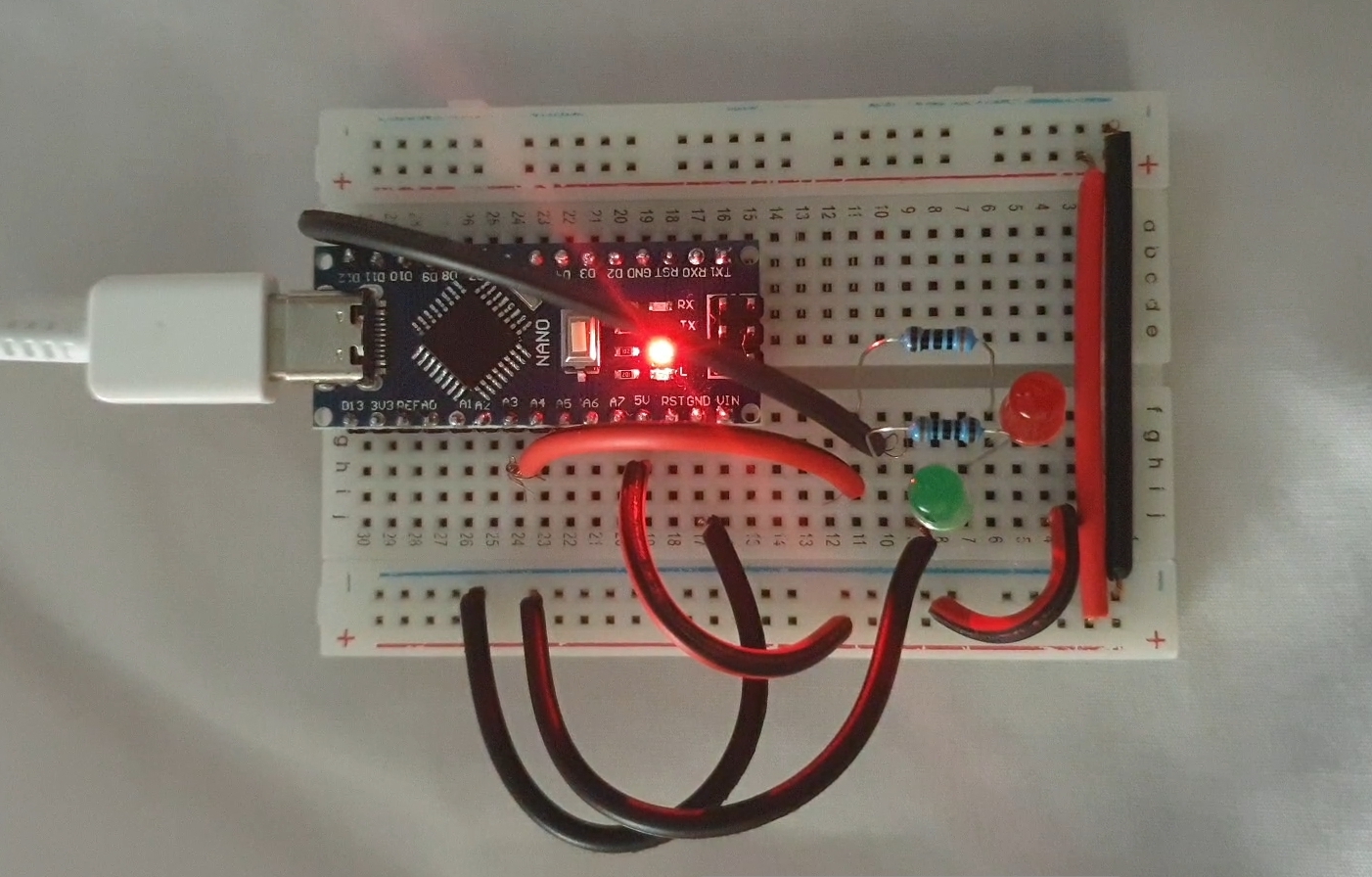
|
GIF of the Out-Put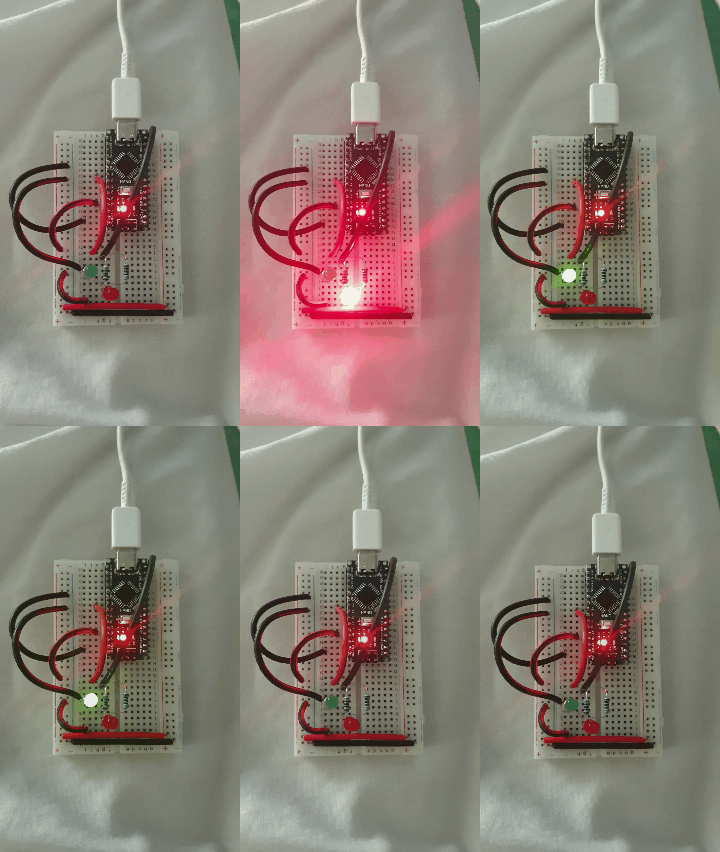 |
I am not sure if i will continue in this way or say “New Learning Curve”, The Coding and Commanding an Electronic-Bord to Work as my Application says .. THIS PART WAS WHAT LIT THE FUSE IN MY BRAIN.
:: ARDUINO PROJECTS LIST ::
| 3 | First Application |
| 2 | Code Editor, coding Blocks, learn Coding |
| 1 | Arduino, The Story, Components, Parts and What we will Do? |
To Download the ARDUINO Project [Code and Diagram] files Click-Here
By: Ali Radwani
Python Project: Properties Maintenance System P8
Subject: Writing a Full Application for Properties Maintenance System [Property: Delete a Record]
Learning : Python, Math, SQL, Logeic
[NOTE: To keep the code as simple as we can, We WILL NOT ADD any user input Varevecations. Assuming that our user will Enter the right inputs.]
In this part we will write a Function to Delete a record from the database, first we will call the def show_property(inside) to display all the records on the screen and ask the user to Select [enter] the ID of the Property to be Deleted. Next we will Display the Record again on the screen and ask the user to Confirm the Deleting by entering [Y] and any things else will be as [Don’t Delete]. Here is the code ..
 |
.. End of Part 8 ..
NOTE: If you Download this Part you MUST Run the Option 82 (82. Delete the Data-Base and Start Again.) from the Main Menu to do the following Updates:
- Update the properties_t Table (Adding the number of BathRooms)
- Update on create_tables Function.
- Update on insert_zero_records Function.
If you did this in last part (6) then you don’t need to do it again
In Part-9 In the Next Part, we will write the Function to Edit a record of a selected Property.
:: PMS Parts ::
| Part 1 | Part 2 | Part 3 | Part 4 |
| Part 5 | Part 6 | Part 7 | Part 8 |
..:: Have Fun with Coding ::.. 🙂
To Download my Python code (.py) files Click-Here
By: Ali Radwani
Python Project: Properties Maintenance System P7
Subject: Writing a Full Application for Properties Maintenance System [Property: Showing the Records in Main property Table]
Learning : Python, Math, SQL, Logeic
[NOTE: To keep the code as simple as we can, We WILL NOT ADD any user input Varevecations. Assuming that our user will Enter the right inputs.]
After adding Records to the Main Property Table, we need to display the records on the screen. So now in this part (Part -7) we will write a function to display all the records. The Function name will be def show_property() the function is not taking any attribute and is Not returning any things. First we will print-out the Table-Header then we will run an [SQL: select * from table-name] command to fetch all the records, then will [for loop] and test-format to print all the records on the screen. Here is the Code ..
 |
After i display the records, I notes that the Address-Column needs more than one row (in some cases), and it miss the line formating, so I wrote a function and call it def warp_text(tex,warp_on,nl_space) the function takes three arguments, the test: it the text/string you want to print.warp_on: is a number of character before the new-line.nl_space: is the number of white-character in the new-line.
Here is the Code ..
 # Function to warp

def warp_text(tex,worp_on,nl_space) :
    c = 0

    for t in range (len(tex)) :
        print(tex[t],end="")
        c += 1
        if c == worp_on :
            print('\n', ' '*nl_space, end="")
            c = 0
Check all the codes in the Download Page..
End of Part 7
NOTE: If you Download this Part you MUST Run the Option 82 (82. Delete the Data-Base and Start Again.) from the Main Menu to do the following Updates:
- Update the properties_t Table (Adding the number of BathRooms)
- Update on create_tables Function.
- Update on insert_zero_records Function.
If you did this in last part (6) then you don’t need to do it again
In Part-8 In the Next Part, after adding and showing the records we will write the Function to Delete a record from the Table.
:: PMS Parts ::
| Part 1 | Part 2 | Part 3 | Part 4 |
| Part 5 | Part 6 | Part 7 | Part 8 |
..:: Have Fun with Coding ::.. 🙂
To Download my Python code (.py) files Click-Here
By: Ali Radwani

Taking pictures is not my main daily practices, but when i start playing with my camera, i really enjoy my self.
Thanks for visiting my Space..


 Ali's Photography Space...