Archive
Python: Sorting Algorithm (1.Quick Sort)
Learning : SQL, Python, sqlite, DataBase
Subject: Testing the SQL Join commands using Python.
Sorting Algorithm is a way to sort a given list of numbers, there are several sorting Algorithm as follow:
Type of Sorting Algorithm
Quick Sort.
Bubble Sort.
Merge Sort.
Insertion Sort.
Selection Sort.
Heap Sort.
Radix Sort.
Bucket Sort.
Here in this post we will write a function to take a given list and sort it then pass it back. We assume the user will enter a serial of numbers, that he want to sort, our function will sort it and print out the original numbers and the sorted one.
Quick Sort Steps of Quick Sorting Algorithm are:
1 – Save the first element of the list as pivot. We will call it as pv .
2 – Define Two variables i and j. We will call them as fc, lc fc will be 0 (first element position in the list) and lc will be the length of the list.(last element position in the list) .
3 – Increment fc until the number in the list in fc position is smaller or equal to pv (the first element).
4 – Decrement lc until the number in the list in lc position smaller than pv.
until list[j] < pivot then stop.
5 – If fc less than lc then we swap the two elements in the location of fc and lc. (SWAP list[fc] and list[lc]).
7 – Exchange the pivot element with list[j] element.
Coding First we will write a sort Menu for the project, we will have tree items to select from, Quick Sort Algorithm – Fast Run and Quick Sort Algorithm – Step By Step This will show sorting details.
 # Main Menu

def main_menu ():
    os.system('clear')

    print('\n\n',' '*5,'******************************')
    print(' '*5,' ***','  Sorting Algorithm ',' '*1,'***')
    print(' '*5,' ***','     Quick Sort     ',' '*1,'***')
    print(' '*5,' ***',' '*22,'***')
    print(' '*5,' ******************************\n\n')

    print(' '*7,'1. Quick Sort Algorithm - Fast Run.')
    print(' '*7,'2. Quick Sort Algorithm - Step By Step.')
    print(' '*7,'9. Exit.')

    user_choice = input('\n   Select your choice.  > ')
    return user_choice
And this is the main code body that will call the menu and check the user selection ..
 # The Main application Body

while True:

    user_select = main_menu()

    if user_select == '1' :
        user_list = create_list()

        fpos = 0  # first position index
        lpos = len(user_list)-1  # last position index

        original_list = user_list
        print('\n   The original List is: ',original_list)

        user_sorted_list = quick_sort(user_list,fpos,lpos)

        print('\n   DONE .. We Finish Sorting .. ')
        print('   The Sorted List is: > ',user_sorted_list)
        input('\n   ...Press any key to continue.  ')

    if user_select == '2' :
        user_list = create_list()

        print('\n   We will show the Quick Sorting Step By Step... \n')
        fpos = 0  # first position index
        lpos = len(user_list)-1  # last position index
        original_list = user_list

        print('\n   The Original List is: ',original_list)
        user_list = quick_sort_details(user_list,fpos,lpos)

        print('\n   DONE .. We Finish Sorting .. ')
        print('   The Sorted List is: > ',user_list)
        input('\n   ...Press any key to continue.  ')

    if user_select == '9' :
        break
Also we will have a Function to take the List of Elements from the user, the user input will be as a string, we will convert it to an integer List and will return it back.. Here is the code ..
 # Create the List

def create_list():
    print('\n   Enter the List Elements separated by SPACE, when Finish just Press Enter.')
    the_list = input('\n   Start Entering the Numbers in the List. >  ')

    # Convert user input to List
    the_list = the_list.split()

    # Convert str list to int list
    the_list = [int(each) for each in the_list]

    return the_list
Now let’s write the Quick_sort function, then we will duplicaet it and add some print statements to show sorting steps. So first the code for Quick Sort Algorithm – Fast Run. Here is the code ..
Screen shot of the Quick Sort Algorithm – Fast Run. |
Running this Function will return the sorted list and display it on the screen, I thought it will be nice if we show the sorting process Step by Step, so I copy the same Function with adding some print-statement in-between .. here is the code and the run-output..
Screen shot of the Quick Sort Algorithm – Detail Run.
|
 |
End of Sorting Algorithm (1.Quick Sort)
To Download my Python code (.py) files Click-Here
By: Ali Radwani
Python Project: Disarium Number
Learning : Python to solve Mathematics Problems
Subject: Disarium Number
In Mathematics there are some formulas or let say rules that generate a sequence of given a certen result, and accordingly we gave that number or that sequence a name, such as even numbers, odd numbers, prime numbers and so on.
Here in this post we will talk about the Disarium Number and will write a code to check if a given number Disarium or Not.
Defenition: A Number is a Disarium if the Sum of its digits powered with their respective position is equal to the original number. Example: If we have 25 as a Number we will say: if (2^1 + 5^2) = 25 then 25 is Disarium.
So: 2^1 = 2, 5^2 = 25, 2+25 = 27; 25 NOT Equal to 27 then 25 is NOT Disarium.
Let’s take n = 175:
1^1 = 1
7^2 = 49
5^3 = 125
(1 + 49 + 125) = 175 thats EQUAL to n so 175 is a Disarium Number.
In the bellow code, we will write a function to take a number from the user the check if it is a Disarium Number or not. In this function we will print out the calculation on the screen. Let’s start by writing the function
# is_disarium function.
def is_disarium(num) :
    """
    Project Name: Disarium Number
    By: Ali Radwani
    Date: 2.4.2021
    """

    the_sum = []
    l = len(num)
    for x in range (0,l):
        print(num[x] , '^',x+1,'=', (int(num[x])**(x+1)))
        the_sum.append((int(num[x])**(x+1)))

    if int(num) == sum(the_sum) :
        print ("\n   The sum is {}, and the original Number is {} So {} is a Disarium Number.".format(sum(the_sum),num,num))
    else:
        print ('\n   The sum is {}, and the original Number is {} So it is NOT Disarium.'.format(sum(the_sum),num))


num = input('\n   Enter a Number to check if it is Disarium. > ')

# Call the function and pass the num.
is_disarium(num)
 |
To Download my Python code (.py) files Click-Here
By: Ali Radwani
Python: My Orders Tracker P-4
Learning : Pythn, sqlite, Database, SQL
Subject: Create a system to track the orders
In this last part we will write the code to Edit an Order, in editing an order function first we will show all orders and will ask the user to select the one to be EDIT, then we will display that order detail on the screen and ask the user to confirm the action by entering ‘Y’ [our code will handel both y and Y]. We will ask the user about each attribute in the Order details if it need to be change or [Just press Enter to Keep the Current Data], also if the user enter ‘e’ or ‘E’ we will exit from the Editing mode.
Here is the code ..
# Function to Edit an Order

def edit_order():
    os.system('clear')
    print("\n==========[ Edit Orders ]==========")

    show_order('yes')

    edit_order = input('   Select the Order ID to be Edited. [E to Exit] > ')

    if edit_order in ['e','E'] :
        return
    elif not edit_order.isnumeric() :
        input('\n   You need to enter an Order''s ID [Numeric]. .. Press any Key .. ')
        return

    try:

        c.execute ("select * from orders where o_id ={}".format(edit_order))
        order_list = c.fetchone()

        if order_list == [] :
            input('\n   ID {} Not Exsist. .. Press any key to continue.  '.format(edit_order))
            return

        os.system('clear')
        print("\n==========[ Edit Orders ]==========\n")
        print('\n   Details of the Order you select:\n ')

        print(" "*15,"ID: ",order_list[0])
        print(" "*13,"Date: ",order_list[1])
        print(" "*5,"Order Number: ",order_list[2])
        print(" "*12,"Price: ",order_list[4])
        print(" "*9,"Quantity: ",order_list[5])
        print(" "*3,"Shipment Price: ",order_list[6])
        print(" "*7,"Total Cost:  {:.2f}".format((order_list[4]*order_list[5]) + order_list[6]))
        print(" "*6,"Description: ",order_list[3])
        print(" "*12,"Image:",order_list[8])
        print(" "*13,"Link:",order_list[7])

        user_confirm = input("\n\n   You Select to EDIT the above Order, Enter Y to confirm, E to Exit. > ")
        if user_confirm in ['e','E'] :
            input('\n   You entered ''E'' to Exit. Nothing  will be change. Press any key. ')
            return

        if user_confirm in ['y','Y'] :
            #To Edit the order..

            print("#"*57)
            print("##"," "*51,"##")
            print("##   NOTE: Enter E any time to EXIT/Quit."," "*12,"##")
            print("##     OR  JUST Press Enter to keep the Current data."," ##")
            print("##"," "*51,"##")
            print("#"*57,)

            while True :

                new_date = input (f'\n   The current date is: {order_list[1]}, Enter the New date as[dd-mm-yyyy] > ')

                if e_to_exit(new_date) =='e' : return
                if new_date =="" : break   # Break the while loop if the user want to keep the current Date.

                if date_validation (new_date) == 'valid' :
                    break
                else :
                    print(date_validation (new_date))


            new_onum = input (f'\n   The current Order Number is: {order_list[2]}, Enter the New Order Number. [E to Exit]. > ')
            if e_to_exit(new_onum) =='e' : return

            new_qunt = input (f'\n   The current Quantity is: {order_list[5]}, Enter the New Quantity. [E to Exit]. > ')
            if e_to_exit(new_qunt) =='e' : return

            new_price = input (f'\n   The current Price is: {order_list[4]}, Enter the New Price. [E to Exit]. > ')
            if e_to_exit(new_price) =='e' : return

            new_ship_price = input (f'\n   The current shipment Price is: {order_list[6]}, Enter the New Quantity. [E to Exit]. > ')
            if e_to_exit(new_ship_price) =='e' : return

            new_link = input (f'\n   The current link is: {order_list[7]}, Enter the New Link. [E to Exit]. > ')
            if e_to_exit(new_link) =='e' : return

            new_image = input (f'\n   The current Image is: {order_list[8]}, Enter the New Image (path). [E to Exit]. > ')
            if e_to_exit(new_image) =='e' : return


            new_desc = input (f'\n   The current Description is:\n     {order_list[3]}.\n\n      Enter the New Description. [E to Exit]. > ')
            if e_to_exit(new_image) =='e' : return


            # Updating the record in the DataBase.
            if new_date > '' and new_date != "e" :
                c.execute("update orders set order_date = '{}' where o_id = {}".format(new_date,int(order_list[0])))
                db_conn.commit()

            if new_onum > '' and new_onum != "e" :
                c.execute("update orders set order_num = '{}' where o_id = {}".format(new_onum,int(order_list[0])))
                db_conn.commit()

            if new_qunt > '' and new_qunt != "e" :
                c.execute("update orders set order_quantity = '{}' where o_id = {}".format(new_qunt,int(order_list[0])))
                db_conn.commit()

            if new_price > '' and new_price != "e" :
                c.execute("update orders set order_price = '{}' where o_id = {}".format(new_price,int(order_list[0])))
                db_conn.commit()

            if new_ship_price > '' and new_ship_price != "e" :
                c.execute("update orders set order_price = '{}' where o_id = {}".format(new_ship_price,int(order_list[0])))
                db_conn.commit()

            if new_link > '' and new_link != "e" :
                c.execute("update orders set order_link = '{}' where o_id = {}".format(new_link,int(order_list[0])))
                db_conn.commit()

            if new_image > '' and new_image != "e" :
                c.execute("update orders set order_img = '{}' where o_id = {}".format(new_image,int(order_list[0])))
                db_conn.commit()

            if new_desc > '' and new_image != "e" :
                new_desc = " ".join([word.capitalize() for word in new_desc.split(" ")])

                c.execute("update orders set order_desc = '{}' where o_id = {}".format(new_desc,int(order_list[0])))
                db_conn.commit()

            input('\n   One record has been EDITED and Saved... \n      ... Press any key to Continue ...')

        else:
            input('\n      Wrong input ... Press any key to continue ..')

    except:
        pass
[All the System Codes available in Download Page.]
Finish: Now we have an application that will store and retrieve our simple order data.
Enhancement: We can do some enhancement in [link and image] data part to show and display them in better way.
| Part 1 | Part 2 | Part 3 | Part 4 |
To Download my Python code (.py) files Click-Here
By: Ali Radwani
Python: My Orders Tracker P-3
Learning : Pythn, sqlite, Database, SQL
Subject: Create a system to track the orders
In this part we will write the code to Delete an Order that we have from our system, also we will add some validations on the user input, like if the user enter something not from the menu, or to do so, first we will re-call the show_orders() function that we have and passing the ‘yes’ parameter which means we are calling the function from inside another function [we will not print the function header, and will not clear the screen]. Then we will ask the user to select/Enter the ID of the order to be Deleted, after that we will print tha order details again on the screen and ask the user to confirm Deleting command by entering ‘Y’ … thats it.. let’s write the code..
# Delete Order

def del_order():
    os.system('clear')
    print("\n==========[ Delete Orders ]==========\n")

    show_order('yes')

    del_order = input('   Select the Order ID to be Deleted. [E to Exit] > ')

    if not del_order.isnumeric() :
        input('\n   You need to enter an Orders ID [Numeric]. .. Press any Key .. ')
        return

    elif del_order in ['e','E'] :
        return

    try:
        c.execute ("select * from orders where o_id ={}".format(del_order))
        order_list = c.fetchone()

        if order_list == [] :
            input('\n   ID {} not exsist.'.format(del_order))
            return

        os.system('clear')
        print("\n==========[ Delete Orders ]==========\n")
        print('\n   Details of the Order you select:\n ')

        print("   ID: ",order_list[0])
        print("   Date: ",order_list[1])
        print("   Order Number: ",order_list[2])
        print("   Price: ",order_list[4])
        print("   Quantity: ",order_list[5])
        print("   Shipment Price: ",order_list[6])
        print("   Total Cost: {:.2f}".format((order_list[4]*order_list[5]) + order_list[6]))
        print("\n   Description:",order_list[3])
        print("   Image:",order_list[8])
        print("   Link:",order_list[7])

        user_confirm = input("\n\n   You Select to DELETE the above Order, Enter Y to confirm, E to Exit. > ")
        if user_confirm in ['y','Y'] :
            #To Delete the order..
            c.execute ("delete from orders where o_id ={}".format(int(del_order)))
            db_conn.commit()

            input('\n   One record has been DELETED ... \n      ... Press any key to Continue ...')

        elif user_confirm in ['n','N']:
            input("\n    You select not to DELETE any thing.   Press any key to Continue .. ")

        elif user_confirm in ['e','E']:
            input("\n    You select stop the process and EXIT.    ... Press any key to Continue .. ")
            return

        else:
            input('\n      Wrong input ... Press any key to continue ..')

    except:
        pass
The user select #3 from the menu to Delete an Order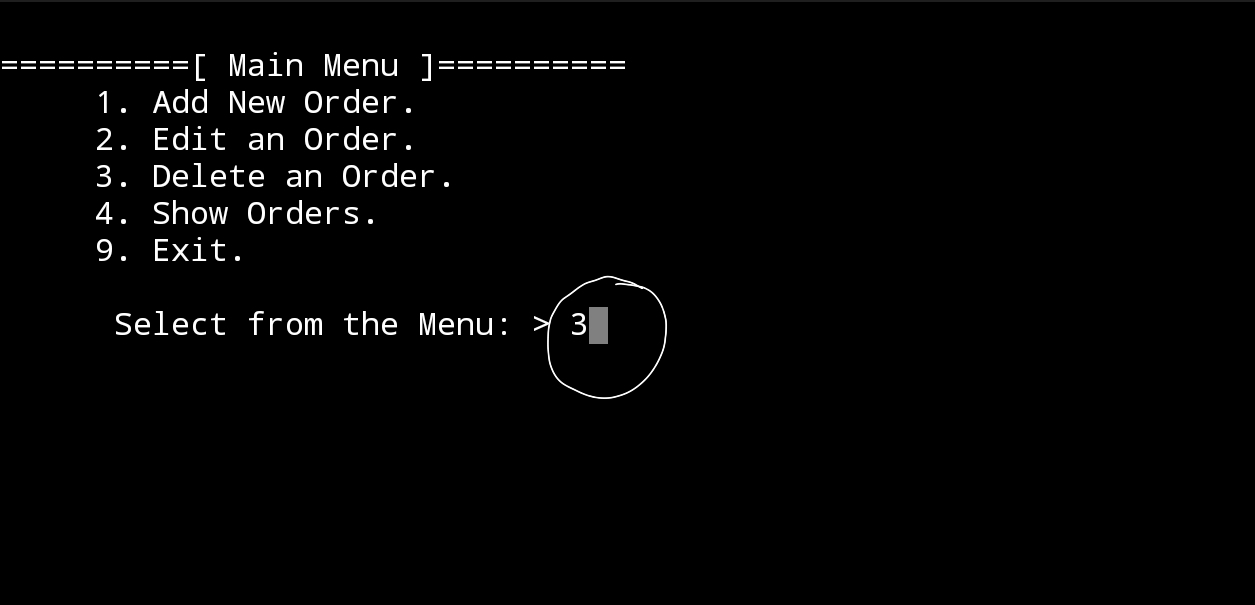 |
The screen display the list of orders we have in the system, and the user select Order ID Number 3 to delete it. |
The screen display the details of the order ID 3 and ask the user to confirm the deleting by entering ‘Y’ |
In Next Post: In the coming post P4 , we will write the codes to Edit an order information.
| Part 1 | Part 2 | Part 3 | Part 4 |
To Download my Python code (.py) files Click-Here
By: Ali Radwani
Python: My Orders Tracker P-1
Learning : Pythn, sqlite, Database, SQL
Subject: Create a system to track the orders
Overview:
To track and manage the orders we making through the Internet, we will use the SQlite DateBase to store the data and Python to write the code.
Data we collect:
We will collect the following: order_date, order_ID, order_desc, order_price, shipment_price, order_quantity, order_link, order_img,
Functions: In this project we will create several functions related to the Order Management such as
– Add new Order.
– Edit an Order.
– Delete an Order.
– Show the orders.
Also we will use some of our older functions like date validation.
In Part 1:
– We will set-up the database, create the connection.
– We will create wote the code to create the table, and insert the zero-record.
– We will create the functions names, and the Main-Menu.
So, first code in this part is to import sqlite3, os
then, we will write the database connection as the commeing code:
# Create the data-base and name it as myorders.
db_conn = sqlite3.connect (“myorders.db”)
# set the connection.
c = db_conn.cursor()
Then, we will start writing the the code for the main menu and the functions names that we may have in the application, as in all our systems we will have the three most used function to Add, Edit and Delete the an Order, also we need to show the orders in our system/database, we also will use other function that will help us to Validate the user input such as Date-Validating.
Now, we will start to write the code, first the Main-Menu:
# The Main Menu

def main_menu():
    os.system('clear')
    print("\n==========[ Main Menu ]==========")
    print('     1. Add New Order.')
    print('     2. Edit an Order.')
    print('     3. Delete an Order.')
    print('     4. Show Orders.')
    print('     9. Exit.')

    user_choice = input("\n      Select from the Menu: > ")

    # we will return the user choice.
    return user_choice
Now, we will have the all functions name with header code.
# All functions names with Header


def add_order():
    os.system('clear')
    print("\n==========[ Add New Order ]==========")
    input('\n      Press any key to Contenu..')

def edit_order():
    os.system('clear')
    print("\n==========[ Edit an Order ]==========")
    input('\n      Press any key to Contenu..')

def del_order():
    os.system('clear')
    print("\n==========[ Delete an Order ]==========")
    input('\n      Press any key to Contenu..')

def show_order():
    os.system('clear')
Last thing in this part, we will write the main while function in the body part that will call the Main_Menu and keep the user in the application until he/she select number 9 in the menu that mean Exit.
# running the menu and waiting for the user input.


while True :

    user_select = main_menu()

    if user_select == '1' :
        add_order()

    elif user_select == '2' :
        edit_order()

    elif user_select == '3' :
        del_order()

    elif user_select == '4' :
        show_order()

    elif user_select == '9' :
        print('\n\n   Thank you for using this Appliation. ')
        break

    else :
        input('\n   Select Only from the list..  Press any key and try again..')
In Next Post: In the coming post P2, we will write the codes for the Add new Order to the system also to Show the list of orders we have in the databse.
| Part 1 | Part 2 | Part 3 | Part 4 |
To Download my Python code (.py) files Click-Here
By: Ali Radwani
Python: Data Visualization Part-2
Learning : python, pygal, Data Visualization,Line Chart
Subject: Data visualization using pygal library
In this post we will talk about Line-chart using pygal library in python, Line-chart has three sub-type as: Basic, Stacked ,Time. We will use the data-set for Average age of Males and Females at first Marage during 6 yeaars (2000 and 2006), the code line to set the data data will be as :
line_chart.add(‘Females’,[22,25,18,35,33,18])
line_chart.add(‘Males’, [30,20,23,31,39,44])
Line-chart: Basic
This is very normal and basic chart we use in all reports, we are feeding the data for Males and Females average age in first marage.. here is the code and the output ..
import pygal

line_chart = pygal.Line()

line_chart.add('Females',[22,25,18,35,33,18])
line_chart.add('Males', [30,20,23,31,39,44])

line_chart.x_labels=map(str,range(2000,2006))

line_chart.title = "Males and Females first Marage Age (average)"

line_chart.render()
 |
Line-chart: Stacked Line Stacked chart (fill) will put all the data in top of each other. Here is the code.
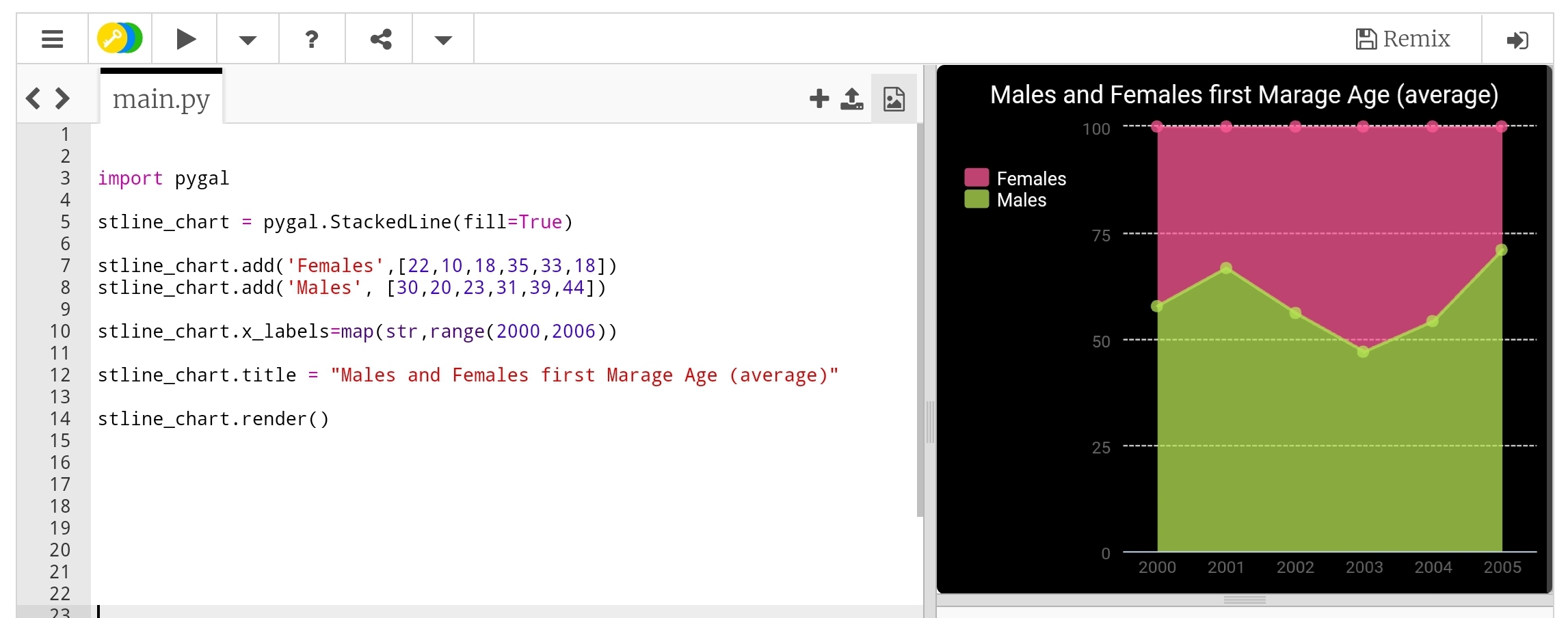 |
Line-chart: Time Line Last type just to add or format the x_lables of the chart, we can use lambda function to do this (we can use lambda function with any other chart types), here we will do two example, one is using full time/date and another just write the month-year as string and will use the lambda function to calculate second data-set of Tax’s based on the salary amount..
import pygal
from datetime import datetime, timedelta

d_chart = pygal.Line()

d_chart.add('Females',[22,25,18,35,33,18])
d_chart.add('Males', [30,20,23,31,39,44])

d_chart.x_labels = map(lambda d: d.strftime('%Y-%m-%d'), [
 datetime(2000, 1, 2),
 datetime(2001, 1, 12),
 datetime(2002, 3, 2),
 datetime(2003, 7, 25),
 datetime(2004, 1, 11),
 datetime(2005, 9, 5)])

d_chart.title = "Males and Females first Marage Age (average)"

d_chart.render()
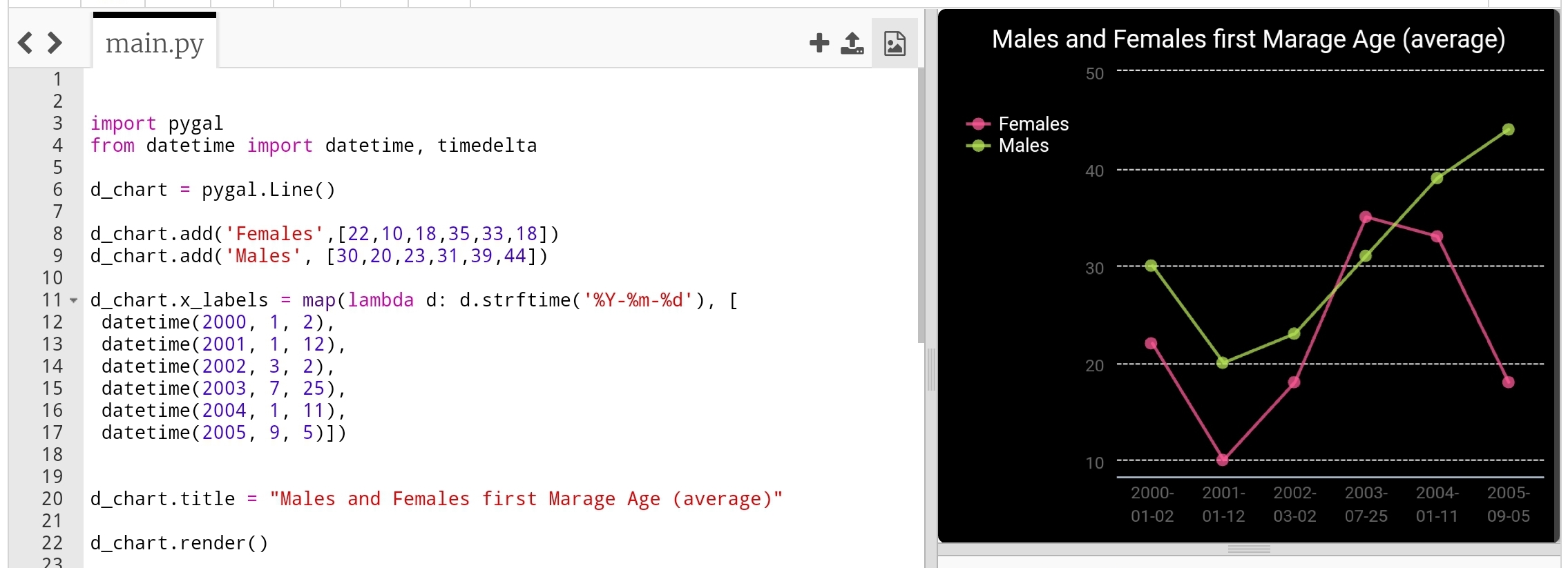 |
To give better example of using lambda function, we will say: we have a salaries for 6 years (May-2000 to May-2006) and a Tax of 0.25, we will let the lambda function to calculate the Tax amount for each salary. Here is the code ..
 # Using lambda to calculate Tax amount

import pygal

d_chart = pygal.Line()

d_chart.add('Salary', [550,980,1200,1800,2200,3500])

d_chart.add('Tax',map(lambda t: t*0.25, [550,980,1200,1800,2200,3500]))
d_chart.x_labels = map(str,(
  'May-2001','May-2002',
  'May-2003','May-2004',
  'May-2005','May-2006'))

d_chart.title = "Salary and Tax (0.25) payment in 6 years"

d_chart.render()
 |
Next we will talk about Histogram chart.
:: Data Visualization using pygal ::
| Part-1Bar-Chart | Part-2 Line Chart | Part-3 | Part-4 |
By: Ali Radwani
Python: Data Visualization Part-1
Learning : python, pygal, Data Visualization, Bar Chart
Subject: Data visualization using pygal library
pygal is a Data Visualization library in python to help us showing our Data as a graph. In coming several posts we will discover and learn how to use the pygal library in simple and easy configuration and style.
First we need to install pygal packeg, to do so write this:
pip install pygal
Now we need some Data to show, in this leson I am using aGalaxy Tab S4, so all the codes will be tested and applyed on trinket.io website [trinket.io alow us to use pygal package online so we don’t need to install it on our divice]
Type of Chart:
pygal has several types of charts that we can use, here we will list them all then in coming posts will use each one with simple data. So what we have:
Line, Bar, Histogram, XY, Pie, Radar, Box, Dot, Funnel, SolidGauge, Gauge, Pyramid, Treemap, Maps
Some of those charts has a sub-types such as in Bar char we have: Basic, Stacked and Horizontal. Also for each chart we can add a title and labels and we can use some styles.
So let’s start ..
First we will go for the Bar chart, and we have three sub-types as Basic, Stacked and Horizontal.
First chart: Bar chart:
In this part we will demonstrate the Bar Chart, it has three sub-types as Basic, Stacked and Horizontal.
We assume that our data is the Males and Female ages on first marage, the data will be as dictionary (later we will see how to customize each bar)
 # Basic Bar Chart using pygal

import pygal
bar_chart = pygal.Bar() # To create a bar graph object
bar_chart.add('Females', [22,25,18,35,33,18])
bar_chart.add('Males', [30,20,23,31,39,44])

bar_chart.title = "Males and Females First Marage Age"
bar_chart.x_labels=(range(1,6))

bar_chart.render()
Sample code for Basic bar chart |
Another sub-type in Bar chart is Horizontal-Bar, it is semelar to the Basic but as if fliped 90 degree. Here is the code ..
 # Horizontal Bar Chart using pygal

import pygal

# HorizontalBar()
HBar = pygal.HorizontalBar()
HBar.add('Females', [22,25,18,35,33,18])
HBar.add('Males', [30,20,23,31,39,44])

HBar.title = "Males and Females First Marage Age"

HBar.x_labels=(range(1,6))

HBar.render()
Sample code for Horizontal Bar chart |
Last sub-type in Bar chart is Stacked Bar were all data of each element will be in one bar. Here is the code and example..
 # Stacked Bar Chart using pygal

import pygal
# StackedBar()
stackedbar = pygal.StackedBar()
stackedbar.add('Females', [22,25,18,35,33,18])
stackedbar.add('Males', [30,20,23,31,39,44])
stackedbar.x_labels=(range(1,0))
stackedbar.title = "Males and Females First Marage Age"

stackedbar.render()
If we say we have another data-set as “age in First-Divorces” and we want to add this set to the Stacked Bar chart, then we first will create the data-set as:
stackedbar.add(‘Divorses’, [35,22,45,33,40,38])
and we will arrange the code line to be at top,middle or bottom of the bar. Here is the code..
Sample code for stacke Bar chart with Divorce data
|
Next we will talk about Line chart.
:: Data Visualization using pygal ::
| Part-1Bar-Chart | Part-2 | Part-3 | Part-4 |
By: Ali Radwani
Library System with Excel -P4
Learning :Excel formulas and VBA Cods
Subject: To Develop a Library System with Excel
In last post we wrote all the codes needed to Manage the Authors.
In this part we will do all the coding needed to enter New Books and Edit or Delete anyone we select, in Classifications and Authors we were dealing with one attribute, but here with Books Manage form we have several pieces of information to collect from the user such as [Book Title, Book Author, Book Classification, Publish date, Notes, Book Language ]. So first let’s design the form..
1. Open the Books sheet
2. Change the color of the range(B6:E24)
3. In Cell B6 write “Select a Book to Edit or Delete”, Color and format it as you want.
4. In Cell H6 write “Books Form”, Color and format it as you want.
5. Color and format the Range (B6:L26) as you want.
6. Create three rectangular shapes as New, Delete, and Save buttons.
7. Create another three small rectangular shapes write “+” inside them.
5. We need to create a ListBox name it “books_ListBox 4”.
6. Arrange everything as in the image.
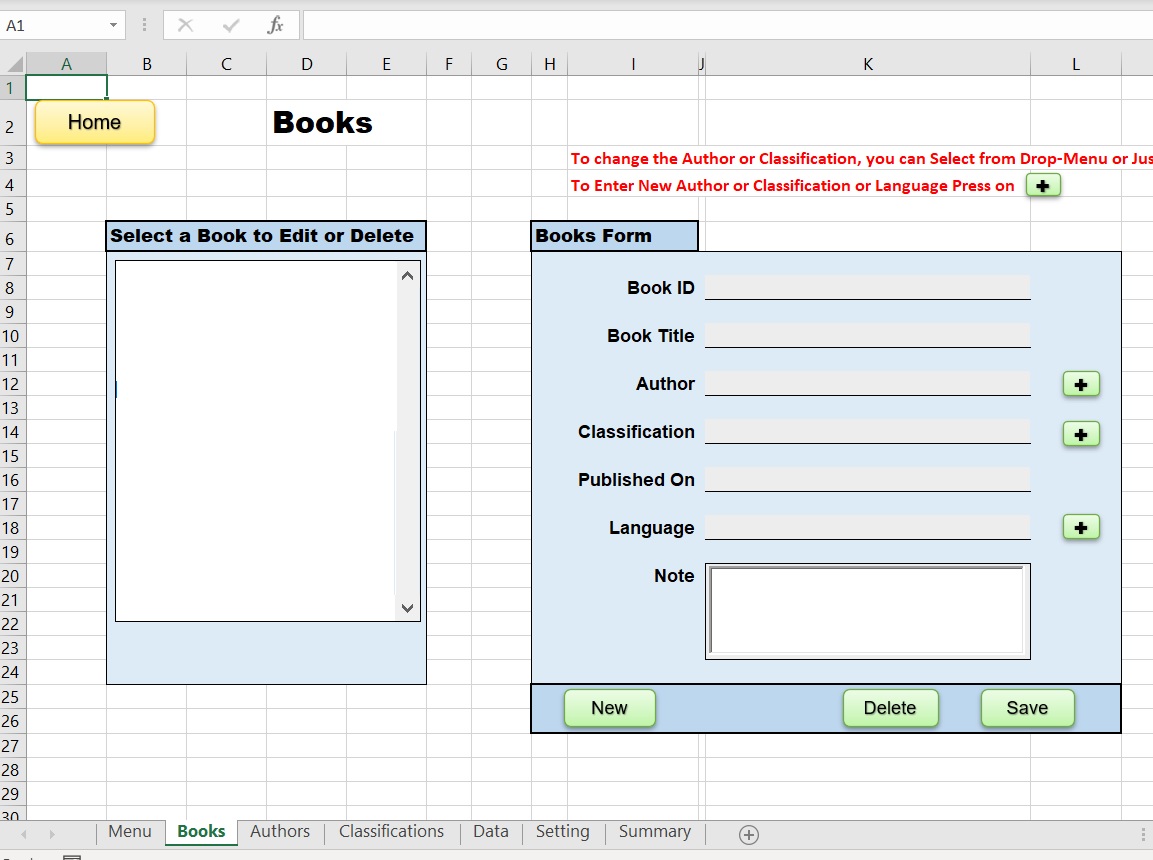 |
Now move to the “setting” sheet and write the following: B4:Books, B5:current_book, C5:1, B6:mode, C6: edit.
Then in the “Data” Sheet starting from A1 write the following:
A1:Books Data, B1:BookTitle, C1:book_author, D1:class, E1:Published, F1:Note, G1:lang
A2:ID, B2:Title, C2:Author, D2:Class, E2:Published, F2:Note, G2:language
CODING:
To copy the list of the Books we have into the books_ListBox 4 we create:
1.1 From the Menu go to Formulas and click on Name Manager.
1.2 From the pop-up screen click on New, then write books_list in Name, and =OFFSET(Data!$B$3,,,COUNTA(Data!$B:$B)) in Refers to.
2.1. Select books_ListBox 4 on the Books sheet.
2.2. Right-click the mouse, and select FormatControl.
2.3. Goto Control Tab, and in Input range write: books_list, and in Cell link write Setting!$C$5 then press OK.
Now the listBox will contain the Books we have in the Books table in Data Sheet. (If we have any Data there)
3. Data Validation: We need to create Data Validation-list in the cells K12: for Authors list, K14: for Classifications list and K18: for Language list.
1. Select K12, from Data-menu click on Data-validation, select List then in the source type this: =OFFSET(Data!$K$3,,,COUNTA(Data!$K:$K))
2. Select K14, from Data-menu click on Data-validation, select List then in the source type this: =OFFSET(Data!$P$3,,,COUNTA(Data!$P:$P))
3. Select K18, from Data-menu click on Data-validation, select List then in the source type this: =OFFSET(Data!$M$3,,,COUNTA(Data!$M:$M))
book_new_Click() In this function we will Clear all cells [k8, k10,k12,k14,k16,k18, K20] also the note_TextBox1 and will change the cell C6 in Setting Sheet to “new”. Here is the code..
‘ Clear all cells.
Sheets(“Books”).Range(“K8”).Value = “” ‘ID/number
Sheets(“Books”).Range(“K10”).Value = “” ‘Title
Sheets(“Books”).Range(“K12”).Value = “” ‘Author name
Sheets(“Books”).Range(“K14”).Value = “” ‘classification
Sheets(“Books”).Range(“K16”).Value = “” ‘published date
Sheets(“Books”).Range(“K18”).Value = “” ‘language
Sheets(“Books”).Range(“K20”).Value = “” ‘note
Sheets(“Books”).note_TextBox1 = “”
‘ change book mode to “new”
Sheets(“setting”).Range(“c6”).Value = “new”
Sheets(“Books”).Range(“K8”).Select
End Sub
now in the Books sheet select the button “New” we create and assign the “book_new_Click” macro to it.
book_save_Click() The Save function will have tow parts, if the user click on New then we will have:
Sheets(“setting”).Range(“C6”).Value = “new” in this case we will copy all the Book Data from Range(“K8”),Range(“K10”),Range(“K12”),Range(“K14”),Range(“K16”),Range(“K18”) and the value of the note_TextBox1 to the Data sheet under Boos Table, then will empty all the range in the book form, also will pop-up a MsgBox ” One New Book has been Added.”.
if Sheets(“setting”).Range(“C6”).Value = “edit” in this case we will get the current selected book location by selected_book = Sheets(“setting”).Range(“C5”).Value + 2 then re-copy the book data from the form to the Book Table in the Data Sheet and pop-up MsgBox ” One Book Data has been Updated.”.
In Books form we have also three + buttons next to Author, Classification and Language cells, if the user did not find say the Author in the list then he/she can add new one by clicking on the +
Edit Book Data: The user can select any Book from the Book List on the left-hand list then it’s Data will show-up in the form, the user then can change any of the Book-Data and press on Save.
book_delete_Click() The user will select the Book to de deleted then click on “Delete” button, a massage will pop-up to make sure that Book will be DELETED, if the user confirm the cation (press OK) we will run this line of code:
‘To get the book row number.
selected_book = Sheets(“setting”).Range(“C5”).Value + 2
‘To delete the book row
Sheets(“data”).Range(“A” & selected_book & “:G” & selected_book).Delete Shift:=xlUp
Pressing the (+) button: We have three (+) buttons in this form to add New Authors, Classifications, and Languages if not exist in the list; for example, if the user couldn’t find the Author of the Book (he/she want to enter to the system) pressing the (+) will pop-up a dialog box to Enter New Author and the same for classification and Language. Here is the code..
Sheets(“Books”).Range(“K12”).Value = “”
new_author_name = InputBox(“Enter a New Author Name and Click OK:”, “:: New Author :: “)
‘if we add new author then save it.
If new_author_name > “” Then
‘ Get next empty row
next_row = Sheets(“Data”).Range(“K” & Rows.Count).End(xlUp).Offset(1).Row
Sheets(“Data”).Range(“K” & next_row) = new_author_name
Sheets(“Books”).Range(“K12”).Value = new_author_name ‘Author name
Sheets(“setting”).Range(“F6”).Value = “still”
‘ To Sort the Authors list
next_row = Sheets(“Data”).Range(“K” & Rows.Count).End(xlUp).Offset(1).Row
Sheets(“Data”).Range(“K3:K” & next_row – 1).SortSpecial SortMethod:=xlPinYin
End If
Sheets(“Books”).Range(“K12”).Select
End Sub
End of Part-4
Recap this part:
1. We Create the Books header Tabke.
2. We Create a form to collect the Books from the user.
3. We Create the Books ListBox.
4. We wrote the VBA code to Save, Delete, and Create New Book also to retrieve the Books information into Books ListBox.
5. We let the user to Enter New Author, classification, Language into the system through a dialog box.
:: Library System with Excel ::
| Part 1 | Part 2 | Part 3 | Part 4 | Part 5 |
To Download EXCEL (.xlsm) files Click-Here
By: Ali Radwani
Python: Spirograph
Learning : Python
Subject: Writing Python codes to generate Spirograph Art
Writing codes to draw always funny time for me, playing around numbers, changing attributes to get something new and changing it again .. and again ..
In this post, we will write a code to draw some spirograph shapes, easy and shrort code will do the job. So lets Start ..
We will use Python Library turtle to draw, and will write one Function call it def draw_it(h,sz,ang) will take three arguments: h:number of heads, sz: size, ang: angle, then we will call this function to draw our Spirograph Art.
Code:
First we will set-up the turtle:
# turtle set-up
import turtle
t = turtle.Turtle()
t.shape("dot")
t.speed(0)

t.hideturtle()
Then here is the main Function to draw our graphs
# draw_it() function

def draw_it(h,sz,ang) :
  c = 0
  while True :
    for i in range (h) :
      t.forward(sz)
      t.right(360/h)

    t.right(ang)
    c +=1
    if c >=360/ang :
      break
Then we call the function and pass the parameters, I tried several combinations and will include them in the source file in Download section. Here are some out-puts.
| Calling: t.pencolor(‘lightgray’) draw_it(19,19,19) t.pencolor(‘gray’) draw_it(17,17,17) t.pencolor(‘black’) draw_it(15,15,15) 
|

|
 |
Hope you enjoy, have fun and change the numbers to get new shapes ..
To Download my Python code (.py) files Click-Here

By: Ali Radwani
Library System with Excel -P3
Learning :Excel formulas and VBA Cods
Subject: To Develop a Library System with Excel
In last post we wrote all the codes needed to Manage the Classifications.
In this part we will do all the coding needed to enter the Authors and Edit or Delete anyone we select, so first we will go to the “setting” sheet and will write the following: E5:current_author, F5:1, E6:mode, F6: edit as in the image.
 |
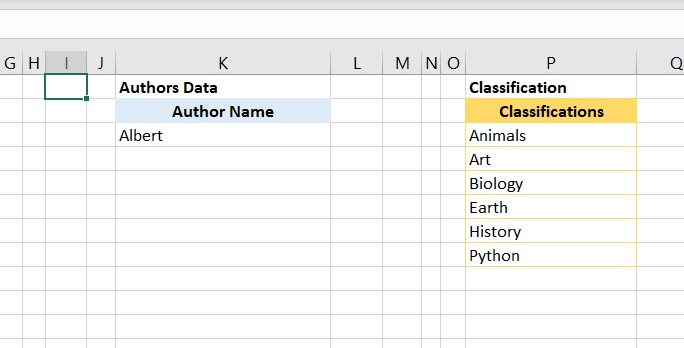
Now in the “Data” sheets, we create a table with “Author Name” header on range K2, then enter any Autor name such as “Albert” as in the image.
 |
Now, we move to “Authors” Sheet and do the following:
1. In Cell B6 write “Select an Author to Edit or Delete”, Color and format it as you want.
2. In Cell H6 write “Authors Form”, Color and format it as you want.
3. Color and format the Range (B6:E19) and the Range (H6:K13) as you want.
4. Create three rectangular shapes as New, Delete, and Save buttons.
5. We need to create a ListBox name it “authors_ListBox1”.
6. Arrange everything as in the image.
 |
CODING:
To copy the list of the Authors we have into the ListBox:
1.1 From the Menu goto Formulas and click on Name Manager
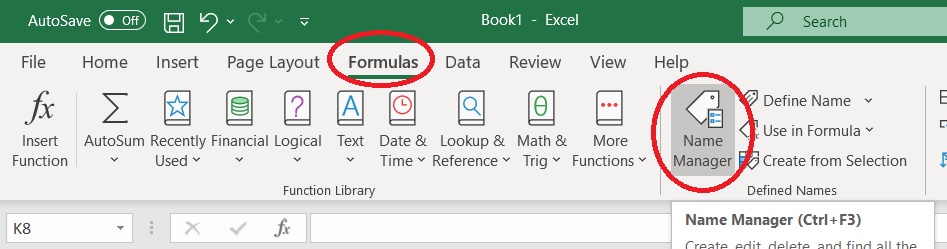 |
1.2 From the pop-up screen click on New, then write author_list in Name, and =OFFSET(Data!$K$3,,,COUNTA(Data!$K:$K)) in Refers to [as in image]
 |
2.1. Select the ListBox in the Authors sheet.
2.2. Right-click the mouse, and select FormatControl.
2.3. Goto Control Tab, and in Input range write: author_list, and in Cell link write Setting!$F$5 then press OK.
Now the listBox will contain the Authors we have in the Author list in Data Sheep. … [SEE THE IMAGE]
 |
ListBox Code:
Now we will write a three lines of code to take action when we select any things in this box, so select the ListBox, click right-mouse-button, select “Assinge Macro, then the VBA application will start and write the foloing code:
selected_author = Sheets(“Setting”).Range(“F5”).Value + 2
Sheets(“authors”).Range(“j9”).Value = Sheets(“data”).Range(“K” & selected_author)
Sheets(“Setting”).Range(“F6”).Value = “edit”
End Sub
Buttons Codes:
1. While in Authors sheet, select the rectangular shape named “New”, click right-mouse-button, select “Assinge Macro, then the VBA application will start and we will write this code:
Sheets(“authors”).Range(“J9”).ClearContents
Sheets(“Setting”).Range(“F6”).Value = “new”
Sheets(“Authors”).Range(“J9”).Select
End Sub
2. While the VBA application is on, we will write all the codes we need for Edit and Delete buttons and then will assign the macros:
author_delete_Click
If Not Sheets(“setting”).Range(“F5”).Value Then
MsgBox “Nothing selected to be Deleted..”
Exit Sub
End If
answer = MsgBox(“Are you sure you want to DELETE this Author?.”, vbQuestion + vbYesNo)
If answer = vbYes Then
current_select = Sheets(“setting”).Range(“F5”).Value + 2
Sheets(“Data”).Range(“K” & current_select).ClearContents
next_row = Sheets(“Data”).Range(“K” & Rows.Count).End(xlUp).Offset(1).Row
Sheets(“Data”).Range(“K3:K” & next_row – 1).SortSpecial SortMethod:=xlPinYin
authors_ListBox1_Change
MsgBox “One Author has been Deleted..”
Else
MsgBox “OK, Nothing will be changed.”
End If
End Sub
author_save_Click
If Sheets(“authors”).Range(“J9”).Value = Empty Then
MsgBox “There is no Author Name to Save.”
Exit Sub
End If
If Sheets(“Setting”).Range(“F6”).Value = “new” Then
‘ Get next empty row
next_row = Sheets(“Data”).Range(“K” & Rows.Count).End(xlUp).Offset(1).Row
‘ copy the new classification to the data-table
Sheets(“authors”).Range(“j9”) = StrConv(Sheets(“authors”).Range(“J9”), vbProperCase)
Sheets(“Data”).Range(“K” & next_row).Value = Sheets(“Authors”).Range(“J9”)
‘ Empty the form
Sheets(“Authors”).Range(“J9″).ClearContents
MsgBox ” One New Author Name Saved.”
‘ To Sort the classifications
next_row = Sheets(“Data”).Range(“K” & Rows.Count).End(xlUp).Offset(1).Row
Sheets(“Data”).Range(“K3:K” & next_row – 1).SortSpecial SortMethod:=xlPinYin
authors_ListBox1_Change
Exit Sub
End If
If Sheets(“setting”).Range(“F6”).Value = “edit” Then
selected_author = Sheets(“Setting”).Range(“F5”).Value + 2
Sheets(“authors”).Range(“J9”) = StrConv(Sheets(“authors”).Range(“J9”), vbProperCase)
Sheets(“data”).Range(“K” & selected_author) = Sheets(“authors”).Range(“J9″).Value
MsgBox ” One Author Name Changed.”
‘ Sort the Authors Name
next_row = Sheets(“Data”).Range(“K” & Rows.Count).End(xlUp).Offset(1).Row
Sheets(“Data”).Range(“K3:K” & next_row).SortSpecial SortMethod:=xlPinYin
authors_ListBox1_Change
Exit Sub
End If
End Sub
In the Save code we re-sort the data in the ListBox. Here is a part of the code we use to do so:
‘ Sort the Authors Name
next_row = Sheets(“Data”).Range(“K” & Rows.Count).End(xlUp).Offset(1).Row
Sheets(“Data”).Range(“K3:K” & next_row).SortSpecial SortMethod:=xlPinYin
authors_ListBox1_Change
New we can assign the macros we just creates to the buttons we have (Delete and Save).
End of Part-3
Recap this part:
1. We Create an Author list.
2. We Create a form to collect the Author from the user.
3. We Create the Author ListBox.
4. We wrote the VBA code to Save, Delete, and Create New Author also to retrieve the Author into Author ListBox.
:: Library System with Excel ::
| Part 1 | Part 2 | Part 3 | Part 4 | Part 5 |
To Download EXCEL (.xlsm) files Click-Here
By: Ali Radwani

Taking pictures is not my main daily practices, but when i start playing with my camera, i really enjoy my self.
Thanks for visiting my Space..


 Ali's Photography Space...