Archive
Flowers in my lens ..1

Another sketch challenge week: Parrot
This week sketch challenge @1hour1sketch is to Draw a Parrot, so here is my sketch using pencil, black Pen. More Sketches on my Sketch page .. also follow me on Twitter @h_ta3kees

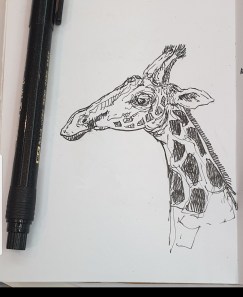
Another Sketch Challenge: Giraffe
This week sketch challenge @1hour1sketch is to Draw a Giraffe, so here is my sketch using pencil, black Pen. More Sketches on my Sketch page ..
By: Ali Radwani.
Python: Data Visualization Part-2
Learning : python, pygal, Data Visualization,Line Chart
Subject: Data visualization using pygal library
In this post we will talk about Line-chart using pygal library in python, Line-chart has three sub-type as: Basic, Stacked ,Time. We will use the data-set for Average age of Males and Females at first Marage during 6 yeaars (2000 and 2006), the code line to set the data data will be as :
line_chart.add(‘Females’,[22,25,18,35,33,18])
line_chart.add(‘Males’, [30,20,23,31,39,44])
Line-chart: Basic
This is very normal and basic chart we use in all reports, we are feeding the data for Males and Females average age in first marage.. here is the code and the output ..
import pygal

line_chart = pygal.Line()

line_chart.add('Females',[22,25,18,35,33,18])
line_chart.add('Males', [30,20,23,31,39,44])

line_chart.x_labels=map(str,range(2000,2006))

line_chart.title = "Males and Females first Marage Age (average)"

line_chart.render()
 |
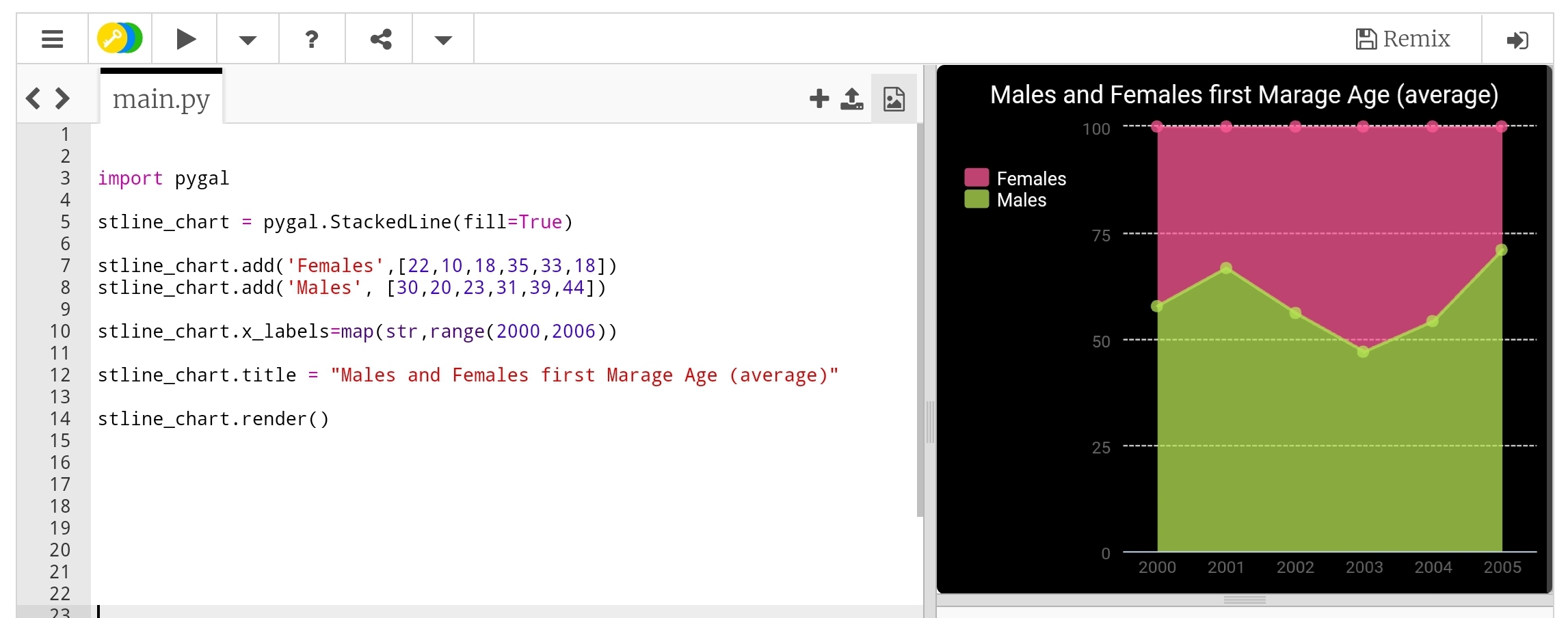
Line-chart: Stacked Line Stacked chart (fill) will put all the data in top of each other. Here is the code.
 |
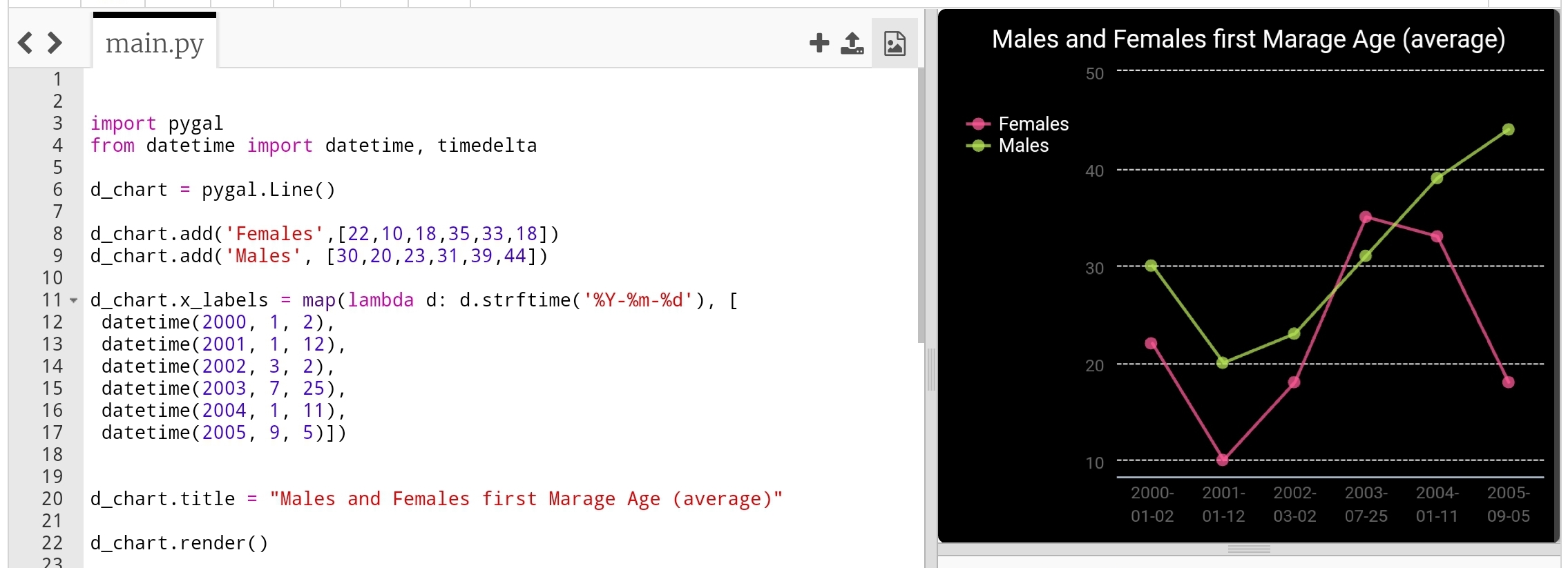
Line-chart: Time Line Last type just to add or format the x_lables of the chart, we can use lambda function to do this (we can use lambda function with any other chart types), here we will do two example, one is using full time/date and another just write the month-year as string and will use the lambda function to calculate second data-set of Tax’s based on the salary amount..
import pygal
from datetime import datetime, timedelta

d_chart = pygal.Line()

d_chart.add('Females',[22,25,18,35,33,18])
d_chart.add('Males', [30,20,23,31,39,44])

d_chart.x_labels = map(lambda d: d.strftime('%Y-%m-%d'), [
 datetime(2000, 1, 2),
 datetime(2001, 1, 12),
 datetime(2002, 3, 2),
 datetime(2003, 7, 25),
 datetime(2004, 1, 11),
 datetime(2005, 9, 5)])

d_chart.title = "Males and Females first Marage Age (average)"

d_chart.render()
 |
To give better example of using lambda function, we will say: we have a salaries for 6 years (May-2000 to May-2006) and a Tax of 0.25, we will let the lambda function to calculate the Tax amount for each salary. Here is the code ..
 # Using lambda to calculate Tax amount

import pygal

d_chart = pygal.Line()

d_chart.add('Salary', [550,980,1200,1800,2200,3500])

d_chart.add('Tax',map(lambda t: t*0.25, [550,980,1200,1800,2200,3500]))
d_chart.x_labels = map(str,(
  'May-2001','May-2002',
  'May-2003','May-2004',
  'May-2005','May-2006'))

d_chart.title = "Salary and Tax (0.25) payment in 6 years"

d_chart.render()
 |
Next we will talk about Histogram chart.
:: Data Visualization using pygal ::
| Part-1Bar-Chart | Part-2 Line Chart | Part-3 | Part-4 |
By: Ali Radwani
Python: Data Visualization Part-1
Learning : python, pygal, Data Visualization, Bar Chart
Subject: Data visualization using pygal library
pygal is a Data Visualization library in python to help us showing our Data as a graph. In coming several posts we will discover and learn how to use the pygal library in simple and easy configuration and style.
First we need to install pygal packeg, to do so write this:
pip install pygal
Now we need some Data to show, in this leson I am using aGalaxy Tab S4, so all the codes will be tested and applyed on trinket.io website [trinket.io alow us to use pygal package online so we don’t need to install it on our divice]
Type of Chart:
pygal has several types of charts that we can use, here we will list them all then in coming posts will use each one with simple data. So what we have:
Line, Bar, Histogram, XY, Pie, Radar, Box, Dot, Funnel, SolidGauge, Gauge, Pyramid, Treemap, Maps
Some of those charts has a sub-types such as in Bar char we have: Basic, Stacked and Horizontal. Also for each chart we can add a title and labels and we can use some styles.
So let’s start ..
First we will go for the Bar chart, and we have three sub-types as Basic, Stacked and Horizontal.
First chart: Bar chart:
In this part we will demonstrate the Bar Chart, it has three sub-types as Basic, Stacked and Horizontal.
We assume that our data is the Males and Female ages on first marage, the data will be as dictionary (later we will see how to customize each bar)
 # Basic Bar Chart using pygal

import pygal
bar_chart = pygal.Bar() # To create a bar graph object
bar_chart.add('Females', [22,25,18,35,33,18])
bar_chart.add('Males', [30,20,23,31,39,44])

bar_chart.title = "Males and Females First Marage Age"
bar_chart.x_labels=(range(1,6))

bar_chart.render()
Sample code for Basic bar chart |
Another sub-type in Bar chart is Horizontal-Bar, it is semelar to the Basic but as if fliped 90 degree. Here is the code ..
 # Horizontal Bar Chart using pygal

import pygal

# HorizontalBar()
HBar = pygal.HorizontalBar()
HBar.add('Females', [22,25,18,35,33,18])
HBar.add('Males', [30,20,23,31,39,44])

HBar.title = "Males and Females First Marage Age"

HBar.x_labels=(range(1,6))

HBar.render()
Sample code for Horizontal Bar chart |
Last sub-type in Bar chart is Stacked Bar were all data of each element will be in one bar. Here is the code and example..
 # Stacked Bar Chart using pygal

import pygal
# StackedBar()
stackedbar = pygal.StackedBar()
stackedbar.add('Females', [22,25,18,35,33,18])
stackedbar.add('Males', [30,20,23,31,39,44])
stackedbar.x_labels=(range(1,0))
stackedbar.title = "Males and Females First Marage Age"

stackedbar.render()
If we say we have another data-set as “age in First-Divorces” and we want to add this set to the Stacked Bar chart, then we first will create the data-set as:
stackedbar.add(‘Divorses’, [35,22,45,33,40,38])
and we will arrange the code line to be at top,middle or bottom of the bar. Here is the code..
Sample code for stacke Bar chart with Divorce data
|
Next we will talk about Line chart.
:: Data Visualization using pygal ::
| Part-1Bar-Chart | Part-2 | Part-3 | Part-4 |
By: Ali Radwani
Python: Password Generator
Learning : Python Project
Subject: Password Generator
In this function we will use the string library to select a random X numbers of letters as a Password length and print it on the screen.
First: We create a list of letters type l_type that hold the following: lowercase, uppercase, digits, punctuation and we will use the (random.choice) to select from the list.Then we will call the ‘password Generator’ pass_generator function torandomly select a letter based on the selected type, we will do so for a X time (X is the length of the password). In this project we will print the password on the screen, in real-life we can send the password via email or SMS. Here is the Code ..
# Password Generator Function

"""

Project: Python Password Generator
By: Ali Radwani
Date: Des-2020


    This function will use the string library to select a random X numbers of letters as a Password and print it on the screen.

    We create a list of letter type l_type that hold the following lowercase, uppercase, digits, punctuation and we will
    use the (random.choice) to select from the list, then we will call the 'password Generator' pass_generator function to
    randomly select a letter, we will do so for a X time (X is the length of the password). In this project we will print
    the password on the screen, in real-life we can send the password via email or SMS.

"""

import random, string

l_type = ["lowercase","uppercase","digits","punctuation"]

the_password =[]

def pass_generator(lt) :
    if lt =="lowercase":
        the_password.append(random.choice(string.ascii_lowercase))

    elif lt =="uppercase" :
        the_password.append(random.choice(string.ascii_uppercase))

    elif lt =="digits" :
        the_password.append(random.choice(string.digits))

    elif lt =="punctuation":
        the_password.append(random.choice(string.punctuation))

    return the_password


pass_length = int(input("\n   Enter the password Length: > "))


while len(the_password) < pass_length:
    pass_generator(random.choice(l_type))


print("\n   The New Generated Password is: ","".join(the_password))
To Download my Python code (.py) files Click-Here
By: Ali Radwani
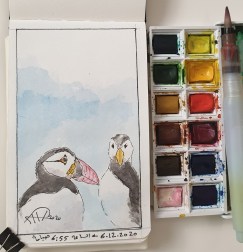
Another Sketch Challenge: Puffin
This week sketch challenge @1hour1sketch is to Draw a Puffin, so here is my sketch using pencil, Pen and water color..
Library System with Excel -P4
Learning :Excel formulas and VBA Cods
Subject: To Develop a Library System with Excel
In last post we wrote all the codes needed to Manage the Authors.
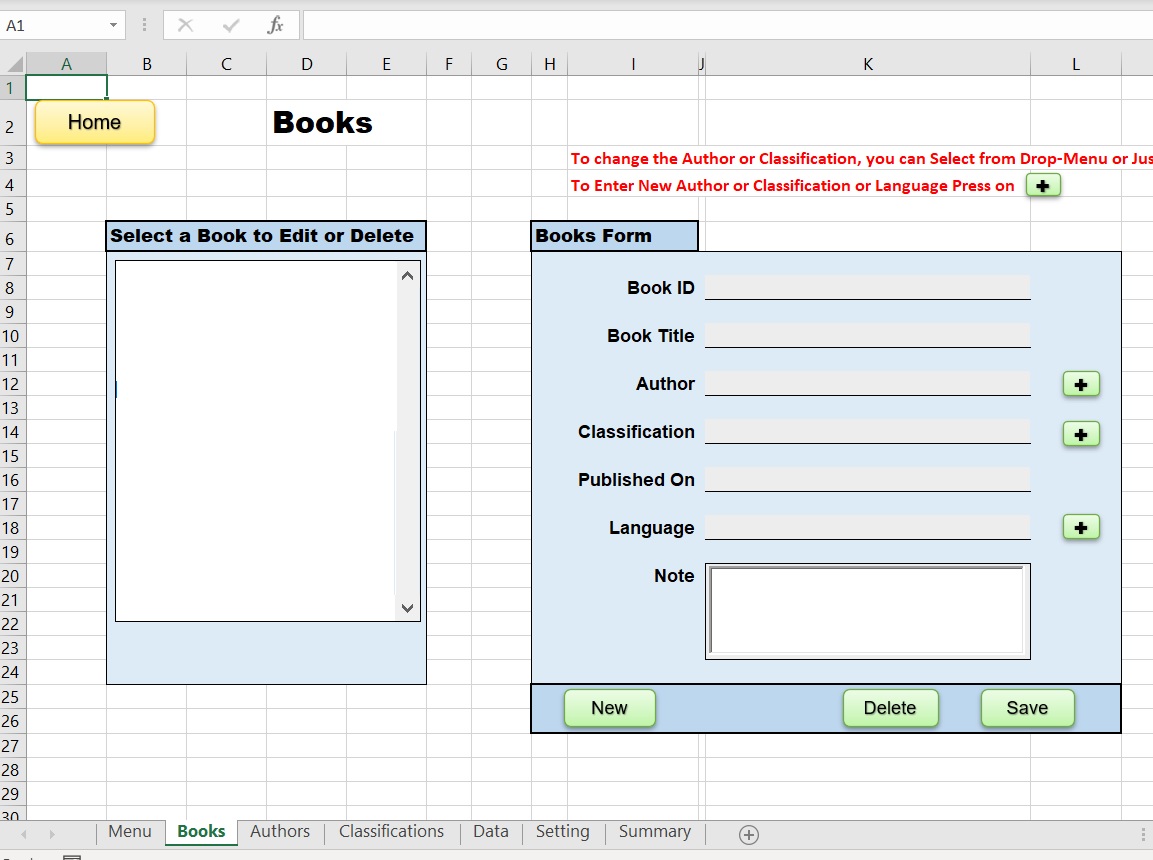
In this part we will do all the coding needed to enter New Books and Edit or Delete anyone we select, in Classifications and Authors we were dealing with one attribute, but here with Books Manage form we have several pieces of information to collect from the user such as [Book Title, Book Author, Book Classification, Publish date, Notes, Book Language ]. So first let’s design the form..
1. Open the Books sheet
2. Change the color of the range(B6:E24)
3. In Cell B6 write “Select a Book to Edit or Delete”, Color and format it as you want.
4. In Cell H6 write “Books Form”, Color and format it as you want.
5. Color and format the Range (B6:L26) as you want.
6. Create three rectangular shapes as New, Delete, and Save buttons.
7. Create another three small rectangular shapes write “+” inside them.
5. We need to create a ListBox name it “books_ListBox 4”.
6. Arrange everything as in the image.
 |
Now move to the “setting” sheet and write the following: B4:Books, B5:current_book, C5:1, B6:mode, C6: edit.
Then in the “Data” Sheet starting from A1 write the following:
A1:Books Data, B1:BookTitle, C1:book_author, D1:class, E1:Published, F1:Note, G1:lang
A2:ID, B2:Title, C2:Author, D2:Class, E2:Published, F2:Note, G2:language
CODING:
To copy the list of the Books we have into the books_ListBox 4 we create:
1.1 From the Menu go to Formulas and click on Name Manager.
1.2 From the pop-up screen click on New, then write books_list in Name, and =OFFSET(Data!$B$3,,,COUNTA(Data!$B:$B)) in Refers to.
2.1. Select books_ListBox 4 on the Books sheet.
2.2. Right-click the mouse, and select FormatControl.
2.3. Goto Control Tab, and in Input range write: books_list, and in Cell link write Setting!$C$5 then press OK.
Now the listBox will contain the Books we have in the Books table in Data Sheet. (If we have any Data there)
3. Data Validation: We need to create Data Validation-list in the cells K12: for Authors list, K14: for Classifications list and K18: for Language list.
1. Select K12, from Data-menu click on Data-validation, select List then in the source type this: =OFFSET(Data!$K$3,,,COUNTA(Data!$K:$K))
2. Select K14, from Data-menu click on Data-validation, select List then in the source type this: =OFFSET(Data!$P$3,,,COUNTA(Data!$P:$P))
3. Select K18, from Data-menu click on Data-validation, select List then in the source type this: =OFFSET(Data!$M$3,,,COUNTA(Data!$M:$M))
book_new_Click() In this function we will Clear all cells [k8, k10,k12,k14,k16,k18, K20] also the note_TextBox1 and will change the cell C6 in Setting Sheet to “new”. Here is the code..
‘ Clear all cells.
Sheets(“Books”).Range(“K8”).Value = “” ‘ID/number
Sheets(“Books”).Range(“K10”).Value = “” ‘Title
Sheets(“Books”).Range(“K12”).Value = “” ‘Author name
Sheets(“Books”).Range(“K14”).Value = “” ‘classification
Sheets(“Books”).Range(“K16”).Value = “” ‘published date
Sheets(“Books”).Range(“K18”).Value = “” ‘language
Sheets(“Books”).Range(“K20”).Value = “” ‘note
Sheets(“Books”).note_TextBox1 = “”
‘ change book mode to “new”
Sheets(“setting”).Range(“c6”).Value = “new”
Sheets(“Books”).Range(“K8”).Select
End Sub
now in the Books sheet select the button “New” we create and assign the “book_new_Click” macro to it.
book_save_Click() The Save function will have tow parts, if the user click on New then we will have:
Sheets(“setting”).Range(“C6”).Value = “new” in this case we will copy all the Book Data from Range(“K8”),Range(“K10”),Range(“K12”),Range(“K14”),Range(“K16”),Range(“K18”) and the value of the note_TextBox1 to the Data sheet under Boos Table, then will empty all the range in the book form, also will pop-up a MsgBox ” One New Book has been Added.”.
if Sheets(“setting”).Range(“C6”).Value = “edit” in this case we will get the current selected book location by selected_book = Sheets(“setting”).Range(“C5”).Value + 2 then re-copy the book data from the form to the Book Table in the Data Sheet and pop-up MsgBox ” One Book Data has been Updated.”.
In Books form we have also three + buttons next to Author, Classification and Language cells, if the user did not find say the Author in the list then he/she can add new one by clicking on the +
Edit Book Data: The user can select any Book from the Book List on the left-hand list then it’s Data will show-up in the form, the user then can change any of the Book-Data and press on Save.
book_delete_Click() The user will select the Book to de deleted then click on “Delete” button, a massage will pop-up to make sure that Book will be DELETED, if the user confirm the cation (press OK) we will run this line of code:
‘To get the book row number.
selected_book = Sheets(“setting”).Range(“C5”).Value + 2
‘To delete the book row
Sheets(“data”).Range(“A” & selected_book & “:G” & selected_book).Delete Shift:=xlUp
Pressing the (+) button: We have three (+) buttons in this form to add New Authors, Classifications, and Languages if not exist in the list; for example, if the user couldn’t find the Author of the Book (he/she want to enter to the system) pressing the (+) will pop-up a dialog box to Enter New Author and the same for classification and Language. Here is the code..
Sheets(“Books”).Range(“K12”).Value = “”
new_author_name = InputBox(“Enter a New Author Name and Click OK:”, “:: New Author :: “)
‘if we add new author then save it.
If new_author_name > “” Then
‘ Get next empty row
next_row = Sheets(“Data”).Range(“K” & Rows.Count).End(xlUp).Offset(1).Row
Sheets(“Data”).Range(“K” & next_row) = new_author_name
Sheets(“Books”).Range(“K12”).Value = new_author_name ‘Author name
Sheets(“setting”).Range(“F6”).Value = “still”
‘ To Sort the Authors list
next_row = Sheets(“Data”).Range(“K” & Rows.Count).End(xlUp).Offset(1).Row
Sheets(“Data”).Range(“K3:K” & next_row – 1).SortSpecial SortMethod:=xlPinYin
End If
Sheets(“Books”).Range(“K12”).Select
End Sub
End of Part-4
Recap this part:
1. We Create the Books header Tabke.
2. We Create a form to collect the Books from the user.
3. We Create the Books ListBox.
4. We wrote the VBA code to Save, Delete, and Create New Book also to retrieve the Books information into Books ListBox.
5. We let the user to Enter New Author, classification, Language into the system through a dialog box.
:: Library System with Excel ::
| Part 1 | Part 2 | Part 3 | Part 4 | Part 5 |
To Download EXCEL (.xlsm) files Click-Here
By: Ali Radwani
Python: Spirograph
Learning : Python
Subject: Writing Python codes to generate Spirograph Art
Writing codes to draw always funny time for me, playing around numbers, changing attributes to get something new and changing it again .. and again ..
In this post, we will write a code to draw some spirograph shapes, easy and shrort code will do the job. So lets Start ..
We will use Python Library turtle to draw, and will write one Function call it def draw_it(h,sz,ang) will take three arguments: h:number of heads, sz: size, ang: angle, then we will call this function to draw our Spirograph Art.
Code:
First we will set-up the turtle:
# turtle set-up
import turtle
t = turtle.Turtle()
t.shape("dot")
t.speed(0)

t.hideturtle()
Then here is the main Function to draw our graphs
# draw_it() function

def draw_it(h,sz,ang) :
  c = 0
  while True :
    for i in range (h) :
      t.forward(sz)
      t.right(360/h)

    t.right(ang)
    c +=1
    if c >=360/ang :
      break
Then we call the function and pass the parameters, I tried several combinations and will include them in the source file in Download section. Here are some out-puts.
| Calling: t.pencolor(‘lightgray’) draw_it(19,19,19) t.pencolor(‘gray’) draw_it(17,17,17) t.pencolor(‘black’) draw_it(15,15,15) 
|

|
 |
Hope you enjoy, have fun and change the numbers to get new shapes ..
To Download my Python code (.py) files Click-Here

By: Ali Radwani
Library System with Excel -P3
Learning :Excel formulas and VBA Cods
Subject: To Develop a Library System with Excel
In last post we wrote all the codes needed to Manage the Classifications.
In this part we will do all the coding needed to enter the Authors and Edit or Delete anyone we select, so first we will go to the “setting” sheet and will write the following: E5:current_author, F5:1, E6:mode, F6: edit as in the image.
 |
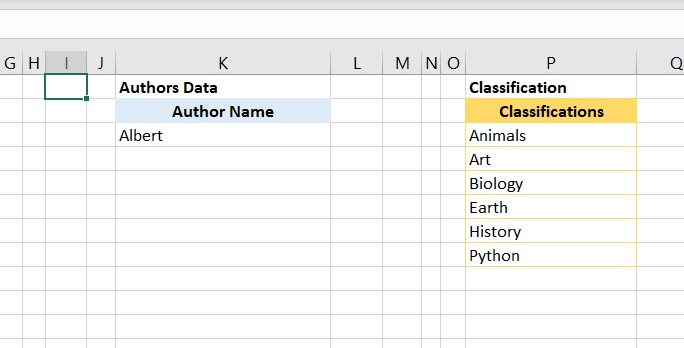
Now in the “Data” sheets, we create a table with “Author Name” header on range K2, then enter any Autor name such as “Albert” as in the image.
 |
Now, we move to “Authors” Sheet and do the following:
1. In Cell B6 write “Select an Author to Edit or Delete”, Color and format it as you want.
2. In Cell H6 write “Authors Form”, Color and format it as you want.
3. Color and format the Range (B6:E19) and the Range (H6:K13) as you want.
4. Create three rectangular shapes as New, Delete, and Save buttons.
5. We need to create a ListBox name it “authors_ListBox1”.
6. Arrange everything as in the image.
 |
CODING:
To copy the list of the Authors we have into the ListBox:
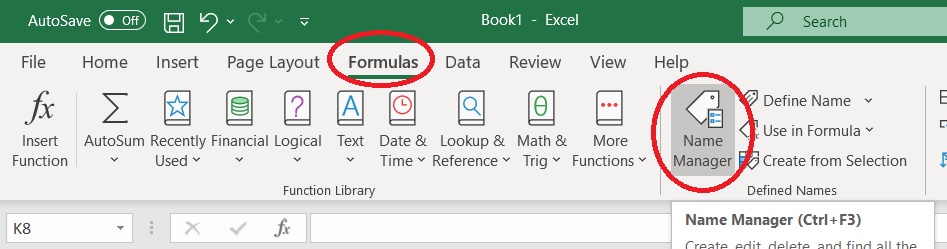
1.1 From the Menu goto Formulas and click on Name Manager
 |
1.2 From the pop-up screen click on New, then write author_list in Name, and =OFFSET(Data!$K$3,,,COUNTA(Data!$K:$K)) in Refers to [as in image]
 |
2.1. Select the ListBox in the Authors sheet.
2.2. Right-click the mouse, and select FormatControl.
2.3. Goto Control Tab, and in Input range write: author_list, and in Cell link write Setting!$F$5 then press OK.
Now the listBox will contain the Authors we have in the Author list in Data Sheep. … [SEE THE IMAGE]
 |
ListBox Code:
Now we will write a three lines of code to take action when we select any things in this box, so select the ListBox, click right-mouse-button, select “Assinge Macro, then the VBA application will start and write the foloing code:
selected_author = Sheets(“Setting”).Range(“F5”).Value + 2
Sheets(“authors”).Range(“j9”).Value = Sheets(“data”).Range(“K” & selected_author)
Sheets(“Setting”).Range(“F6”).Value = “edit”
End Sub
Buttons Codes:
1. While in Authors sheet, select the rectangular shape named “New”, click right-mouse-button, select “Assinge Macro, then the VBA application will start and we will write this code:
Sheets(“authors”).Range(“J9”).ClearContents
Sheets(“Setting”).Range(“F6”).Value = “new”
Sheets(“Authors”).Range(“J9”).Select
End Sub
2. While the VBA application is on, we will write all the codes we need for Edit and Delete buttons and then will assign the macros:
author_delete_Click
If Not Sheets(“setting”).Range(“F5”).Value Then
MsgBox “Nothing selected to be Deleted..”
Exit Sub
End If
answer = MsgBox(“Are you sure you want to DELETE this Author?.”, vbQuestion + vbYesNo)
If answer = vbYes Then
current_select = Sheets(“setting”).Range(“F5”).Value + 2
Sheets(“Data”).Range(“K” & current_select).ClearContents
next_row = Sheets(“Data”).Range(“K” & Rows.Count).End(xlUp).Offset(1).Row
Sheets(“Data”).Range(“K3:K” & next_row – 1).SortSpecial SortMethod:=xlPinYin
authors_ListBox1_Change
MsgBox “One Author has been Deleted..”
Else
MsgBox “OK, Nothing will be changed.”
End If
End Sub
author_save_Click
If Sheets(“authors”).Range(“J9”).Value = Empty Then
MsgBox “There is no Author Name to Save.”
Exit Sub
End If
If Sheets(“Setting”).Range(“F6”).Value = “new” Then
‘ Get next empty row
next_row = Sheets(“Data”).Range(“K” & Rows.Count).End(xlUp).Offset(1).Row
‘ copy the new classification to the data-table
Sheets(“authors”).Range(“j9”) = StrConv(Sheets(“authors”).Range(“J9”), vbProperCase)
Sheets(“Data”).Range(“K” & next_row).Value = Sheets(“Authors”).Range(“J9”)
‘ Empty the form
Sheets(“Authors”).Range(“J9″).ClearContents
MsgBox ” One New Author Name Saved.”
‘ To Sort the classifications
next_row = Sheets(“Data”).Range(“K” & Rows.Count).End(xlUp).Offset(1).Row
Sheets(“Data”).Range(“K3:K” & next_row – 1).SortSpecial SortMethod:=xlPinYin
authors_ListBox1_Change
Exit Sub
End If
If Sheets(“setting”).Range(“F6”).Value = “edit” Then
selected_author = Sheets(“Setting”).Range(“F5”).Value + 2
Sheets(“authors”).Range(“J9”) = StrConv(Sheets(“authors”).Range(“J9”), vbProperCase)
Sheets(“data”).Range(“K” & selected_author) = Sheets(“authors”).Range(“J9″).Value
MsgBox ” One Author Name Changed.”
‘ Sort the Authors Name
next_row = Sheets(“Data”).Range(“K” & Rows.Count).End(xlUp).Offset(1).Row
Sheets(“Data”).Range(“K3:K” & next_row).SortSpecial SortMethod:=xlPinYin
authors_ListBox1_Change
Exit Sub
End If
End Sub
In the Save code we re-sort the data in the ListBox. Here is a part of the code we use to do so:
‘ Sort the Authors Name
next_row = Sheets(“Data”).Range(“K” & Rows.Count).End(xlUp).Offset(1).Row
Sheets(“Data”).Range(“K3:K” & next_row).SortSpecial SortMethod:=xlPinYin
authors_ListBox1_Change
New we can assign the macros we just creates to the buttons we have (Delete and Save).
End of Part-3
Recap this part:
1. We Create an Author list.
2. We Create a form to collect the Author from the user.
3. We Create the Author ListBox.
4. We wrote the VBA code to Save, Delete, and Create New Author also to retrieve the Author into Author ListBox.
:: Library System with Excel ::
| Part 1 | Part 2 | Part 3 | Part 4 | Part 5 |
To Download EXCEL (.xlsm) files Click-Here
By: Ali Radwani

Taking pictures is not my main daily practices, but when i start playing with my camera, i really enjoy my self.
Thanks for visiting my Space..


 Ali's Photography Space...