Archive
London 2023, Post 29

Title: A day in Shepherd’s Bush Market
Another photo of from Shepherd Bush Market, camera on and in hand set to use the ilford simulation to give a black and white images.
Camera setting:Fujifilm XT30ii F 3.6, 18mm Focal-point, ISO 800 and Shutter 1/800s.
Ali Radwani,
Photos from Qatar _2
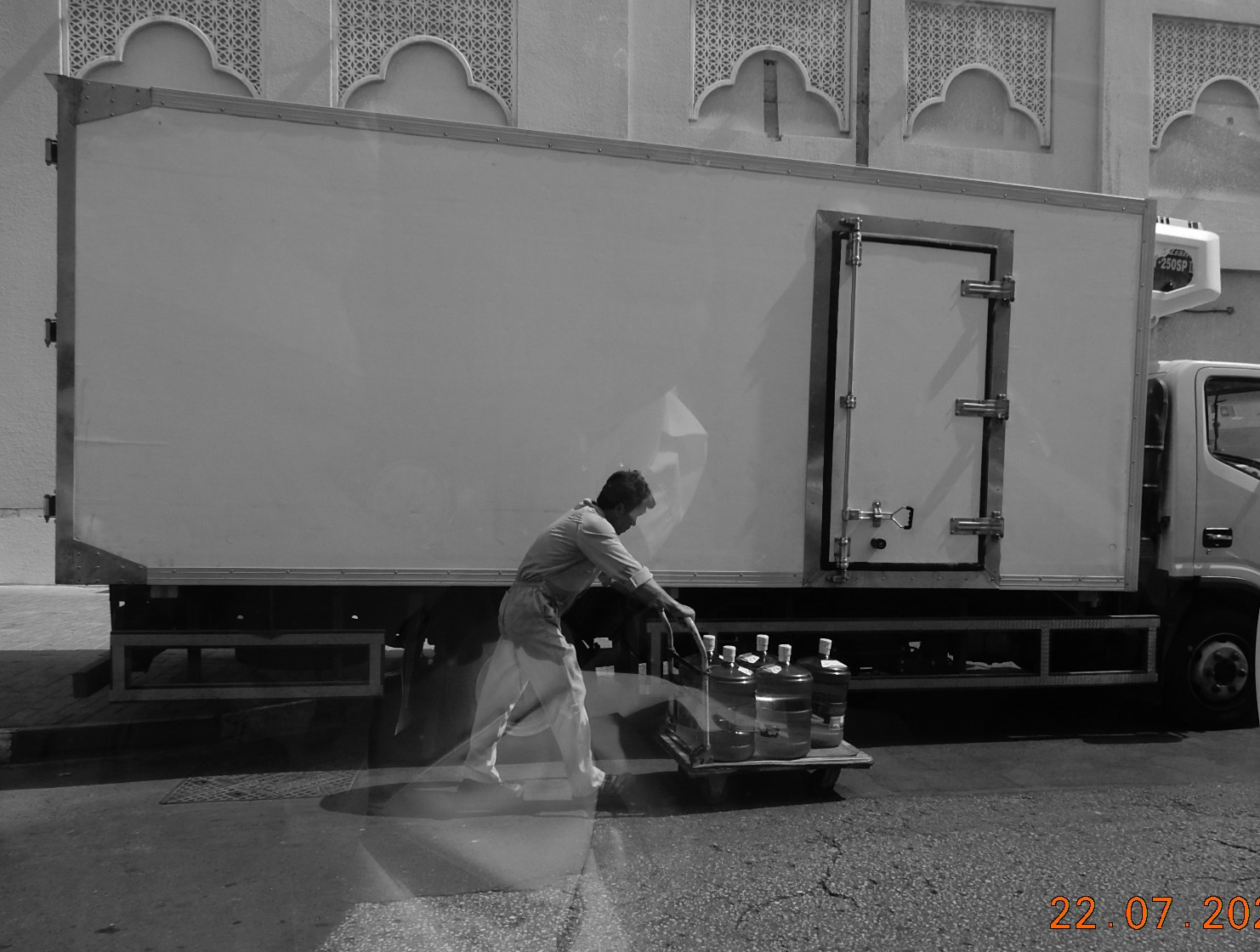
Title: Works Hard
I was parking my car and waiting for a pick-up pack, and were playing on camera setting suddenly I noticed this worker pushing the water cart, I then just raise push the Shutter with out thinking in the composition. This what I’ve got.
Camera in hand, photo form behind car glass with Nikon S9900 set’s to take Black and White photos.
By: Ali Radwani
M&M’s Toy

Title: M&M’s Toy
Camera: Fujifilm X-T30ii, 18-55mm 2.8-4
Date: June.2023
Film Simulation: ilford hp5
I set the Light-Box with a small external LED light, I was stand 2feets away holding the Fujifilm X-T30ii camera in my hand and take the shots with ISO 500, Shutter 1/60 and f 3.2 the camera was on ilford Simulation.
Another shot of the same subject using kodakporta400 film Simulations.

By: Ali Radwani
Radwani House Musem post 4
Radwani House located in Mshareb district been selected to be saved as a Museum to reflect Qataris Family life in early 19’s. Click Here to see all the Gallery pictures.

Bed-Room: The head covering worn by men is called “Ghutra and Aqal”, and this “Ghutra” in the image is of a relatively expensive type during that period. Sleeping pillows embroidered with old, traditional designs. Read the Story Here
By: Ali Radwani
Python: Grade_2 Math Questions V1
Learning : Python, Math
Subject: Math Questions for Grade-2 V.1
[NOTE: To keep the code as simple as we can, We WILL NOT ADD any user input Varevecations. Assuming that our user will Enter the right inputs.]
In the process of studing with/for my kids [specialy Math] i always need to give them some Questions in [+ -], I need to write the Questions on a paper then they solve it and i check the answers. So I thought if I create an app to solve this Problem.
Application to Do What?
- Select Two random numbers from a given range.
- Select a Math operator [+ -].
- Writing the Question on the Screen.
- Comparing the user input with the real answer.
- Writing a message on the screen acoording to the user answers.
Application Menu
x
y (+ -)
_______________
??
In this Version (V.1) of the application, there will be some limitations on the Questions Difficulties, Number ranges and type of Questions.
Start Coding
The Menu
As we can see above, we will have 7 keys for the Menu, Menu 9 is for Exit. Menu 3 will ask the user to Enter the Kid Name. Menu 2 will ask for the Number Ranges (From/To as 0 to 9 so all the questions will be in this rage). Menu 4, 5 and 6 each will be for type of questions. Menu 1 will ask the user about All the questions type. In all menus 1,4,5 and 6 if the user did’t enter a Name or a number ranges, the application will as for it before srating.
Here is the code for the Main Menu.
 # Code for Main Menu

 # ---------------- Main Menu -------------------------
def menu () :
    os.system('clear')
    print('\n\n\t This is a Math Revision Game.',version)
    print('\t --------------------------------------------')
    print(' '*34,'By:[AHRADWANI.COM]')

    print('\n\n\t')
    print('\t 1. Start Play the Game. [All Math Lessons]')
    print('\t 2. Re-set the Numbers Range.')
    print('\t 3. Register New Kid to Play.')
    print('\t \n ')
    print('\t 5. Questions Like:   x (+ -) y = ?? \n')
    print('\t 6. Questions Like:   x (+ -) ?? = y \n')
    print('\t 7. Questions Like:      x','\n\t\t\t\t y   (+ -)','\n\t\t\t     ___________')

    print('\t ')
    print('\t 9. Exit.')

    user_select = input ('\n\n\t Select from the Menu. > ')

    return user_select
Get the Numbers Range
In this Function the user will be asked to Enter the Number range as from and to, we will check if the user Enter a valid input, No space, No Alphabetics.
 #  Get the Numbers Range

 def get_numbers_range () :

     """
        Function to get the Number range from the user, we will check if the user Enter
        a valid input, No space, No Alphabetics.

        return:
            nfrom: is the lower number range.
            nto  : is the upper number range.
    """


    nfrom = check_user_input("\t Enter the Lower Range Number > ","\t ... You Need to Enter a Lower Range Number.") #(input('\n\t Enter the Lower Range > '))
    nto = check_user_input("\t Enter the Upper Range Number > ","\t ... You Need to Enter an Upper Range Number.")

    if (int(nfrom)) > (int(nto)) :
        nfrom, nto =  nto, nfrom

    return int(nfrom), int(nto)
Check user input
With each user input we will call this Function with two messages, statement message will be the one to gaid the user to What is need to Enter, error message will be display if the user input something wrong or not expected. Then the Function will return back the user input.
 # check_user_input

def check_user_input(statment_m,error_m):
     """
    Function to check on the user input if it is a valid or not.

    Arguments:
        statmen_m: will be the one to gaid the user to What is need to Enter
        error_m: will be display if the user input something wrong or not expected.

    Return:
        uinput

    """
    while True :
        print(statment_m,end="")
        uinput = input()
        if ((uinput) in [" ",""] or (not uinput.isnumeric()) or ((uinput) in schar) or ((str(uinput).isalpha()))):
            print(error_m)
        else:
            break
    return uinput
Get the Kid Name
A small and short Function to return the user/Kid Name.
 # Get the Kid Name

 def get_kid_name () :

    return input('\n\t Enter Your Name > ')
Setting and Variabls
This is the first upper part of the application, we just import the random and os also we set some variables.
 # Variables


import random, os, operator

score1 = 0
good = ['Correct','You are Right', 'Well Done..','Nice..','Excellent..','Amazing..','Good job',' YES .. Keep it up .. ','So Proud of You','Yes .. Another Point for You',]
bad = ['Wrong ..','Sorry .. No!','Try Your Best','No!','No..Think Harder','ooops .. No','Not this Time']
oper_dict = { '+': operator.add, '-': operator.sub,} # '*': operator.mul, }
schar = "@_!#$%^&*()?/\|}{~,.:'"

nfrom = 0
nto = 0
name = 0
version = 'V.10.2022.R1'
Math Question Type-1
This Function will ask the user 10 Questions of Math according to the Numbers Range were the question will looks like: X [+ -] Y = ??, then if the answer is right good message will display on the screen.
 #  Math Question Type-1 (X [+ -] Y = ??)

 def Math_G2_type_1():
   os.system('clear')
   score =0
   for q in range(0,10):
      n1 = random.randint(nfrom,nto)
      n2 = random.randint(nfrom,nto)
      op = random.choice(list(oper_dict.keys()))

      if op == '-' :
          if n1 ')
      print('   ', n1, op ,n2,end='')

      ans = check_user_input(" = ","  You Need to Enter an Answer .. ")

      if  int(ans) == oper_dict[op](n1,n2):
          print('   ',random.choice(good),'   .. ')
          score = score +1
      else:
          print('   ',random.choice(bad),'   .. ')

   return score
Math Question Type-2
This Function will ask the user 10 Questions of Math according to the Numbers Range were the question will looks like: X [+ -] ?? = Y, then if the answer is right good message will display on the screen.
 # Math Question Type-1 (X [+ -] ?? = Y)


def Math_G2_type_2():
    os.system('clear')
    print('\n\n\t ', name ,' Now try to solve these once\n ')
    score =0
    for q in range(0,10):
        n1 = random.randint(nfrom,nto)
        n2 = random.randint(nfrom,nto)
        op = random.choice(list(oper_dict.keys()))
        if op == '-' :
          if n1 < n2 :
              n1,n2 = n2,n1

        print('\t\t   ',n1)
        print('\t\t   ',n2,' ',op)
        print('\t\t __________')
        ans = int(input('\t\t    '))

        if ans in [" ",""]:
          print('   ',random.choice(bad),'  You Need to Enter an Answer .. ')
        else:
            if ans == oper_dict[op](n1,n2):
                print('   ',random.choice(good),'   .. \n\n')
                score = score +1
            else:
                print('   ',random.choice(bad),'   .. \n\n')

    return score
Math Question Type-3
This Function will ask the user 10 Questions of Math according to the Numbers Range were the question will looks like:
X
Y [+ -]
__________
??? then if the answer is right good message will display on the screen.
 #

 def Math_G2_type_3 ():
    os.system('clear')
    print('\n\n\t ', name ," let's try this.")
    print('\t Complete with correct number.\n')
    score = 0
    for q in range(0,10):
        n1 = random.randint(nfrom,nto)
        n2 = random.randint(nfrom,nto)
        op = random.choice(list(oper_dict.keys()))
        if op == '-' :
            if n1  n2 :
                n1,n2 = n2, n1

        print('\t ',n1,op, ' ______ = ', n2)
        ans = int(input('  Your Answer > ') )

        if ans in [" ",""]:
          print('   ',random.choice(bad),'  You Need to Enter an Answer .. ')
        else:
            if n2 == oper_dict[op](ans,n1):
                print('   ',random.choice(good),'   .. \n\n')
                score = score +1
            else:
                print('   ',random.choice(bad),'   .. \n\n')
    return score
Application Body
In the Application Body itself I use a while loop to call and detect the User input from the menu and using that input to call the corresponding Function. All the codes and functions also the application Body code is on the Source file and can be Downloaded.
I test the code and RUN the app several times, but errors can be found, so next version of this Application will solve any errors also will add more Math Questions Type.
..:: Have Fun with Coding ::.. 🙂
To Download my Python code (.py) files Click-Here
 Follow me on Twitter..
By: Ali Radwani
Arduino: NOT-Gate Circuit
Learning : Electronic NOT-Gate Circuit
Subject: To Build a NOT-Gate Circuit using BC547 Transistor
[NOTE: We are working on Electronic Devices, Voltage, Resistors and other Electronic Parts that may Become HOT due to un-stable current or Wrong Wire Connections.. PLEASE BE CAUTIOUS AND TAKE SAFETY NEEDED PROCEDURES.]
In this Project we will use the BC547 Transistor to build a NOT-Gate circuit, so we will Not use the ADRUINO board.
What we Need
- 1 2Pin Push-Button.
- 1 LED
- 3 Resistors.
- 1 BC547 Transistor.
- 1 BreadBoard. [I am using a small 5x7cm]
- Some Jumper Wires.
Connections
- Connect the BC547 BasePin to a Resistor Pin1, Then the Pin2 of the Transistor to the Push-Button Pin1.
- Connect the Push-Button Pin2 to Another Transistor Pin1, Then the Pin2 of the Transistor to BC547 CollectorPin, AND to the Battery(+).
- Connect the third Transistor Pin1 to BC547 CollectorPin, and the Pin2 of the transistor to LED(+) Pin.
- Connect the BC547 EmitterPin to the LED(-) Pin by Jumper-wire.
- Connect the LED(-) Pin to the Battery(-).
Here is the Circuit on the Breadboard |
Run-Time
Since this is a NOT-Gare Circuit then once we connect the Power we can see the LED turns ON, Now if we Press the button and keep pressing, the circuit will be in connecting phase and the LED will tune Off.
Here is a GIF clip of Running Time.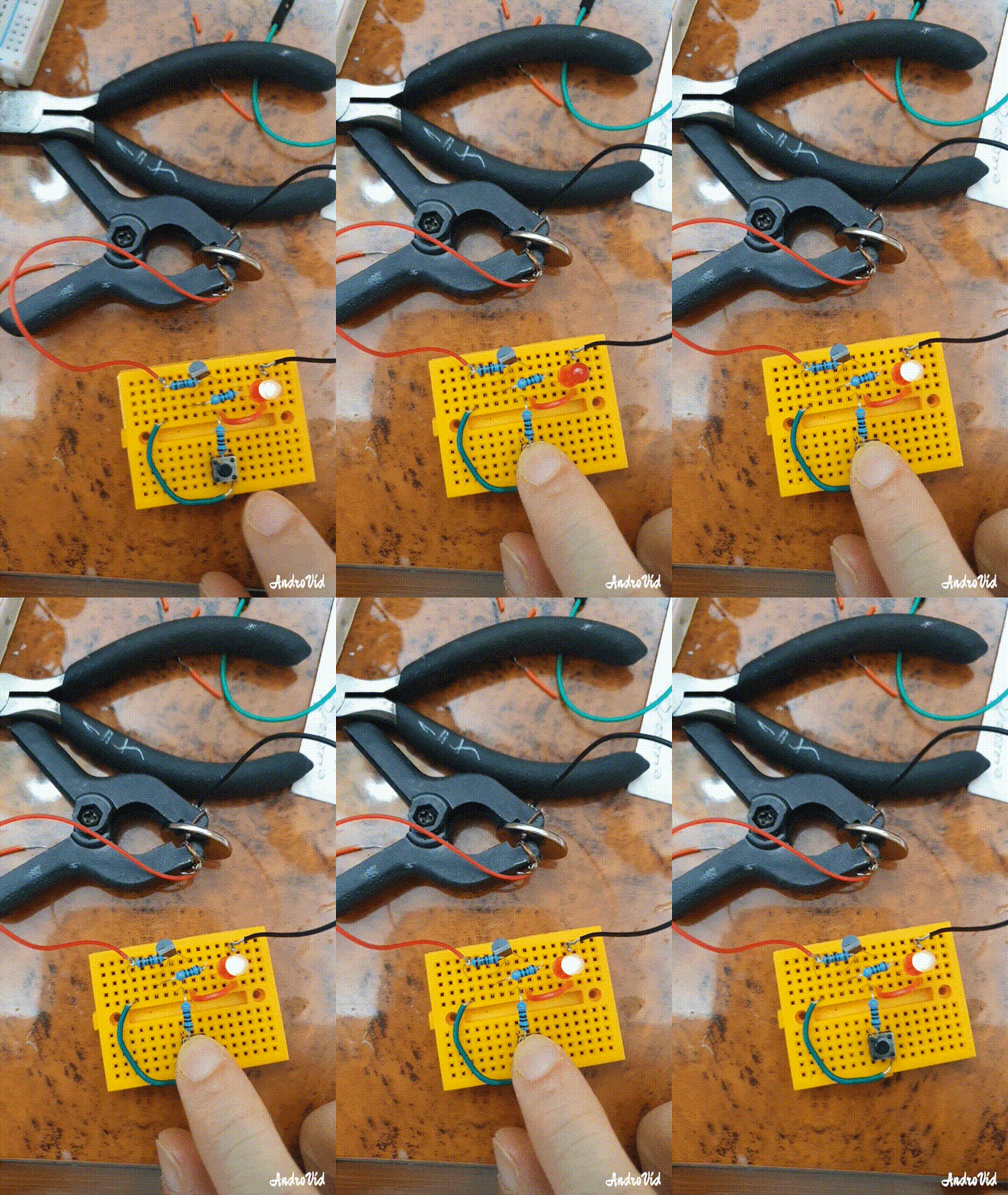 |
:: ARDUINO PROJECTS LIST ::
[ Click Here to See all ARDUINO Projects ]
By: Ali Radwani
Arduino: AND-Gate Circuit
Learning : Electronic AND-Gate Circuit
Subject: To Build an AND-Gate Circuit using BC547 Transistor
[NOTE: We are working on Electronic Devices, Voltage, Resistors and other Electronic Parts that may Become HOT due to un-stable current or Wrong Wire Connections.. PLEASE BE CAUTIOUS AND TAKE SAFETY NEEDED PROCEDURES.]
In this Project we will use the BC547 Transistor to build an AND-Gate Circuit on a breadboard, so we will Not use the ADRUINO board.
What we Need
- 2 2Pin Push-Button.
- 1 LED
- 3 Resistors.
- 2 BC547 Transistor.
- 1 BreadBoard. [I am using a small 5x7cm]
- Some Jumper Wires.
- 3V Battery
Connections
- Connect Both BC547 to the BreadBoard.
- Connect Emitter of the First (left) One to the Collector of the second One (Right one). [Use Jumper Wire]
- Connect TWO Push-Buttons to the BreadBoard.
- Connect between each BasePin of the BC547 and Pin1 of each Push-Button using a Resistor1&2 [Pin1 of PushButton1 to Pin1 of Resistor1, Pin2 on the Resistor1 to BasePin of BC547.]
- Connect Pin2 of Push-Button1 to the Pin2 of the Push-Button2.
- Connect the Push-Button2 Pin2 to a Resistor3 Pin1
- Connect the Resistor3 Pin2 to the LED(+)Pin.
- Connect the LED(-)Pin to the First BC547 CollectorPin
- Connect the Battery (+) to the Resistor3 pin2, and Connect the Battery (-) to the Emitter Pin of Second BC547.
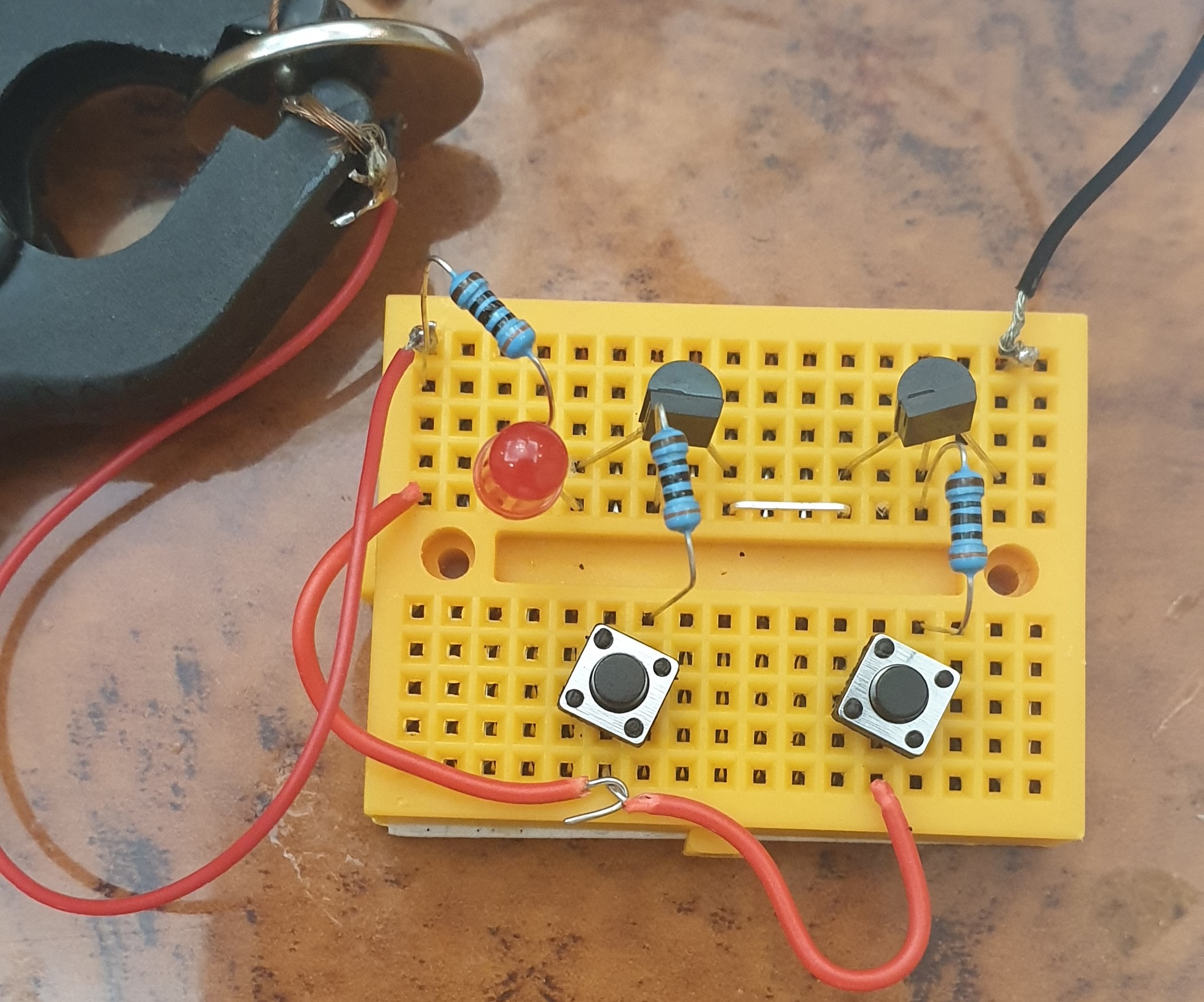 |
 |
Run-Time
The Logic of the AND-Gate is if the BOTH Button are Pressed in same time the circuit will close and the LED turn On.
Here is a GIF clip of Running Time. |
:: ARDUINO PROJECTS LIST ::
[ Click Here to See all ARDUINO Projects ]
By: Ali Radwani
Arduino: Morse Code Blinking
Learning : ARDUINO, Morse-Code, Electronic Circuit
Subject: LED to Blink Morse Code
[NOTE: We are working on Electronic Devices, Voltage, Resistors and other Electronic Parts that may Become HOT due to un-stable current or Wrong Wire Connections.. PLEASE BE CAUTIOUS AND TAKE SAFETY NEEDED PROCEDURES.]
Some days ago I just went through some pages of Morse-Code. Then I got an idea to write a code for the ARDUINO to blink an LED for some letters.
Morse Code: In a basic and easy way, Morse code is a Dots (.) and Dashs (-) to present alphabet characters. So A = .- ; B = -… ; C = -.-. and so on (Morse code table in Wikipedia)
Morse Code Rules:
if we assume a unit is U, then :
- 1. A Dot is 1U.
- 2. A Dash is 3U.
- 3. A Space between a part of the same letter is 1U.
- 4. A Space between letters is 3U.
- 5. A Space between words is 7U.
In our project here, the Unite U will be the Delay in Arduino, so the LED will be High for 1U to represent a Dot (.) and will be High for 3U to represent the Dash (-).
What we will Need: I will use a Breadboard, ARDUINO Nano , One Red LED, One 300 ohm Resitro, Jumper Wire.
- A BreadBoard.
- ARDUINO Nano.
- 1 Red LED.
- 1 Resistor [I will Use 300 ohm]
- Some Jumper Wire.
Connection:
- The ARDUINO Nano will be on the Breadboard
- Connect D13 on Nano to Column 11 on the Breadboard using Jumper-wire.
- Connect the Resistor on Column 11 and Column 6 on the Breadboard.
- Connect the LED Anode (+) pin on the Column 6 on the Breadboard.
- Connect the LED Cathode (-) pin to the Column 4 on the Breadboard.
- Connect the Column 4 on the Breadboard to the Cathode Row on the Breadboard using Jumper-wire.
- Connect the Column 17 on the Breadboard (Nano GND pin) to Cathode Row on Breadboard using Jumper-wire.
- Connect the Column 19 on the Breadboard (Nano 5V pin) to the Anode Row on Breadboard using Jumper-wire.
Image of the Connected Breadboard. |
The Coding: First we need to define the Dots and Dashs for each Alphbets, in this example I will do only three carecters for my Name A L I, I will create an array of 0 and 1, 0 is a dot, 1 is a dash, here is the code:
int A [ ] = {0,1} ; // 0 = dot (1U), 1 = dash (3U)
int L [ ] = {0,1,0,0} ;
int I [ ] = {0,0} ;
Here is declearing the Unite, u as Delay time:
int u = 170 ; // 1U = 170 delay.
and here is the Arduino pin I will use:
int ledpin = 13 ;
in the void setup, we will only write one line to set the pinMode(ledpin, OUTPUT)
then I create a function to read the letter array-content
 // CODE: Function to read the letters contents.

void letter(int c [], byte s)
{
      if (c[s] == 0)   // dot
        {morse1(ledpin, 1) ;}
      if (c[s] == 1)   // dash
        {morse1(ledpin, 3) ;}
}
In this code, I will let the LED to Blink in Morse code saying “ALI” [My Name 🙂 ]. You may add the Morse code in the Application and making the LED to send you message. Code Available in Download Page.
RUN TIME.. |
:: ARDUINO PROJECTS LIST ::
[ Click Here to See all ARDUINO Projects ]
To Download the ARDUINO Project [Code and Diagram] files Click-Here
By: Ali Radwani
Arduino: IDE and Coding
Learning : Arduino Projects, Arduino Coding, Electronic Circutes
Subject: First Application, Light the LED
[NOTE: We are working on Electronic Devices, Voltage, Resistors and other Electronic Parts that may Become HOT due to un-stable current or Wrong Wire Connections.. PLEASE BE CAUTIOUS AND TAKE SAFETY NEEDED PROCEDURES.]
IDE: IDE is the place or the editor that we can write the code in. Arduino has one that can be Downloaded from [ www.arduino.cc] then from the menu > Software.
Coding: The coding rules and best practes:
- Essentially consist of Two Main Functions: void setup() and void loop().
- Each Code line MUST end with Semicolon ;
- Code block Must be between two Curly-Brackets { }
- Declaration: if we have variavbles we need to declare them before we use them. Best-Practice: we put them at the top of our code page.Sample: int x ; int y = 50; const int t = 250
- Our Functions: Best-Practice: Put them between the void setup() and void loop(). SAMPLE: void led_on ( ){ digitalWrite(12, HIGH);}
- To put a comments in the code we use double front-slash // use it for one line comments. Best-Practice: Use comments to describe your codes and Functions.
- To Comments several lines we use /* /* all the lines between it will be as comments.*/
- IF Statment: if (int x > 10) { your code }
- For-loop: for(int x = 0; x < 5; x++) { your code }
So, I think this is the most important things we have to know to start coding our Arduino. With each practice and project we will work on we will describe coding-lines and commends we use.
I am not sure if i will continue in this way or say “New Learning Curve”, The Coding and Commanding an Electronic-Bord to Work as my Application says .. THIS PART WAS WHAT LIT THE FUSE IN MY BRAIN.
:: ARDUINO PROJECTS LIST ::
| 3 | First Project: Coming Soon.. |
| 2 | Code Editor, coding Blocks, learn Coding |
| 1 | Arduino, The Story, Components, Parts and What we will Do? |
To Download the ARDUINO Project [Code and Diagram] files Click-Here
By: Ali Radwani
Python: Tower of Hanoi
Learning : Python
Subject: Write a Function to Solve Tower of Hanoi Problem
Intoduction: Tower Of Hanoi is Puzzle Game that has three Vertical Sticks/Pegs Named A, B, C (3 Towers) and we have n number of disks different in diameter soted on top of each other (Large to Small) in Tower A. The Gall is to move all the disks from (A) to (C).
 # Tower of Hanoi Puzzel

"""
    Project Name: Tower of Hanoi

    By: Ali Radwani
    Date: 13.6.2021

     d  : Number of Desk
     fs : From Stick
     ts : To Stick
     bs : Buffer Stick
"""


import os

def hanoi_t(d, fs, bs, ts):
    if d ==1 :
        print("\n   Move Desk 1 From {} To {}".format(fs,ts))
        return

    else:
        hanoi_t(d-1,fs,ts,bs)
        print("   Move Desk {} From {} To {}".format(d,fs,ts))

        hanoi_t(d-1,bs,fs,ts)
        print("   Move Desk {} From {} To {}".format(d,fs,ts))

os.system('clear')
print('\n\n   This is Tower Of Hanoi Project')
print('   We are Solving a Three Desk Tower Named 1, 2 and 3, with Three Sticks Named A, B and C ')
print('\n   Start Solving ...')
hanoi_t(3,'A','B','C')

|
..:: Have Fun with Coding ::.. 🙂
To Download my Python code (.py) files Click-Here
By: Ali Radwani

Taking pictures is not my main daily practices, but when i start playing with my camera, i really enjoy my self.
Thanks for visiting my Space..


 Ali's Photography Space...