Archive
Python: Library Managment System -P1
Learning : Python, DataBase, SQlite
Subject: Create Simple Library Managment System
Details: The project is to Plann, design and builed a simple Library Managment System LMS (For Books), the main Functions in the system are: (In this Version 1)
- Add New Book.
- Edit an exsit Book.
- Delete a Book.
- Search.
Planning: In this step we need to sit with the Business owner to identify the problem and plann the project. Since we will work as Fullstack (mean we will do every thing) and this is a training session project, we will be the Business owner of the project and will talk about the problem.
The Problem: In a very simple way, we have some Books and we want a System to store the books in a way that we can retrieve it’s basic information such as Title, Author, Subject and other information about it. Also we need to do some basic search to get statistics about our Library.
Data Gathering: First we need to define the Data we want to stoe, as we are talking about a simple Books Library System we can predict this very easily by looking to a book that we have and write-dowan the keys part of the book we want to store.
In this project we have three main Entities : Books, Authors, Borrowers. In this version (V.01) of the project we will NOT cover the borrowing functionality. So we will store the following data:
Books Entity: Book Name, Book Author, Date of publish, Edition Number, Book classification number.
Author Entity : Author name, Author Nationality, email, SMA (social media account).
From the Author information we can see that we need to define a new Entity to hold the SMA. SMA Entity: SMA Name, SMA Link.
To Manage our System we will write Four main functions for each entity:
ADD, Edit, Delete and search.
Part 2: In Part-2 we will create the tables (The Entities), Insert the Zero-Row and create the Main Menu for each Entities.
:: Library Managment System ::
| Part 1 | Part 2 | Part 3 | Part 4 |
To Download my Python code (.py) files Click-Here
 Follow me on Twitter..
By: Ali Radwani
Python: Drawing Math Equations
Learning : Python and Math
Subject: Python Project to Draw a Math Equations
In the past week or so I saw a tweet from @matthen2 it was about drawing half circles on 99 points, the 99 points was distributed on a hidden circle, each line (or half circle) connecting x (a point on the circle) and it’s double, so point num 2 is connected to P num 4; (P3 to P6, P4 to P8, …) and so-on
This inspired me to write a Python app (code) to perform same action. Then I just upgrade the idea to draw any mathematical Equation. (Lets say simple mathematical Equations)
In our project, the user will enter the number of points and the starting circle radius, also I fond that we can do more by reducing the circle radius after each point, so i add this to the project.
Coding: We will write a function to collect the points in a list as [x,y], and returns the list. Then we pass each two points of (x1,y1) and (x2,y2) to another Function to draw a line between those points. In this version we will write the Equations as hard-code in our project.
So First Function will be the get_points() here the systems will ask the user to Enter some variables. We will collect the number of points P, the raidus of the circle circumference that points will be distributed On it’s, also we will ask the user if circle radius is fixed or decreased by a given factor.
Using mathematics we know that a circle has 360degree, so if we divide 360 over P we will have (if we can call it) the arc_angle. .. Here is the code for the function …
# Function to collect the x,y points

def get_points() :
  p = int(input('  Enter number of Points:  ')) # number of points.

  arc_angle = 360 / p
  circle_r = int(input('  Enter the Cricle Radius: ') )
  fix_r = int(input('  Enter a number to reduce the Radius:'))

  #To return the x,y list of the points that we want to connect.
  p_list = []
  t.goto(0,0)
  t.setheading(-90)

  for p in range (0,p+1) :

    t.goto(0,0)
    t.forward(circle_r)
    nx = t.xcor()
    ny = t.ycor()

     # If the user want to reduce the radius.
    circle_r = circle_r - fix_r
    p_list.append([nx,ny])
    t.right(-arc_angle)

  return p_list
By now, we have a list of points [x,y], and we will passing two points to another function def draw_line(x1, y1, x2, y2): to draw a line between the points. Very simple and easy Function …
# Function to draw a line

def draw_line(x1, y1, x2, y2):

  t.goto(x1,y1)
  t.pendown()
  t.goto(x2,y2)
  t.penup()
Now the tricky part, How to select the points?. To do this we assume we have an Equation (e1) and if we got any errors like (division by zero, or out of index) we will apply another Equation (e2), e1 and e2 will be hard-coded and each time we need to change it and run the application again to see the result. And to draw a line between the points based on e1 and e2 we will run a for loop …. Here is the code ..
# drawing the equations


for d in range(len(p_list)-1) :

  e1 = d * 2
  e2 =  abs( len(p_list) - (d*2))

  try:
    draw_line(p_list[d][0], p_list[d][1],p_list[e1][0], p_list[e1][1])
  except:
    if e1 > len(p_list) :
      draw_line(p_list[d][0], p_list[d][1],p_list[e2][0], p_list[e2][1])
Here is some output
 |
 |
 |
|
 |
 |
This is the end of this project, Do we need any upgrading in any part of it?
To Download my Python code (.py) files Click-Here
By: Ali Radwani
Python : Triangle Parameters
Learning : Python to Draw a Triangle
Subject: To get the Parameters of a Triangle
A week ago I start helping a friend in a mathematics geometric to draw a Triangle from Two points that represent the The Hypotenuse of a Triangle, then I deside to write a python project to Draw a triangle based on two given points (x1,y1) and (x2,y2) and to print it’s parameter (other sides and angles). We will use the Trinket.io as a Python interrapter and will draw with turtle library.
Project Details: The system will ask the user to Enter the coordinates of Two points To draw a Right Angle Triangle. In our Triangle, we will call the (x1,y1) as Point A, and (x2,y2) as Point C. From our starting poins we can calculate the distance between point A and point (B), also the length of Hypotenuse and the angels in the Triangle.
So, What we have:
tri_opposite = abs( y2 – y1 )
tri_adjacent = abs( x2 – x1 )
From a mathimatics triangle formula we know that:
Opposite^2 + Adjacent^2 = Hypotenuse^2
where: x^2 = square(x)
So:
tri_hypo = tri_opposite**2 + tri_adjacent**2
tri_hypo = math.sqrt(tri_hypo)
tri_hypo is the distance between point A and Point C (the opposite
side of the right angle)
Now the Angels:
As we know that in a triangle the summation on all inside angles is 180deg, and in a Right Triangle we will have a one fixed 90 degree angle (ABC), so the first thing we will work on calculating the Opposite angle (BAC).
From a Triangle math:
tri_opposite = abs( y2 – y1)
tri_adjacent = abs(x2 -x1)
the_deg (BAC) = inverse tan for (tri_opposite / tri_adjacent)
# get the inverse of Tan
the_ang = math.degrees(math.atan(the_deg))
Now, lets do some coding ..
First thing we will import two libraries turtle and math, also we will do some setting for our turtle. … Here is the code ..
# Turtle setting


import turtle, math
# turtle_setting
t = turtle.Turtle()
t.penup()
t.shape("non")
#t.speed(9)
t.speed('fastes')
#t.visible = False

t.hideturtle()
Then we will write a code to draw a ‘Gray’ coordinates cross lines for our project. Here is the code for it ..
def the_cross() :
     # To draw the cross represents the coordinate.
    t.penup()
    t.pencolor('gray')
    t.goto(-200,0)
    t.setheading(0)
    t.pendown()
    t.forward(400)
    t.penup()
    t.goto(0,200)
    t.setheading(90)
    t.pendown()
    t.forward(-400)
    t.penup()
    t.goto(2,0)
    t.pendown()
    t.circle(2)
    t.penup()
    t.goto(0,0)
    t.setheading(0)

# calling the function
the_cross()

Now we will write the main function code, First we will ask the user to enter the x,y for two points, then we will do our calculations to get other Triangle parameters and angles, finally we will draw the Triangle. .. Here is the code..
def draw_triangle(x1, y1, x2, y2) :

# draw the Triangle.
    style = ('Courier', 20)   # font style.
    t.penup()
    t.goto(x1,y1)
    t.setheading(0)
    t.pendown()
    t.circle(1)  # To draw small circle on point A.
    t.write('A',font = style)  # To write A next to the point.
    t.forward((x2-x1))
    x3 = t.xcor() # here is the x for point B
    y3 = t.ycor() # here is the y for point B

    t.right(-90)
    t.forward((y2-y1))
    t.write('C',font = style)  # To write C next to the point.
    t.goto(x2,y2)
    t.setheading(0)
    t.pendown()
    t.circle(1)  # To draw small circle on point C.
    t.penup()
    t.goto(x3,y3)
    t.pendown()
    t.circle(1)  # To draw small circle on point B.
    t.penup()
    t.setpos(x3-15,y3-15)
    t.write('B',font = style)  # To write B next to the point.


    # To calculate the angle of BAC using Triangle Math Equations.
    tri_opposite = abs( y2 - y1)
    tri_adjacent = abs(x2 -x1)
    the_deg = tri_opposite /  tri_adjacent

    # get the inverse ot Tan using Triangle Math Equations.
    the_ang = math.degrees(math.atan(the_deg)) #atan(x) is the inverse of math Tan function.

    t.goto(x1,y1)

    # To correct the rotation angle based on it's coordinates.
    if (x1 > x3) and (y2 > y1) :
      rotation = the_ang - 180

    elif (x1  y1):
      rotation =  360 - the_ang

    elif (x1 > x3) and  (y2 < y1) :
      rotation =  180 - the_ang

    elif (x1 < x3) and  (y2 < y1) :
      rotation =   the_ang - 360

    #t.right(rotation)
    #t.pendown()
# From using Triangle Math Equations, we know that Hypotenuse^2 = Opposite^2 + adjacent^2.

    tri_hypo = tri_opposite**2 + tri_adjacent**2
    tri_hypo = math.sqrt(tri_hypo)
    t.right(rotation)
    t.pendown()
    t.forward(tri_hypo)
    t.penup()

    print('\n  The Triangle Information:')
    print('  Point A= ({},{})'.format(x1,y1))
    print('  Point B= ({},{})'.format(x3,y3))
    print('  Point C= ({},{})'.format(x2,y2))
    print('  Adjacent',tri_adjacent)
    print('  Opposite',tri_opposite)
    print('  Hypotenuse',tri_hypo)
    print('  Angle: ABC = 90')
    print('  Angle: BAC = ',the_ang)
    print('  Angle: ACB = ',180 - the_ang - 90)
Finally, we need to call the function and pass the two point to it, to do this first we will ask the user to Enter the Two Points and we will make sure that the points are not the same.. Here is the code ..
# calling the draw_triangle function ..

print('\n   To draw the Triangle you need to Enter Two Points as X,Y for each one.')
x1 = int(input('   Enter x for First point: '))
y1 = int(input('   Enter y for First point: '))
x2 = int(input('   Enter x for Second point: '))
y2 = int(input('   Enter y for Second point: '))

if (x2==x1) or (y2==y1) :
   print('  Your Points are not valid, (x1,x2) or (y1,y2) can't be equal ')
else :
   draw_triangle(x1, y1, x2, y2)
 |
To Download my Python code (.py) files Click-Here
By: Ali Radwani
Python: Covid19 Function Upgrade 1
Learning : Using Beautifulsoup in Python
Subject: Python & Covid19 Function ‘Data By Country Upgrade
In last post (Python and Covid19) we use the Beautifulsoup and other libraries to grab COVID19 data from the internet and display it on the screen using our Main-Menu and some functions, and we said that some of those functions need some enhancement. In this post we will do some upgrade to one of the functions ‘def covid19_in_country()‘ and we will add the version number to it’s name as (def covid19_in_country_v02()).
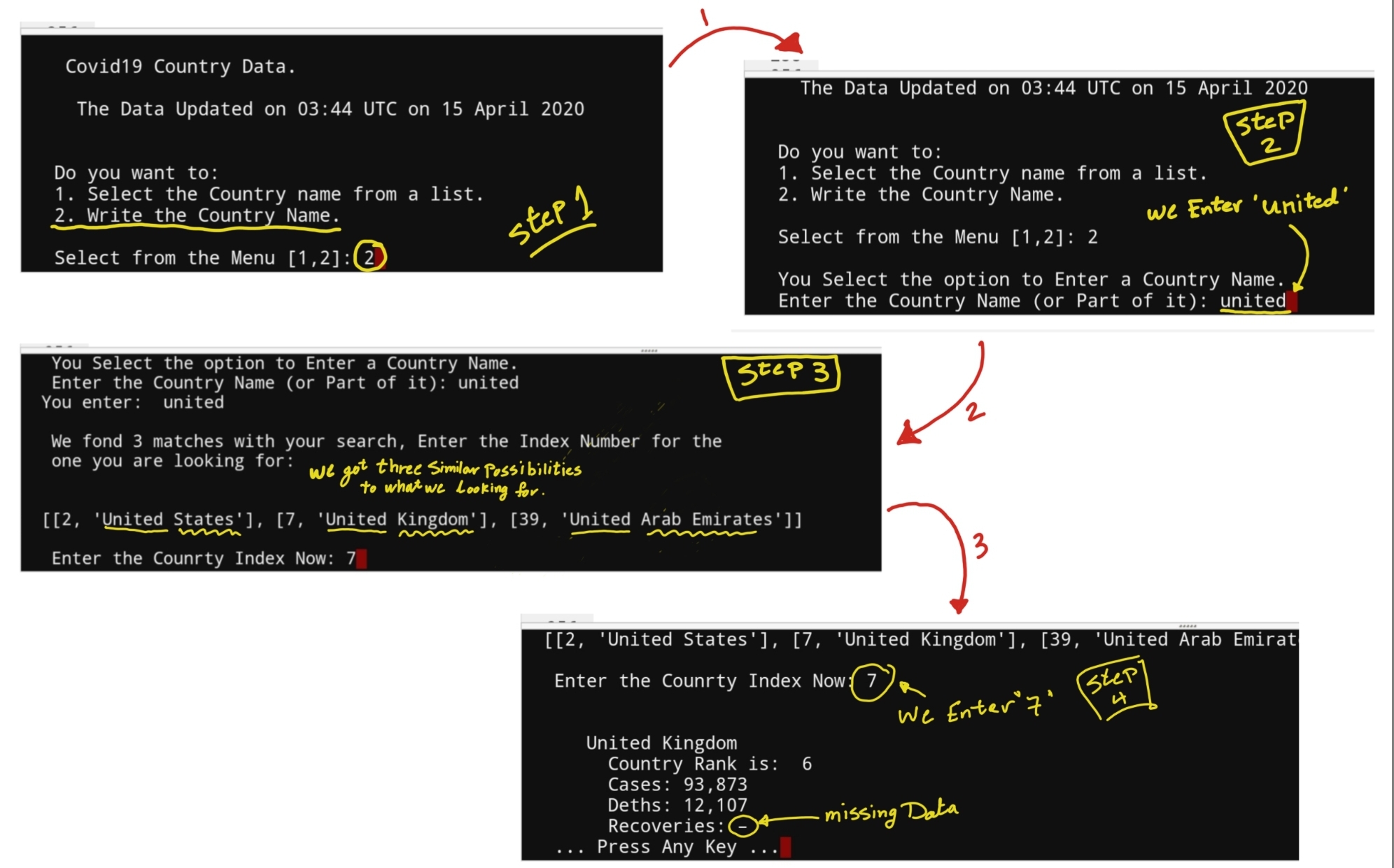
In the previous Version of the function, we list down all the countries name with there indexes and ask the user to enter the index number of a country to get it’s COVID19 Data. However in this version we will give the user an option to select wither to:
1. Select the Country Name from a list.
2. Write the Country Name.
So if the user go-for option [1] then this will be as version 1, and if the user select option [2] then we will provide the opportunity to Enter Full or Part of a country Name and we will search for similar input (in the country list) and list them. Here is a screen shot of the RUN-Time ..
 |
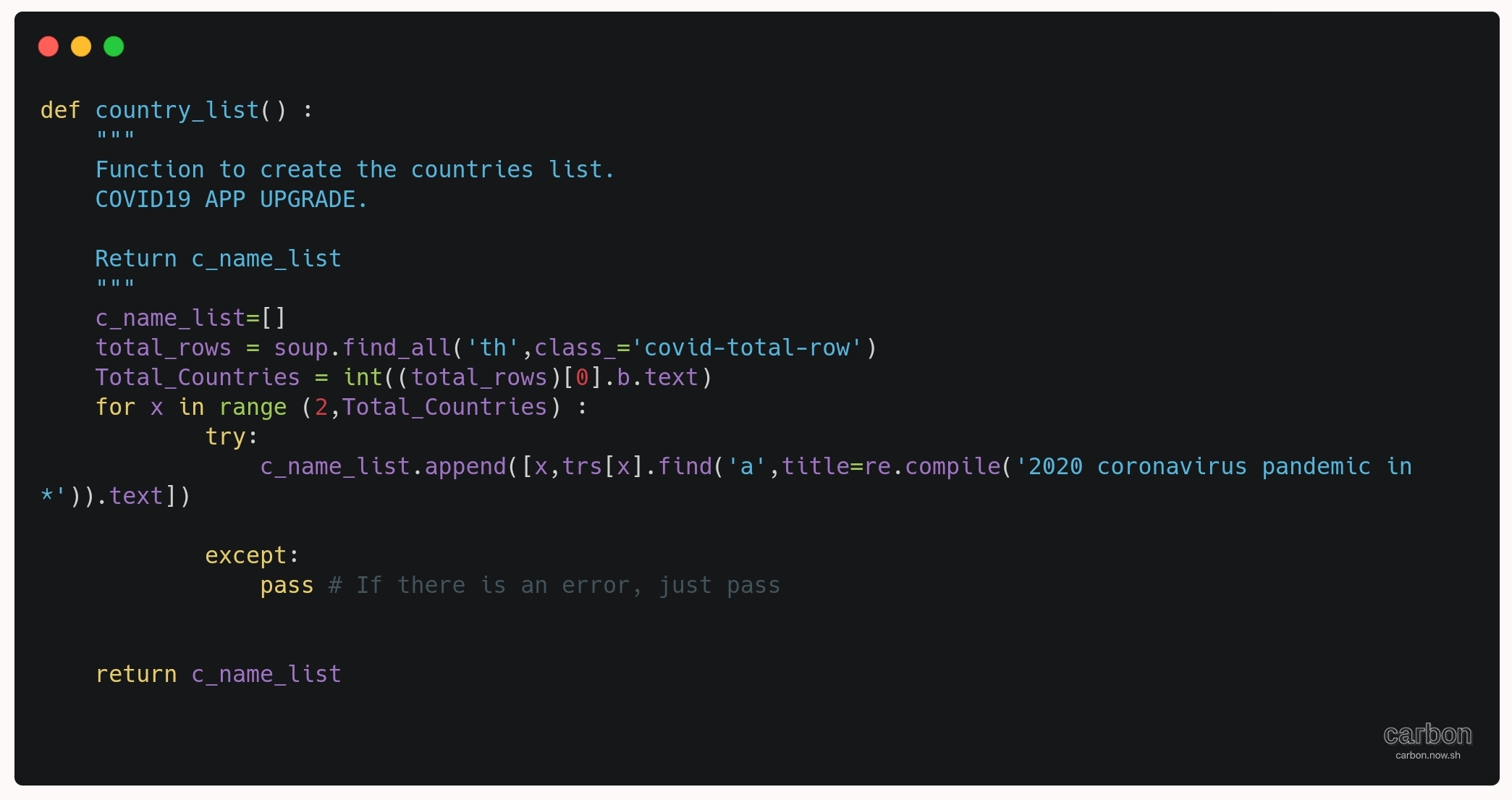
First we will write a code to create a list of Countries and there Indexes, this new function will called ‘def country_list()’ and it will return a list variable named ‘c_name_list’, here is the code for it.
# Function to create Country List

def country_list() :
    c_name_list=[]
    total_rows = soup.find_all('th',class_='covid-total-row')
    Total_Countries = int((total_rows)[0].b.text)
    for x in range (2,Total_Countries) :
            try:
                c_name_list.append([x,trs[x].find('a',title=re.compile('2020 coronavirus pandemic in *')).text])

            except:
                pass # If any errors, just pass.
    return c_name_list

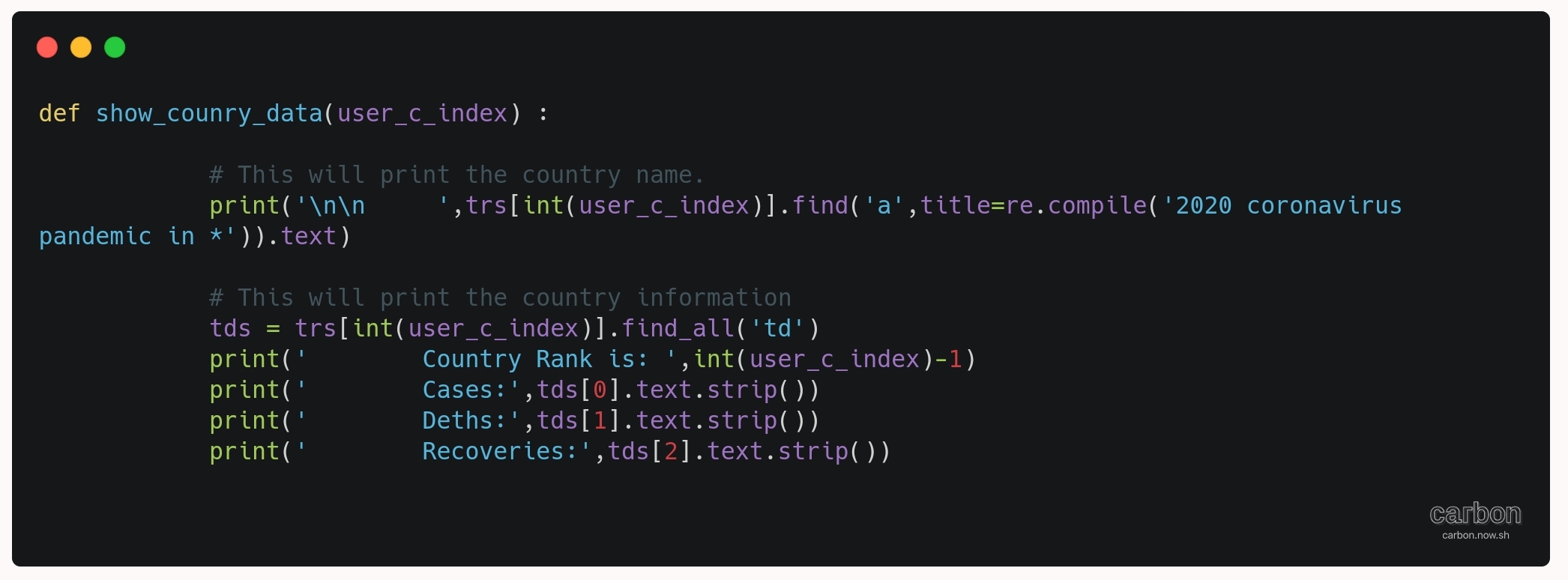
Now we will split a part that (displaying the Country Data) from the main function ‘covid19_in_country()’ to be as an objet so we can call it any time with passing the country index to it. Here is the code..
# Code to display COVID19 data on the screen.

def show_counry_data(user_c_index) :
    # This will print the country name.
    print('\n\n     ',trs[int(user_c_index)].find('a',title=re.compile('2020 coronavirus pandemic in *')).text)
    # This will print the country information.
    tds = trs[int(user_c_index)].find_all('td')
    print('        Country Rank is: ',int(user_c_index)-1)
    print('        Cases:',tds[0].text.strip())
    print('        Deths:',tds[1].text.strip())
    print('        Recoveries:',tds[2].text.strip())

No we will re-write the main function of covid19_in_country() and we will add version number to it so it will be “covid19_in_country_v02()“. Here is the code ..
# covid19_in_country_v02()


def covid19_in_country_v02() :
    """
    Version: 02.13.4.2020
    """
    os.system('clear')
    print('\n    Covid19 Country Data.')
    print('\n    ',last_update,'\n')

    while True:

        print('\n   Do you want to:' )
        print('   1. Select the Country name from a list.' )
        print('   2. Write the Country Name.')
        country_as = input('\n   Select from the Menu [1,2]: ')
        if country_as in ['1','2'] :
            break
        else:
            print('\n    You Must Select [1 or 2] ... Try Again .. ')

    c_name_list = country_list()
    if country_as =='1' :
    # First we will print-out the list of counries name.
        for cou in range (0,(len(c_name_list)),4) :
            try:
                print ('    ',c_name_list[cou],c_name_list[cou+1],c_name_list[cou+2],c_name_list[cou+3])
            except:
                pass # if any error just continue.

        while True :
            user_c_index = (input('\n\n    Enter the Index number of the Country to see it''s Data. [e to Exit] '))
            try :
                show_counry_data(user_c_index)
            except :
                if ((str(user_c_index)) in ['e','E']) :
                    return
                else :
                    print('\n    You must Enter a Number or ''e''/''E'' to exit')


    if country_as =='2' :

        print('\n   You Select the option to Enter a Country Name.')
        search_country = input('   Enter the Country Name (or Part of it): ')
        print('  You enter: ',search_country)
        c_indexes=[]
        for x in range (0,(len(c_name_list))) :
            try :
                if (search_country.casefold()) in (c_name_list[x][1]).casefold() :
                    c_indexes.append([c_name_list[x][0],c_name_list[x][1]])
            except:
                 pass
        if (len(c_indexes)==0) :
            print('\n   We can''t find your search, this may due to:')
            print('   1. Spelling error.')
            print('   2. Country Name drops for some technical error.')
            input('\n    ... Press any key ...'')
            return

        else :
            print('\n   We fond {} matches with your search, Enter the Index Number for the\n   one you are looking for: '.format(len(c_indexes)))
            print('\n\n ',c_indexes)

            show_counry_data(int(input('\n   Enter the Counrty Index Now: ')))

    input('   ... Press Any Key ...')
This application and the code was written as a matter of training and learning. The owner/creator is not responsible for any missing or wrong data may exist in the file and/or the Data. (the code and/or the data-sets).
Note That: The file will only contain the changes in the function, NOT the Full COVID19 APP.
To Download my Python code (.py) files Click-Here
By: Ali Radwani
Python and Covid-19
Learning : Using Beautifulsoup in Python
Subject: Grab Data from a Website Using Python
In this article we will use Python codes to fetche some data from a website, the Data we are looking for is about Covid-19, to do this we can use an API but here I am using web crawler with Beautifulsoup. So let’s start.
Introduction: First we need a Data Source web-Page, if we search the web we will find a lot of pages there I select this one (en.m.wikipedia.org/wiki/2019%E2%80%9320_coronavirus_pandemic_by_country_and_territory) Source:wikipedia.org, you need a basic knowledge about HTML to understand the stag’s. After reading the web-page source code we can found the following:
1. The HTML code structure contain 9 Tables.
2. The Data about Covid-19 is in Table No. 2.
3. The Table consist of several ‘tr’ Tag. In HTML ‘tr’ tag is Row.
4. Each ‘tr’ consist of several ‘td’ Tag. In HTML ‘td’ tag is Colunm.
5. Each ‘td’ may contain other tags or information, and some of those information are what we are looking for. We will talk about this later in bellow.
Now we will talk about our Python Application. We will write a Python Application that will display a Menu on the screen and ask the user to select from the Menu, and based on the user selection we will run a function to perform something, in our case we will have a Menu with four choice of selection as:
1. The Totals in the world.
2. The covid-19 by countries.
3. Covid-19 Table.
9. Exit.
To start writing our code, First we need to import some library we here is the code..
# To import needed Libraries

import requests, os, re
from bs4 import BeautifulSoup
The Menu: As we mentioned we will have a Main-Menu to help the users in there selections. Here is the code:
# COVID-19 APP MAIN MENU

def covid19_menu() :

    while True :
        # This will Clear the terminal
        os.system('clear')
        print ('\n    =====[ COVID-19 APP MAIN MENU ]=====')
        print('    1. The Total in the World.')
        print('    2. The covid-19 by Countries')
        print('    3. Covid-19 Table. ')
        print('    9. Exit')

        user_input = input('\n    Enter Your choice: ')

        if user_input in ['1','2','3','9'] :
            if user_input =='1' :
                covid19_world_total()

            if user_input =='2' :
                covid19_in_country()

            if user_input =='3' :
                covid19_table()

            if user_input =='9' :
                return

        else :
            print (' You Must select from the above Menu.')
            input('\n      ... Press any key ...')
 |
Now we will work on First function, before that we will write this two lines of code to set my_url (the webpage we want to read), and calling the BeautifulSoup for it, so all the webpage source will be as text in variable soup:
# To load the page in a variable soup
my_url ='https://en.m.wikipedia.org/wiki/2019%E2%80%9320_coronavirus_pandemic_by_country_and_territory'
source = requests.get(my_url, headers = headers).text
soup = BeautifulSoup(source, 'lxml')
Now our first function will get the last update of the data (Date and Time), after searching the web-site code, I found that the page contain 19 ‘P’ tag’s and the last update statement is in fifth Paragraph, but in case that the page may updated with more data or the page structure changed, we will write a code to search for it. Here is the function to get the Data last Update statement.
# Function to get Last update statement

def get_last_update():
    update_date_time = soup.find_all('p')
    # I found the date in P = 5, but i will search other the 19 P's
    for thep in range (0,19) :
        if 'UTC on' in update_date_time[thep].text :
            last_update='The Data Updated on ' + update_date_time[thep].text[6:32]
            return last_update
        else:
            thep = thep + 1
Now, our function will get the four set of information for Grand Totals in the world as Total Countries has COVID-19, Total Cases of COVID-19, Total Deaths by COVID-19 and Total Recoveries from COVID-19. Here is the function
# Function to get the covid19 World Totals

def covid19_world_total():
    os.system('clear')
    print('\n    ',last_update,'\n')
    # This section will fetch th Total Rows.
    total_rows = soup.find_all('th',class_='covid-total-row')
    # We know that total_rows has 4 lines, so we will access them as individual.
    print('\n   ::: TOTAL NUMBERS :::')
    print('   Total Countries has COVID-19:   ',(total_rows)[0].b.text)
    print('   Total Cases of COVID-19:        ',(total_rows)[1].b.text)
    print('   Total Deaths by COVID-19:       ',(total_rows)[2].b.text)
    print('   Total Recoveries from COVID-19: ',(total_rows)[3].b.text)
    input('\n    ... Press any Key ...')
 |
RUN-Time: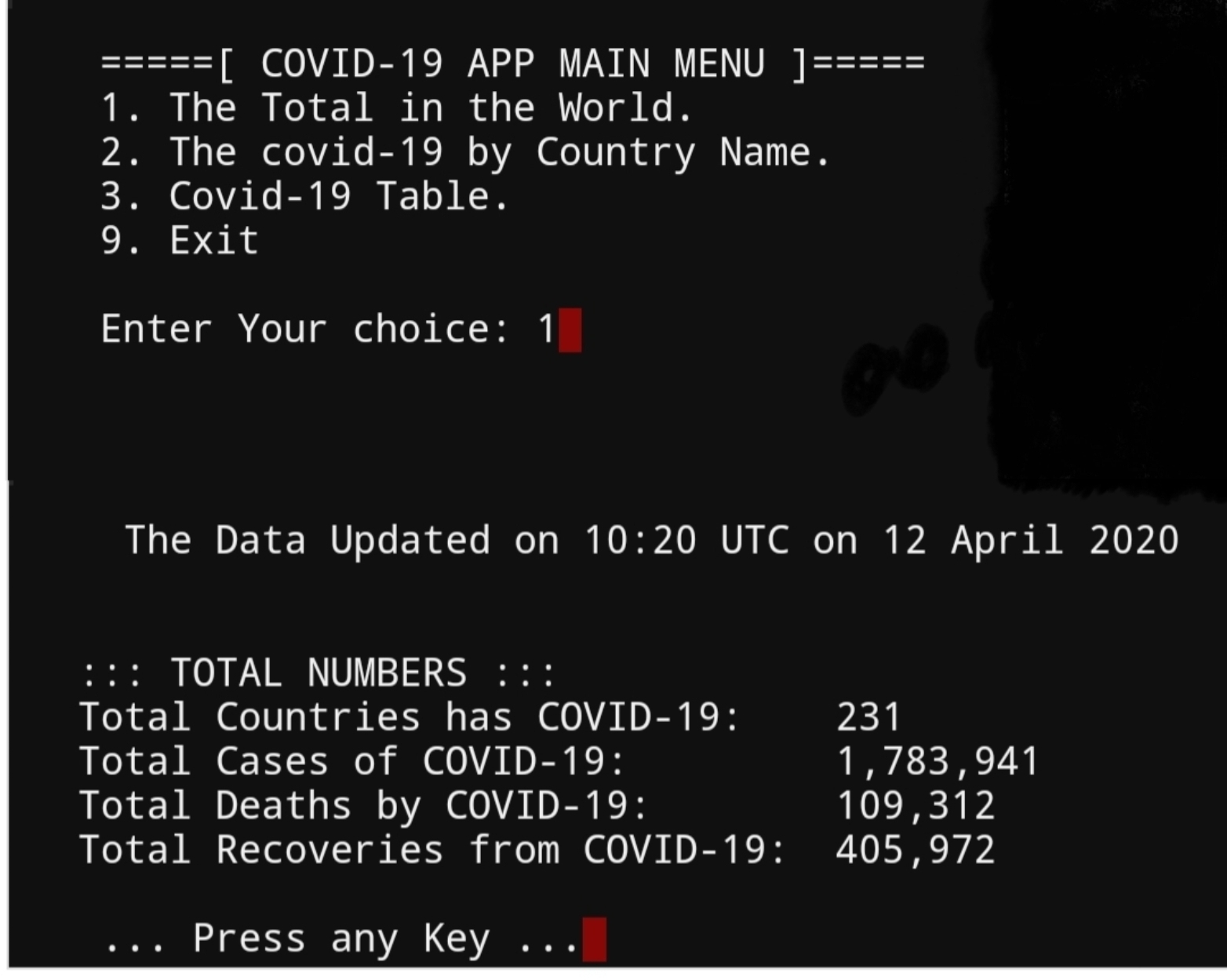 |
Second function we will work on is covid19_table, in this function we will print-out a table of covid19 contains countries Name, cases, Deaths and Recoveries sorted by Number of cases. In this version of application we will display only 10 records.
Enhancement: In a Coming version the user will select the number of records also the sorting type.
# Function to print-out the Covid19 cases.
def covid19_table(top =10):
    """
    This Function will print-out the countries table sorted by Number of cases.
    If the user did not select number of countries then defult will be first 10.
    """
    os.system('clear')
    print('\n   The List of Countries has Covid-19, Sorted by Total Cases..')
    print('   ',last_update,'\n')

    r_spc = 30
    tab_offset = (r_spc-1)
    # To print the Table Header.
    print('-'*r_spc,'+','-'*20, '+','-'*21,'+','-'*20)
    print(' '*8,'{0:<20}  |       {1:<15}|      {2:<17}|     {3:<20}'.format('Countries','Cases','Deths','Recoveries'))
    print('-'*r_spc,'+','-'*20, '+','-'*21,'+','-'*20)

    droped_data =[]
    c = 2
    while c <= top :
        try:
            # This will print the country name.
            contry_name = trs[c].find('a',title=re.compile('2020 coronavirus pandemic in *'))
            tds = trs[c].find_all('td')
            c_offset = len(contry_name.text.strip())
            print('   ',c-1,'-',contry_name.text.strip(),' '*(tab_offset - c_offset),(tds[0].text).strip(),' '*(30 -(20 + len((tds[0].text).strip())) +10) ,(tds[1].text).strip(),' '*(30 -(20 + len((tds[1].text).strip())) +12),(tds[2].text).strip())

        except :
            droped_data.append([c])
        c = c + 1
    print('\n\n    We have {} Droped Country(ies) due to some error'.format(len(droped_data)))
    input('\n   .. Press  Any Key ... ')
RUN-TIME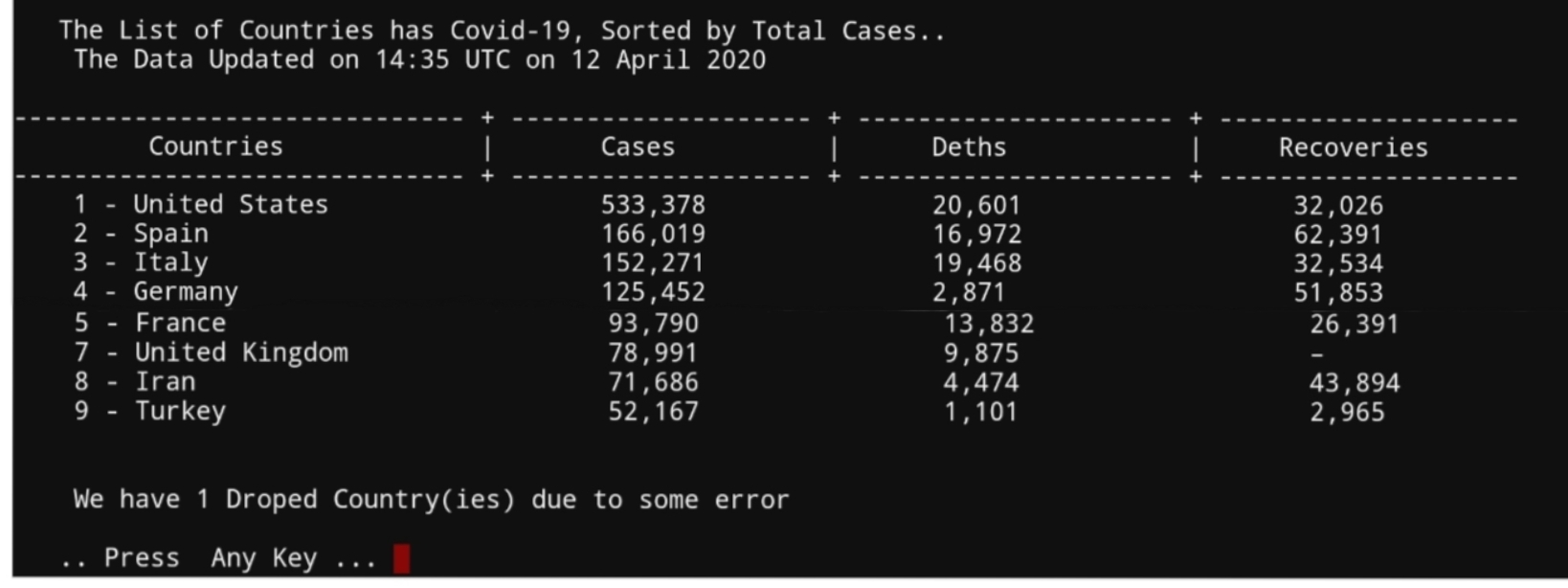 |
In the last Function, we will let the user to select the Country name then we will display the Covid19 information regarding his selection. So to perform this action, First we will create a list of all Countries Name, and display the list on the screen asking the user to select (Enter) the index number of any Country, then we search for that country name and grab it’s Covid19 Data. Here is the code..
# Function to grab Covid19 Data by country.

def covid19_in_country() :

    os.system('clear')
    print('\n    Covid19 Country Data.')
    print('\n    ',last_update,'\n')

    # First we will build a list of counries name.
    c_name_list=[]
    total_rows = soup.find_all('th',class_='covid-total-row')
    Total_Countries = int((total_rows)[0].b.text)
    drops_c = 0
    for x in range (2,Total_Countries) :
        try:
            c_name_list.append([x,trs[x].find('a',title=re.compile('2020 coronavirus pandemic in *')).text])

        except:
            drops_c +=1

    print('    We miss {} Countries due to some errors.'.format(drops_c))
    print('\n    Enter the Country Number to show it''s Data.')
    for cou in range (0,(len(c_name_list)),4) :
        try:
            print ('    ',c_name_list[cou],c_name_list[cou+1],c_name_list[cou+2],c_name_list[cou+3])
        except:
            pass # If there is an error just pass.

    while True :
        user_c_index = (input('\n\n    Enter the Index number of the Country to see it''s Data. [e to Exit] '))
        try:
            if (isinstance(int(user_c_index), int)) :
                # This will print the country name.
                print('\n\n     ',trs[int(user_c_index)].find('a',title=re.compile('2020 coronavirus pandemic in *')).text)

                # This will print the country information.
                tds = trs[int(user_c_index)].find_all('td')
                print('        Country Rank is: ',int(user_c_index)-1)
                print('        Cases:',tds[0].text.strip())
                print('        Deths:',tds[1].text.strip())
                print('        Recoveries:',tds[2].text.strip())
        except :
            if ((str(user_c_index)) in ['e','E']) :
                return
            else :
                print('\n    You must Enter a Number or ''e''/''E'' to exit')

    input('   ... Press Any Key ...')
This application and the code was written as a matter of training and learning. The owner/creator is not responsible for any missing or wrong data may exist in the file and/or the Data. (the code and/or the data-sets).
To Download my Python code (.py) files Click-Here
By: Ali Radwani
Excel : Form to Save Data P-1
Learning : VBA Codes to Save Data
Subject: Create Form to collect Data
In a very fast and as simple as we can, we will design and write VBA codes to transform three fields of Data from an Excel sheet “Form” to another sheet “Data”.
To keep thing as simple as we can, we will not use any Validations on user inputs in this example.
First, we will re-name a sheet to “Form” and another one to “Data”. In sheet [Form] we will create a simple Form to collect Names, Company Name and Emails of our customers, also we add a button and call it Save. As in Image-1
Image-1 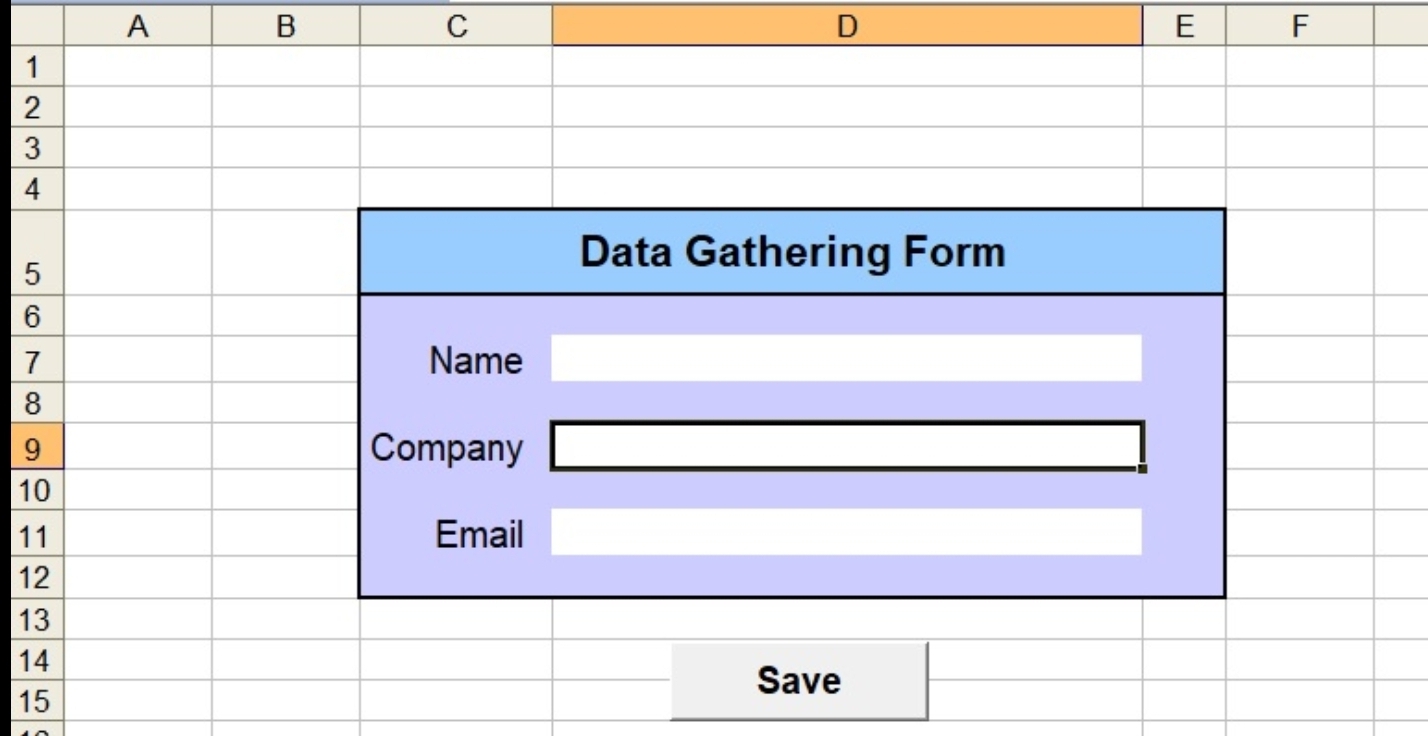 |
For companies Name, We will create a list then we will link it to Cell”D9″ so we can select a “Company Name” from a drop-down list. So to do this First in the Data sheet I will write a list of companies Name as (Comp Name 1,Comp Name 2,Comp Name 3, …. to Comp Name 10). I start my list from Cell “H8” [As in Image-2] you may start from any Cell you want.
Image-2 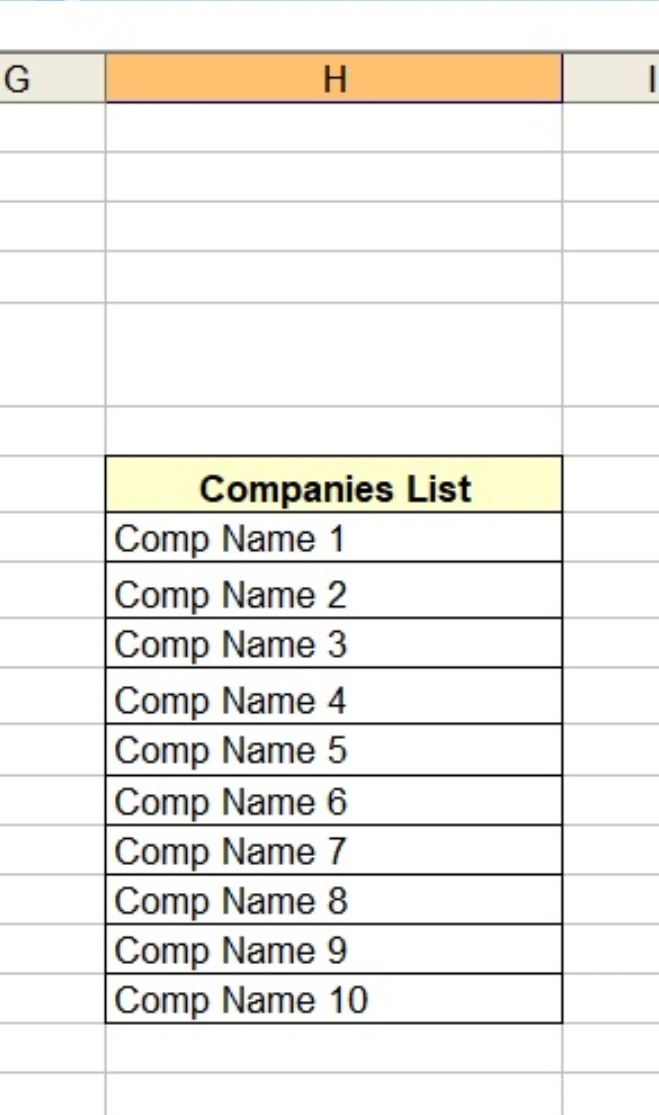 |
Now to link a Dropdown list of our companies Name to Cell “D9″ Do this:
1. Goto Cell”D9”.
2. From the menu we will select “Data” then “Data Validation” and select Data Validation. [Image-3]
Image-3 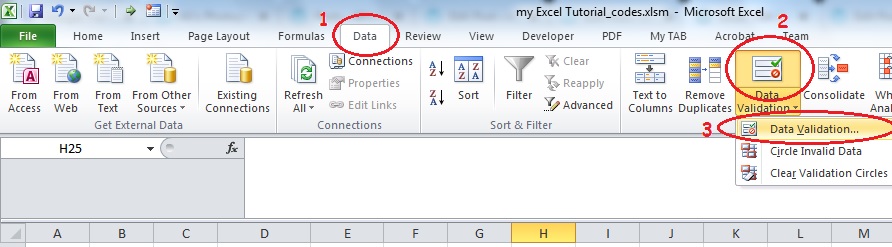 |
3. In the Allow [Select “List”], then in the Source we select the range of Companies we write [Range Cells H8:H17] or just write this: =$H$8:$H$17. Then click OK. See Image-4
Image-4 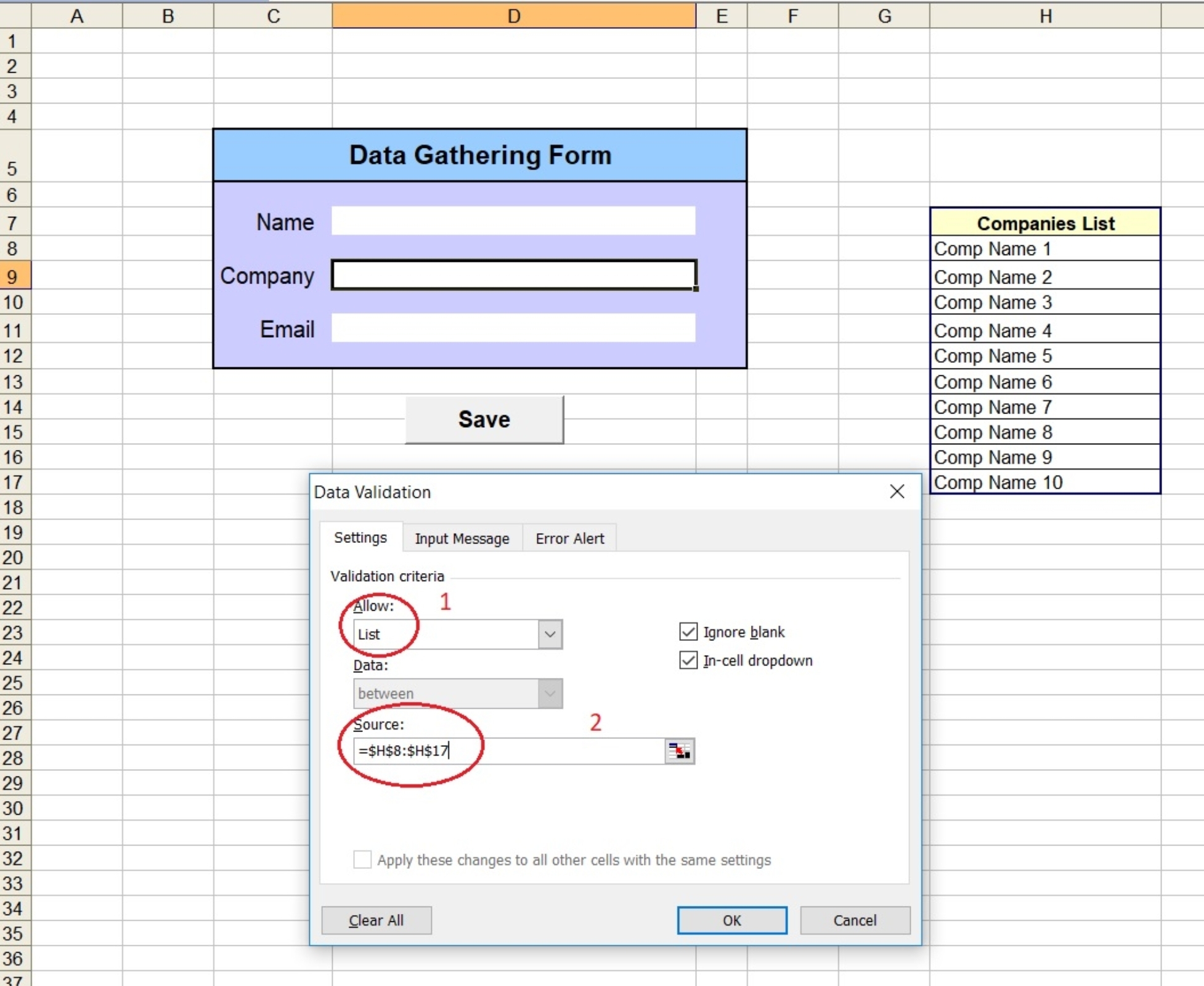 |
Now if we try to click on Cell “D9” we will have a list as in Image-5.
Image-5 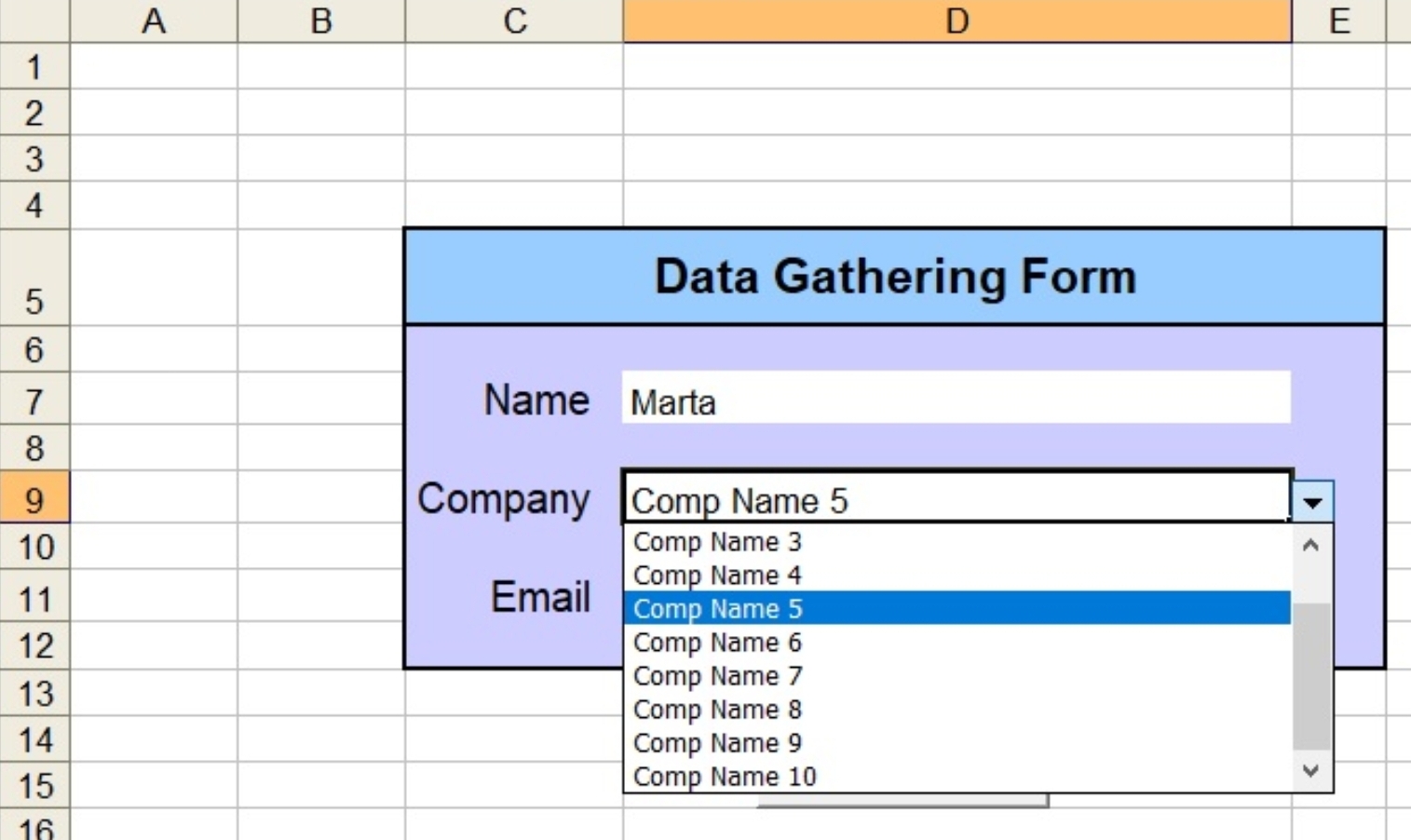 |
In the “Data” Sheet we will just create the Table Header as in Image-6, and will go-back to “Form” Sheet.
Image-6 |
Now we will write the VBA codes and link it to to a “Save” Button we create. To open the Visual-Basic window we select “Developer” From the Top menu, then Press Visual Basic.
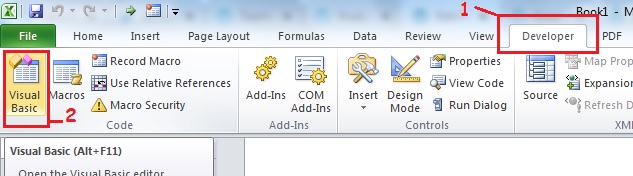 |
Then we write this code and link it to the Save Button. ..
 # VBA Macro code to Save Data to Data sheet

Sub Save_data()
'
' Save_data Macro
' Macro recorded 2020-03-29 by HP
'

'
    ' Set Variables
    Name = Range("D7").Value
    comp_name = Range("D9").Value
    Email = Range("D11").Value


    ' Goto data sheet
    Sheets("Data").Select
    ' This line will get the Next empty Row in the Data sheet.
    emp_row = Range("A" & Rows.Count).End(xlUp).Offset(1).Row
    Range("A" & emp_row).Value = Name
    Range("B" & emp_row).Value = comp_name
    Range("C" & emp_row).Value = Email

    'Go to Form Sheet.
    Sheets("Form").Select

    ' Clear data cells.
    Range("D7").Value = ""
    Range("D9").Value = ""
    Range("D11").Value = ""

    Range("D7").Select

End Sub
Now if we enter some data [as we said: No Validation on the data] and press the Save button, the data will be coped to next empty row in the Data Sheet.
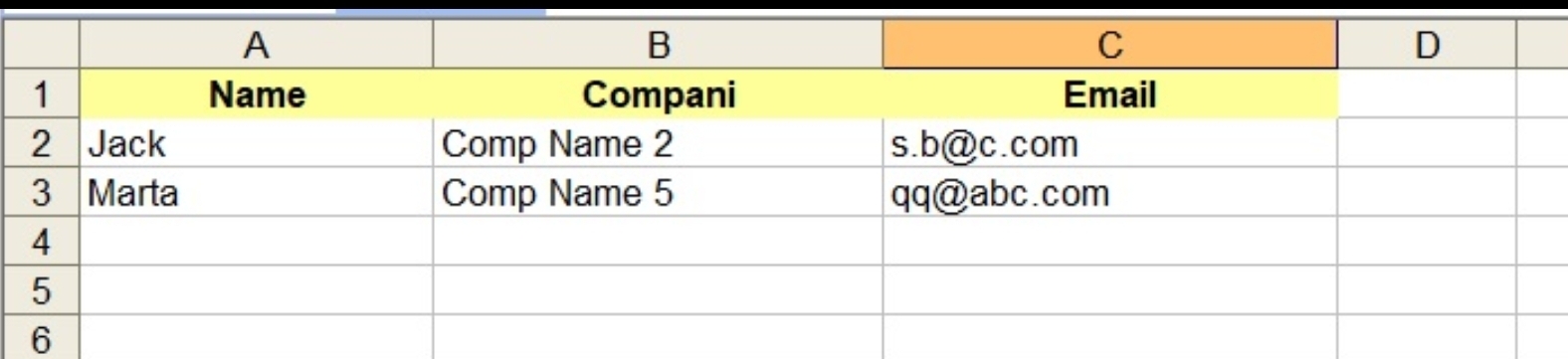 |
Enhancement: In some cases as in our coming project, it’s better to create a sheet and call it “Setting”, then we can have our Lists (such as Company-Name), Colors, Filters all to be in the Setting sheet. [We will see this in the Next Project.]
By: Ali Radwani
Excel, VBA Codes and Formulas-4
Learn To : In Excel – Highlight the Row when clicked.
Assume we have a table, and all we want to do is that if the user click anywhere in the table that ROW will change it’s color.
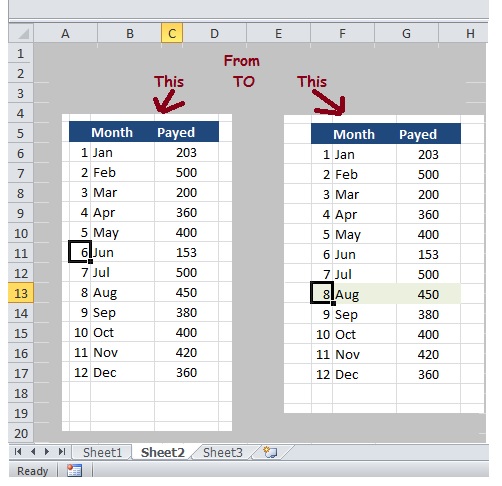 |
Steps
1. From the Top menu, Go to “Developer”, then Press Visual Basic.
| |
2. from the select the sheet name containing the table. ( We have it in Sheet 2 )
3. Then we select “SelectionChange” action from the
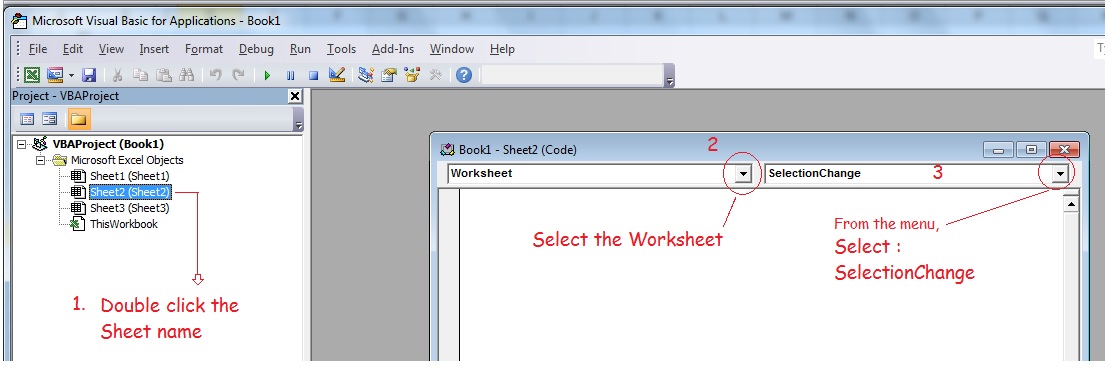 |
4. Write this code:
If Not Intersect(ActiveCell, Range(“C8:E9999”)) Is Nothing Then
Range(“A1”).Value = Target.Row
End If
5. You need to know your Table Range, in my example, the range is (“C8:E9999”). I add the “9999” so i will be sure the even if we add more data to out Table the code will handle it.
6. Now we need to add a rule in the “Manage Roles” in “Conditional Formatting” from the Excel Menu. Here is how to Open it.
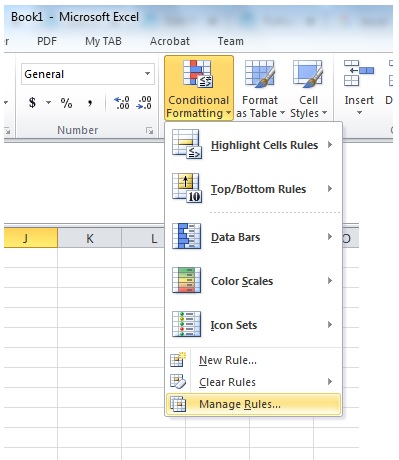 |
7. Select the “” then add new Rule, Follow the Image showing the steps to do that. Once we finish it should work fine.
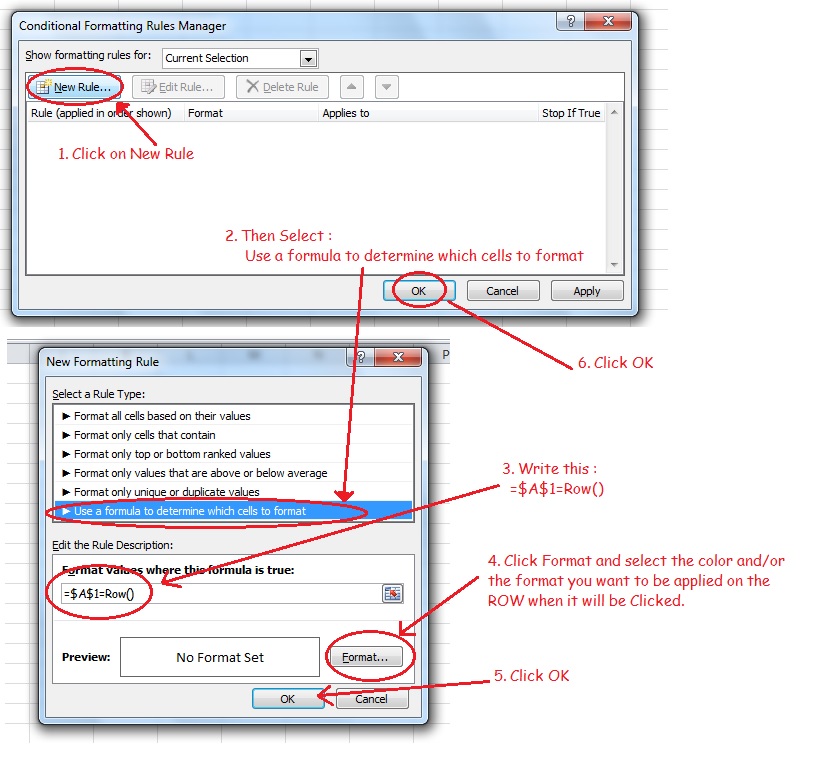 |
Now, when the user click any cell in the Table the Row will change it’s color (Format) as we set it.
🙂 Have Fun ..
By: Ali Radwani
Python and Excel P1
Learning : Python and Excel Part-1
Subject: Read Excel file
In the coming four or five Lessons we will work on reading and writing to Excel file using Python code.
First we need to import os and Pandas as in coming code block, I will use os later to fetch file information. Also we will set the file_name variable to our file assuming it is in the same .py directory and we will call [read] the file in to df [dataframe]. Here is the code
 # Import and call the File into DataFrame.

  import os, pandas as pd
  file_name = 'python_sheet_4.xlsx'
  df = pd.read_excel(file_name, sheet_name='Sheet1')
Now let’s talk about my excel file “python_sheet_4.xlsx” has two sheets named “sheet1 and sheet2” both contin same table sheet1 the table start from cell A1 and in sheet2 the table start from cell C7. So first we will work on sheet1 that’s way we call sheet1 in our df setting statement.
Now we have the df (dataframe), and if we run the this code:
 # To print out the data from df DataFrame.

print(df)
The Output.. |
Here is the original shot for our excel table
 |
Here is a list of commands that we can use..
| Command | Action |
| print(df) | Print all the data in the table |
| print(df.head()) | Print the first 5 record in the table |
| print(df.head(10)) | Print the first 10 records in the table, and print(df.head(x)) will will print the first x record. |
| print(df.columns) | Print out the table header as a list along with data type. |
| print(*df.columns,sep=’,’) | This command will printout only the table header separated by (,)
|
| print(df.shape) | This will print the size of the table, in our case the out-put will be (17,3) so we have 17 records and 3 columns. If we wanr only the number of records we shall use print(df.shape[0]) If we wanr only the number of records we shall use print(df.shape[0])
|
| sheets_name = (pd.ExcelFile(file_name)).sheet_names | This command will return the Number and name of sheets in the file, then we can print it out like this: print(‘\n Number of Sheets in the file: ‘,len(sheets_name)) print(‘\n Sheets Name :’,*sheets_name,sep=’,’)
|
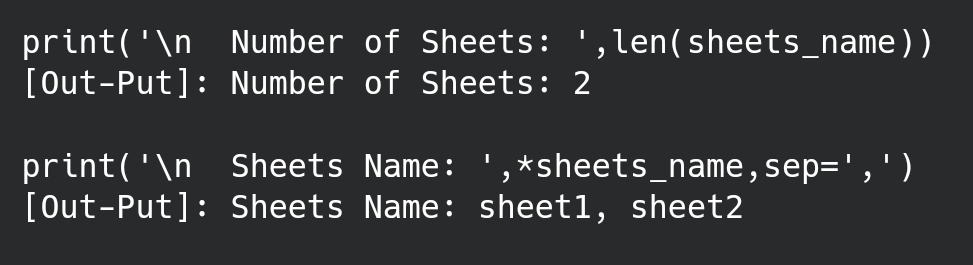
To make things in a professional way, we will write a function so we can use it with other applications, here is it..
The Code |
[Out-Put]: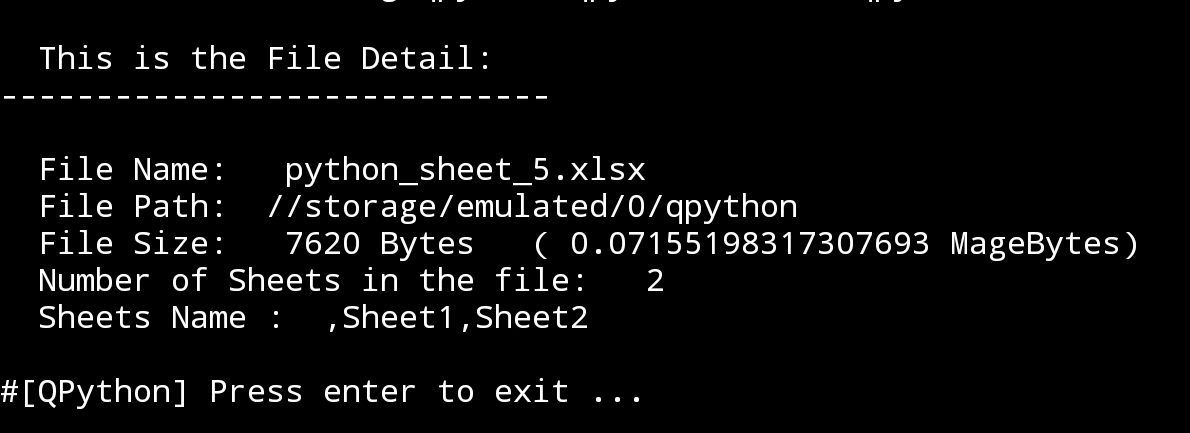 |
To Download my Python code (.py) files Click-Here
By: Ali Radwani
Excel, VBA Codes and Formulas-1
Learn To : In Excel – Drop Down List in a cell.
I start working on a project for a friend, he has some requests to be done on a MS-Excel, so I thought why not to write several posts about MS-Excel capabilities.
MS-Excel is a great application to be used, I will not write to praise the program, but will jump to coding. In Excel we can use dozens of built in ready to use tools and Formulas. Also MS-Excel has a very good, easy to use and learn programming language called VBA (Visual Basic for Application) which with simple code we can perform some tasks and create Menus, buttons and functions that runs in background.
Starting from this post we will use some built-in functions and VBA’s one that I am using in my Excel files.
So let’s say we have a table that has a column called “Pay-Method”, the value we save in this column always is one of three: “Cash, Card, Cheque” we don’t want the user to type it every time, but to select it from a list.
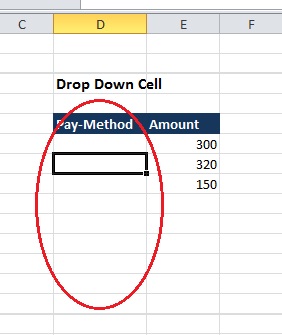 |
To do this we can use an static approach or a Dynamic approach.
Static Approach: if we have a specific answers that can’t be more like (Yes,No) or as our example above (Cash, Card, Cheque) or similar cases then we can use an static approach. So First Select First cell in the Table, from the menu we will select “Data” then “Data Validation” and select Data Validation.
| |
Now,
- From the Allow box, we select List.
- Then in Source box, we need to type the items we want to appear in each cell as a drop-down list separated by a comma. Cash, Card, Cheque
- We need to check [Ignore Blank and In-cell Dropdown] Then Click OK.
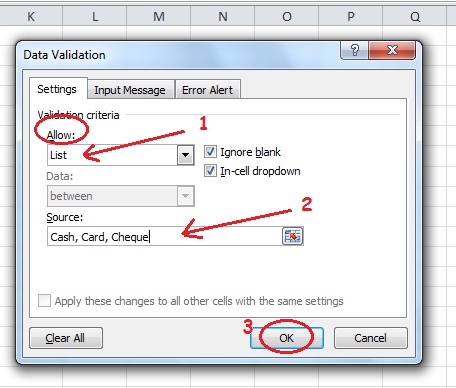 |
Now we will have a small arrow on the first cell in our Table, to copy the List to other Cells (Beneath) hold the small DOT and Drag it down.
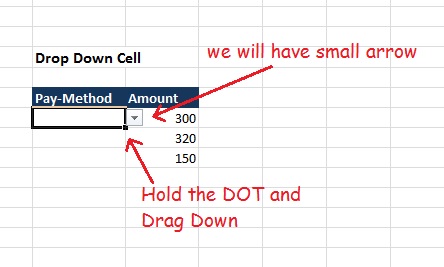 |
And Now we are DONE, we just create a Dropdown List in all “Pay-Method” Column in the table..
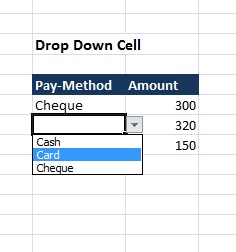 |
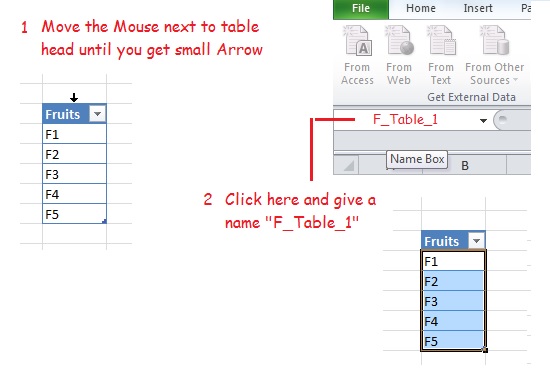
Dynamic Approach: If we have a list of items and this list is growing (We may add more items ti it), such as Fruit list in a grocery, then we will use the Dynamic drop-down list. In this case I prefer to use a new Excel Tab call it “Setting”, so we will create one. On that Tab create a Table call it “Fruit” and list all the fruits you want to be appear in the drop-down cell list (In this example I will list down F1, F2, F3, F4, F5), Select the table and from Menu select “Format as Table” and just chose any format you want. Here is a screen shot.
Here is a screen shot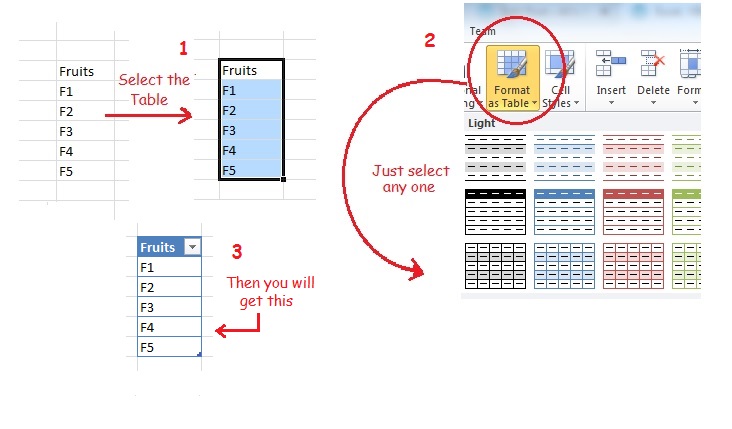 |
Move the Mouse next to table head until you get small Arrow, and give it a name. as in here..
 |
Now go-back to our main Table and using the same way we did in the Static Approach (from the menu we will select “Data” then “Data Validation” and select Data Validation.) AND
- From the Allow box, we select List.
- Then in Source box, we need to type the Name we select for our table “F-Table_1” for the fruit table
- We need to check [Ignore Blank and In-cell Dropdown] Then Click OK.
Done … Now if we add new Fruit to the list “F6” it will appear in our Drop-Down cell list.
🙂 Have Fun ..
By: Ali Radwani
Python: Cooking App P-8
Learning : Python, Data-Base, SQlite
Subject: Writing a Cooking Application
RECIPES MENU: Show Recipe During writing all functions of the application I notes that my “Show Recipe” need to be updated, so in this post we will do some changes on “def show_all_rec(opt)” function.
First, we will change the if opt ==”name” to list all the Recipes Name with ID’s and ask the user to Enter a Recipe ID to show its information.
Here is the code ..
 # Changes on show_all_rec(opt) - if opt =="name"

if opt =="name" :
        #First we will list down all Recipes Names.
        c.execute("select r_id,r_name from recipes where r_id > 0")
        for each_r_name in c.fetchall():
            print(' ID:',each_r_name[0], ' Name:',each_r_name[1])

        get_rec_id = input ('\n Enter the Recipe ID you want to read: ')
        # Get the Recipe information based on ID.
        c.execute("select * from recipes where r_id ={}".format(get_rec_id))
        for each_basic in c.fetchall():
            print('\n  ID: ',each_basic[0])
            print('  Name: ',each_basic[1])
            print('  Date: ',each_basic[2])
            print('  Type: ',each_basic[3])
            print('  Other: ',each_basic[4])

            print('\n  The Recipe Ingredients: ')
            # Get all Recipe Ingredients.
            get_sql = '''
                    select
                        i_name

                    from
                    ingredients_list

                    INNER JOIN rec_ingredient ON ingredients_list.i_l_id = rec_ingredient.i_l_id
                    where rec_ingredient.r_id = {}

                    '''
            c.execute(get_sql.format(each_basic[0]))

            st = 1
            for each in c.fetchall():
                print('  ',st,': ',each[0])
                st = st + 1

            print('\n\n  Cooking Steps: ')
            # Get the Cooking Steps.
            c.execute("select * from recipes_steps where recipes_steps.r_id = {}".format(each_basic[0]))
            st = 1
            for each in c.fetchall():
                print('\n    Step-',st,': ',each[2])
                st = st + 1

            print('\n ---------------------------------------------')
Here is the out-put screen :
First we have the Menus, we select 1,1,1 to get “Show Recipe By Name”  |
Here is the List of All Recipes and we will enter the ID of the one we want to see.  |
Here is the Recipes Information.  |
Notes That 1. We don’t have any Ingredient (we did not add any) so in coming post we will develop the Edit function to add some Ingredient and change/Update the Recipe Information. 2. We are not using any Validations, so if we enter any dummy data for Date the system will accept it. 3. We are not using any (avoiding Error code) such as Try…except.
To Download my Python code (.py) files Click-Here
By: Ali Radwani

Taking pictures is not my main daily practices, but when i start playing with my camera, i really enjoy my self.
Thanks for visiting my Space..


 Ali's Photography Space...