Archive
Python Project: Properties Maintenance System P2
Subject: Writing a Full Application for Properties Maintenance System
Learning : Python, Math, SQL, Logeic
[NOTE: To keep the code as simple as we can, We WILL NOT ADD any user input Varevecations. Assuming that our user will Enter the right inputs.]
In Part-2 we will start writing the Functions in our app, to start I select the Payment Methods, this is a Look-up Table that will help the user to select come values, by defualt when you install the application and select to create the database, [in Part-1] we Insert some data all lookup-tables, So here in payment Method we have [Cash, Card, Cheque]. Our Functions will be Add New Payment Method, Edit a Payment Method and Delete a Payment Method.
Once i start writing the Edit Function, i notes that we need another two Functions to Help-up theyare: get_lookup_values(tname,t_id,key_id) and check_availabilty(dt, d_id, check_id) both not printing any thing on the screen just returning a Value.
get_lookup_values(tname,t_id,key_id) Here we pass the Table-Name, the ID field and key_id we want to return it’s Value.
check_availabilty(dt, d_id, check_id) This function will return True if the ID we send in ‘check_id’ is in the Data-Table dt.
So, let’s start with Add New Payment Method, We will ask the user to write the New Payment Method the will run the SQL command to Insert it into the data-base.. Hear is the Code ..
 # Add Payment Method

def add_pay_method():
    os.system('clear')
    line2 = "Add Payment Method"
    header(line2, 9,14)

    print('\n\n     List of the Payment Methods in the System ..  \n')
    show_lookup_data('Yes' ,'pay_meth_t','pm_id')

    print('\n     Enter a New Payment Method to the System.')
    print("     [E, Space or just Pressing Enter will be as 'Exit'].\n")

    new_pm =  input('     Enter a New Payment Method > ')

    if new_pm in ["e","E", "", " "] :
        input ('\n     You Select to Exit .. Press any key > ')
        return
    else:
        c.execute ("INSERT INTO pay_meth_t (p_method) VALUES(:p_method)",{"p_method":new_pm.capitalize()})
        db_conn.commit()

        input('\n     Done .. One record Added to the Data-Base .. Press any Key .. > ')
        return
Now, we will go to Edit a Payment Method that we have in the DataBase, here we will list all the Data we have on the screen, and will ask the user to Select the one to be edit, we will check the availability of the ID using the def check_availabilty(dt, d_id, check_id) Function and then [if the ID is available] we will use the def get_lookup_values(tname,t_id,key_id): function to fetch the key-value of that ID, then asking the user to Enter the New/Edited one. Here is the code..
 |
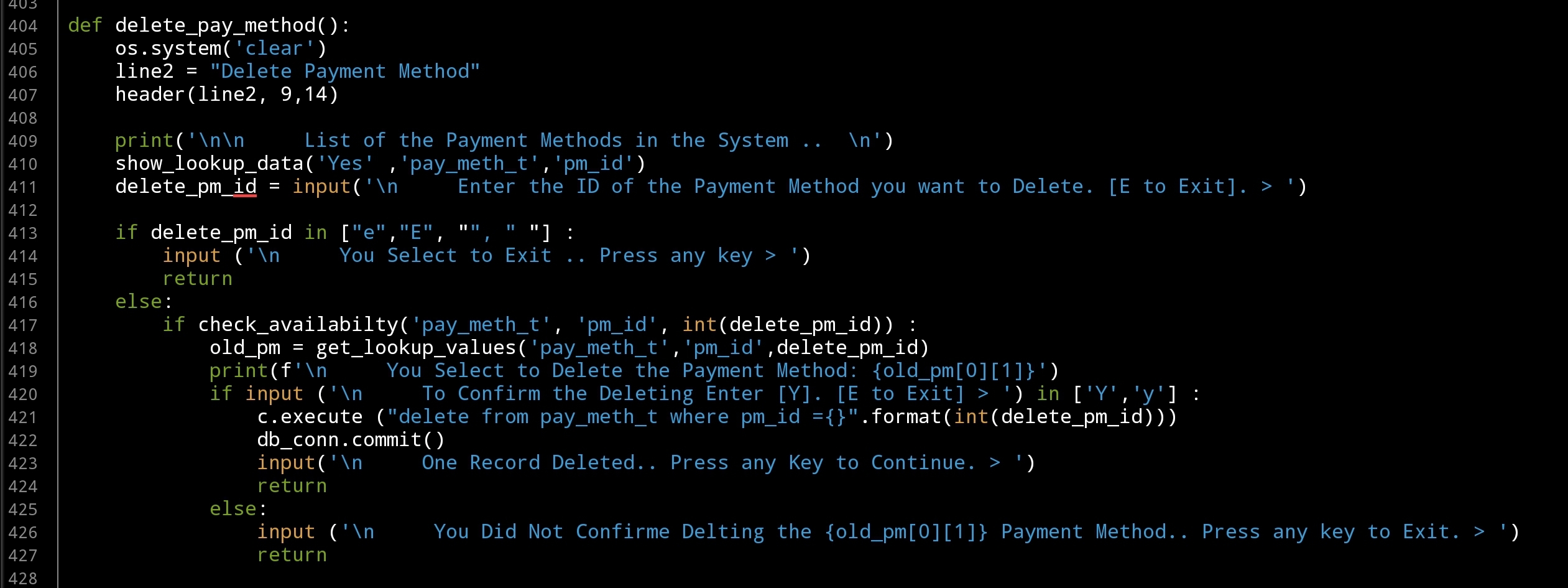
Last Function in this part is to Delete a Payment Method from the Databsae, here also we will display all the contents of the table on the screen, and ask the user to select the one tobe deleted, we will check the availability of the ID and ask the user to confirm the Deleting action, then will call the SQL command to delete the entry. Here is the code..
 |
In Part-3 In coming post we will continue writing Lookup Table Functions to Add, Edit and Delete there data.
:: PMS Parts ::
| Part 1 | Part 2 | Part 3 | Part 4 |
..:: Have Fun with Coding ::.. 🙂
To Download my Python code (.py) files Click-Here
 Follow me on Twitter..
By: Ali Radwani
Python Project: Properties Maintenance System P1
Subject: Writing a Full Application for Properties Maintenance System
Learning : Python, Math, SQL, Logeic
[NOTE: To keep the code as simple as we can, We WILL NOT ADD any user input Varevecations. Assuming that our user will Enter the right inputs.]
In one of last week posts I mentioned that i am working on a New Project, and that we may start doning a “Properties Maintenance System” also I Draft-Down some points and brain-storming session [READ THE ARTICLE HERE]. In this Part -1 of the Properties Maintenance System
In this Post, we will see the Tables and the Fields, and will write the first Function to create the Data-Base and the tables, also Inserting the Zero-Records and the (some) Data in-to lookup tables. Also I will try to list-down all the Functions we may write in our Application. All the codes will be available in the Download Page.
Tables and Fields
- Name: Job Status Table (job_s_t). Type: Lookup.
- Name: Payment Method Table (pay_meth_t). Type: Lookup.
- Name: Property Type Table (prop_type_t). Type: Lookup.
- Name: Maintenance Job List Table (main_job_list_t). Type: Lookup.
- Name: Properties Table (properties_t).
- Name: Maintenance Request Table (maint_request_t)
- Name: Receipt Table (receipt_t)
[Any other Table we may add more tables if we need latre]
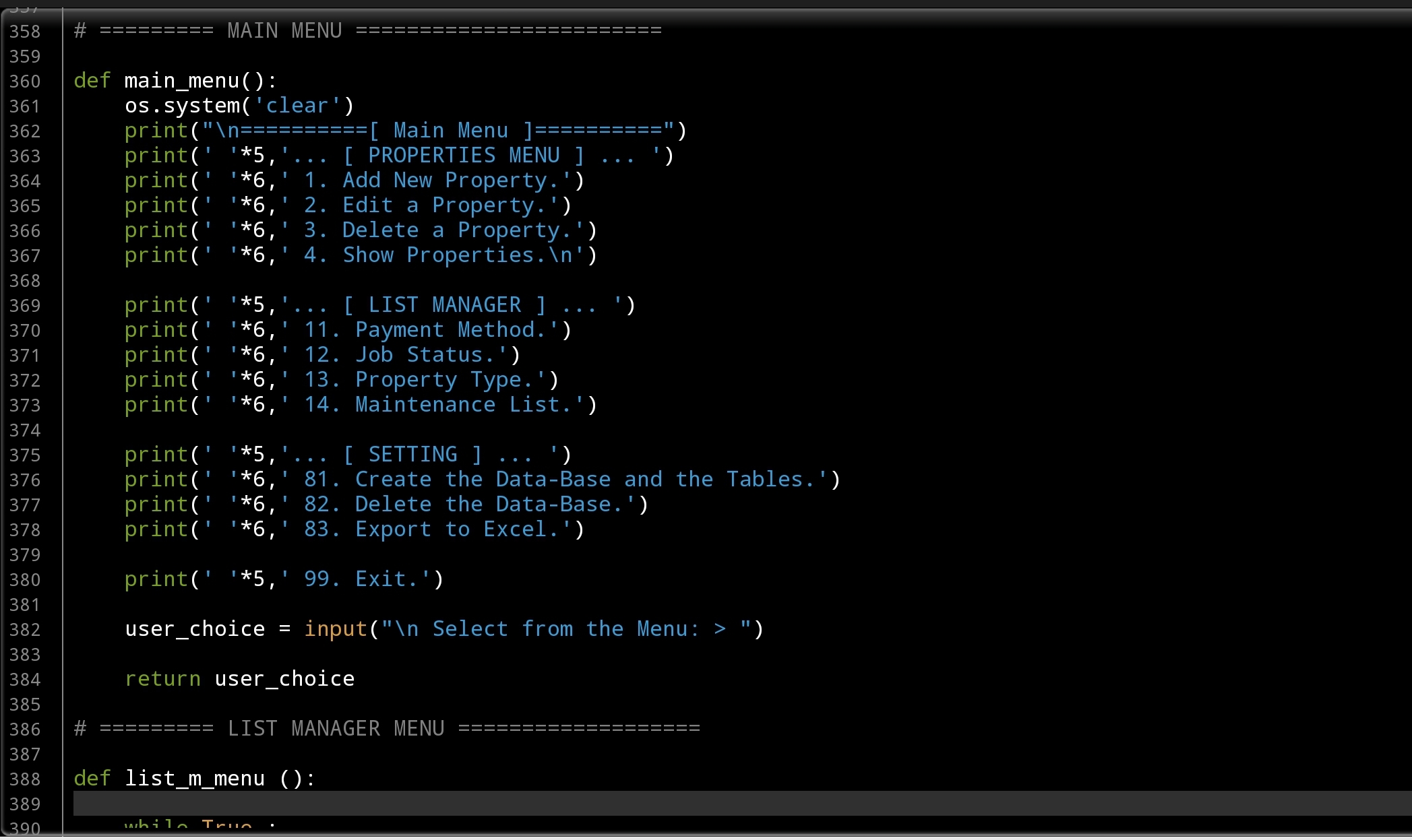
Function: Here i am listing all the Functions we will create, this list will be the Main Menu.
… [ PROPERTIES MENU ] …
- Add New Property.
- Edit a Property.
- Delete a Property.
- Show Properties.
… [ LIST MANAGER ] …
- Payment Method. [Add, Edit, Delete]
- Job Status. [Add, Edit, Delete]
- Property Type. [Add, Edit, Delete]
- Maintenance List. [Add, Edit, Delete]
- … [ SETTING ] …
- Create the Data-Base and the Tables.
- Delete the Data-Base.
- Export to Excel.
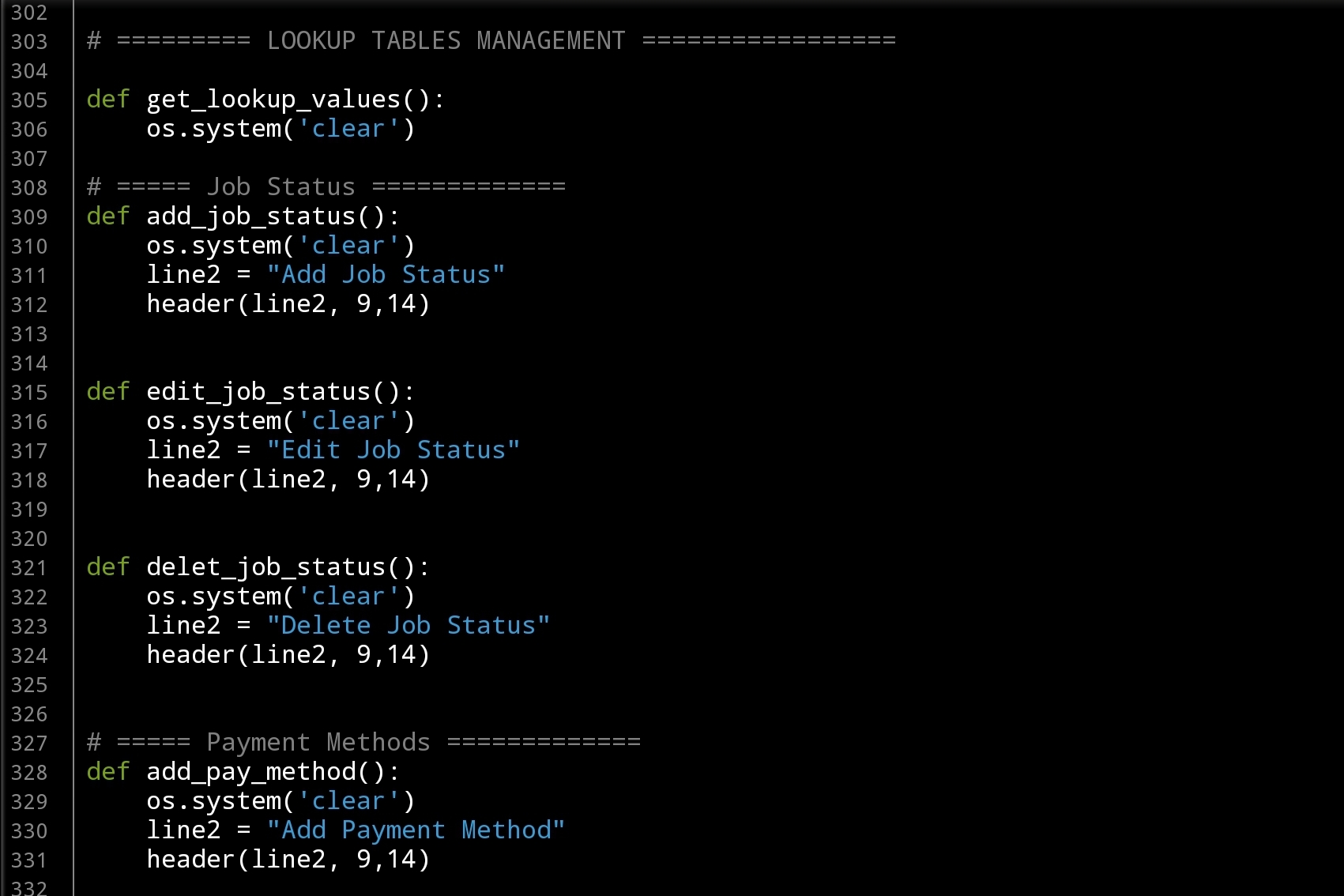
Function Exalmple: For each Function we have, this will be the template of the Function Name and the first three lines
 # Sample of: Add Job Status Function

def add_job_status():
    os.system('clear')
    line2 = "Add Job Status"
    header(line2, 9,14)  # Calling the header Function.
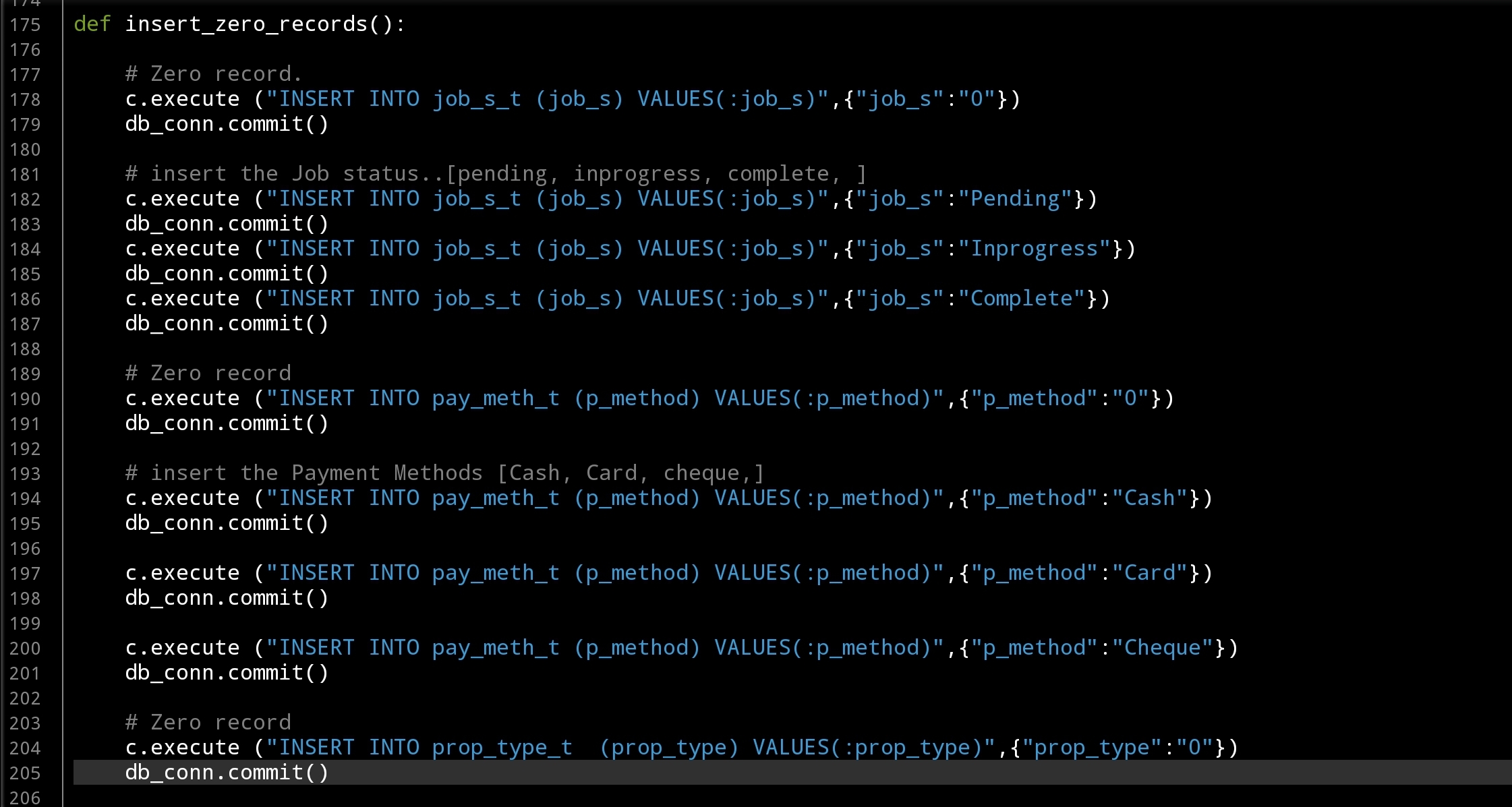
Table Creation and Zero-Records I am always start writing the ideas in the Python Editor as comments, and coding in the same time, so by the time i collect all this article the Part-1 of the project was done with Tow or Three Functions that Creating the Tables and Inserting the data into lookup-Tables. Here I am posting some screen shots of the code..
 |
 |
 |
 |
In Part-2 In Part-1 [This Article] We create the Data-Base and Tables, also Insert some Data into the lookup-tables and we create the Main-Menu Function. In Part-2 we will start writing some Functions to manage the lookup tables.
:: PMS Parts ::
| Part 1 | Part 2 | Part 3 | Part 4 |
..:: Have Fun with Coding ::.. 🙂
To Download my Python code (.py) files Click-Here
By: Ali Radwani
Python: Property Mainenance System
Project Name: Property Mainenance System
By: Ali Radwani
First-Draf: 5.10.2021 [Brin Storming]
I start writing the outline for a New Project about Renting System, one of the Functions in the system was Property Maintenance Service, then I notes that this Function can be a Stand-Alone System because of it’s Size and Requerment, so i decide to transfer the Property Maintenance Service into an Application.
Here are some Brain-Storming ideas [Not sorted, Not checked, Need to been Reviewed]
- Submit Maintenance Request (by Tenant) : (For What?: [Bathroom, kitchen, WaterSystem[Colling, Heating], Windoews and Doors, Paints, TV & Aoudio,Insects and Bugs, Roof, Others (If other please write.. )]
- Request Date,time
- Property address.
- Maintenance Suggested Date (by Tenant) [Need Maintenance team appoval]
- Cost Evaluation. [Tenant Approval Requear]
- IF Approved. Do Payment,[Cash, cheque, card] Set the Date and Time for the Maintenance.
- Start the job after payment.()
- After Maintenance Finsh Close the case.
- Print Report if requered.
- —> Tables:
- Properties: ID, Address[Zone, Street, Building],Type[Villa, Appartment], Bedroom(numbers), Bathroom(numbers), Kitchen(numbers),Car_garage(numbers), Intercome, TV_Cable, Internet, contract_period
- Maintenance_request: property ID, maintenance for, date_time status[pending, inprogress, complete],
- Payments: Total Cost, Date, Payed_by, Payment Method[cash,cheuq], Property ID, receipt id.
- completed: data, property ID, maintenance for, cost,
- —> look-up tables:
- job status: [pending, inprogress, complete, ]
- payment methods: [Cash, Card, cheque,]
- Maintenance List: [Bathroom, kitchen, WaterSystem[Colling, Heating], Windoews and Doors, Paints, TV & Aoudio, Insects and Bugs, Roof, Others (If other please write.. )]
- Functions:
- Main Menu.
- Add, Edit, Delete [For each Section/Function in the tables/Application]
- Show Data/Records.
- Reports
- submin_request.
… More to be added .. Needs:[Tables Name, ] .. Tables or functions may Merged or Deleted.
Python: Coffee Consumption P9
Learning : Python, SQlite3, Dataset, Pandas,
Subject: Create Coffee Consumption Application.
[NOTE: To keep the code as simple as we can, We WILL NOT ADD any user input Varevecations. Assuming that our user will Enter the right inputs.]
[ IF THE IS FIRST TIME DOWNLOADING THE CODE FILE, SELECT OPTION 7 FROM MAIN-MENU TO CREATE THE DATABASE]
In this part (Part-9) of Coffee Consumption App, we will write a Function to Edit a Record in the Main Table of the Coffee Consumption System. Because we are using Lookup tables for some of the data [Coffee Name, Type and Size] editing code may be longer that we will use the SQL Select commands several time to retrieve the data from those Tables. So first we will look to the steps we need to do (will do) in the Function:
1. Calling the show_records(inside = ‘yes’) function to display all the records on the screen.
2. In while True loop we will ask the user to Select the Record ID that want to Edit. We will do a Validation if the user select a valid ID using check_availabilty(‘coffee_con’,’c_id’, int(edit_rec_id)) != None)
3. Using SQL Command, We will Select the main record for Coffee_con Table, then again we will use the SQL to do the following:
— > SQL Command to get the Coffee Name for coffee_name Table using foreign key in coffee name cell.
— > SQL Command to get the Coffee Type for coffee_type Table using foreign key coffee type cell.
— > SQL Command to get the Coffee Size for coffee_size Table using foreign key coffee size cell.
Then we will display the Record and ask the use to confirm that this is the record to be edit.
4. After the user confirmation of Editing the Record, we will run three blocks of while True loop code for Coffee Name, Coffee Type and Coffee Size in each one we will display the data in the lookup Table, ask the user to Select ID from the List, if the user press on enter without writing any number then we will keep the current data, also we will do a validation on user input. Also will ask the user for Gender and Rank.
5. Now we have all the New Edited Date, we will display it on the screen asking the user [again] to confirm the “Saving The Changed” by Pressing the [S] (any thing else will be as “NO Don’t Save”).
Coding Now let’s see some parts of the code we use, the Source File of extention .py is available in the Download Page.
Here the user Selecting the ID of the Record to be Edit.
 |
The while True loop to edit the coffee Type.
 |
Last code part is to display the new edited record on the screen and the SQL command to UPDATE the DataBase.
 |
What’s Coming: In Part-10 we will write the Function to backup the data as Excel file.
..:: Have Fun with Coding ::.. 🙂
| Part 1 | Part 2 | Part 3 | Part 4 | Part 5 |
| Part 6 | Part 7 | Part 8 | Part 9 | Part – |
To Download my Python code (.py) files Click-Here
By: Ali Radwani
Python: Coffee Consumption P8
Learning : Python, SQlite3, Dataset, Pandas,
Subject: Create Coffee Consumption Application.
[NOTE: To keep the code as simple as we can, We WILL NOT ADD any user input Varevecations. Assuming that our user will Enter the right inputs.]
[ IF THE IS FIRST TIME DOWNLOADING THE CODE FILE, SELECT OPTION 7 FROM MAIN-MENU TO CREATE THE DATABASE]
In this part (Part-8) of Coffee Consumption App, we will write a Function to Delete a Record from the Main Table of the Coffee Consumption System.
Deleting a record is an easy SQL command having the Table Name and the Record ID that we want to Delete. In our Function First we wil display all the Records on the screen and asking the user to Select the ID of the Record, then we will display that record (again) on the screen and ask to Confirm the action by Entering [Y].
If the user Enter [Y] the Record will be Deleted, any thing else it wil be as No and the user will returned to the Main-Menu.
Coding: We will start the Function by displaying the header, then we will call the Function that will display all the Records in the data-base.. Here is the code..
show_records(inside = ‘yes’)
and asking the user to Select the ID.
NEXT: We will check the Availability of the ID, so if the user Enter an ID that not in the Data-Base or Empty space or just press Enter we will ask to re-enter the ID again. … Here is the code ..
while True:
del_rec_id = input (‘\n\n Select the Record ID to be Deleted > ‘)
if del_rec_id in [‘e’,’E’]:
input(‘ You Select [E to Exit].. Press any Key. > ‘)
return
elif (del_rec_id ==” “) or (del_rec_id ==””) or (check_availabilty(‘coffee_con’,’c_id’, int(del_rec_id)) != None):
break
If the ID is available, then we will display the Record and will ask the user to Confirm the Delete Command. This is the code for all the Delete Function ..
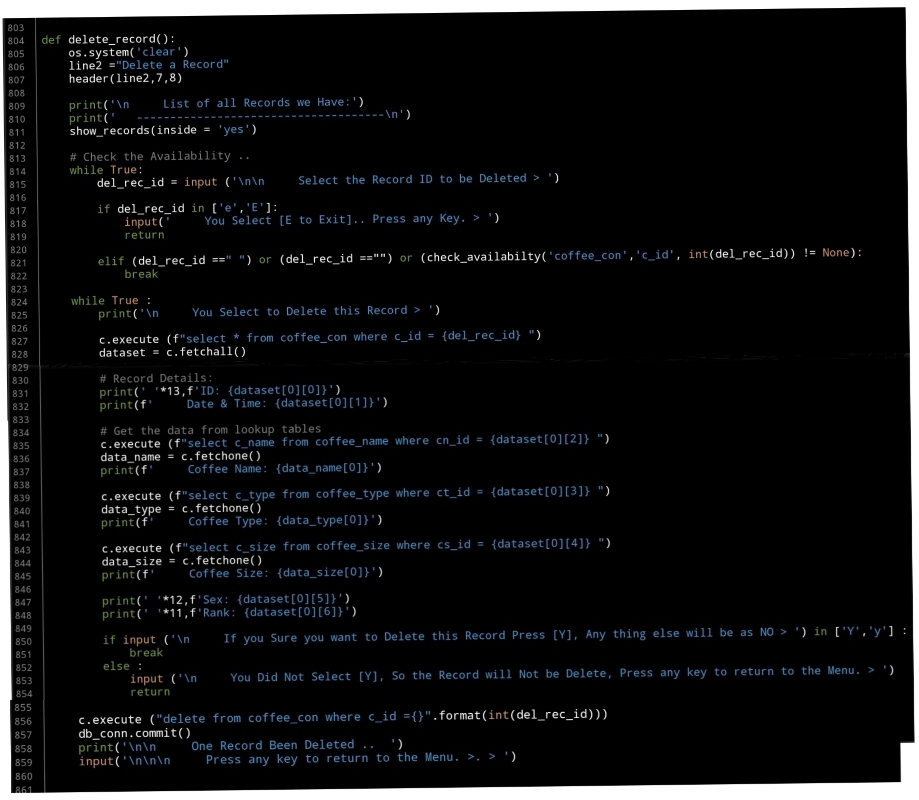 |
What’s Coming: In Part-9 we will Writing the Function to Edit a Coffee Record.
..:: Have Fun with Coding ::.. 🙂
| Part 1 | Part 2 | Part 3 | Part 4 | Part 5 |
| Part 6 | Part 7 | Part 8 | Part – | Part – |
To Download my Python code (.py) files Click-Here
By: Ali Radwani
Python: Coffee Consumption – P7
Learning : Python, SQlite3, Dataset, Pandas,
Subject: Create Coffee Consumption Application.
[NOTE: To keep the code as simple as we can, We WILL NOT ADD any user input Varevecations. Assuming that our user will Enter the right inputs.]
[ IF THE IS FIRST TIME DOWNLOADING THE CODE FILE, SELECT OPTION 7 FROM MAIN-MENU TO CREATE THE DATABASE]
In this part (Part-7) of Coffee Consumption App, we will write a Function to display all Records in the data-base in a table on the screen.
Beginning with formating the table header, we will have the following columns: record Id, Date_time, Coffee_name, Coffee_type, coffee_size, customer_Gender and Rank. Here is the code..
print(‘ ‘*6,’ID’,’ ‘*5,’ Date & Time’,’ ‘*3,’ Coffee Name’,’ ‘*4,’Type’,’ ‘*9,’Size’,’ ‘*4,’ Gender’,’ ‘*4,’ Rank’)
print(‘ ‘*4,’-‘*90)
Next we will execute an SQLITE command to fetch all the records. Here is the commands..
c.execute (f”select * from coffee_con where c_id > 1 “)
dataset = c.fetchall()
Also we will using the lookup tables to get the names using the id keys in the coffee_name, coffee_type, coffee_size columns.
Now, Using the for loop to access all the records and print them on the screen. Here is apart of the code ..
print(‘ ‘*6,'{}’.format(data_id),end=””)
print(‘ ‘*(10 – 5),'{}’.format(data_date),end=””)
print(‘ ‘*(21 – 16),'{}’.format(data_name[0]),end=””)
print(‘ ‘*(14 – len(data_name[0])),'{}’.format(data_type[0]),end=””)
print(‘ ‘*(13 – len(data_type[0])),'{}’.format(data_size[0]),end=””)
print(‘ ‘*(13 – len(data_size[0])),'{}’.format(data_sex),end=””)
print(‘ ‘*(12 – 1),'{}’.format(data_rank))
Here is a screen shot of the code..
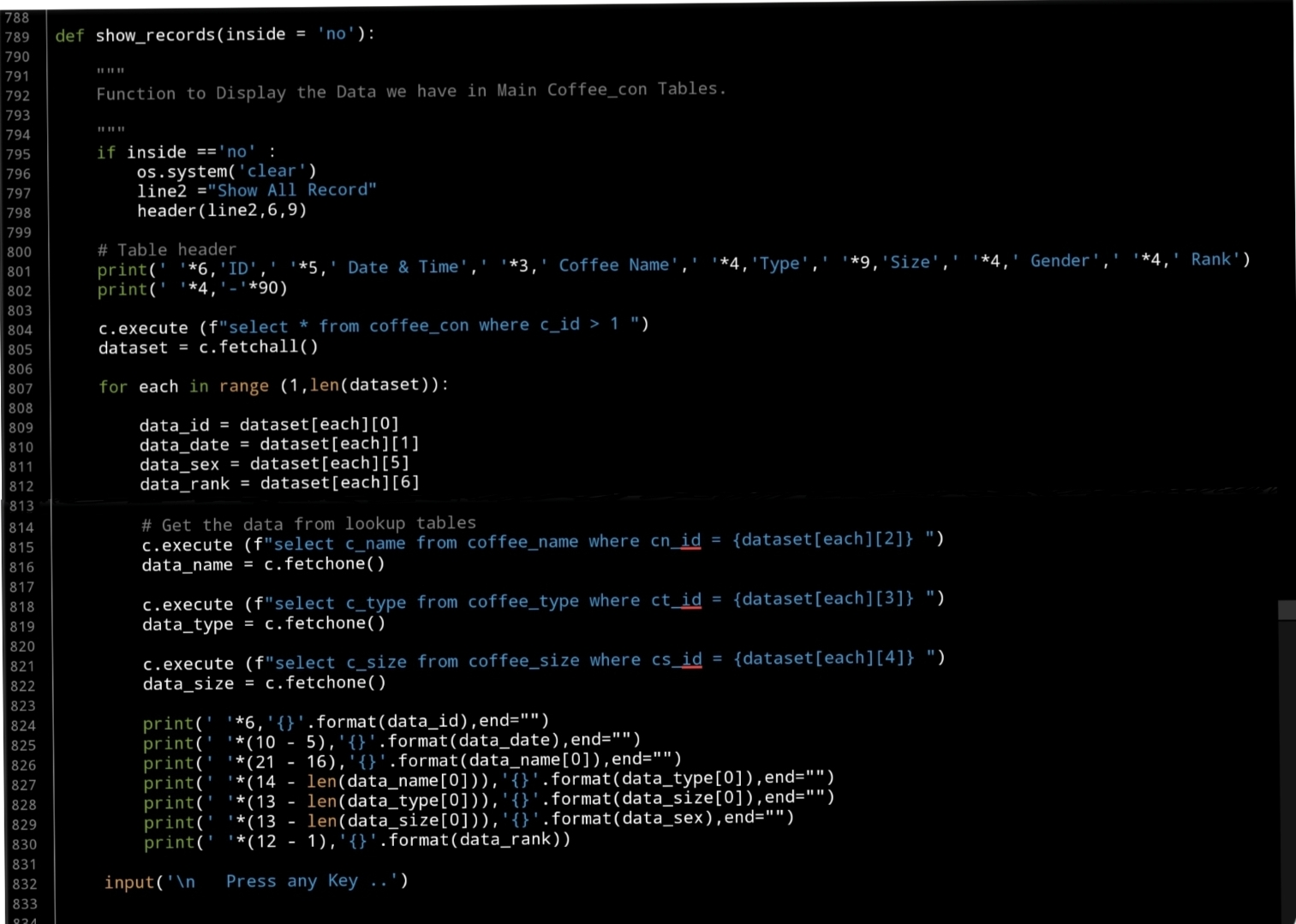 |
OutPut Screen 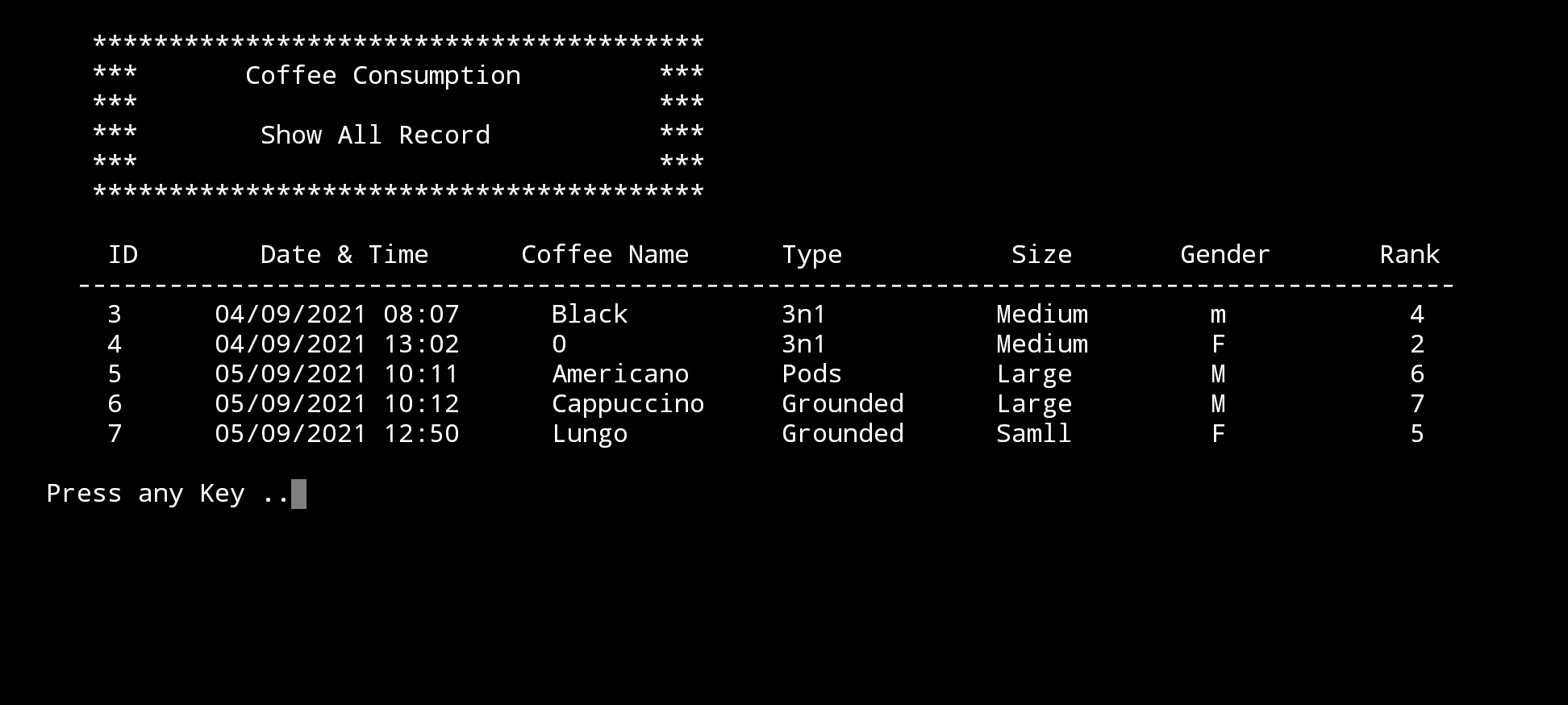 |
What’s Coming: In Part-8 we will write the Function to Edit the records on the Main Data-Base.
..:: Have Fun with Coding ::.. 🙂
| Part 1 | Part 2 | Part 3 | Part 4 | Part 5 |
| Part 6 | Part 7 | Part – | Part – | Part – |
To Download my Python code (.py) files Click-Here
By: Ali Radwani
Python: Coffee Consumption – P6
Learning : Python, SQlite3, Dataset, Pandas,
Subject: Create Coffee Consumption Application.
[NOTE: To keep the code as simple as we can, We WILL NOT ADD any user input Varevecations. Assuming that our user will Enter the right inputs.]
[ IF THE IS FIRST TIME DOWNLOADING THE CODE FILE, SELECT OPTION 7 FROM MAIN-MENU TO CREATE THE DATABASE]
In this part (Part-6) of Coffee Consumption App, we will write First Function of the Main Application to ADD New Record. In this Function we will do the following:
- Get the Current Date and Time.
- The user will Select the Coffee Name, Type and Size from the list in lookup tables.
- Selecting the Gender of the user.
- Entring the Rank for the order [If the customer rank it].
Beginning with adding New Record in the Coffee Consumption System. We will use the datatime.now() function get the current data and time here is the code..
now = datetime.now()
date_t = now.strftime(“%d/%m/%Y %H:%M”)
Then we will show each of the lookup table we have and the user will select the ID of the Coffee Name,Type and Size, the, we will use a simple Validation process to control the user inut. Here is the code for Entering the Coffee Name
   # Select a Coffee Name
    print('\n     List of Coffee Names:\n')
    show_list('coffee_name','cn_id')
     # check the availability of the input
    while True:
        cn_id = input('\n     Enter the ID of a Coffee Name. [E to Exit]. > ')
        if cn_id in ['e','E']:
            input('     You Select [E to Exit].. Press any Key. > ')
            return

        elif (cn_id ==" ") or (cn_id =="") or (check_availabilty('coffee_name','cn_id', int(cn_id)) != None):
            break
The same code will be apply for the Coffee Type and Coffee Size.
[NOTE] All the codes will be in the file to be Download.
Next part of the code will be to select the customer Gender [M,F] here also we will use a simple Validation that will accept M or F Not anything else. Here is the code..
# Select Customer Gender [Only M,F]
    while True:
        sex = input('\n     Enter the Gender of the customer. [M / F] [E to Exit]. > ')

        if sex in ['e','E']:
            input('     You Select [E to Exit].. Press any Key. > ')
            return
        elif sex in ['m','M','f','F']:
            break
        else:
            print('     You Must input [M,F]')
Last variable we will collect will be the Rank, the Customer will ask the user to Rank this Order, the range will be from 1 to 10, 0 will be for Not Available.. Here is the code…
# Enter the user Rank
    print('     If the User can Rank the Coffee.. 1 to 10 [1 is Bad, 10 is Great]')
    while True :
        rank = input('\n     Enter User Rank.[1 is Bad, 10 is Great] [0 is NOT Available] [E to Exit]. > ')
        if int(rank) in range (0,11):
            break
        else:
            print('\n     Rank Should be in Range of 0-10.'
After that we will display all the Entries on the screen and ask the customer to press [S] to save the Record, and then we will use IINSERT SQL command to Insert the record. Here is the code for all the function….
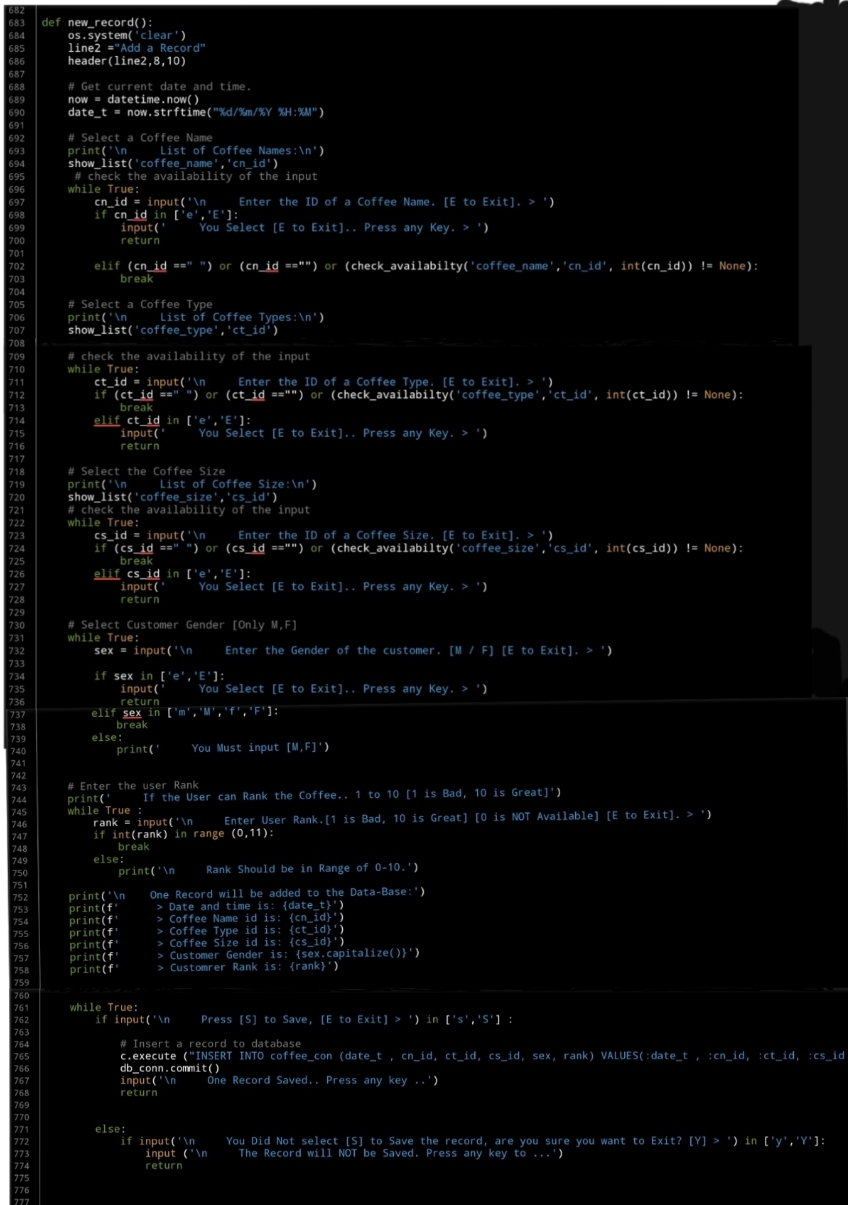 |
What’s Coming: In Part-7 we will do the Follwing:
Writing three Function to Show / Display the Records in the main Table of the Coffee Consumption Application.
..:: Have Fun with Coding ::.. 🙂
| Part 1 | Part 2 | Part 3 | Part 4 | Part 5 |
| Part 6 | Part – | Part – | Part – | Part – |
To Download my Python code (.py) files Click-Here
By: Ali Radwani
Python: Coffee Consumption – P5
Learning : Python, SQlite3, Dataset, Pandas,
Subject: Create Coffee Consumption Application.
[NOTE: To keep the code as simple as we can, We WILL NOT ADD any user input Varevecations. Assuming that our user will Enter the right inputs.]
[ IF THE IS FIRST TIME DOWNLOADING THE CODE FILE, SELECT OPTION 7 FROM MAIN-MENU TO CREATE THE DATABASE]
In this part (Part-5) of Coffee Consumption App, we will write all three Function to manage the Coffee Size (Mug Size).
- Create Function: Add New Coffee Size.
- Create Function: Edit a Coffee Size.
- Create Function: Delete a Coffee Size.
Beginning with adding new Coffee Size, we will ask the user to enter a New Coffee Size, then we simply added to the databasde using SQL Insert command. … Here is the Code ..
 |
The second Function in this part is to Edit a selected Coffee Size, so we will list-down all Sizes we have in the database, the user will select one (ID) then we will ask to enter the new one and update the database. Here is the code..
 |
Last Function in this part will be to Delete a selected Coffee Size, so again we will list all Coffee Sizes we have and will ask the user to select the one to be Deleted, then we execute the SQL command to Delete the record from the database… here is the code..
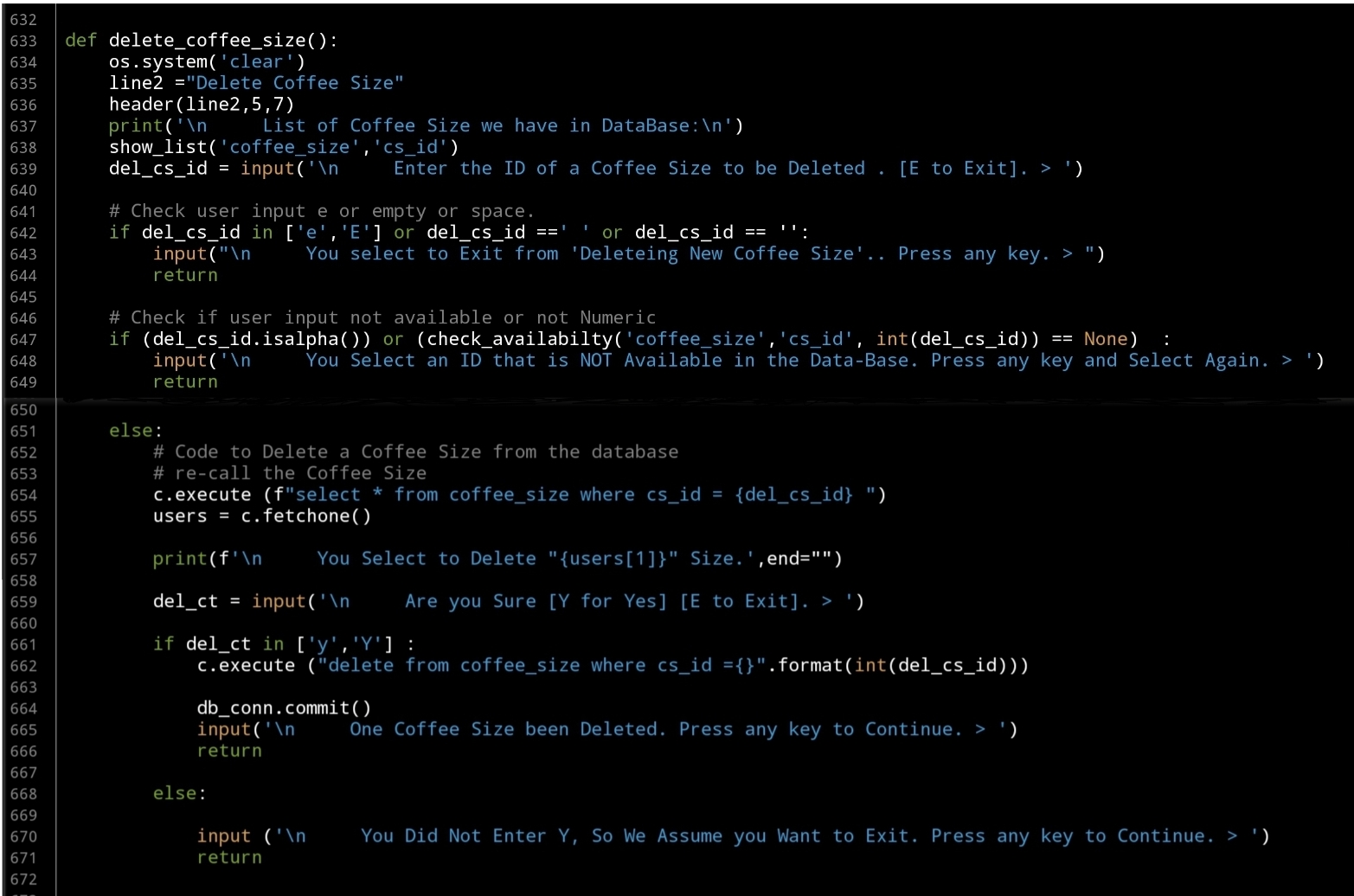 |
What’s Coming: In Part-6 we will Start writing the Main Function to Add a Record of Coffee Consumption using the lookup tables data.
..:: Have Fun with Coding ::.. 🙂
| Part 1 | Part 2 | Part 3 | Part 4 | Part 5 |
| Part 6 | Part – | Part – | Part – | Part – |
To Download my Python code (.py) files Click-Here
By: Ali Radwani
Python: Coffee Consumption – P4
Learning : Python, SQlite3, Dataset, Pandas,
Subject: Create Coffee Consumption Application.
[NOTE: To keep the code as simple as we can, We WILL NOT ADD any user input Varevecations. Assuming that our user will Enter the right inputs.]
[ IF THE IS FIRST TIME DOWNLOADING THE CODE FILE, SELECT OPTION 7 FROM MAIN-MENU TO CREATE THE DATABASE]
In this part (Part-4) of Coffee Consumption App, we will write all three Function to manage the Coffee types.
- Create Function: Add New Coffee Type.
- Create Function: Edit a Coffee Type.
- Create Function: Delete a Coffee Type.
Beginning with adding new Coffee Type, we will ask the user to enter a new Coffee Type, then we simply added to the databasde. … Here is the Code ..
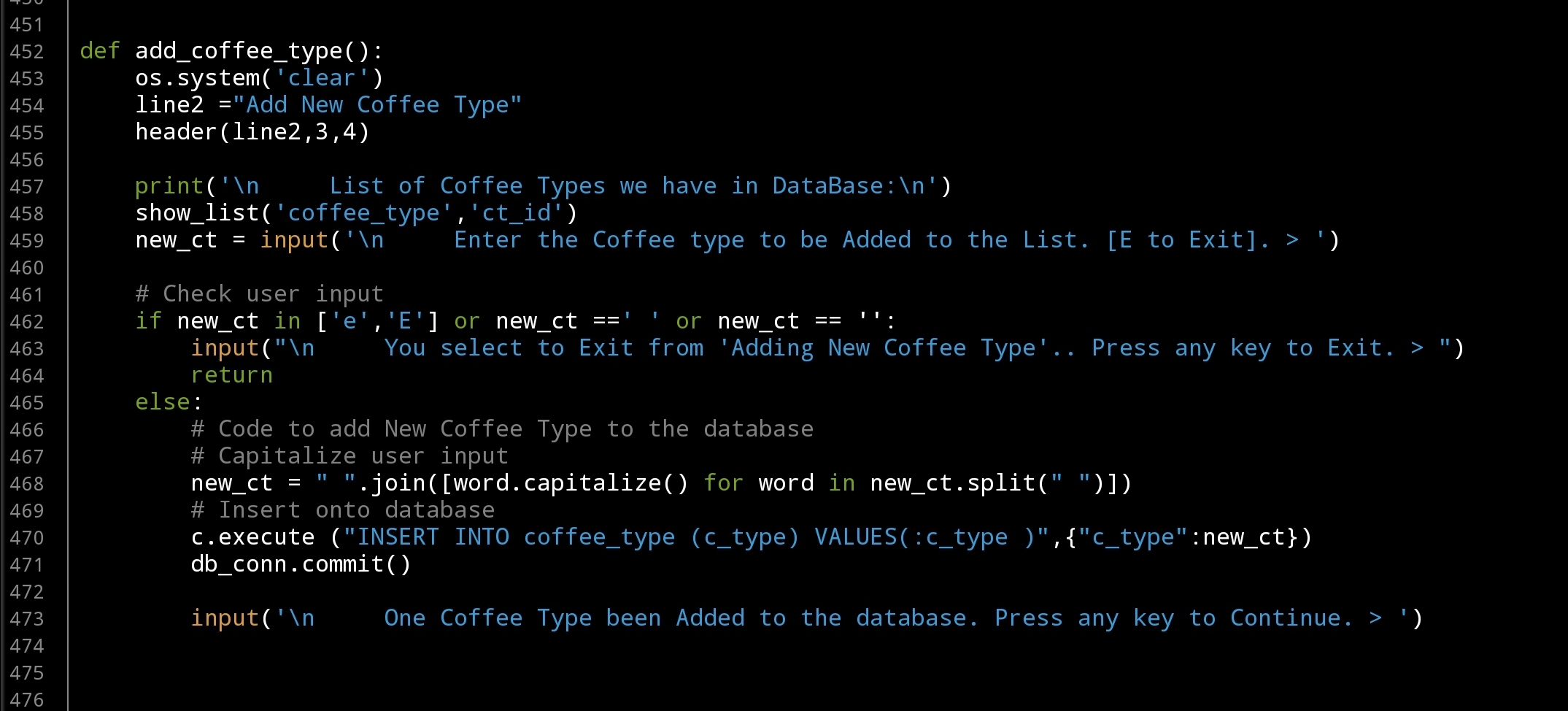 |
Tip: To Capitalize user input we are using one line code
# Capitalize user input
user_input = ” “.join([word.capitalize() for word in user_input.split(” “)])
The second Function in this part is to Edit a selected Coffee Type, so we will list-down all Types we have in the database, the user will select one (ID) then we will ask to enter the new one and update the database. Here is the code..
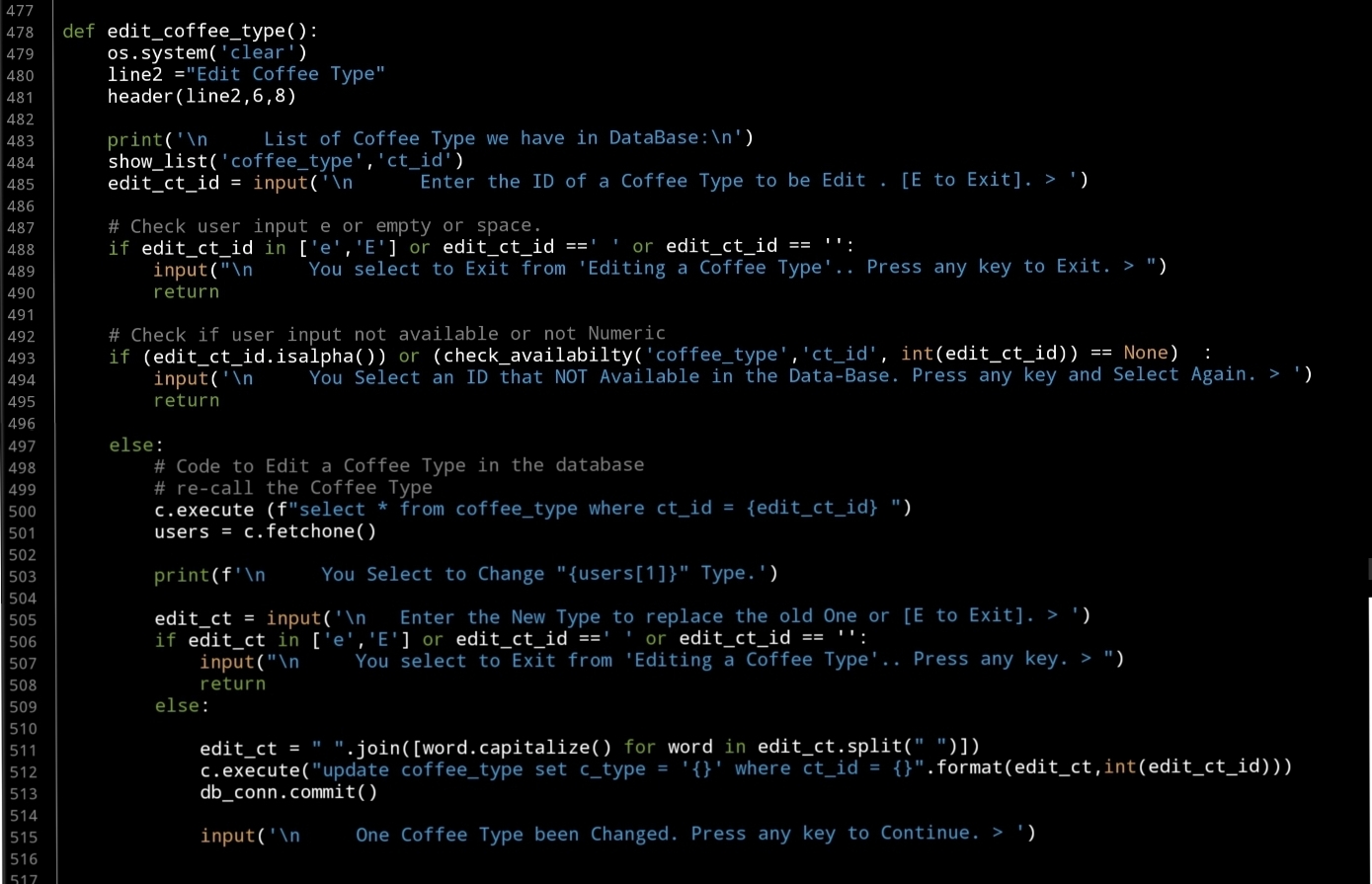 |
Last Function in this part will be to Delete a selected Coffee Type, so again we will list all Coffee Types we have and will ask the user to select the one to be Deleted, then we execute the SQL command to Delete the record from the database… Here is the code..
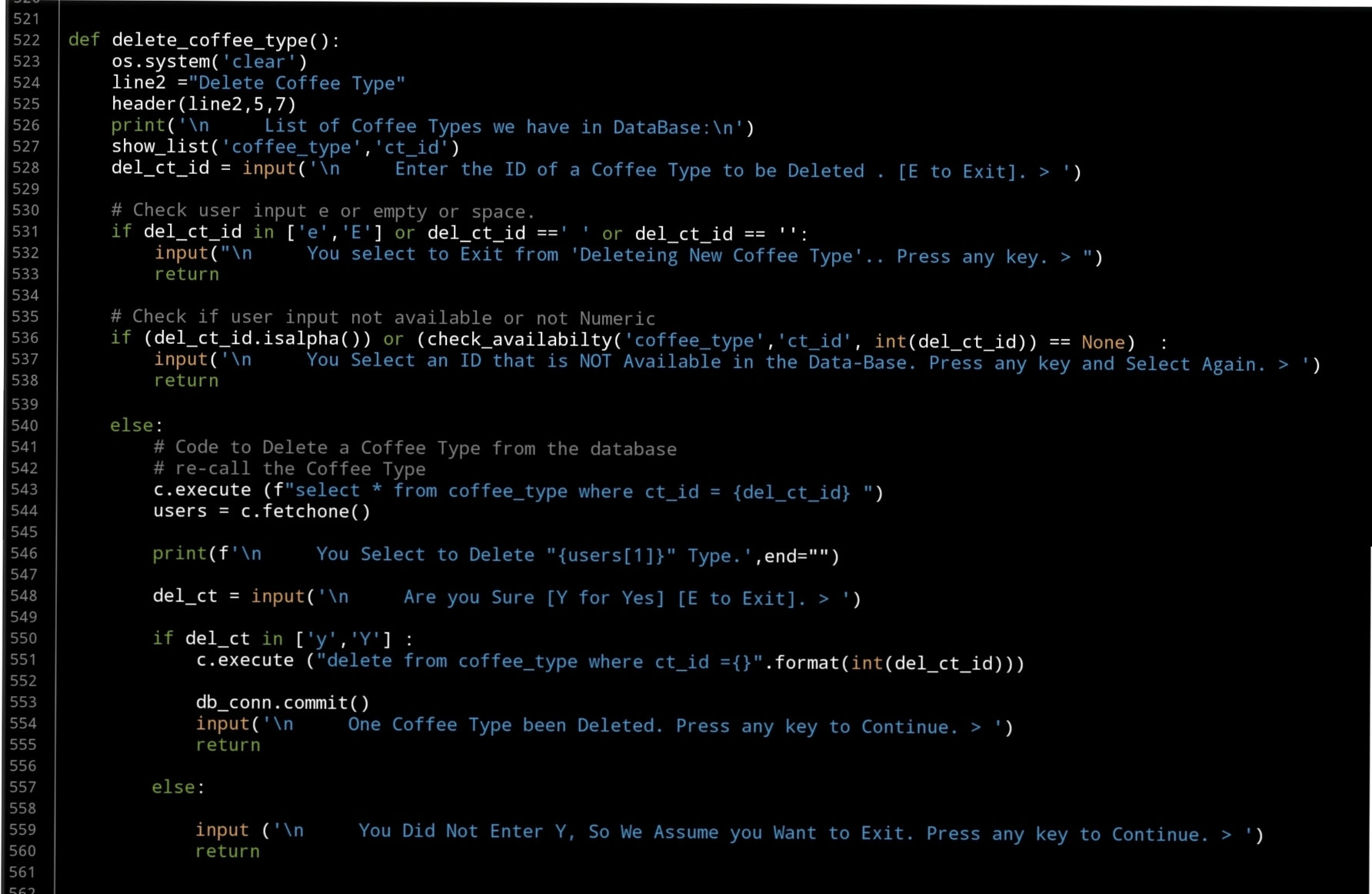 |
What’s Coming: In Part-5 we will do the Follwing:
Writing three Function to Manage the Coffee Size, Functions are: Add New Coffee Size, Edit Coffee Size and Delete a Coffee Size.
..:: Have Fun with Coding ::.. 🙂
::.Coffee Consumption Parts.::
| Part 1 | Part 2 | Part 3 | Part 4 | Part 5 |
| Part 6 | Part – | Part – | Part – | Part – |
To Download my Python code (.py) files Click-Here
By: Ali Radwani
Python: Coffee Consumption – P3
Learning : Python, SQlite3, Dataset, Pandas,
Subject: Create Coffee Consumption Application.
[NOTE: To keep the code as simple as we can, We WILL NOT ADD any user input Varevecations. Assuming that our user will Enter the right inputs.]
[ IF THE IS FIRST TIME DOWNLOADING THE CODE FILE, SELECT OPTION 7 FROM MAIN-MENU TO CREATE THE DATABASE. ]
In this part (Part-3) of Coffee Consumption App, we will fill in some code into selected Functions. We will do the following:
- Create Function: Show list.
- Create Function: is_available.
- Create Function: Manager Menu.
- Create Manager Coffee Name Functions: Add, Edit, Delete
So, let’s start with writing the Manager Menu Function and a while loop to take the user selection and trigger the corresponding Function… Here is the Code ..
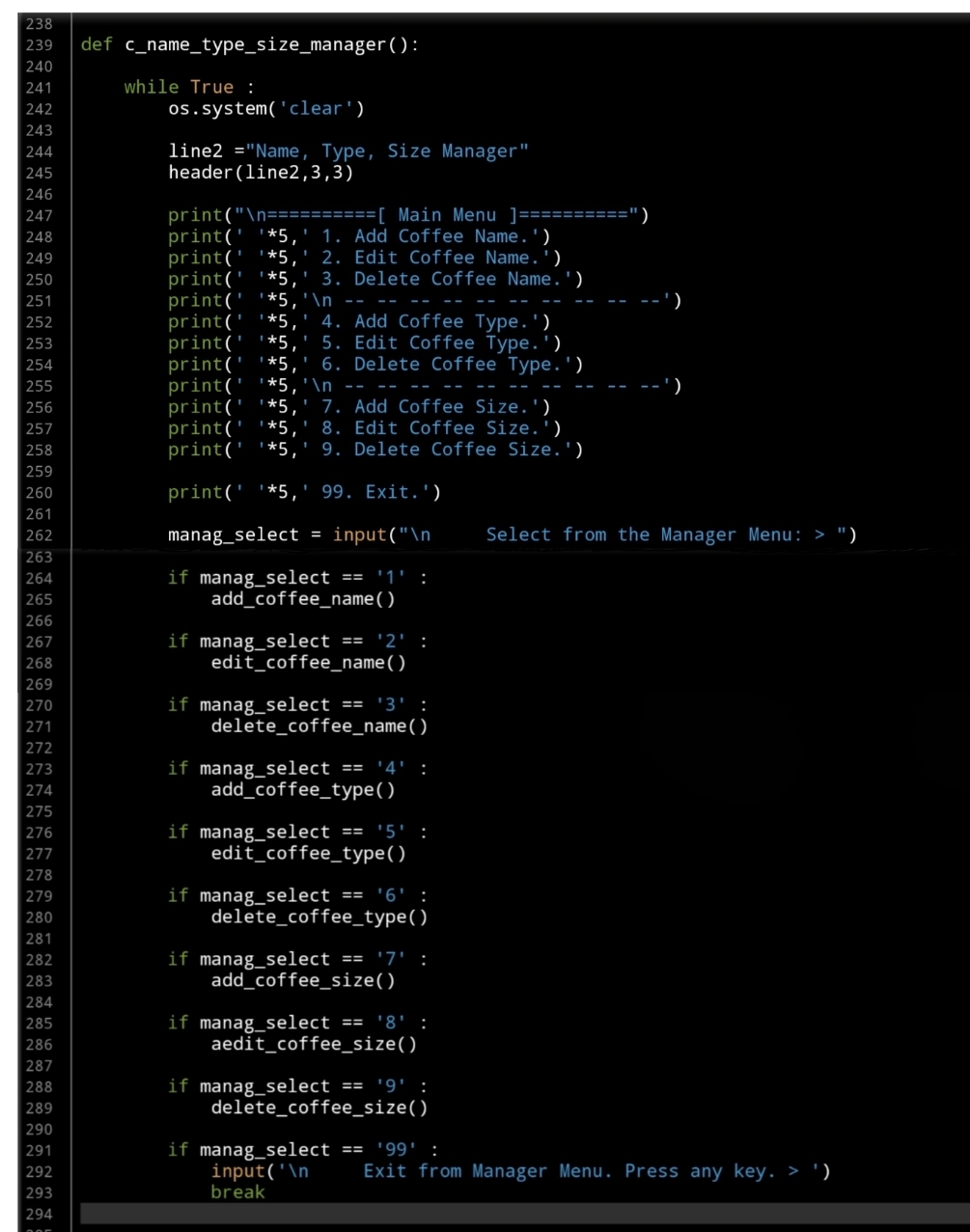 |
We have two functions to help us in this application, one of them called def show_list(dt,d_id) is to Display the Data we have in the Lookup Tables based on the user selection function. The Function will take two arguments:
dt: data-table (Coffee Name, Coffee Type, Coffee Size)
d_id: id column name, and returning nothing.
Fisrt, let’s look at this Function:
 |
The second Function will be used to check if the user selection is available in the database, we will call it def is_available (dt, d_id, check_id) this Function is to check if the passed ID available in the data-set or not. The Function will take three Arguments as:
dt: Data-Table, d_id : Name of id column, check_id : The id we want to search for, and it will Return the data-set. After return, if dataset is empty that’s mean selected id is not available.
Now let’s see the function code..
 |
Now we will start writing first three functions to manage the Coffee Name, and will start with Adding New Coffee Name to the lookup Table.
In coming code first we will call the header then show_list(‘coffee_name’,’cn_id’) passing Table Name:’coffee_name’ and id column:’cn_id’ to display the Coffee Names we have on the sccreen. Then we will ask the user to enter the New Name to be added to the database. Here is the Full code..
 |
Next we will write the Edit Function, and again after the header and show_list(‘coffee_name’,’cn_id’) we will ask the user to enter the ID of the Coffee Name to be change, here we will do a simple validation on user input. After that we will update the record that the user select. Here is the code..
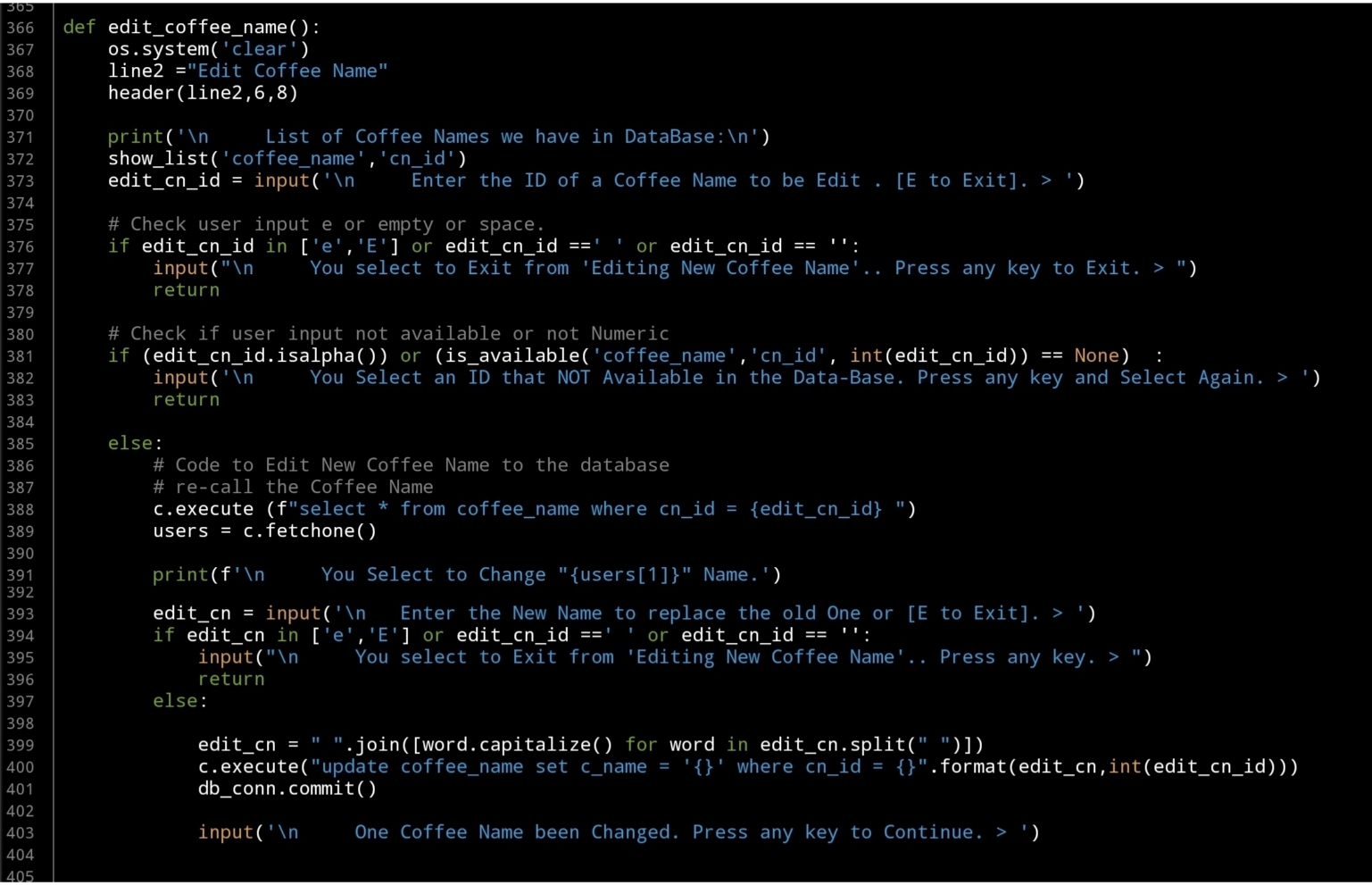 |
Last Function in this part is to Delete a selected Coffee Name by selection it’s ID, as in the Edit Fnction, the user will select an Id, we will check the availability the will execute the Delete command. Here is the code..
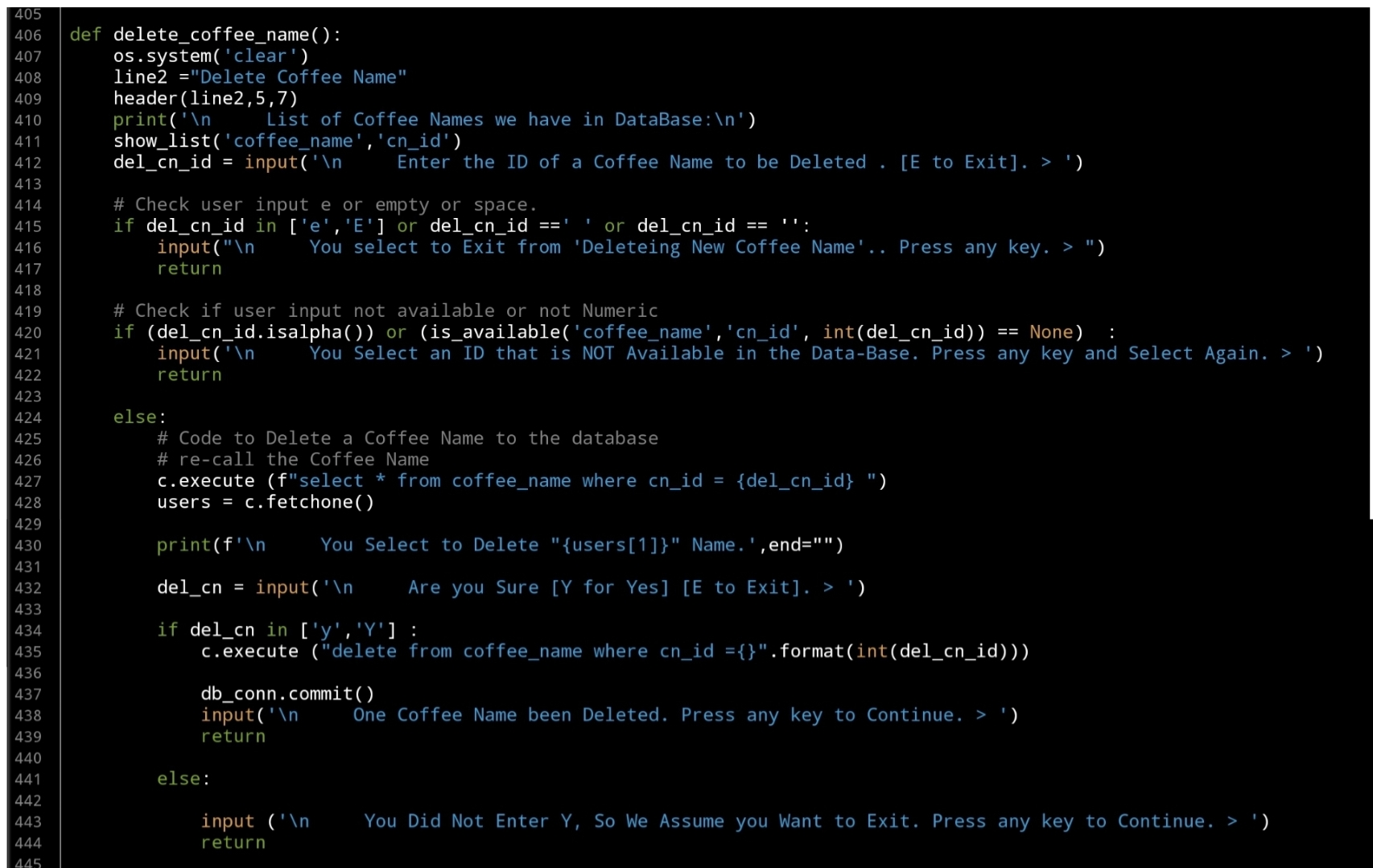 |
What’s Coming: In Part-4 we will do the Follwing:
Writing three Function to Manage the Coffee Type, Functions are: Add New Coffee Type, Edit Coffee Type and Delete a Coffee Type.
..:: Have Fun with Coding ::.. 🙂
| Part 1 | Part 2 | Part 3 | Part 4 | Part 5 |
| Part 6 | Part – | Part – | Part – | Part – |
To Download my Python code (.py) files Click-Here
By: Ali Radwani

Taking pictures is not my main daily practices, but when i start playing with my camera, i really enjoy my self.
Thanks for visiting my Space..


 Ali's Photography Space...