Archive
M&M’s in Light-Box
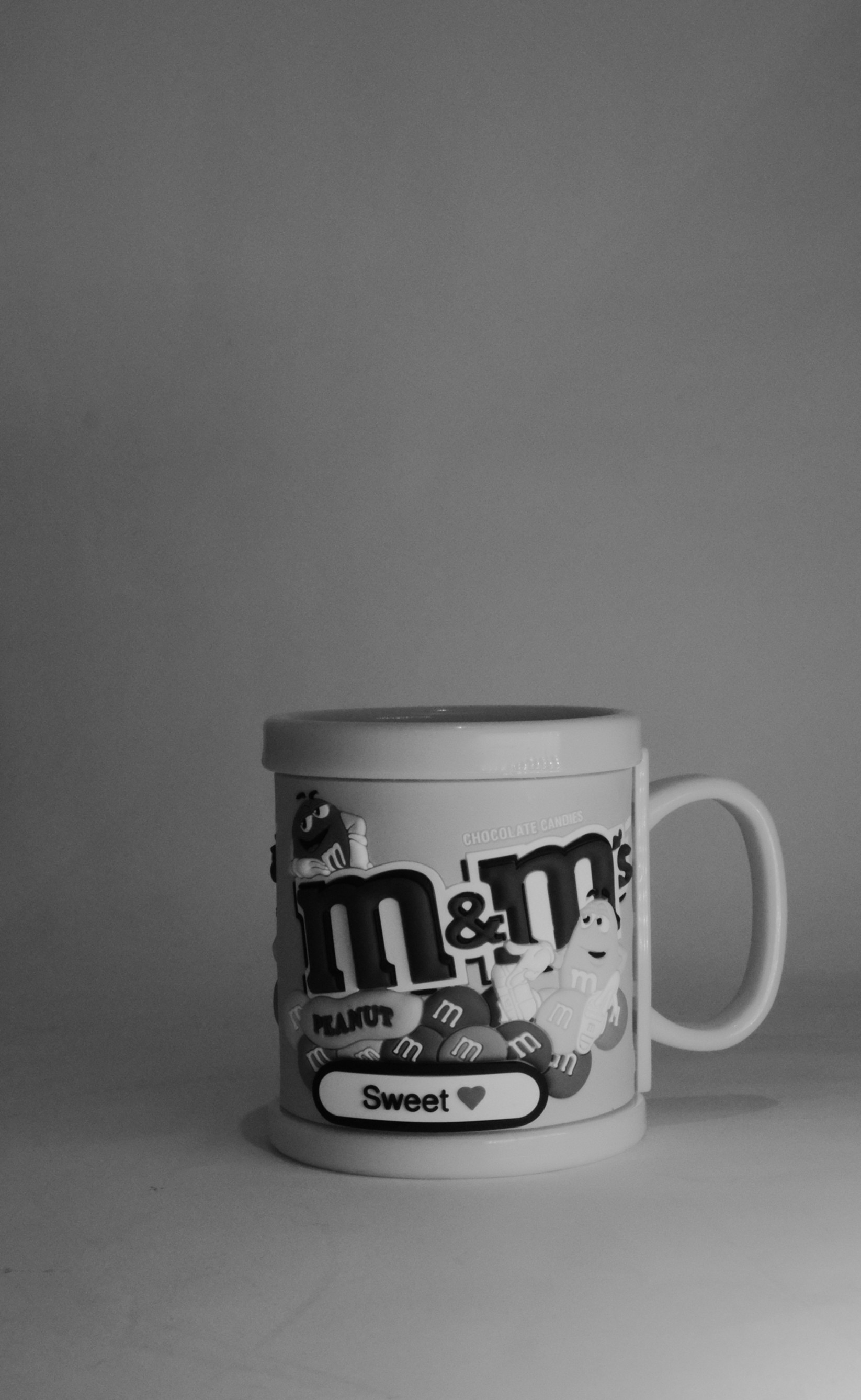
In this article I am posting three images for a M&M’s mug to use a Kodakporta400 and ilford film simulation with Fujifilm X-T30ii camera in hand. Also I am posting the outer or say back-stage shot for my Light-Box with LED lighting the subject.
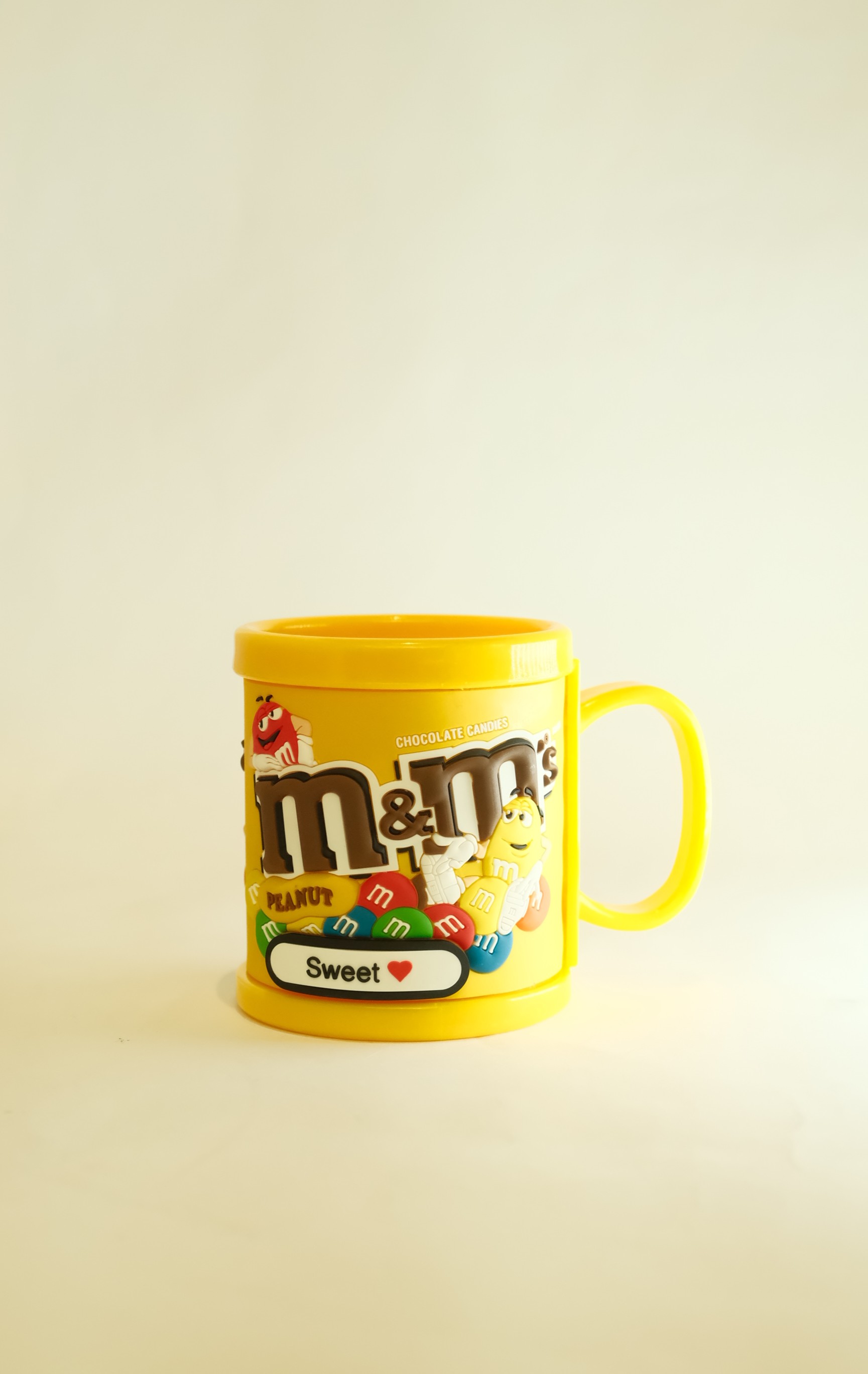
First lit’s see the colored shot using the kodakporta400 film Simulations.
Camera settings: ISO 2000, f 4.5, Focal-Point 34, Shutter speed 1/125s.
Here i use the ilford film Simulations. The setting was: ISO 6400 , f 14 , Focal-Point 34 , Shutter speed 1/125s.
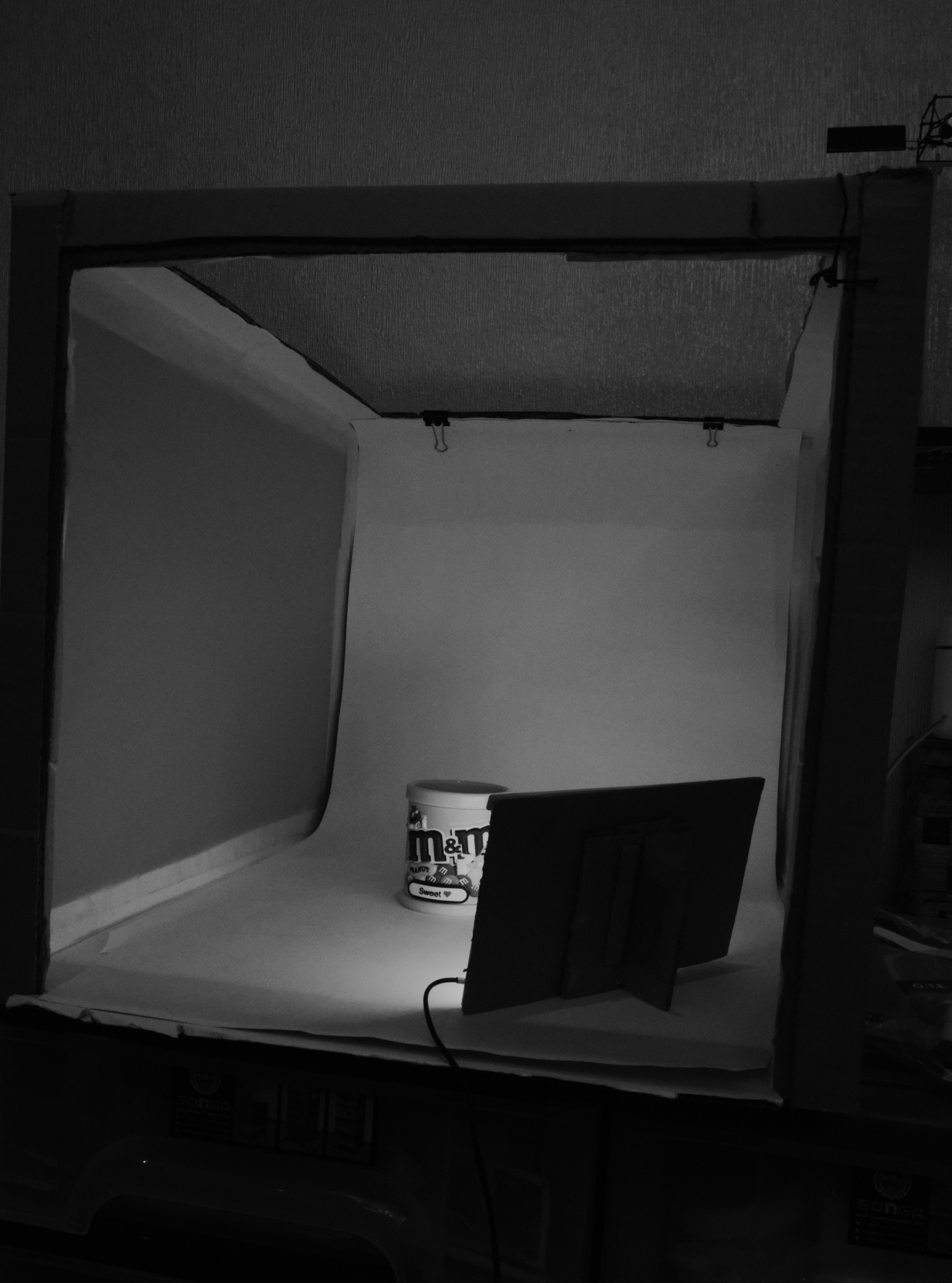
This is the Light-Box studio I am using with an out-source LED lights.
In this shot I just change the light position.
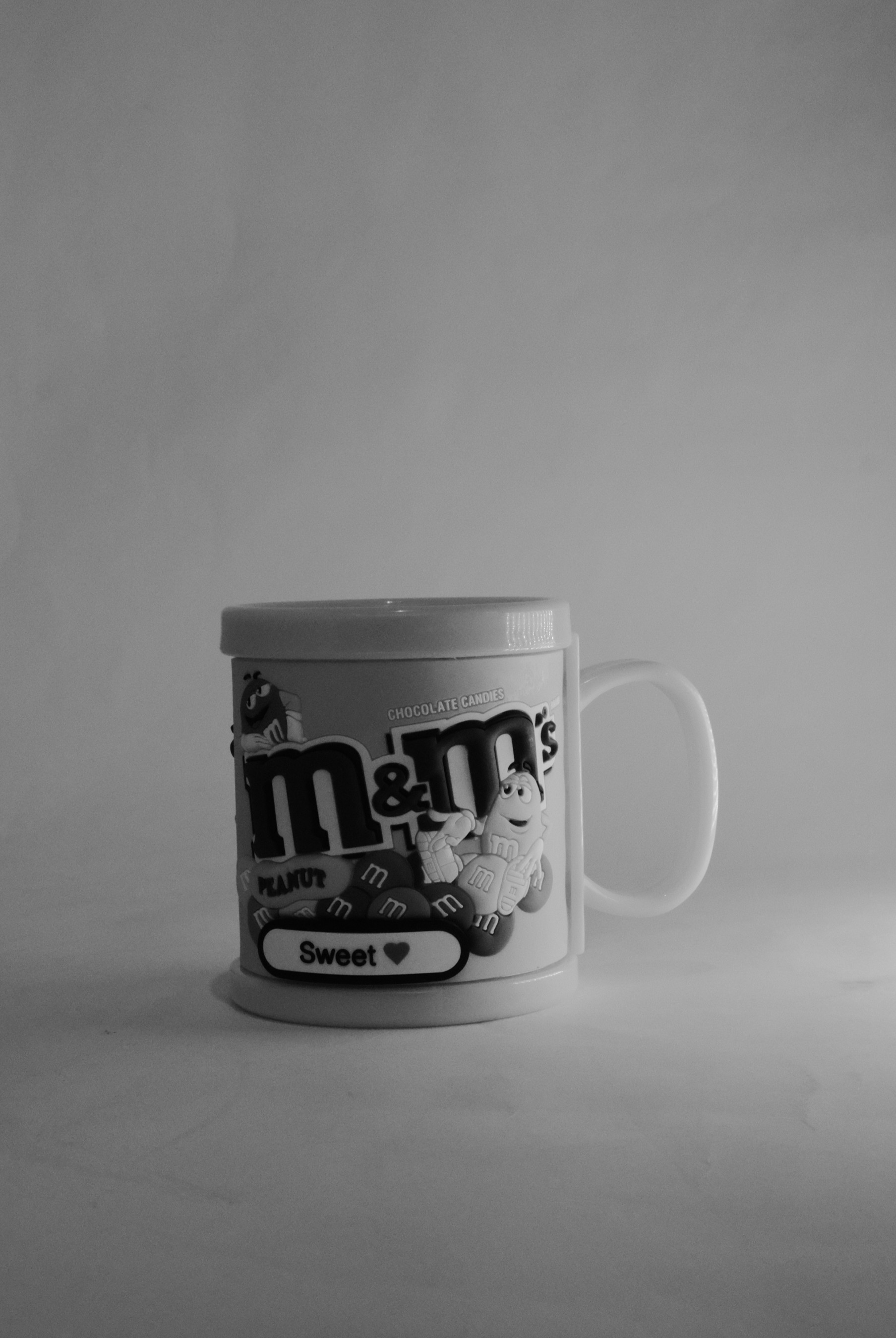
For more film simulation Click-Here
By: Ali Radwani
Two Simulations for Fujifilm X-T30ii
Using film Simulations with Fujifilm X-T30ii was important factor that drive me to choose it (Fujifilm X-T30ii) over the Nikon Z FC. Read the full article Here.
In this post I am using Two Film Simulations and posting the result side-by-side. I take the shots indoor with normal room lights and 6400 ISO. I am planning to use those recipes more for outdoor. Lit’s see the photos.
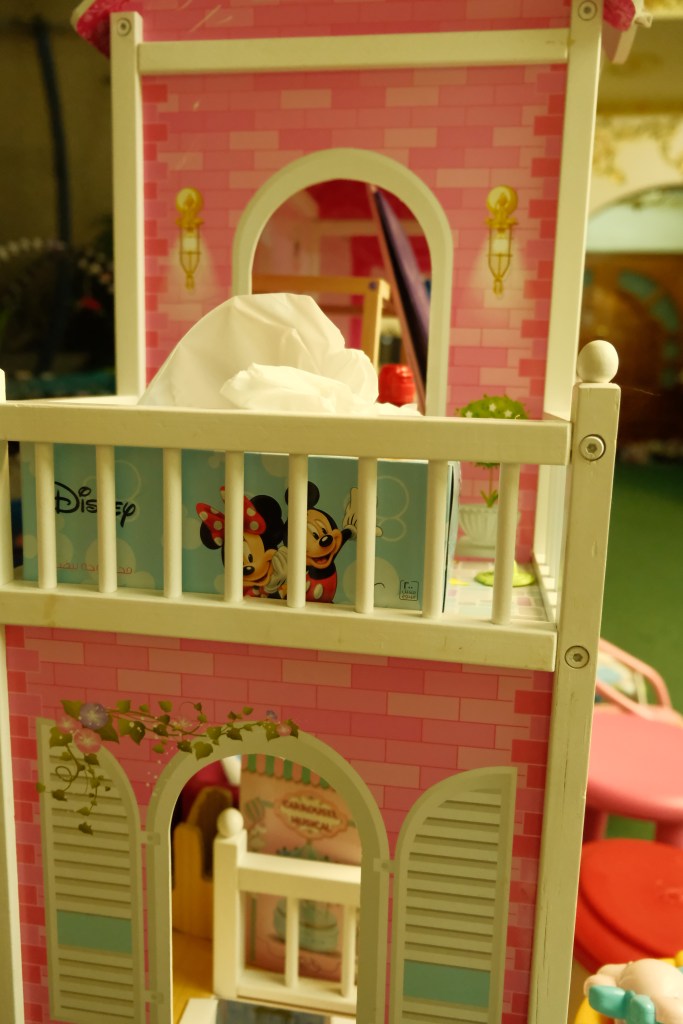
The Simulation here is Kodakporta400, camera in hand. I feel the colors are quite strong.
To see more film simulation Click here.
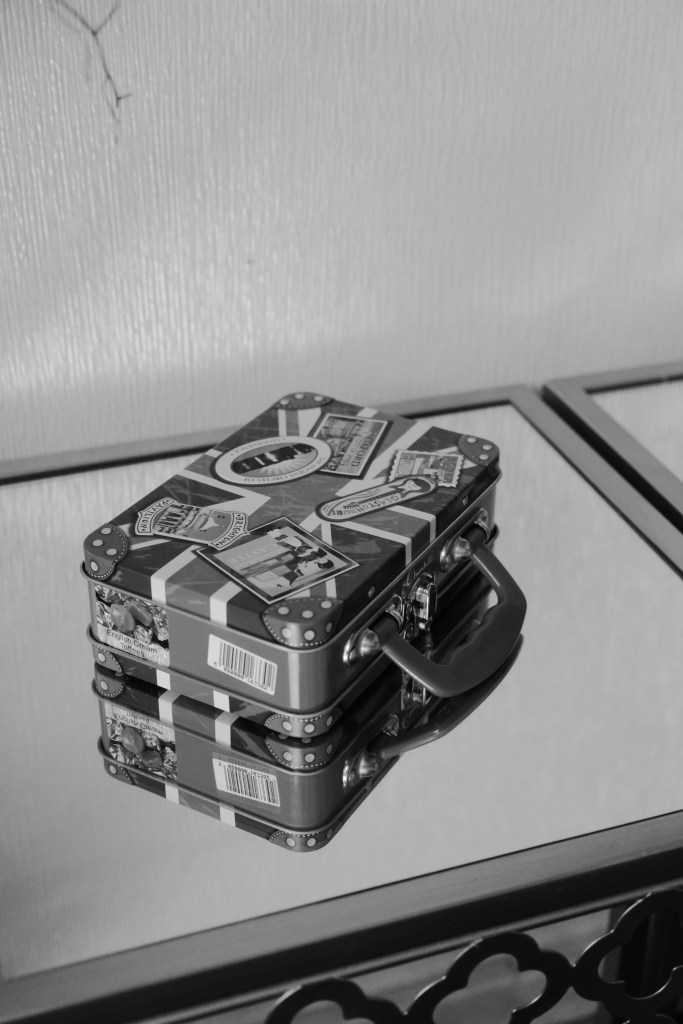
In this shot I use the ilford hp5, the camera in hand. I like the tone, I think I will use it more in coming days.
Meet me on Linktr.ee.com/Ali.H.R
By: Ali Radwani
Daily Sketche: Sanderling
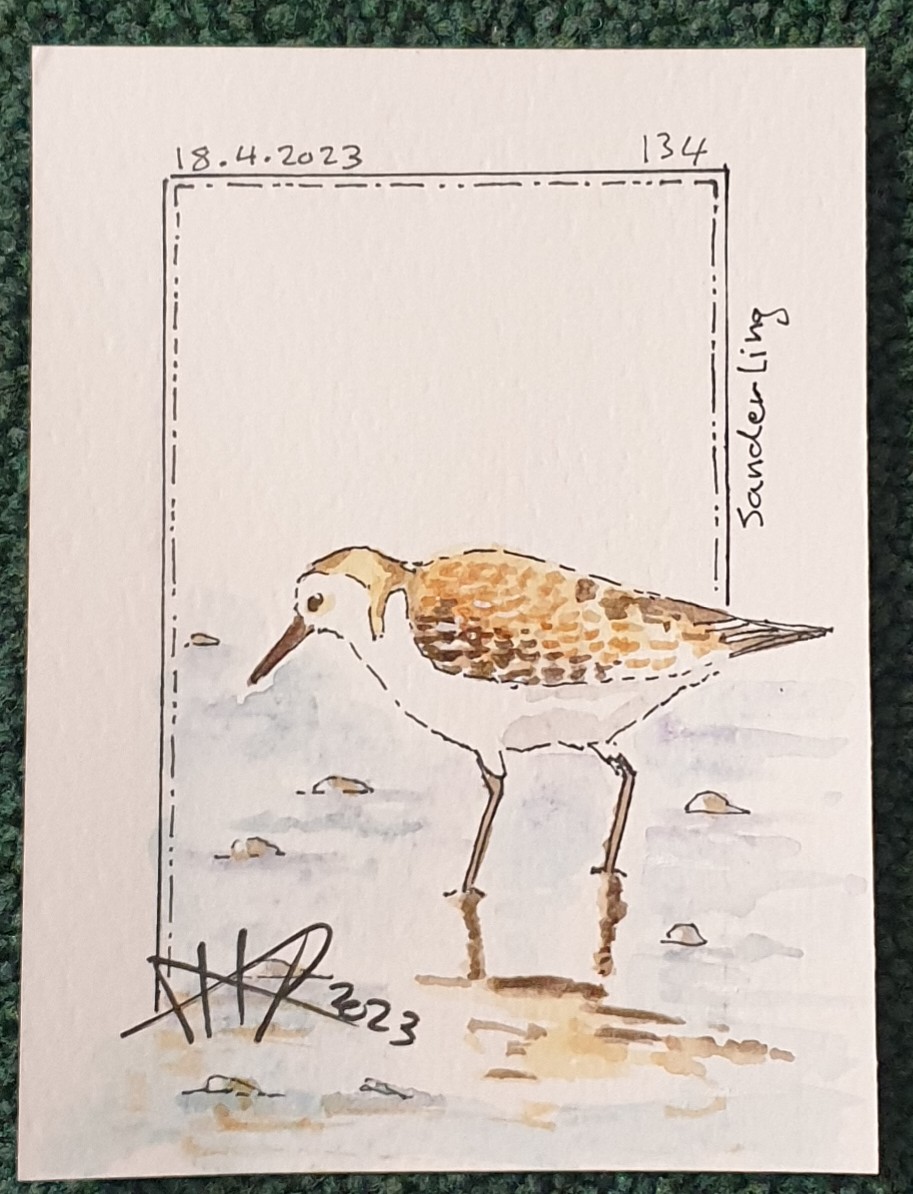
I almost have finished 134 water_colored sketches on a 4x3in cards since I start this Task [Drawing on a 4×3 Card] on September 2022, the sketch it self is about 3x2in.
Here I am posting Sanderling sketch.
|
..:: Have Fun with Sketching ::.. 🙂
 Follow me on Twitter..
By: Ali Radwani
Radwani House Musem post 4
Radwani House located in Mshareb district been selected to be saved as a Museum to reflect Qataris Family life in early 19’s. Click Here to see all the Gallery pictures.

Bed-Room: The head covering worn by men is called “Ghutra and Aqal”, and this “Ghutra” in the image is of a relatively expensive type during that period. Sleeping pillows embroidered with old, traditional designs. Read the Story Here
By: Ali Radwani
Python: Grade_2 Math Questions V1
Learning : Python, Math
Subject: Math Questions for Grade-2 V.1
[NOTE: To keep the code as simple as we can, We WILL NOT ADD any user input Varevecations. Assuming that our user will Enter the right inputs.]
In the process of studing with/for my kids [specialy Math] i always need to give them some Questions in [+ -], I need to write the Questions on a paper then they solve it and i check the answers. So I thought if I create an app to solve this Problem.
Application to Do What?
- Select Two random numbers from a given range.
- Select a Math operator [+ -].
- Writing the Question on the Screen.
- Comparing the user input with the real answer.
- Writing a message on the screen acoording to the user answers.
Application Menu
x
y (+ -)
_______________
??
In this Version (V.1) of the application, there will be some limitations on the Questions Difficulties, Number ranges and type of Questions.
Start Coding
The Menu
As we can see above, we will have 7 keys for the Menu, Menu 9 is for Exit. Menu 3 will ask the user to Enter the Kid Name. Menu 2 will ask for the Number Ranges (From/To as 0 to 9 so all the questions will be in this rage). Menu 4, 5 and 6 each will be for type of questions. Menu 1 will ask the user about All the questions type. In all menus 1,4,5 and 6 if the user did’t enter a Name or a number ranges, the application will as for it before srating.
Here is the code for the Main Menu.
 # Code for Main Menu

 # ---------------- Main Menu -------------------------
def menu () :
    os.system('clear')
    print('\n\n\t This is a Math Revision Game.',version)
    print('\t --------------------------------------------')
    print(' '*34,'By:[AHRADWANI.COM]')

    print('\n\n\t')
    print('\t 1. Start Play the Game. [All Math Lessons]')
    print('\t 2. Re-set the Numbers Range.')
    print('\t 3. Register New Kid to Play.')
    print('\t \n ')
    print('\t 5. Questions Like:   x (+ -) y = ?? \n')
    print('\t 6. Questions Like:   x (+ -) ?? = y \n')
    print('\t 7. Questions Like:      x','\n\t\t\t\t y   (+ -)','\n\t\t\t     ___________')

    print('\t ')
    print('\t 9. Exit.')

    user_select = input ('\n\n\t Select from the Menu. > ')

    return user_select
Get the Numbers Range
In this Function the user will be asked to Enter the Number range as from and to, we will check if the user Enter a valid input, No space, No Alphabetics.
 #  Get the Numbers Range

 def get_numbers_range () :

     """
        Function to get the Number range from the user, we will check if the user Enter
        a valid input, No space, No Alphabetics.

        return:
            nfrom: is the lower number range.
            nto  : is the upper number range.
    """


    nfrom = check_user_input("\t Enter the Lower Range Number > ","\t ... You Need to Enter a Lower Range Number.") #(input('\n\t Enter the Lower Range > '))
    nto = check_user_input("\t Enter the Upper Range Number > ","\t ... You Need to Enter an Upper Range Number.")

    if (int(nfrom)) > (int(nto)) :
        nfrom, nto =  nto, nfrom

    return int(nfrom), int(nto)
Check user input
With each user input we will call this Function with two messages, statement message will be the one to gaid the user to What is need to Enter, error message will be display if the user input something wrong or not expected. Then the Function will return back the user input.
 # check_user_input

def check_user_input(statment_m,error_m):
     """
    Function to check on the user input if it is a valid or not.

    Arguments:
        statmen_m: will be the one to gaid the user to What is need to Enter
        error_m: will be display if the user input something wrong or not expected.

    Return:
        uinput

    """
    while True :
        print(statment_m,end="")
        uinput = input()
        if ((uinput) in [" ",""] or (not uinput.isnumeric()) or ((uinput) in schar) or ((str(uinput).isalpha()))):
            print(error_m)
        else:
            break
    return uinput
Get the Kid Name
A small and short Function to return the user/Kid Name.
 # Get the Kid Name

 def get_kid_name () :

    return input('\n\t Enter Your Name > ')
Setting and Variabls
This is the first upper part of the application, we just import the random and os also we set some variables.
 # Variables


import random, os, operator

score1 = 0
good = ['Correct','You are Right', 'Well Done..','Nice..','Excellent..','Amazing..','Good job',' YES .. Keep it up .. ','So Proud of You','Yes .. Another Point for You',]
bad = ['Wrong ..','Sorry .. No!','Try Your Best','No!','No..Think Harder','ooops .. No','Not this Time']
oper_dict = { '+': operator.add, '-': operator.sub,} # '*': operator.mul, }
schar = "@_!#$%^&*()?/\|}{~,.:'"

nfrom = 0
nto = 0
name = 0
version = 'V.10.2022.R1'
Math Question Type-1
This Function will ask the user 10 Questions of Math according to the Numbers Range were the question will looks like: X [+ -] Y = ??, then if the answer is right good message will display on the screen.
 #  Math Question Type-1 (X [+ -] Y = ??)

 def Math_G2_type_1():
   os.system('clear')
   score =0
   for q in range(0,10):
      n1 = random.randint(nfrom,nto)
      n2 = random.randint(nfrom,nto)
      op = random.choice(list(oper_dict.keys()))

      if op == '-' :
          if n1 ')
      print('   ', n1, op ,n2,end='')

      ans = check_user_input(" = ","  You Need to Enter an Answer .. ")

      if  int(ans) == oper_dict[op](n1,n2):
          print('   ',random.choice(good),'   .. ')
          score = score +1
      else:
          print('   ',random.choice(bad),'   .. ')

   return score
Math Question Type-2
This Function will ask the user 10 Questions of Math according to the Numbers Range were the question will looks like: X [+ -] ?? = Y, then if the answer is right good message will display on the screen.
 # Math Question Type-1 (X [+ -] ?? = Y)


def Math_G2_type_2():
    os.system('clear')
    print('\n\n\t ', name ,' Now try to solve these once\n ')
    score =0
    for q in range(0,10):
        n1 = random.randint(nfrom,nto)
        n2 = random.randint(nfrom,nto)
        op = random.choice(list(oper_dict.keys()))
        if op == '-' :
          if n1 < n2 :
              n1,n2 = n2,n1

        print('\t\t   ',n1)
        print('\t\t   ',n2,' ',op)
        print('\t\t __________')
        ans = int(input('\t\t    '))

        if ans in [" ",""]:
          print('   ',random.choice(bad),'  You Need to Enter an Answer .. ')
        else:
            if ans == oper_dict[op](n1,n2):
                print('   ',random.choice(good),'   .. \n\n')
                score = score +1
            else:
                print('   ',random.choice(bad),'   .. \n\n')

    return score
Math Question Type-3
This Function will ask the user 10 Questions of Math according to the Numbers Range were the question will looks like:
X
Y [+ -]
__________
??? then if the answer is right good message will display on the screen.
 #

 def Math_G2_type_3 ():
    os.system('clear')
    print('\n\n\t ', name ," let's try this.")
    print('\t Complete with correct number.\n')
    score = 0
    for q in range(0,10):
        n1 = random.randint(nfrom,nto)
        n2 = random.randint(nfrom,nto)
        op = random.choice(list(oper_dict.keys()))
        if op == '-' :
            if n1  n2 :
                n1,n2 = n2, n1

        print('\t ',n1,op, ' ______ = ', n2)
        ans = int(input('  Your Answer > ') )

        if ans in [" ",""]:
          print('   ',random.choice(bad),'  You Need to Enter an Answer .. ')
        else:
            if n2 == oper_dict[op](ans,n1):
                print('   ',random.choice(good),'   .. \n\n')
                score = score +1
            else:
                print('   ',random.choice(bad),'   .. \n\n')
    return score
Application Body
In the Application Body itself I use a while loop to call and detect the User input from the menu and using that input to call the corresponding Function. All the codes and functions also the application Body code is on the Source file and can be Downloaded.
I test the code and RUN the app several times, but errors can be found, so next version of this Application will solve any errors also will add more Math Questions Type.
..:: Have Fun with Coding ::.. 🙂
To Download my Python code (.py) files Click-Here
By: Ali Radwani
Daily Sketch: Colored Seal
I Just finish this Water-color Sketch of a Seal, I almost have 20 water_colored sketches on a 4x3in cards since I start this session [Drawing on a 4×3 Card] on September 2022, the sketch it self is about 3x2in. Here I am posting todays Seal sketch.

|
More of my Other Sketches Here..
..:: Have Fun with Sketching ::.. 🙂
By: Ali Radwani
Daily Sketch: Colored Love Bird
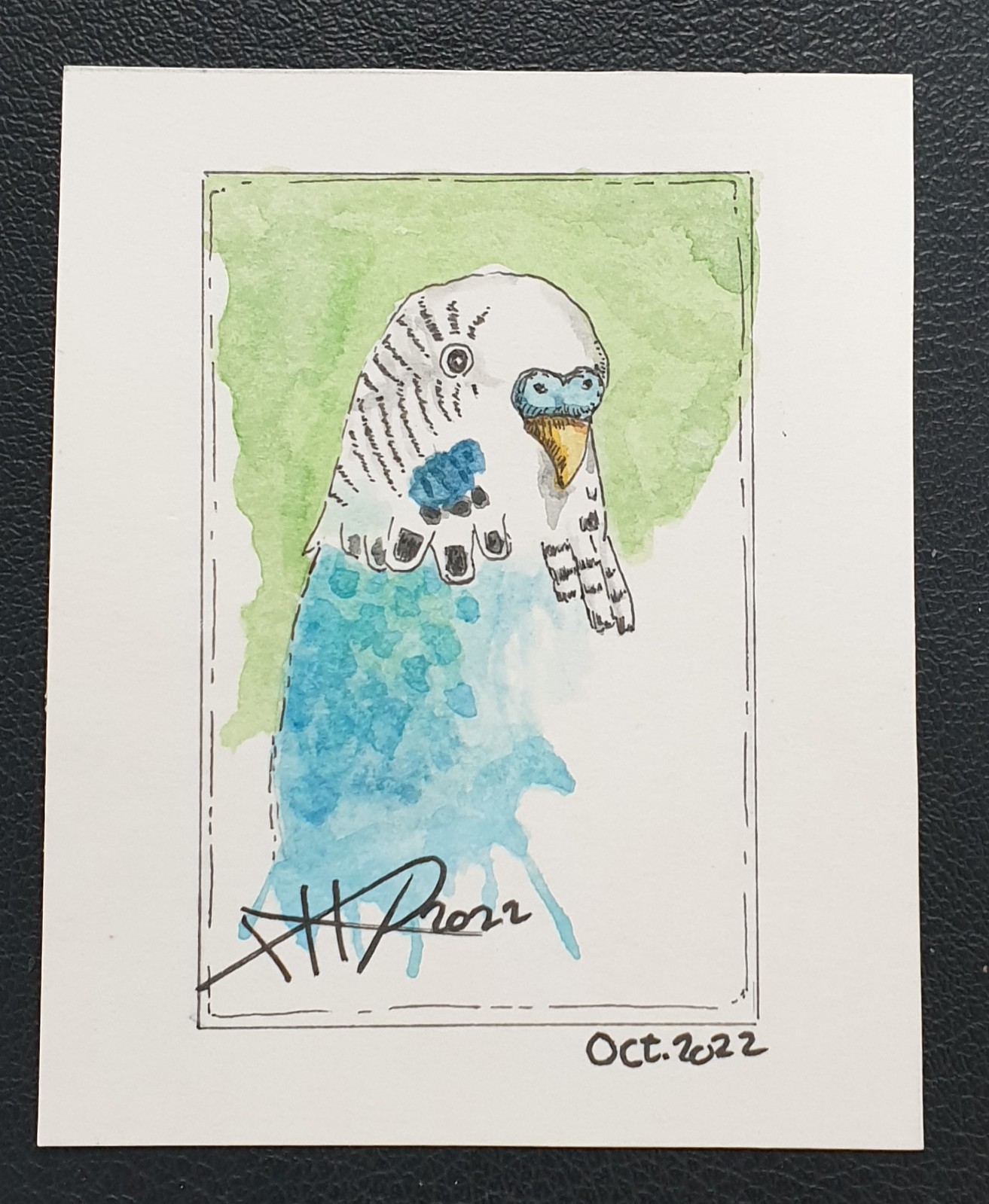
On last September I start doing some small water_colored sketches on a 4x3in card, sketch size is almost 3x2in. Here I am posting yesterday Love-Bird sketch.
|
More of my Other Sketches Here..
..:: Have Fun with Sketching ::.. 🙂
By: Ali Radwani
Fujifilm X-T30ii Post # 24
Subject:FIFA WORLD CUP 2022 IN QATAR
using Fujifilm X-T30ii.
This Shot: This is a shot of Qatar West-Bay towers that has a FIFA WORLD CUP 2022 advertising campaign, I take the shoot using FujiFilm X-T30ii with ACROS film simulation.
…Click Image to Enlarge… |
| Camera in Hand, F: 4, ISO: 400, Shutter:1/500s, Focal-Point:51mmLens: XF 18-55mm F2.8-4.0 OIS lens. Film Simulation: ACROS |
::.. To see all my FujiFilm X-T30ii Photos Click-Here
::.. To see all my Nikon S9900 Photos Click-Here
::.. To see all my Nikon D7100 Photos Click-Here
::.. To see all my Nikon D90 Photos Click-Here
[ For Fujifilm Simulation Recipes Click Here ]
By: Ali Radwani
Fujifilm X-T30ii Post # 21
Subject: Classic Green Simulation in Fujifilm X-T30ii.
This Shot: This is a shoot of a Mosque near my kids school, i take to shoot while waiting for them to finish. Also this is a test for my New ClassicGreen film recipe I create for indoor shooting it look great for outdoor also. I am
using FujiFilm X-T30ii and XF 18-55mm F2.8-4.0 OIS lens.
…Click Image to Enlarge… |
| Camera in Hand, F:9, ISO:200, Shutter:1/250s, Focal-Point:33mmLens: XF 18-55mm F2.8-4.0 OIS lens. Film Simulation: ClassicGreen |
::.. To see all my FujiFilm X-T30ii Photos Click-Here
::.. To see all my Nikon S9900 Photos Click-Here
::.. To see all my Nikon D7100 Photos Click-Here
::.. To see all my Nikon D90 Photos Click-Here
[ For Fujifilm Simulation Recipes Click Here ]
By: Ali Radwani
Fujifilm X-T30ii Post # 22
Subject: Testing a recipe for Fujifilm X-T30ii.
This Shot: If you are using Fujifilm camera then you can simply create or [change] some setting and numbers that set the colors, ISO, lights, Grain, White Balance and other setting to make very customized look of your photos, then you can save those setting and give it a name, late-on if you want to take photos with same that lookANDfeel you just select the name. In this example I create a Film Simulation [FujiFilm called the above photo-look a “Film Simulation”, and they call the setting “Recipe” ] that will give me some green tone with little blue(weak)[i name it ClassicGreen], i use this most in door for kids photography with ISO 1000/4000 it give me a beautiful images, also i try it for out-door with ISO 200/400 and F:7 again the resul’s was great. Here are two examples.
…Click Image to Enlarge…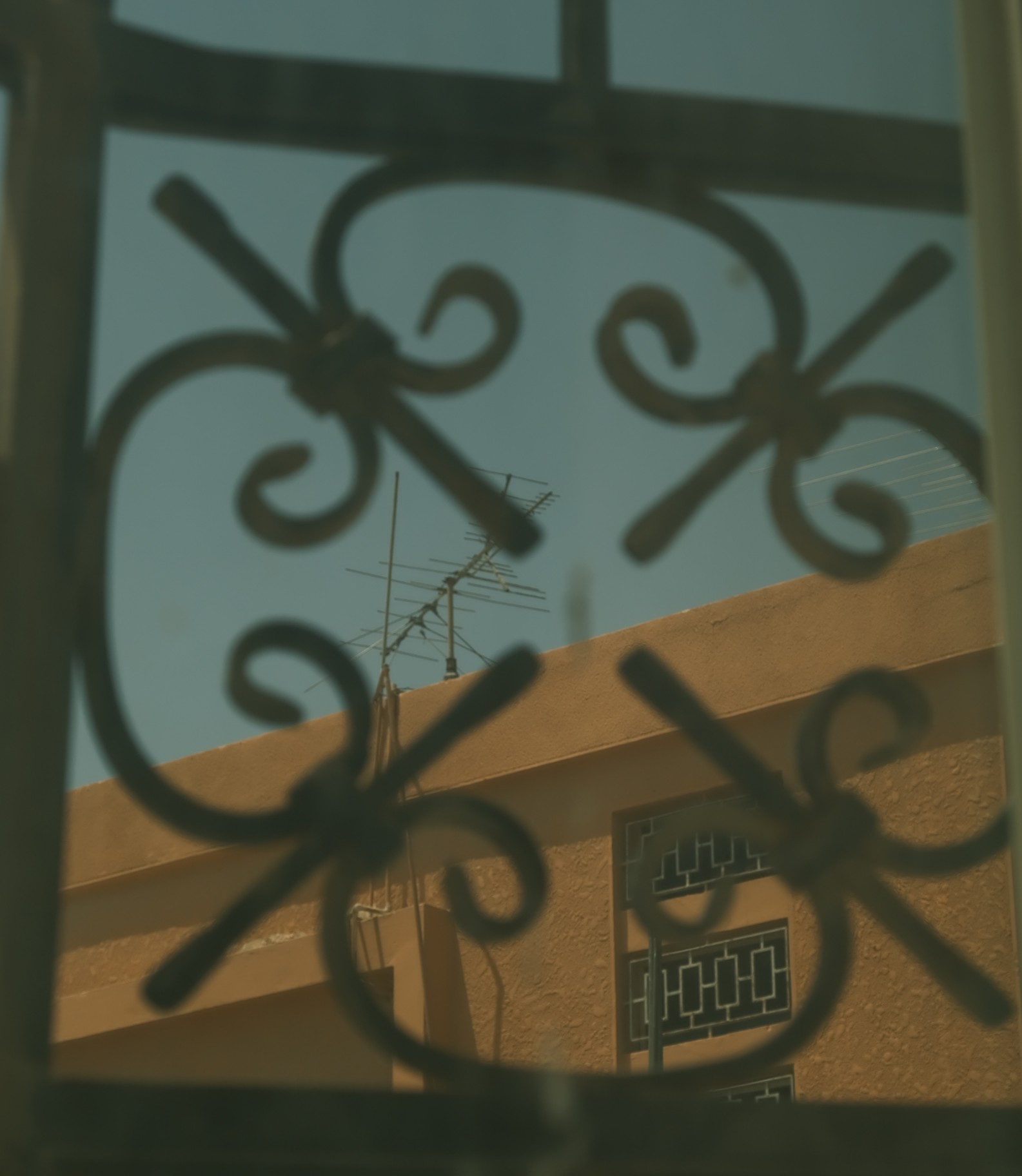 |
| This is a shoot from behind a window at 12:30pmCamera in Hand, F:6.4, ISO:160, Shutter:1/250s, Focal-Point:32mmLens: XF 18-55mm F2.8-4.0 OIS lens. Film Simulation: ClassicGreen |
| …Click Image to Enlarge… |
| Shoot of a Mosque.Camera in Hand, F:9, ISO:200, Shutter:1/250s, Focal-Point:33mmLens: XF 18-55mm F2.8-4.0 OIS lens. Film Simulation: ClassicGreen |
::.. To see all my FujiFilm X-T30ii Photos Click-Here
::.. To see all my Nikon S9900 Photos Click-Here
::.. To see all my Nikon D7100 Photos Click-Here
::.. To see all my Nikon D90 Photos Click-Here
[ For Fujifilm Simulation Recipes Click Here ]
By: Ali Radwani

Taking pictures is not my main daily practices, but when i start playing with my camera, i really enjoy my self.
Thanks for visiting my Space..


 Ali's Photography Space...