Archive
Python: Orders Manager P1
Orders Managment System
Subject: Outlines – P1
In last several posts we develop a Zoo Managment System [Click to Read]. We try to use our skills in python and pandas to work with DataFrame and developing easy app that reading and writeing a csv file. We will use the same principle and re-use most of it’s functions to write our new coming system.
The Story: I don’t think that there is any person using the web without using at least one of the online shopping sites, personally; I am using three sites. In coming posts we will work on Orders Managment System (OMS) to track our orders.
General Enhancement In the Zoo application we did not use any validation or try … Exceptions blocks, but this time we will use a range of validations over the user input starting from the menu until asking if the user want to save shange before he Quit. Using validations will make the code (or make it looks like) complicated, so I will use lots of comments to describe some codes.
Validation Example ..
In our Date entry, we will inform the user that we want the date as DD-MM-YYYY , then if the user enter any thing not logic (not a date) or say he enter “3/8-2019” our validation will convert that to “03-08-2019”.
OMS Outline: In this application our goal is to practices on data validation so we will develop a system to store our orders data and apply the validation on it, I will use aliexpress orders information to build the csv file. As far as i know, aliexpress site is not providing any tool to export a file that contain your orders detail so we will do this just to keep a history records of our orders.
File Structuer: The file will have 8 columns here is a short description of each column:
order_no: A serial number that will increment automatically, we will consider this to be a primary key of the table.
order_id: This is the order id generated by aliexpress site, we will enter it as it is.
order_date: To hold the orders date, the date will be in DD-MM-YYYY format.
order_detail: Short description of the order, even you write it in your words or copy paste it from your order page.
item_price: The price in US$
ship_price: Shipment amount in US$
quantity: The Quantity of the items.
item_url: The URL of the item page.
Coming Post We will start from next post to write the main menu, and the first function to create a csv file and insert the first row.
 Follow me on Twitter..
Python: Pandas Lesson 8
Learning : Create simple zoo application P2
Subject: Zoo Management System – user_choice()
In Part1 we start with menu function and we said it will return the user input that represent the action he select. In this post we will write the choice loop code to determin the action we need to take and we will say if the user enter q or Q the we will exit, to do this i am adding this line in the end of the def the_menu()
return input(‘\n Select from the menu (”q” to quit): ‘)
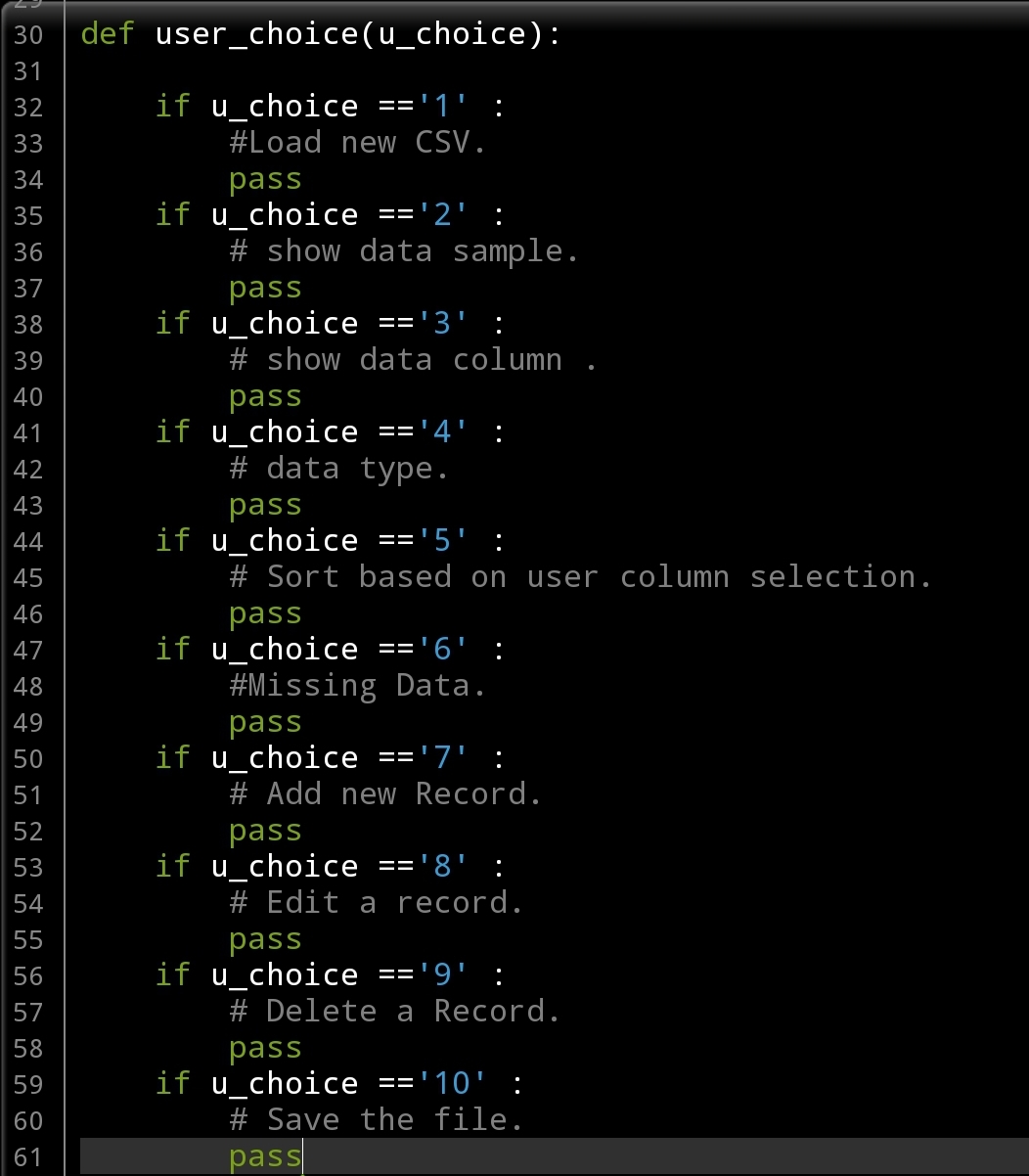
After the_menu and whatever user chose we need to perform an action, here is another function def user_choice(): we will pass a variable to it and with some if statements other functions will be called.
User Choice function
def user_choice(u_choice):
if u_choice ==’1′ :
#Load new CSV.
pass
if u_choice ==’2′ :
# show data sample.
pass
if u_choice ==’3′ :
# show data column .
pass
if u_choice ==’4′ :
# data type.
pass
if u_choice ==’5′ :
# Sort based on user column selection.
pass
if u_choice ==’6′ :
#Missing Data.
pass
if u_choice ==’7′ :
# Add new Record.
pass
if u_choice ==’8′ :
# Edit a record.
pass
if u_choice ==’9′ :
# Delete a Record.
pass
if u_choice ==’10’ :
# Save the file.
pass
|
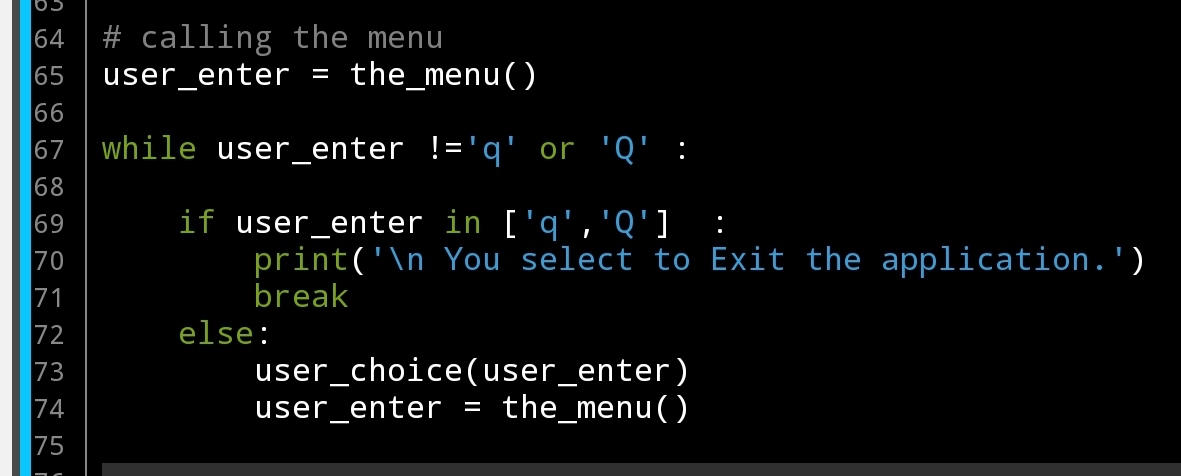
and to keep the application running until the user enter we will use the while block to do this, here is the code:
|
Starting from the coming lesson we will start to write the functions for each item in our menu, we may add new functions or renaming some and we may not going in order just pick one and work with. Let’s see what will happen then.
:: Pandas Lessons Post ::
| Lesson 1 | Lesson 2 | Lesson 3 | Lesson 4 |
| Lesson 5 | Lesson 6 | Lesson 7 | Lesson 8 |
| Lesson 9 | Lesson 10 | Lesson 11 | Lesson 12 |
Python: Pandas Lesson 7
Learning : Create simple zoo application P1
Subject: The Menu and functions names
Althought we mostly using pandas in reading datafile and analysing it, Here we are thinking as if we have an interface for an application, and we are offering some menu and function to the user so he can use the apps.
As we went throught learnning pandas and from all past lessons we saw alot’s of functions and commands that are enuph to start developing a small application to manage our zoo data. Starting from this post we will bulid parts of our application, so lets start.
The Menu The menu is the way or the tool that will help the user to perform deffernt action on the data. Here is the function of the the_menu and it will return the user selection.
Althought we mostly using pandas in reading datafile and analysing it, but Here we are think as if we have an interface of application, and the we are offering a menu to the user were he can select a function user will
The Menu
def the_menu ():
print(‘\n ::—–{ The menu }—-::’)
print(‘1. Load New csv File’)
print(‘2. Show Sample Data’)
print(‘3. Show Columns’)
print(‘4. Data Type’)
print(‘5. Sort.’)
print(‘6. Missing Data’)
print(‘7. Add New Record.’)
print(‘8. Edit a record.’)
print(‘9. Delete a Record.’)
print(’10. Save the File.’)
return (input(‘\n Enter your selection: ‘))
# calling the menu.the_menu()

|
def the_menu(): The code above will print our menu on the screen and asking the user to select the action and return a number of the menu. From there we will run other functions, we may change or add to the menu if we need to.
First I will define each menu-line to have an overall view of the functionality in the app:
1. Load New csv File: We will ask the user to write the file name he want to upload, and we will assume that the file is in the same directory and if the file not exist we will create one.
2. Show Sample Data: Print out sample data from the dataframe using df.sampl().
3. Show Columns: List all the columns in the dataframe.
4. Data Type: Show the data Type of each column.
5. Sort: The user will select the sorting column.
6. Missing Data: This command will give the user a report of how many data are available in the columns and if there is any missing data.
7. Add New Record: Adding new row to the data file.
8. Edit a record: Editing a row.
9. Delete a Record: Deleting a row from the data file.
10. Save the File To save the file, and we will save it under new name.
Whats in the next lesson:
:: Writing the menu selection loops.
:: Writing the first two functions in the application.
:: Pandas Lessons Post ::
| Lesson 1 | Lesson 2 | Lesson 3 | Lesson 4 |
| Lesson 5 | Lesson 6 | Lesson 7 | Lesson 8 |
| Lesson 9 | Lesson 10 | Lesson 11 | Lesson 12 |
Python: Pandas Lesson 6
Learning : Panda Lesson 6
Subject: Pass variable to df
In this post we will cover some commands that we will re-use in a coming post were we will start to develop a small system/app to do full managing of our zoo file. currently i am putting the BluePrint of the app, basically the menu will have these functions:
The Menu: [load, view, add-edit-delete, sort, missing data, save to csv …], so lets start..
If we want to add new row to our dataframe, first we need to know our columns name. In our case data file zoo here is the column we have:
( animal, id, water_need, supervisor, cage_no, years ), at this point we will do this as static variable, but in coming lesson we will use an interactive sample.
So, we will write a dictionary that hold our new_row and append it to the dataframe.
Add new row to the datafram
new_row={‘animal’:’Koala’,’id’:5555,’water_need’:99,’supervisor’:’na’,’cage_no’:55,’years’:10}
df=df.append([new_row])
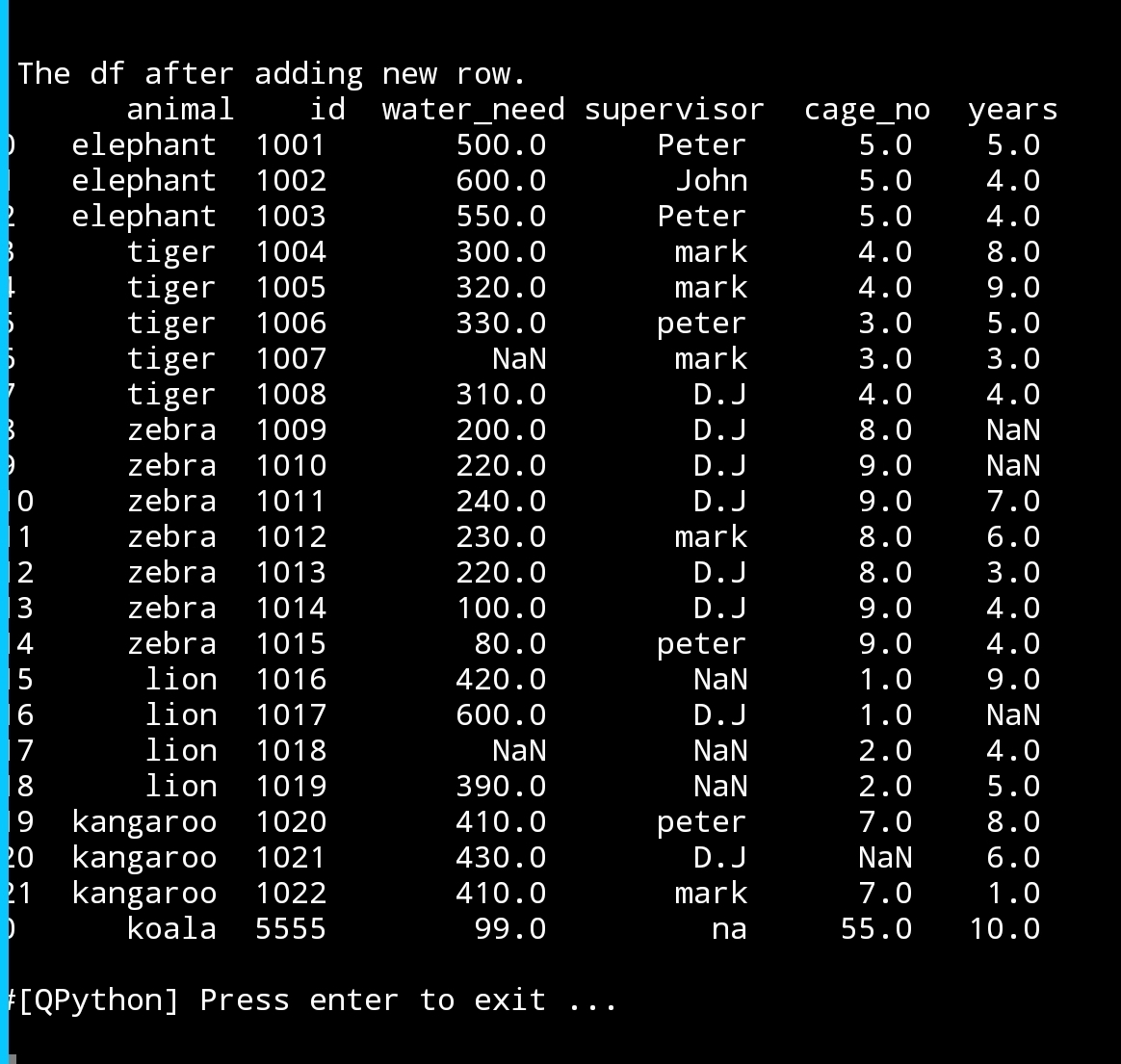
print(‘\n\n The df after adding one new row.\n’,df)
|
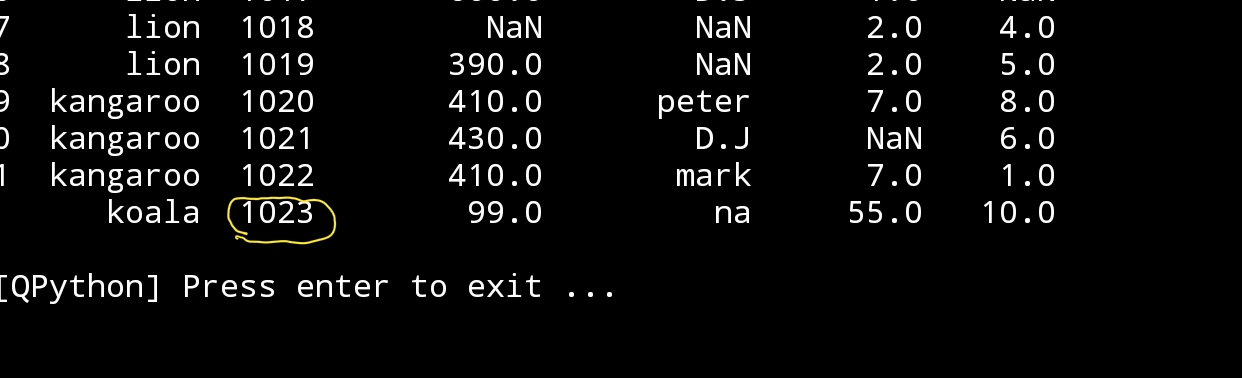
You can see that there is a problem here, the id of our new row was entered manually (in this example) but we need this to be automatic and to do so we must first get the max value in the id column, add 1 to it then use it for the new entry. So we need to add this code:
next_id=df[‘id’].max() + 1
new_row={‘animal’:’koala’,’id’:next_id,’water_need’:99,’supervisor’:’na’,’cage_no’:55,’years’:10}
|
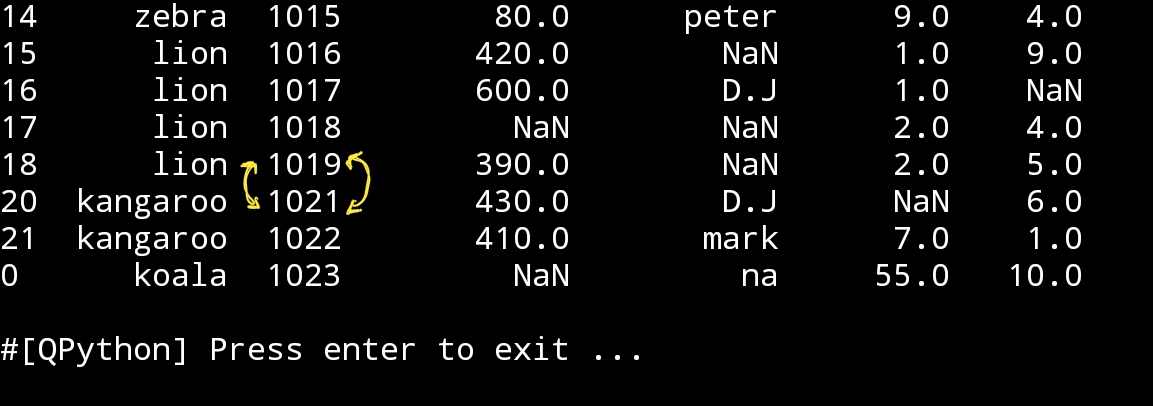
To delete a row, we simply re-define the df without that row we want to delete. Say we want to delete the row that has id = 1020. The id is a primary key in our data-set and there is no duplicated numbers in id column so we can use it to identify a specific row. I assume that we know that we read the datafram and we want to delete the row id number 1020, here is the code:
Delete the row with id = 1020
df=df[df.id !=1020]
print(‘\n\n df after deleting row id:1020\n’,df)
|
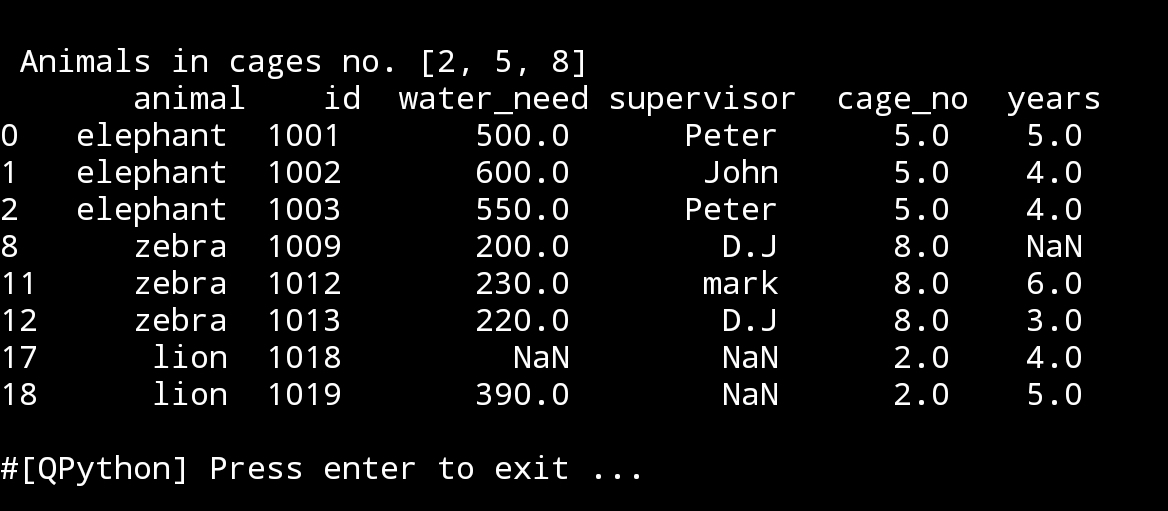
At the first paragraph i was talking about writing an app that fully manage the zoo file, so if the user want to read the rows based on a particular selection like : what are the animals in the cages number 2,5 and 8. Here is the code :
Animals in cage no 2,5 and 8
cage_arr=[2,5,8]
print(‘\n\n Animals in cages no.’,cage_arr,’\n’,df.loc[df[‘cage_no’].isin(cage_arr)])
|
:: Pandas Lessons Post ::
| Lesson 1 | Lesson 2 | Lesson 3 | Lesson 4 |
| Lesson 5 | Lesson 6 | Lesson 7 | Lesson 8 |
| Lesson 9 | Lesson 10 | Lesson 11 | Lesson 12 |
Python: Pandas more commands
Learning : Pandas more commands
Subject: DataFrame Simple Statistics
In this post we will just go through some commands in pandas that related to simple statistics of dataframe, in coming table first we will list down all the commands then will see each in cation.
| Function | Description |
| 1. sum() | Get the sum of the value |
| 2. cumsum() | cumsum() is used to find the cumulative sumvalue over any axis. Each cell is populated with the cumulative sum of the values on upper cells. |
| 3. count() | counting the NaN in the DataFrame. |
| 4. mean() | |
| 5. median | |
| 6. std() | Standard deviation measures the spread of the data about the mean value. |
| 7. max() | Return the maximum value in each column. |
| 8. min() | Return the minimum value in each column. |
| 9. prod() | Return the value of product operation of the items in the column. (works only for number columns) |
| 10. Cumprod() | Return the number in the cell * all the cells over it. |
| 11. abs() | Returns the absolute value of the column and it is only applicable to numeric columns. |
| 12. mode() | It returns the most repeated value in the column. |
1. sum() Using command as: print(df.sum()) it will return a sum of columns, if contain numaric then it will be a normal sum, if it is string return a string contain all as one string without spaces.
In our cas (data_file_zoo) the only practical result is the water-need where it represent the total amout of water we need in our zoo. So to get the sum of one column we can write it as: df[column name].sum()
print(‘\n\n Total amout of water we need is: ‘, df[‘water_need’].sum())

|
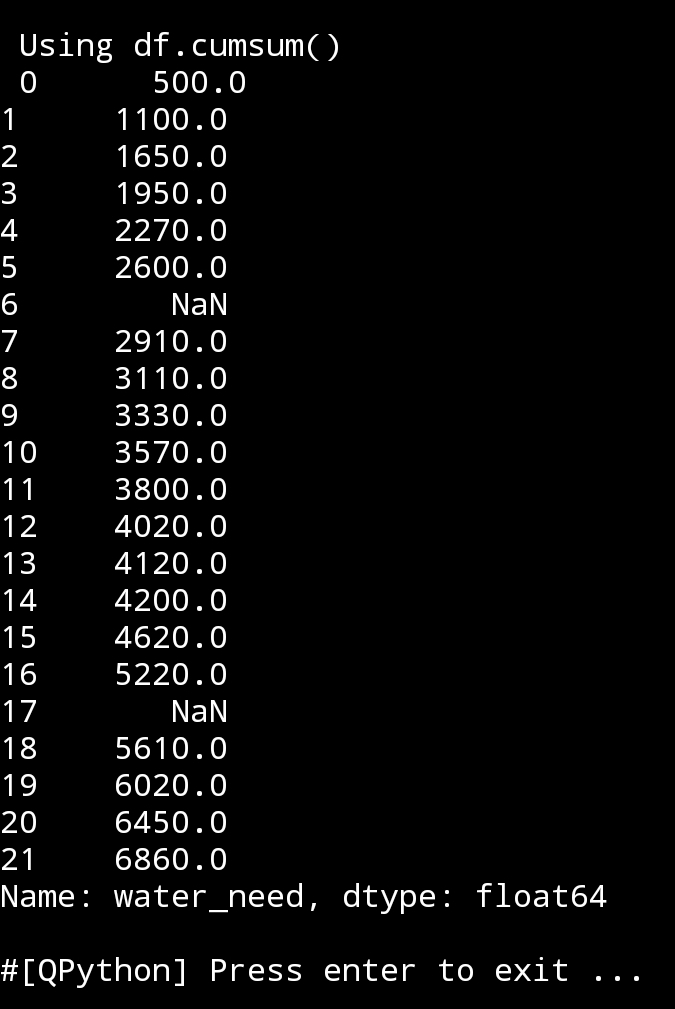
2. cumsum() Using command as: print(df.cumsum()) cumulative sumvalue will return the number in the cell + the sum of all the cells over it, we may need this function in a data analysis.
|
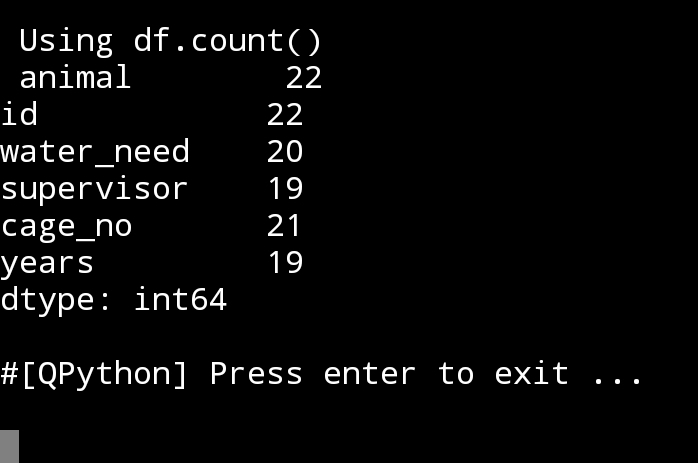
3. count() Using command as: print(df.count()), this function gives us the total data in each columns, so we know how many NaN or empty cells are in our table.
|
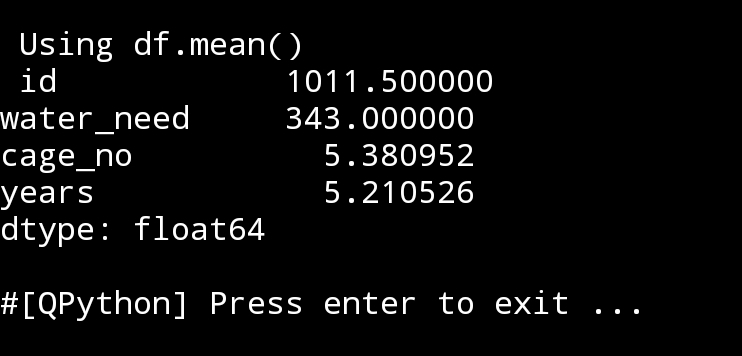
4. mean() Using command as: print(df.mean()), Thw Arithmetic Mean is the average of the numbers in the df for each columns.
|
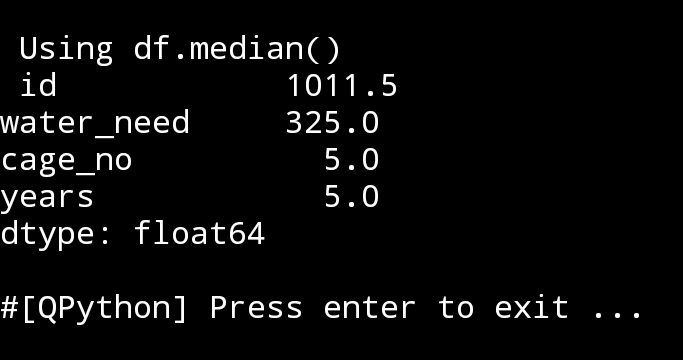
5. median() Using command as: print(df.mediam()), in a sorted list
median will return the middle value, If there is an even number of items in the data set, then the median is the mean (average) of the two middlemost numbers. We can get the median of the specific Column.
# median of water_need column..
print(‘\n\n Median of the Water Need: ‘,df.loc[:,”water_need”].median()
|
6. sdt() Using command as: print(df.std()), it is the Standard deviation of the dataframe, or columns in the df.
The standard deviation measures the spread of the data about the mean value. It is useful in comparing sets of data which may have the same mean but a different range. In our example here (zoo file) some functions is not given the meaning that we may need, but if we have a data from statistical modeled or other scientific field this std() sure will be helpful.
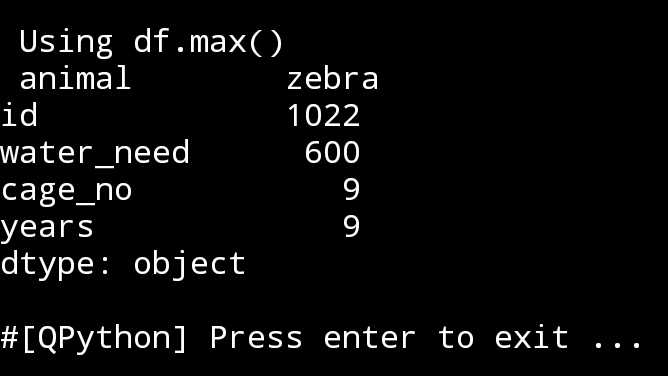
7. max() Using command as: print(df.max()), return the maximum value in each column. If we want the max. value in a specific column then we use theis code:
print(‘\n\n’,df.loc[:,”water_need”].max())
|
8. min() Using command as: print(df.min()), same as max, the min() will return the minimum value in the df for each column, and we can get the min for only one column by using:
print(‘\n\n’,df.loc[:,”water_need”].min())
9. prod() Using command as: print(df.prod()), return the value of product operation of the items in the column. (works only for number columns)
10. cumprod() Using command as: print(df.cumprod()), cumulative product will return the number in the cell * all the cells over it.
To show this i will use a Series of numbers and apply cumprod.
cumprod()
some_value = pd.Series([2, 3, 5, -1, 2])
print(‘\n\n some_value in a column.\n’,some_value)
print(‘\n\n some_value.cumprod()\n’,some_value.cumprod())

|
11. abs() Using command as: print(df.abs()), It returns the absolute value of the column and it is only applicable to numeric columns.
12. mode() Using command as: print(df.mode()), It returns the most repeated value in the column.
Find the most repeated value:
print(‘\n\n Function: df.count()\n’,df.mode())
# mode of the specific column
df.loc[:,”animal”].mode()
:: Pandas Lessons Post ::
| Lesson 1 | Lesson 2 | Lesson 3 | Lesson 4 |
| Lesson 5 |
Python: Pandas Lesson 4
Learning : Panda Lesson 4
Subject: DataFrame Columns: Hide, Drop, rename
We still workinng on dataframe and columns, we will go thrght some function and at the end I will just add a line to save the dataframe in a new CSV file. So let’s start.
We still working on our data_file_zoo.csv and here i am copying the column we have in the file or in our df.
print(‘\n\n Columns in thedataFrame..\n’,df.columns)

|
Now we have a list of columns in our DataFrame, some time we want to hide a column, here we will creat a variable and whenever we call this variable the column will not be shone on the screen.
Hide column ‘supervisor’
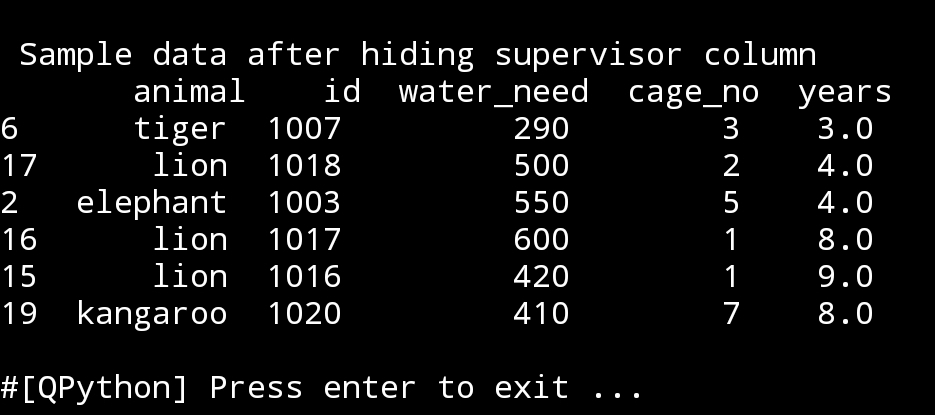
In this line we will set a variable to hide supervisor column, and just for sceen-shop we will present 6 random rows
hide_supervisor=df.drop([‘supervisor’], axis=1)
print(‘\n\n Sample data after hiding supervisor column\n’,hide_supervisors.sample(6))
|
In the upper case, we may have a password column or some key information column that we don’t want to be shown in the dataframe, then it’s good idea to create a DataFrame without this column an use it.
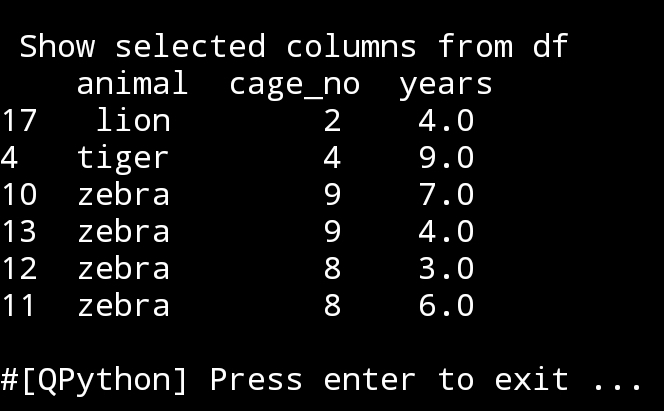
If we have a dataframe and we are examining some thing and don’t want to show all columns every time we print the df, so just show (say three) columns. To do this, first we will print the columns names so we know what we have in the df, then using coming code we will select whatever we want to show.
animal_cage_years=df[[‘animal’,’cage_no’,’years’]]
print(‘\n\n Show selected Columns from df\n’,animal_cage_years.sample(6))
|
Now we will drop a column from the df, I will select ‘supervisor’, just like this:
print(‘\n\n Drop column ”supervisor” form the df’)
print(df.drop([‘supervisor’],axis=1))

|
To be Aware: In the above case, if we use the command on df and we add inplace=True then this will change the df, so any time we calling the df it will be without the ‘supervisor’ column. Here is the code..
df.drop([‘supervisor’], inplace=True, axis=1)
print(‘\n\n’,df)
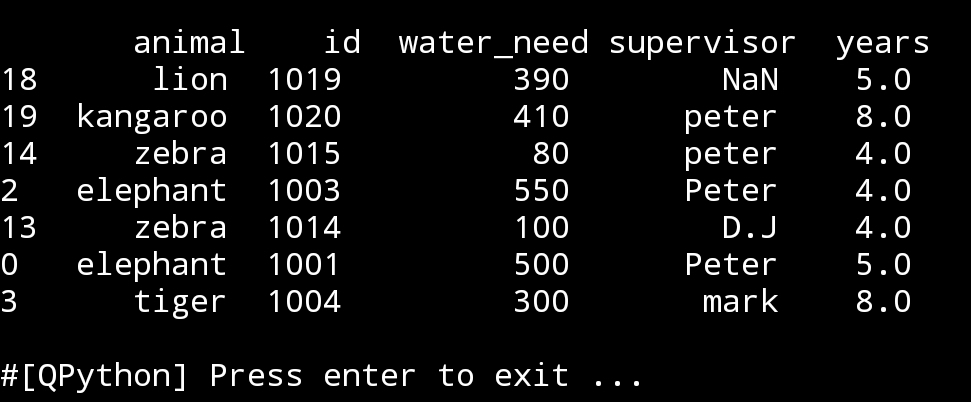
If we want to hide more than one columns we just add them in the command like this:
hide_years_cages=df.drop([‘years’,’cage_no’], axis=1)
print(hide_years_cages.sample(6))

|
If we want to check wither or not a df contain column c_name if yes hide-it else print ‘Column not found’.
If column ‘cage_no’ in df hide it.
if ‘cage_no’ in df.columns:
hide_cage = df.drop([‘cage_no’], axis=1)
print(‘\n\n’,hide_cage.sample(6))
else:
print(‘Column not found’)
and we can in the else block just showing another dataframe.
|
:: Pandas Lessons Post ::
| Lesson 1 | Lesson 2 | Lesson 3 | Lesson 4 |
| Lesson 5 |
Python: Pandas Lesson 3
Learning : Pandas Lesson 3
Subject: dataframe (sort, where and filters)
In my Last post Pandaas Lesson 2, we show some commands that will output part of our dataframe (df) such as if we want to output the information we have about lions, or other animals in the Zoo file. Or to see what aminals fell under particular supervisor. Also I try to add a print statment over each output table to show/describe the table content.
In theis Lesson, or let’s say in this post I will share another bunch of commands dealing with one table of data. We will keep using our Zoo data file. So first I wll call the dataframe df.
import pandas as pd
file_name=’data_file_zoo.csv’
df=pd.read_csv(file_name, delimiter=’,’)
print(‘\n Data from Zoo file..’,df)
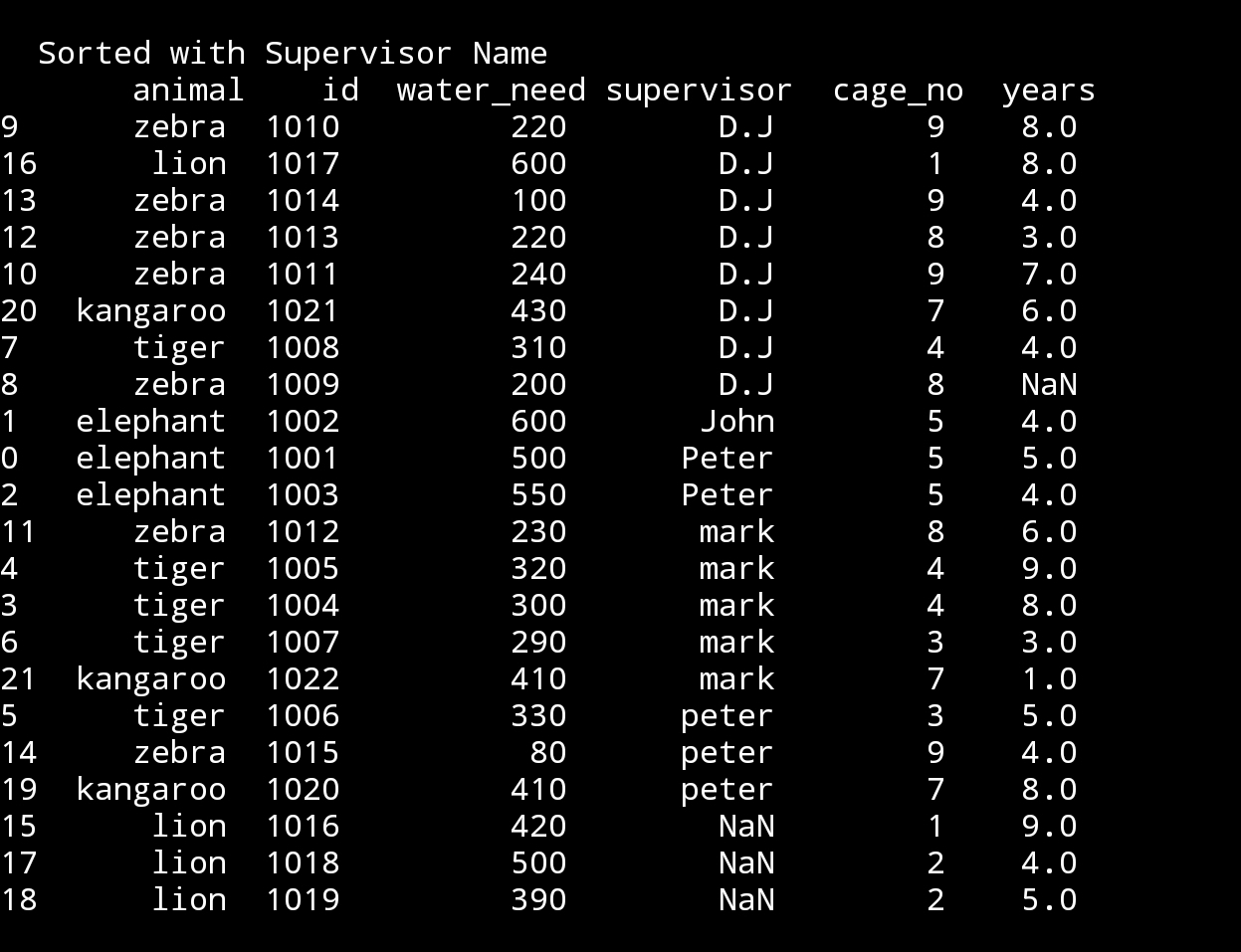
So, if we want to sort the data based on supervisor name.
df.sort_values(‘supervisor’, inplace=True)
print(‘\n\n Sorted data with Supervisor Name\n’,df)
|
First thing to notes that we have two group of supervisors name ‘peter’ one with small ‘p’, another with Big ‘P’. Another thing to see that we have some ‘lions’ with NaN under supervisor, this meas there is no data in that feilds. I will not change this now, let’s do this in another lesson.
So, let’s sort the data now with anumal type.
df.sort_values(‘animal’,inplace=True)
print(‘\n\n Sort with animal type.\n’,df)
 |
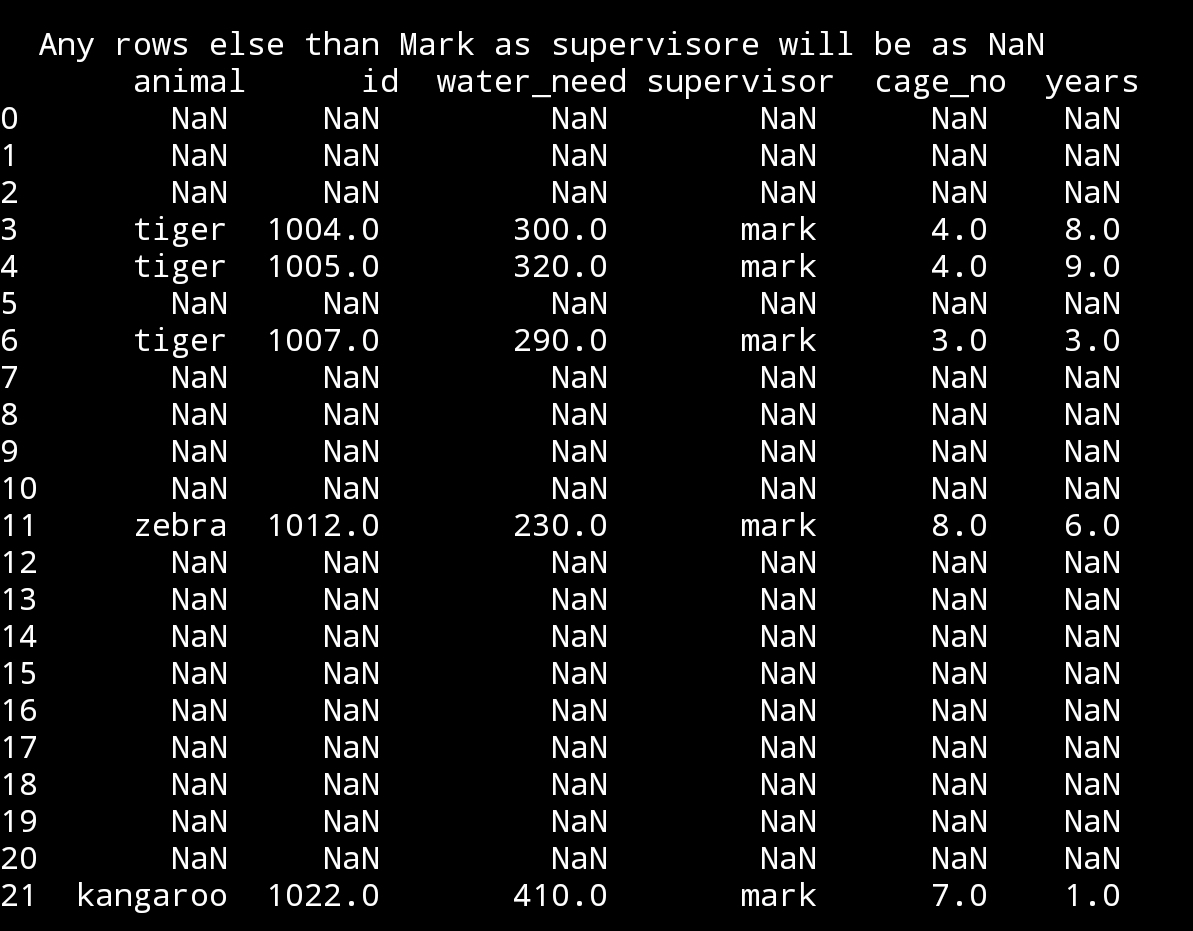
If we want to print all animal data under mark supervision, other data will be shown as NaN.
mark_supervision = df[‘supervisor’]==’mark’
df.where(mark_supervision, inplace = True)
print(‘\n\n Any rows else than Mark as supervisore will be as NaN\n’,df)
|
If we want to add another filter to the upper dataframe to show animals under mark supervision if the animal age is more than 7.
age_biger_7 = df[‘years’] >7
df.where(mark_suoervision & age_biger_7, inplace = True)
print(‘\n\n Only rows under mark supervision if animal age > 7 \n’,df)

|
:: Pandas Lessons Post ::
| Lesson 1 | Lesson 2 | Lesson 3 | Lesson 4 |
| Lesson 5 |
Python: Pandas Lesson
Learning : DataFrame and some commands
Subject: Pandas printing selected rows
First thing we will do today, we will add another coloumn to our CSV data_file_zoo.csv, we will add ‘years’ this will be hwo old each animal in the zoo is.
File_Name: data_file_zoo.csv
animal,id,water_need,supervisor,cage_no,years
elephant,1001,500,Peter,5,5
elephant,1002,600,John,5,4
elephant,1003,550,Peter,5,4
tiger,1004,300,mark,4,8
tiger,1005,320,mark,4,9
tiger,1006,330,peter,3,5
tiger,1007,290,mark,3,3
tiger,1008,310,D.J,4,4
zebra,1009,200,D.J,8,
zebra,1010,220,D.J,9,8
zebra,1011,240,D.J,9,7
zebra,1012,230,mark,8,6
zebra,1013,220,D.J,8,3
zebra,1014,100,D.J,9,4
zebra,1015,80,peter,9,4
lion,1016,420,,1,9
lion,1017,600,D.J,1,8
lion,1018,500,,2,4
lion,1019,390,,2,5
kangaroo,1020,410,peter,7,8
kangaroo,1021,430,D.J,7,6
kangaroo,1022,410,mark,7,1
As we just update out file, we need to load it to the memory by calling the df (dataframe), this will happen once we run our code.
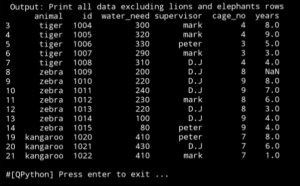
Here is a screen shot of the new data using print(df)
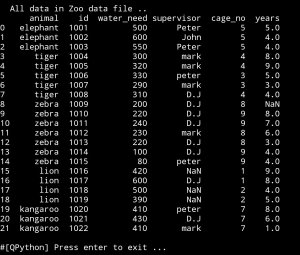
Lets say we want to know how many animals are numder 6 years. Here we will use df.loc to locate what we are looking for.
age_less_6 = df.loc[(dfyears<6)]
# To print we may use this:
print(‘ we have {} animals less than 6 years’.format(len(age_less_6)))
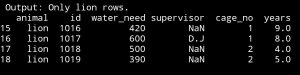
Now, we want to print only lion rows:
lino_rows = df.loc[(df.animal==’lion’)]
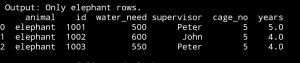
 Here is only rows with animal name ‘elephants’:
elephant_rows=df.loc[(df.animal==’elephant’)]
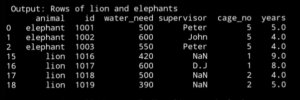
Now let’s print only the rows with lion and elephants:lion_and_elephant = df.loc[(df.animal==’lion’) | (df.animal == ‘elephant’)]
What if we want all the data but not the rows with lino or elephant.
all_exclude_lion_elephant=df.loc[(df.animal !=’lion’) & (df.animal !=’elephant’)]
:: Pandas Lessons Post ::
| Lesson 1 | Lesson 2 | Lesson 3 | Lesson 4 |
| Lesson 5 |
Python: Pandas Lessons
Learning : DataFrame and some commands
Subject:
This is my first hours in Pandas, until now thing are going smooth. I am using pythonanywhere on my PC, and jupyterlab on my galaxy tab S4.
In this post and coming once under name Pandas Lesson I will write some commands and what-ever I think I may need.
So, first thing we need a csv file with data to play with, so I search for some thing simple, i found one with zoo data!, I add two new column to it. so lets see it.
File_Name: data_file_zoo.csv
animal,id,water_need,supervisor,cage_no
elephant,1001,500,Peter,5
elephant,1002,600,John,5
elephant,1003,550,Peter,5
tiger,1004,300,mark,4
tiger,1005,320,mark,4
tiger,1006,330,peter,3
tiger,1007,290,mark,3
tiger,1008,310,D.J,4
zebra,1009,200,D.J,8
zebra,1010,220,D.J,9
zebra,1011,240,D.J,9
zebra,1012,230,mark,8
zebra,1013,220,D.J,8
zebra,1014,100,D.J,9
zebra,1015,80,peter,9
lion,1016,420,,1
lion,1017,600,D.J,1
lion,1018,500,,2
lion,1019,390,,2
kangaroo,1020,410,peter,7
kangaroo,1021,430,D.J,7
kangaroo,1022,410,mark,7
I add the ” supervisor and cage_no ” to the original file so we will have more room to manipulate.
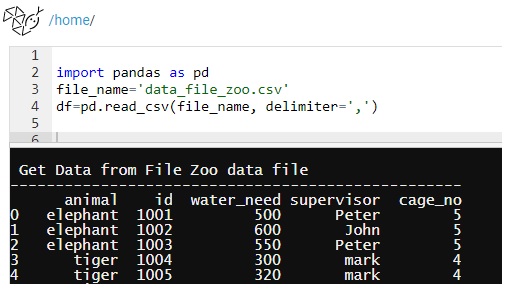
First Command: first thing we need to call pandas library using import, and set the file name and dataframe.
import pandas as pd
file_name=’data_file_zoo.csv’
df=pd.read_csv(file_name, delimiter=’,’)
We will use this part for all our initialization part
|
Other Command: Here are other commands that works with dataframe df.
| print(df) | Will print out all the data from the file. |
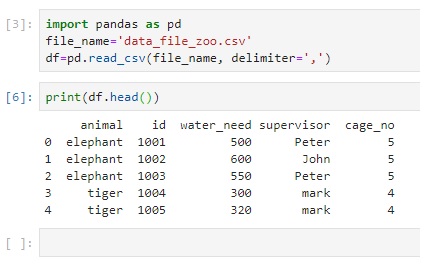
| print (df.head()) | Will print first 5 rows |
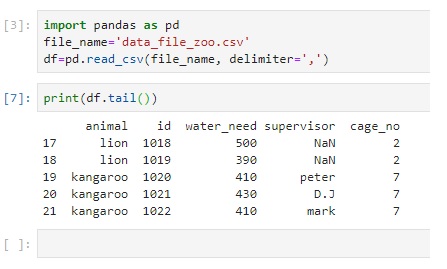
| print (df.tail()) | Will print last 5 rows |
| print (df.sample(3)) | Will print random 3 rows from the dataframe. |
| print(df.columns) | Will print the columns in the file |
| print (df[[‘id’,’animal’,’cage_no’]]) | Print only the data from column you want |
| print (df[[‘id’,’animal’,’cage_no’]].sample(3)) | Print random 3 rows of only ‘id’,’animal’,’cage_no’ columns |
| print (df[df.animal==’lion’]) | Get all the rows with animal name = lion . case sensitive |
| print(df.head()[[‘animal’,’id’]]) | Print first five rows of only animal and id |
 |
 |
 |
 |
 |
Wrapped up: This is a step one, pandas has many to read about and to learn, I start this initiative just for my self, and i select the hard way to do this, this is not important to my current job, this is nothing that any body will ask me about, but i want to learn and I think i will go further in this self-taught learning sessions..
———————————
Update on: 29/7/2019
:: Pandas Lessons Post ::
| Lesson 1 | Lesson 2 | Lesson 3 | Lesson 4 |
| Lesson 5 |
Python: Smallest Multiple
Python: Smallest multiple
Problem 5 @ projecteuler
Completed on: Thu, 4 Jul 2019, 22:30
Here I am quoting form ProjectEuler site:”
2520 is the smallest number that can be divided by each of the numbers from 1 to 10 without any remainder. What is the smallest positive number that is evenly divisible by all of the numbers from 1 to 20?”
So to solve this simple task all we need to loop through numbers and divide it by a list of (1,20) if yes return True otherwise return False and got to another number.
and so we done..

|
The Code:
codes here

|

Taking pictures is not my main daily practices, but when i start playing with my camera, i really enjoy my self.
Thanks for visiting my Space..


 Ali's Photography Space...