Archive
Python: My Fake Data Generator P-7
Learning : Python: Functions, Procedures and documentation
Subject: About fake data P-7: (Fake File Name)
In this post we will write a function to generate a file name. Each file name consist of two part, first one is the name which present (or should present) a meaning part, then there is a dot (.) then mostly three characters showing the file type or extension.
Scope of work: Our files names will have 4 syllables all to gather will be one file name. Each syllables will be loaded in a variable as shown ..
1. fext: for Files extensions such as: (doc, jpeg, pdf, bmp …. and so on)
2. name_p1: Is a noun such as (customers, visitors, players .. . and so on )
3. name_p2: will be an nouns, adjective or characteristics such as (name, index, table .. .. and so on)
4. Then we will add a random integer number between (1,30) to give the file a version, or a number.
All parts or syllables will be as one file name.
Let’s Work: First we need to load the File name syllables from the json file called : file_dict.json
 # Loading the json from a url

import json , requests, random

fname = "https://raw.githubusercontent.com/Ali-QT/Ideas-and-Plan/master/file_dict.json"

def call_json_url(fname):
    """
    Function to load the json file from URL.
    Argument: str :fname

    Return : dict: data
    """
    req = requests.get(fname)
    cont = req.content
    data = json.loads(cont)
    return data

fdict = call_json_url(fname)

# Save each syllables into variable.
f_ext = fdict["fext"]
f_p1_name = fdict["name_p1"]
f_p2_name = fdict["name_p2"]
Now we will write the function that will generate the file name:
 # Function to generate the file name

def generate_fname():
    """
    Function to generate a Fake files name.

    File Name consist of four syllables, Two names, a random number and an extension.
    First two syllables of the file name will be selected randomly from a dictuenary stored in a json       file.

    Return : str : f_file_name

    To read the information key in the json file use this code.
    ------ CODE TO READ DATA-SET INFORMATION --------------
     	for each in fdict["information"]:
          print(each,":",fdict["information"])

    ---END OF CODE ------------------------------------------
    """
    fp1 = (random.choice (f_p1_name)["n_p1"])
    fp2 = (random.choice (f_p2_name)["n_p2"])
    fp3 = (random.choice (f_ext)["ext"])

    f_file_name = (fp1 + "_" + fp2 + "_" + str(random.randint(1,30)) + "." + fp3)

    return f_file_name

|
Last thing we just will call the function for X numbers of files Name we want.
 # Generate 15 file Name.

for x in range (15):
    generate_fname()

[Output]:


kids_name_15.ico
speakers_list_1.asp
cars_photos_27.csv
students_database_26.xml
kids_details_27.html
animals_index_10.mov
speakers_parameters_17.csv
drivers_name_8.doc
males_attributes_16.mov
players_sketches_11.py
animals_sketches_3.wav
cars_details_12.css
animals_list_17.txt
flowers_parameters_4.doc
players_database_28.log
:: Fake Function List ::
| Function Name | Description |
| Color | To return a random color code in RGB or Hex. |
| Date | To return a random date. |
| Mobile | To return a mobile number. |
| Country | To return a random country name. |
| City | To return a random City name. |
| ID | To return X random dig as ID. |
| Time | To return random time. |
| Car’s Brand | |
| file_name | file name: list for fake file names. |
| Creatures | Random animal names of a certain type: Mammals, Birds, Insect, Reptiles |
| Foods | To return a random list of foods |
By: Ali Radwani
Python: My Fake Data Generator P-5
Learning : Python: Functions, Procedures and documentation
Subject: About fake data P-5: (Fake Animal list)
Although I call this a Fake Animals list, but the names are for real animals, I am creating a json file fill of animals, each has name and type, also I add a key called information where I am giving a short summary about the data-set. Also I upload the data-set to my account in GitHub, so we can load the json file using Python requests library. The data-set will be updated frequently by adding more animals.
Standarizing: I will try to create all my data-sets with a standard information key, this key will show the following:
- Date: Will show the data-set crating date.
- Last Update: Will show the last update of the data-set file.
- Creator: Will be my name.
- Desc: Is a short description about the data-set.
- Legal: Is the copyright and the limits of using this data-set
To access this part of the data set you can run this code ..
 # Function to print-out the information key in the data-set

def get_info(adata):
    print('\n Information about Creatures data-set.')
    for each in adata['information']:
        for k in each.keys():
            print(' ', k + ": " + each[k])
Creatures data-set:This data set is containing the name of animals and their types, animal types are: mammals | insects | birds | reptiles. Our function def get_animals() will take three arguments: the data, the type of animal we want and the size, and it will return a list of animals names.
Here is the code. .
 # Function return a list of random animals names.


def get_animals(adata, atype, dsize):
    """
     Date: 17/12/2019
        Creator : Ali Radwani
        Function to return  X numbers of animal names. The data-set contain animals with
        four categories:
            - Mammals
            - Birds
            - Insect
            - Reptiles
    :param : dict: adata:
    :param : str:  atype:
    :param : int:  dsize:
    :return: list : t_names
    """
    t_names = []
    t_ind_list = get_type_index(adata,atype)

    t_size = len(t_ind_list)
    if dsize < t_size:
        for x in range (dsize):
            t_names.append(data['animals'][random.choice(t_ind_list)]['name'])
    else:
        print('\n  The {} data-set is less than data size you ask for. Maximum size is {} {}.'.format(atype,t_size,atype))

    return t_names

|
And here is the out-put ..

|
:: Fake Function List ::
| Function Name | Description |
| Color | To return a random color code in RGB or Hex. |
| Date | To return a random date. |
| Mobile | To return a mobile number. |
| Country | To return a random country name. |
| City | To return a random City name. |
| ID | To return X random dig as ID. |
| Time | To return random time. |
| Car’s Brand | |
| file_name | file name: list for fake file names. |
| Creatures | Random animal names of a certain type: Mammals, Birds, Insect, Reptiles |
| Done |
By: Ali Radwani
Python : Expenditure App
Expenditure Application
Add new Entry
Today we will work on the “Add New Entry” function, this is first function on our menu. (Read Expenditure App Menu here)
We will call the function def add_entry(): and will give the user the prompt to enter “Date” and “Amount” then we will write them to our json file.
Just to be as less codes as we can, I am not adding any validations here also not coding the try .. except. So I am assuming the entered data will be in correct way.
def add_entry():
my_date = input(‘Enter the date as dd/mm/yyyy: ‘)
my_amount = input(‘Enter the Amount: ‘)
new_data = {“date”: my_date, “amount”: int(my_amount)}
# Here we adding the new data to the file
ff = open(“expen_dat.json”, “a”)
ff.seek(0, 2) # goto the end of the file.
ff.truncate(ff.tell() – 3) # from end of the file erase last 3 char.
ff.write(‘,\n’)
ff.write(json.dumps(new_data))
ff.write(‘\n]}’)
ff.close()
If you add the “User input choice” in your code this function will be on choice “1” as here.
if choice == ‘1’:add_entry()
choice = the_menu()
if choice == ‘2’:
….
 Follow me on Twitter..
Table of posts regarding the Expenditure App..
| Title | Description | Post Link |
| The Case | Talking about the case study of the application | Click to Read |
| leveling the Ground | Talking about: Requirement, folder structure, data file json, sample data and .py file and other assumptions | Click to Read |
| The Menu | Talking about: The application menu function | Click to Read |
| User input ‘choice’: | Talking about: The user input and the if statement to run the desired function | Click to Read |
| Loading and testing the Data | Talking about: Loading the data from json file and print it on the screen. | Click to Read |
| Add New Entry | Talking about: The “Add New Entry” function | |
Here is the code shot..
|
Here is the output screen..
|
Python : Expenditure App
Expenditure Application
Loading and testing the Data:
In this post we will load the data from json file and print it to the screen, also will use one of our functions called “get_year_total” to get the sum amount in a given year.
First we assume the our file.json is there in the same directory of the Expenditure.py file (read previous post here) so our code will upload the data in a variable named “data” and we will print the file to our screen, this line of code (print to screen) is there in our coding process and should be removed from the last version of our application.
# This function will load the json file data into var data and return it back so we can use it
def get_all():
with open(‘expen_data.json’) as f:
data = json.load(f)
return data
# This function will take a year from the user input and return the total of amount we expend in that year.
def get_year_total(my_year):
tot=0
for my_date in data[‘expenditure’]:
if my_year in my_date[‘date’]:
tot=tot+int(my_date[‘amount’])
return tot
data = get_all() # Load the file in to data
print(data)
# Ask the user to Enter a year.
my_year=input(‘Enter a year as yyyy: ‘)
# pass the year to the get_year_total function
total=get_year_total(my_year)
# print the total
print(total)
If every thing goes fine, you should see the data on your screen and a prompt will ask you to enter a year, at this point we are not doing any try … except block to our code so we assume that we are entering a good/right inputs. I am attaching images for the code and output screens.
Table of posts regarding the Expenditure App..
| Title | Description | Post Link |
| The Case | Talking about the case study of the application | Click to Read |
| leveling the Ground | Talking about: Requirement, folder structure, data file json, sample data and .py file and other assumptions | Click to Read |
| The Menu | Talking about: The application menu function | Click to Read |
| User input ‘choice’: | Talking about: The user input and the if statement to run the desired function | Click to Read |
Here is the code shot..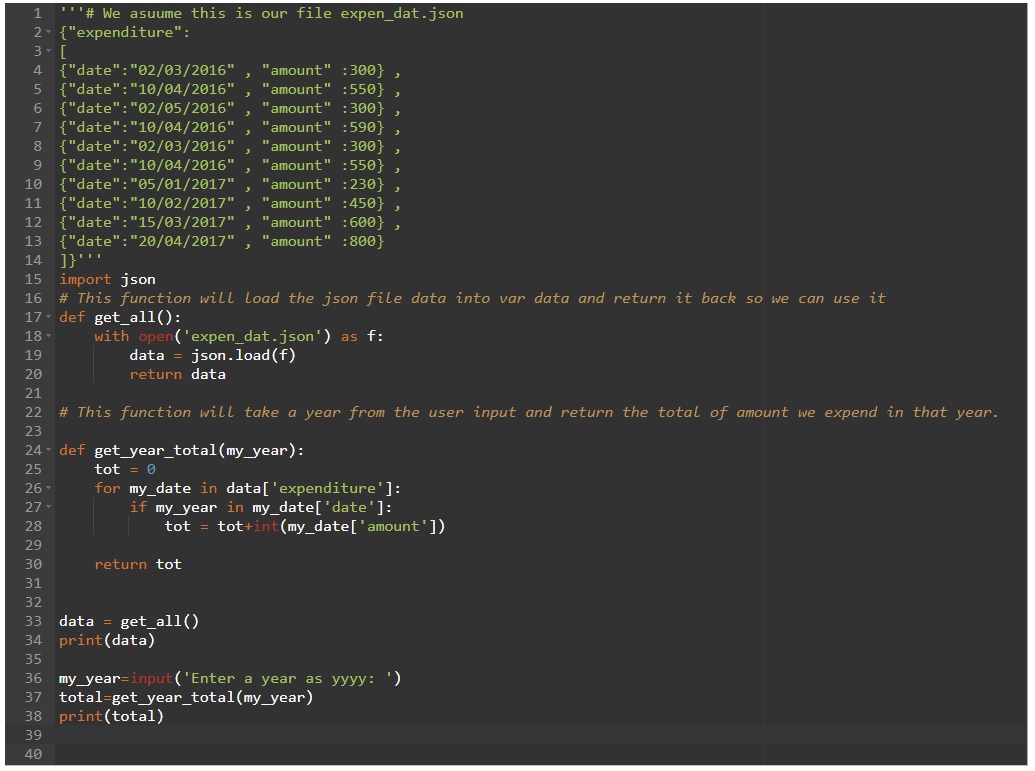
|
Here is the output screen..
|
Python : Expenditure App
Expenditure Application
User input ‘choice’:
In today post we will add the user input to our menu and based on the user input the app some function will run. As we said in the previous post ‘The Menu‘ we will use (9) to Exit from the application.
To read the user input we will use ‘input(‘something’)’ statement and The Menu def will return the choice back so our if statement will take us to another function, or EXIT if choice = 9, so let’s start.
As we can see in the last two lines of the_menu def, we have
choice = input(‘What you want to do? ‘) and return choice
Then in the main application body we will have while statement holding if statement as here:
choice = the_menu() # Here we are calling the menu and putting the return in the choice.
while choice != ‘9’ :
if choice == ‘1’:
# Calling “Add New Entry” function
choice = the_menu()
if choice == ‘2’:
# Calling “Delete an Entry” function
choice = the_menu()
if choice == ‘3’:
# Calling “Change an Entry” function
choice = the_menu()
if choice == ‘4’:
# Calling “Show Total Expenditure in a Year.” function
choice = the_menu()
if choice == ‘5’:
# Calling “Show Expenditure Details in a year.” function
choice = the_menu()
if choice == ‘9’:
choice = the_menu()
brack
Your code should be something like what we have in the image.

Python : Expenditure App
Expenditure Application
The Menu:
Continuing parts of the Expenditure Application, here is the basic menu that we will use in our app. We will select (9) as Exit from the system.
So now, we have a json file with sample data and stored in a directory, also we have a file called “expen.py” and we will write the menu def in it and save it.
def the_menu(): # This is a menu
print(‘1. Add New Entry.’)
print(‘2. Delete an Entry.’)
print(‘3. Change an Entry.’)
print(‘4. Show Total Expenditure in a Year.’)
print(‘5. Show Expenditure Details in a year.’)
print(‘9. Exit.’)
# This line will ask the user to enter the operation he want to do.
choice = input(‘What you want to do? ‘)
return choice
In this app we will have 5 functions as our menu and maybe one or two functions to facilitate some calculations in background.
Python : Expenditure App
Expenditure Application
leveling the Ground:
In this post we will assume that we have a folder for our application, and we will create two files one is for our python code and we will name it “expen.py”, the other is for our data and we will name it “expen_dat.json” this file extension is ‘json’. Also I assume that we have json pack is installed in the PC so if you don’t have json this is the time to install it.
json file:After you create expen_dat.json file just open it with any text editor and copy a test data of our expenditure as shown.
{“expenditure”:
[
{“date”:”02/03/2016″,”amount”:300},
{“date”:”10/04/2016″,”amount”:550},
{“date”:”02/05/2016″,”amount”:300},
{“date”:”10/04/2016″,”amount”:550},
{“date”:”02/03/2016″,”amount”:300},
{“date”:”10/04/2016″,”amount”:550},
{“date”:”05/01/2017″,”amount”:400},
{“date”:”10/02/2017″,”amount”:400},
{“date”:”15/03/2017″,”amount”:400},
{“date”:”20/04/2017″,”amount”:400}
}]
In next post we will start with coding and testing our Expenditure Application.
I will use the @pycharm to write the code and test it, but any other code editors can be used. Also, I assume we have Python and json installed in your PC.
Python: Expenditure App
Expenditure Application
In this post, we will go through the case study of our application.
‘ The Case’
We want to build an application to store and retrieve some data regard our expenditure, we will go as simple as two keys (date and amount), and we will save the data in a json file. So to view the data we need some functions to do some operations on the data such as Add, Delete, retrieve and change.
I will use the @pycharm to write the code and test it, but any other code editors can be used. Also, I assume we have Python and json installed in your PC.

Taking pictures is not my main daily practices, but when i start playing with my camera, i really enjoy my self.
Thanks for visiting my Space..


 Ali's Photography Space...