Archive
Python: Coffee Consumption – P2
Learning : Python, SQlite3, Dataset, Pandas,
Subject: Create Coffee Consumption Application.
[NOTE: To keep the code as simple as we can, We WILL NOT ADD any user input Varevecations. Assuming that our user will Enter the right inputs.]
In this part (Part-2) of Coffee Consumption App, we will fill in some code into selected Functions. We will do the following:
- Calling the Main-Menu Function.
- Create header function.
- Create the DataBase.
- Create the Tables.
- Insert the Zero records.
- Insert data into Lookups Table.
So, let’s start with writing the main application body and calling the Main-Menu to trigger a Function based on the user selection. This section will be a calling the main_menu() in a while loop .. here is the code ..
# Main application body

while True :
    user_select = main_menu()

    if user_select == '1' :
        new_data()

    if user_select == '2' :
        edit_record()

    if user_select == '3' :
        delete_record()

    if user_select == '4' :
        #delete_record()
        pass

    if user_select == '6' :
        c_name_type_size_manager()

    if user_select == '7' :
        create_data_base()

    if user_select == '99' :
        input('\n\n   Thank you for using this Appliation. Press Enter.. > ')
        break
If we run the application now, we will see the main-menu but nothing will work because we still did not write any real Functions in the application.
Tables and Zero records:
Now we will write tha function to create the Tables and inserting the Zero record in each of them. All the codes will be in a function called: def create_data_base () : here are the name of the tables we will create:
coffee_con
coffee_name
coffee_type
coffee_size
and here is the full code in the function, in first part we will create the tables, second part will insert the zero record, last we will insert data in the lookup tables (coffee_name, coffee_type and coffee_size)
# def create_data_base ()

def create_data_base () :
    os.system('clear')

    line2 ="Create Data Base"
    header(line2,3,11)

    print('\n     All the data in the Data-Base will be removed, and can''t be retrieved. ')

    if input('\n     Press [Y] to Continue, anything else will Stop and Exite.  > ') not in ['y','Y'] :
        input('\n     You Select to stop and Exit. Press any Key .. >  ')
        return

    # Part 1: CREATE TABLE:
    sql_coffee_con_t = "CREATE TABLE if not exists coffee_con (c_id INTEGER PRIMARY KEY AUTOINCREMENT, date_t,cn_id int, ct_id int, cs_id int, sex text, rank int )"
    sql_coffee_name_t = "CREATE TABLE if not exists coffee_name (cn_id INTEGER PRIMARY KEY AUTOINCREMENT, c_name text )"
    sql_coffee_type_t = "CREATE TABLE if not exists coffee_type (ct_id INTEGER PRIMARY KEY AUTOINCREMENT, c_type text )"
    sql_coffee_size_t = "CREATE TABLE if not exists coffee_size (cs_id INTEGER PRIMARY KEY AUTOINCREMENT, c_size text )"


    # Execute the commands
    c.execute(sql_coffee_con_t)
    db_conn.commit()
    c.execute(sql_coffee_name_t)
    db_conn.commit()
    c.execute(sql_coffee_type_t)
    db_conn.commit()
    c.execute(sql_coffee_size_t)
    db_conn.commit()


    # Part 2: Inserting ZERO records.
    c.execute ("INSERT INTO coffee_con (date_t , cn_id, ct_id, cs_id, sex, rank) VALUES(:date_t , :cn_id, :ct_id, :cs_id, :sex, :rank)",{'date_t':'0' ,'cn_id' :0,'ct_id' :0,'cs_id' :0,'sex' :'0','rank' :0})
    db_conn.commit()
    c.execute ("INSERT INTO coffee_name (c_name) VALUES(:c_name )",{"c_name":'0'})
    db_conn.commit()
    c.execute ("INSERT INTO coffee_type (c_type) VALUES(:c_type )",{"c_type":'0'})
    db_conn.commit()
    c.execute ("INSERT INTO coffee_size (c_size) VALUES(:c_size )",{"c_size":'0'})
    db_conn.commit()


    # Part 3: Inserting Basic Information
    coffee_Name_list = ['Black','Latte','Espresso','Americano','Cappuccino','Mocha',
                     'Lungo', 'Flat white', 'Irish', 'Macchiato','Ristretto','Iced coffee']

    coffeeType_list = ['3n1' ,'Pods','Grounded']

    coffeeSize_list = ['Samll', 'Medium', 'Large', 'Venti']

    for each in coffeeName_list:
        c.execute ("INSERT INTO coffee_name (c_name) VALUES(:c_name )",{"c_name":each})
        db_conn.commit()

    for each in coffeeType_list:
        c.execute ("INSERT INTO coffee_type (c_type) VALUES(:c_type )",{"c_type":each})
        db_conn.commit()

    for each in coffeeSize_list:
        c.execute ("INSERT INTO coffee_size (c_size) VALUES(:c_size )",{"c_size":each})
        db_conn.commit()

    input('\n\n     Data-Base Created, Basic Information Inserted. press any key to continue. > ')
[ The Full Code is Available in Download Page. ]
Last Function in this part is the header, it’s just a Title that will bee displayed in a box at the top of each page. Here is the code ..
# Header of the Application

def header(line2,b_l2,a_l2):
    os.system('clear')
    # The Project Name.
    line_1 = "Coffee Consumption"
    stars = 40
    print('\n',' '*4,'*'*stars)
    print(' '*5,'***',' '*5,line_1,' '*7,'***')
    print(' '*5,'***',' '*(stars - 8),'***')
    print(' '*5,'***',' '*b_l2,line2,' '*a_l2,'***')
    print(' '*5,'***',' '*(stars - 8),'***')
    print(' '*5,'*'* stars,'\n')
What’s Coming: In Part-3 we will do the Follwing:
- Writing a function show_list.
- Writing the function to Add New Coffee Name.
- Writing the function to Edit a Coffee Name.
- Writing the function to Delete a Coffee Name.
..:: Have Fun with Coding ::.. 🙂
| Part 1 | Part 2 | Part 3 | Part 4 | Part 5 |
| Part 6 | Part – | Part – | Part – | Part – |
To Download my Python code (.py) files Click-Here
 Follow me on Twitter..
By: Ali Radwani
Nikon S9900 photo – 6
Subject: Nikon S9900 Macro shot
This Shot: A Close up shot on old antique classic numerals clock. using Nikon S9900.
 Camera in Hand, F:…, ISO:600, Shutter:… Camera in Hand, F:…, ISO:600, Shutter:…
|
.::.. To see all my Nikon S9900 Photos Click-Here
.::.. To see all my Nikon D7100 Photos Click-Here
.::.. To see all my Nikon D90 Photos Click-Here
By: Ali Radwani
Python: Coffee Consumption Part-1
Learning : Python, SQlite3, Dataset, Pandas,
Subject: Create Coffee Consumption Application.
[NOTE: To keep the code as simple as we can, We WILL NOT ADD any user input Varevecations. Assuming that our user will Enter the right inputs.]
Last week I post an articale about generating Fake Data-Set about Coffee Consumption, and using that dataset in ML and DeepLearning. [Read the Story]. I’ve got a request from someone asking to build a reall Full Application that can be used in a Coffee Shop and collect/track his Coffee orders (consumption). So here is the application.
Road Map
Brain Storming
In this python project will collent some informatin based on a friend requerment. Our Task is:
- Data Gathering.
- Designing the Database and Tables.
- Writing python Functions to do the Following:
- Create the Main-Menu. [Add, Edit, Delete for main Table]
- Create the Manager Menu. [Add, Edit, Delete for each lookup Tables]
- Create the database and the tables:
- Main: coffee_con.
- Lookup: coffee_name.
- Lookup: coffee_type.
- Lookup: coffee_size.
- Inserting Zero record.
- Inserting Basic Data in all Lookup tables.
- Creating all Functions we need such as:
- Add, Edit, Delete Coffee Names.
- Add, Edit, Delete Coffee Types.
- Add, Edit, Delete Coffee Sizes.
..:: In Part -1 ::..
In this part, we will create a python file, and will write all the functions header [we think we may need] so late we can add the codes inside, of course we may add other functions later [if we miss it here].
So, starting from the Main-Menu, we will have
– Add New Order.
– Edit an Order.
– Delete an Order.
– Show Orders.
[… SETTING …]
– Coffee Names, Type and Size Manager.
– Create the database.
– Back-up Data. (as CSV)
– Exit.Here is just a sample of the code, in this part no much coding of the Functoins, as we said only Functions Names, the full code is available in the Download Page.[ Click Here ]
# Sample of Functions Names in our Application

import os
import sqlite3


def header():
    pass

def create_data_base () :
    pass

def main_menu():
    pass

def new_record():
    pass

def edit_record():
    pass

def delete_record():
    pass

def backup_dataset():
    pass
… The above are just a sample of Functions that we may have in the application, you can download and read the Project file.
What’s Coming: In Part-2 we will do the Follwing:
- Writing the Main Menu Function.
- Creating the DataBase.
- Writing the Function to Create the Tables.
- Inserting the Zero Records.
..:: Have Fun with Coding ::.. 🙂
Part 1 Part 2 Part 3 Part 4 To Download my Python code (.py) files Click-Here
By: Ali Radwani
Nikon S9900 shots – 2
Subject: Nikon S9900 Cold Coffee shot
This Shot: Cold Coffee, using Nikon S9900.
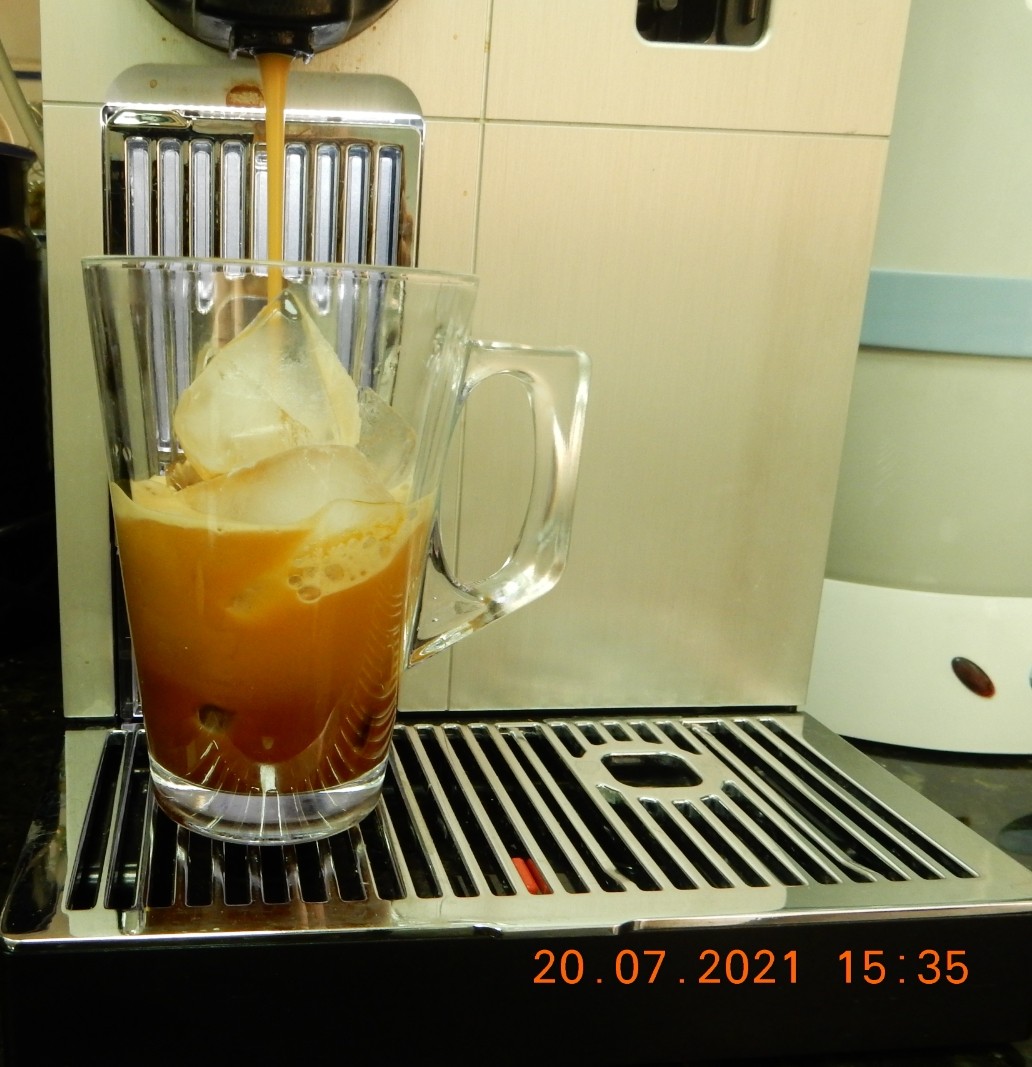 Camera in Hand, F: 3.7, ISO: 400, Shutter: 1/15s Camera in Hand, F: 3.7, ISO: 400, Shutter: 1/15s
|
By: Ali Radwani
Python: Generate your Data-Set
Learning : Python, pandas, function
Subject: Generate your CSV dataset using python
[NOTE: To keep the code as simple as we can, We WILL NOT ADD any user input Varevecations. Assuming that our user will Enter the right inputs.]
The Story: last week i was reading about Data Cleaning, Deep Learning and Machine Learning, and for all we need some data to play with and testing our code. There are several sites providing a free (to certain limits) Data-set. But while i was working, it just come to my mind Why not to write a code to generate some Fake data-set.
Before I start: The main question was “What is the subject of the data” or Data about What? This is the main question that will guide us to write our code, and tha answer was very..very fast 🙂 .. at that moment I was holding my Coffee Mug, and just jump to my mind, Data about Coffee … Coffee Consumption. So we are taking the data of Coffee Consumption from a Coffee-Shop, the coffee-shop is collecting the following data: Date-Time (of the order), Coffee-Name, Coffee-Type, Coffee-size, Sex, Rank. Here is in more details..
Dat-Time: Date and Time of Order, Date format: dd-mm-yyyy, the Time format: hh:mm (24h)
Coffee-Name: Such as: [black, latte, espresso, americano, cappuccino, mocha, lungo, flat white, irish, macchiato,ristretto, iced coffee]
Coffee-Type: 3n1 , pods, grounded
Coffee Size: samll, medium, large, venti
Sex: The person how order it male, female
Rank: if the customer drink the coffee in the shop, will ask for a ranks (1,10) 1:bad, 10:Grate
Scope of Work: We will write several functions to generate random data for each attribute we have, saving the data into a list, then combining all the lists in a pandas dataframe df and save the data_set df to a csv file. Later on we can re-call the file using pandas command df.read_csv(file_name) and manipulate the data.
.::.. Coding ..::.
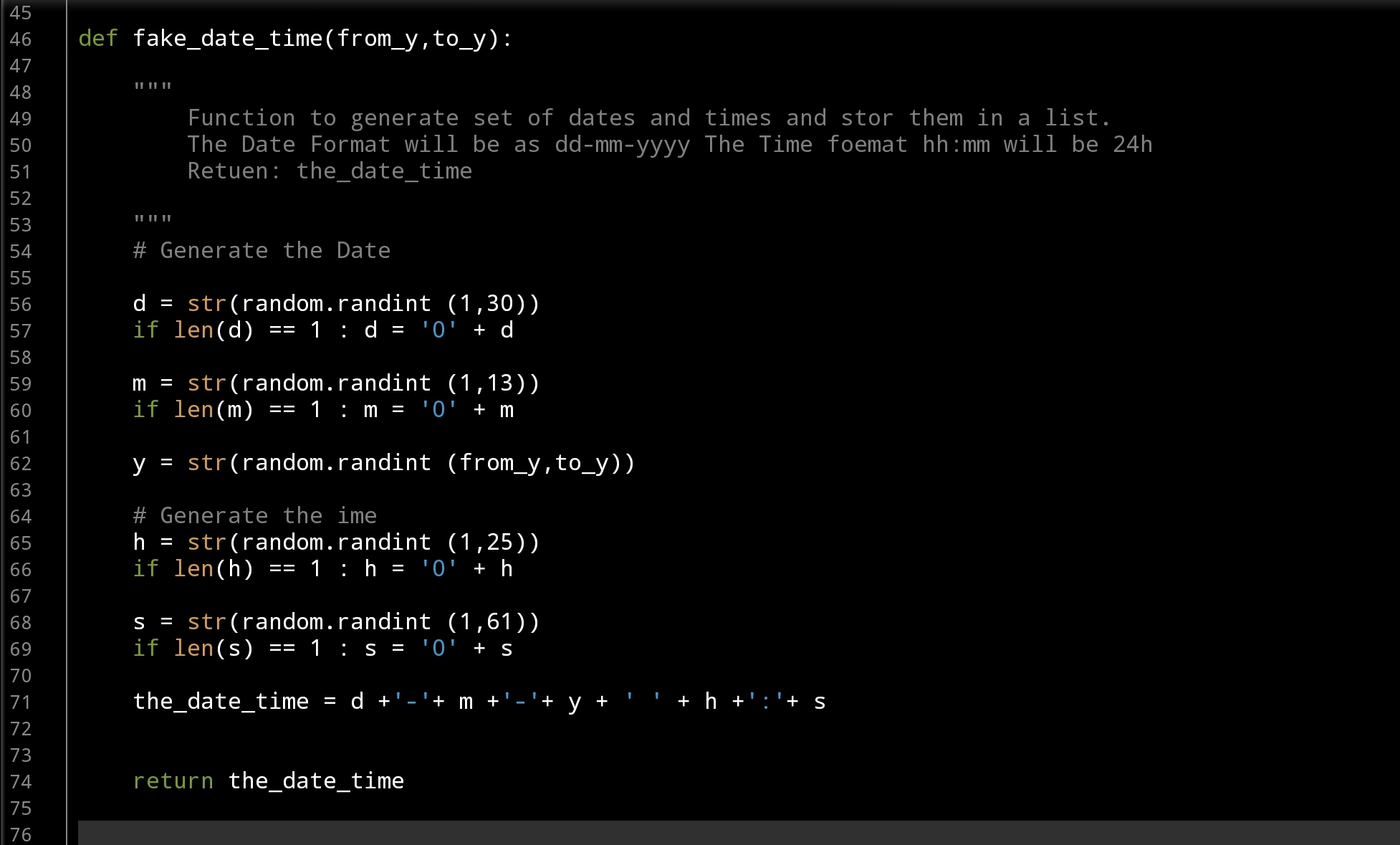
Let’s start with Date-Time Function: def fake_date_time(from_y,to_y): In this function we will use a random.randint() to generate numbers for day’s, months and years, also for hours and minites. The function will take two arguments from_y, to_y and will return a string like this: dd-mm-yyyy hh:mm … here is the code ..
 |
Now,Coffee Name: def fake_coffee_name() : for Coffee Name I create a list of Coffee Names (from the net) and use random.choice(coffee_name_list) to select one from the list. this function is a one-line code .. here it is ..
 # fake_coffee_name() function

def fake_coffee_name() :
    """
        Function to randomly select one from the list.

        Return coffee_name

     """

    coffee_name_list = ['black', 'latte', 'espresso', 'americano', 'cappuccino',
                         'mocha', 'lungo', 'flat white', 'irish', 'macchiato', 'ristretto',
                         'iced coffee'
                         ]
    return random.choice(coffee_name_list)
Here are another two Functions def fake_coffee_type(): and def fake_coffee_size(): Both are using the random.choice to select from a list.. here is the code ..
] |
More over, in out dataset we need another two variables sex and rank, both are simple and we don’t need to put them in separate function, we will call the random.choice(‘f’,’m’) to select between Male and Female, and random.randint (1,11) to select a Rank between (1 and 10). Here is the main part of the application, we will use a for loop and append all the returns from the function’s in a list (a list for each attribute) after that we will combine all the list in a dataset using pandas command. Here is the code..
 # Main body of the application

# empty lists of the columns
d_d =[]
cn_d =[]
ct_d =[]
cs_d =[]
s_d =[]
r_d = []

number_of_rows = 1000

for x in range(1,number_of_rows):
    d_d.append(fake_date_time(2000,2022))
    cn_d.append(fake_coffee_name())
    ct_d.append(fake_coffee_type())
    cs_d.append(fake_coffee_size())
    s_d.append(random.choice(['f','m']))
    r_d.append(random.randint (1,11))


the_data ={'date_time':d_d, 'c_name':cn_d, 'c_type':ct_d, 'c_size':cs_d, 'sex':s_d, 'rank':r_d }

df = pd.DataFrame (the_data)

# to create a CSV file and save the data in it.
file_name = 'coffee_consumption_v1.csv'
df.to_csv(file_name, index=False)

print(f'\n\n    The data been generated, a file named: {file_name} saved')
Now we have a file called: coffee_consumption_v1.csv saved in the same directory of the .py code file. Here is a sample of the data.
 |
We will stop here, and we will do another post to apply pandas commands over the dataset.
..:: Have Fun with Coding ::.. 🙂
To Download my Python code (.py) files Click-HereAlso the Date-Set coffee_consumption_v1 file (.csv) files is available in the same page.
By: Ali Radwani
30 day of ML with Kaggle
Last week during some search on YouTube, I fond a Two Minutes video talking about a new course on Kaggle that will start on 2nd of August, the Course is about Machine Learning ML with Python in a 30 Day’s. I was not sure if it is Free or Not, later on I fond that it is FREE, so I register to it.
And as a part of the program, we will complete three courses: Python, Intro to Machine Learning, and Intermediate Machine Learning.
My time is very tight, and I don’t know if I can continue to complete the required stages/assignments on time for each stage of the program.. Sure I will Try my best.
Now, I am writing this post in 3rd of August 2021, 6:00pm (GMT+3) .. First want to say they did not start on time, delay 1 day! so today was Day 1 , we start with introduction on Kaggle, the participate in first competition and submitting our solution.
I will try to summarize and drop a post every two-three days .. or so ..
:: Have Fun .. Code with Python ..::
Ali,
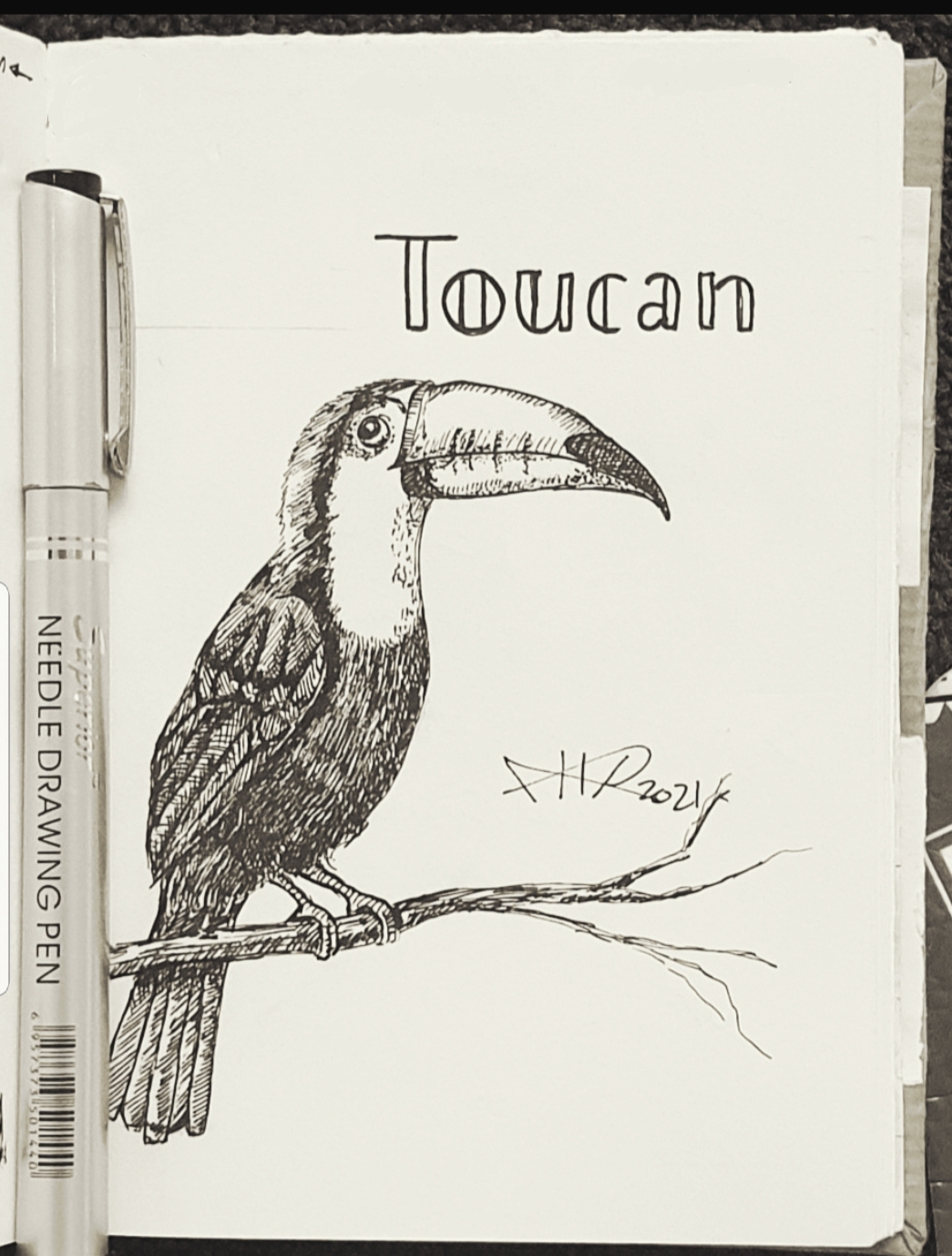
Another Sketch Challenge: T for Toucan
There is a lot of sketching challeng in the twitter asking the readers to draw/sketch something inspired by it.
I fond the @AnimalAlphabets there challenge this week is Toucan Bird.
So here is my sketch using pencil then black Pen and shading using black fine pin, it takes around 55min. More Sketches on my Sketch page ..
you may Follow me on Twitter @h_ta3kees
Here is my sketch..
Nikon S9900 shots – 3
Subject: Nikon S9900 Macro – Coffee Foam shot
This Shot: Macro on Coffee Foam, using Nikon S9900.
…Click Image to Enlarge… Camera in Hand, F:4.2 , ISO:320 , Shutter: 1/30s Camera in Hand, F:4.2 , ISO:320 , Shutter: 1/30s
|
 Follow me on Twitter..
By: Ali Radwani
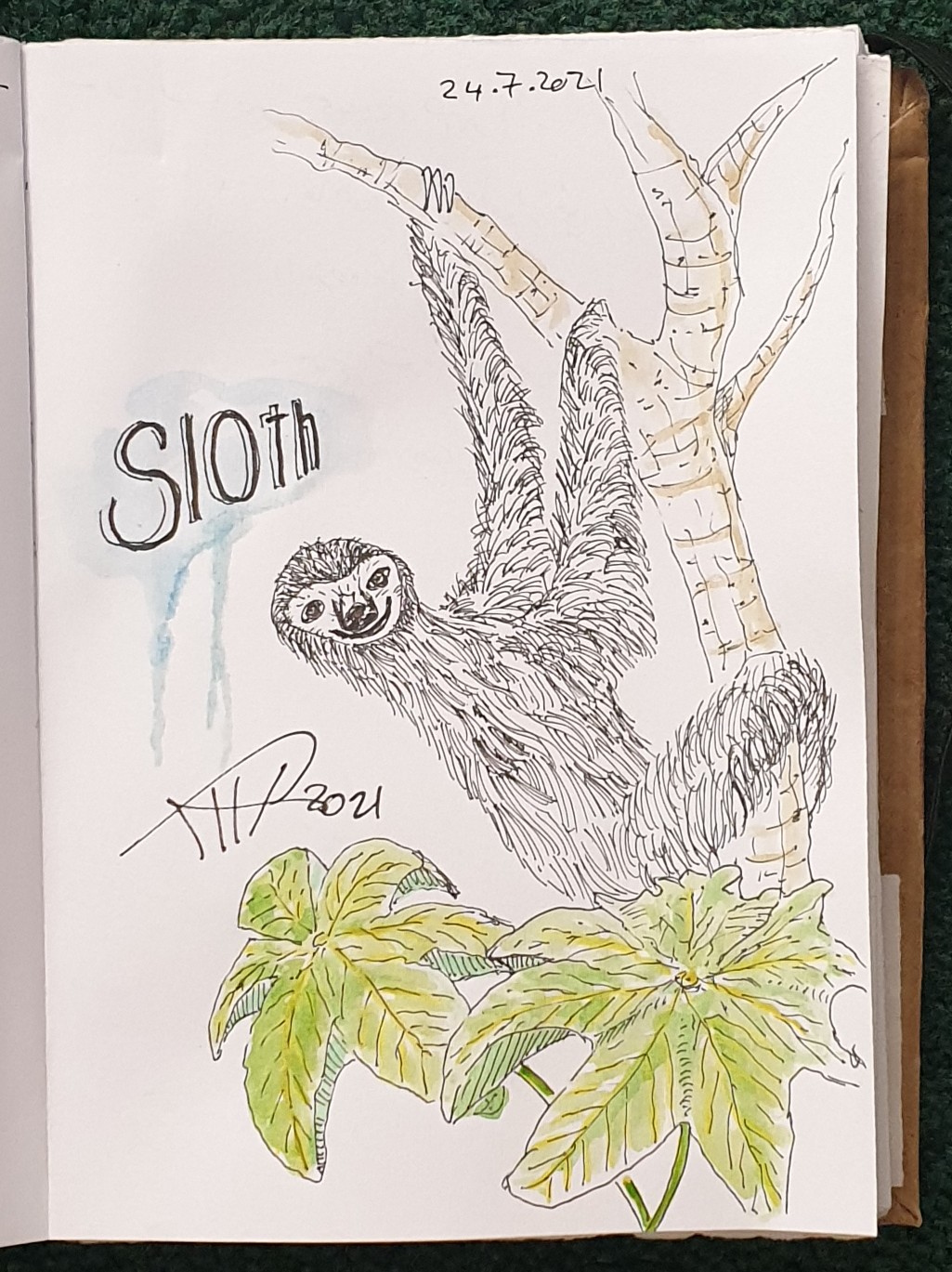
Another sketch challenge: S for Sloth
There is a lot of sketching challeng in the twitter asking the readers to draw/sketch something inspired by it.
I fond the @AnimalAlphabets there challenge this week is SLOTH.
So here is my sketch using pencil then black Pen, and some watercolor, it takes around 45min. More Sketches on my Sketch page ..
you may Follow me on Twitter @h_ta3kees
Here is my sketch..
Nikon S9900 shots – 5
Subject: Nikon S9900 Milk and Coffee
This Shot: I place my Milk Mug in the sun-light coming from a window, the camera on graound level and i took the shot using BW-color from the camera.
…Click Image to Enlarge…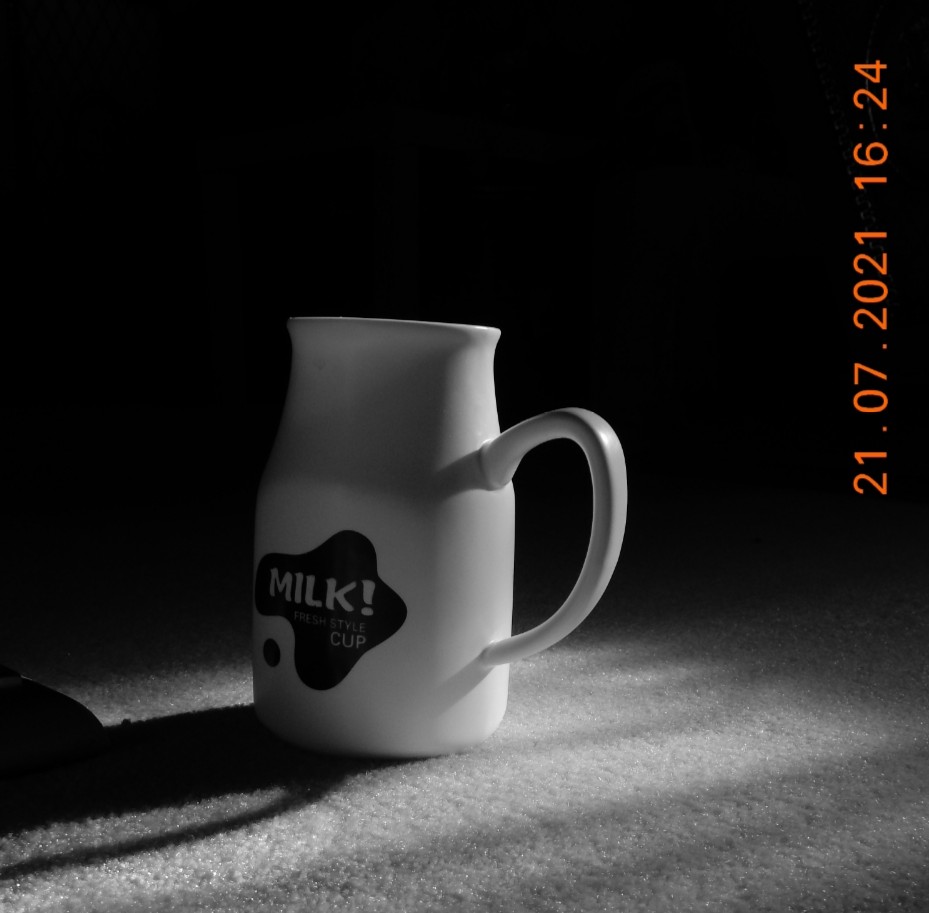 Camera in Hand, F:4 , ISO:160 , Shutter: 1/30s Camera in Hand, F:4 , ISO:160 , Shutter: 1/30s
|
::.. To see all my Nikon S9900 Photos Click-Here
::.. To see all my Nikon D7100 Photos Click-Here
::.. To see all my Nikon D90 Photos Click-Here
By: Ali Radwani

Taking pictures is not my main daily practices, but when i start playing with my camera, i really enjoy my self.
Thanks for visiting my Space..


 Ali's Photography Space...