Archive
Python: Pandas Lesson 7
Learning : Create simple zoo application P1
Subject: The Menu and functions names
Althought we mostly using pandas in reading datafile and analysing it, Here we are thinking as if we have an interface for an application, and we are offering some menu and function to the user so he can use the apps.
As we went throught learnning pandas and from all past lessons we saw alot’s of functions and commands that are enuph to start developing a small application to manage our zoo data. Starting from this post we will bulid parts of our application, so lets start.
The Menu The menu is the way or the tool that will help the user to perform deffernt action on the data. Here is the function of the the_menu and it will return the user selection.
Althought we mostly using pandas in reading datafile and analysing it, but Here we are think as if we have an interface of application, and the we are offering a menu to the user were he can select a function user will
The Menu
def the_menu ():
print(‘\n ::—–{ The menu }—-::’)
print(‘1. Load New csv File’)
print(‘2. Show Sample Data’)
print(‘3. Show Columns’)
print(‘4. Data Type’)
print(‘5. Sort.’)
print(‘6. Missing Data’)
print(‘7. Add New Record.’)
print(‘8. Edit a record.’)
print(‘9. Delete a Record.’)
print(’10. Save the File.’)
return (input(‘\n Enter your selection: ‘))
# calling the menu.the_menu()

|
def the_menu(): The code above will print our menu on the screen and asking the user to select the action and return a number of the menu. From there we will run other functions, we may change or add to the menu if we need to.
First I will define each menu-line to have an overall view of the functionality in the app:
1. Load New csv File: We will ask the user to write the file name he want to upload, and we will assume that the file is in the same directory and if the file not exist we will create one.
2. Show Sample Data: Print out sample data from the dataframe using df.sampl().
3. Show Columns: List all the columns in the dataframe.
4. Data Type: Show the data Type of each column.
5. Sort: The user will select the sorting column.
6. Missing Data: This command will give the user a report of how many data are available in the columns and if there is any missing data.
7. Add New Record: Adding new row to the data file.
8. Edit a record: Editing a row.
9. Delete a Record: Deleting a row from the data file.
10. Save the File To save the file, and we will save it under new name.
Whats in the next lesson:
:: Writing the menu selection loops.
:: Writing the first two functions in the application.
:: Pandas Lessons Post ::
| Lesson 1 | Lesson 2 | Lesson 3 | Lesson 4 |
| Lesson 5 | Lesson 6 | Lesson 7 | Lesson 8 |
| Lesson 9 | Lesson 10 | Lesson 11 | Lesson 12 |
 Follow me on Twitter..
Python: Pandas Lesson 6
Learning : Panda Lesson 6
Subject: Pass variable to df
In this post we will cover some commands that we will re-use in a coming post were we will start to develop a small system/app to do full managing of our zoo file. currently i am putting the BluePrint of the app, basically the menu will have these functions:
The Menu: [load, view, add-edit-delete, sort, missing data, save to csv …], so lets start..
If we want to add new row to our dataframe, first we need to know our columns name. In our case data file zoo here is the column we have:
( animal, id, water_need, supervisor, cage_no, years ), at this point we will do this as static variable, but in coming lesson we will use an interactive sample.
So, we will write a dictionary that hold our new_row and append it to the dataframe.
Add new row to the datafram
new_row={‘animal’:’Koala’,’id’:5555,’water_need’:99,’supervisor’:’na’,’cage_no’:55,’years’:10}
df=df.append([new_row])
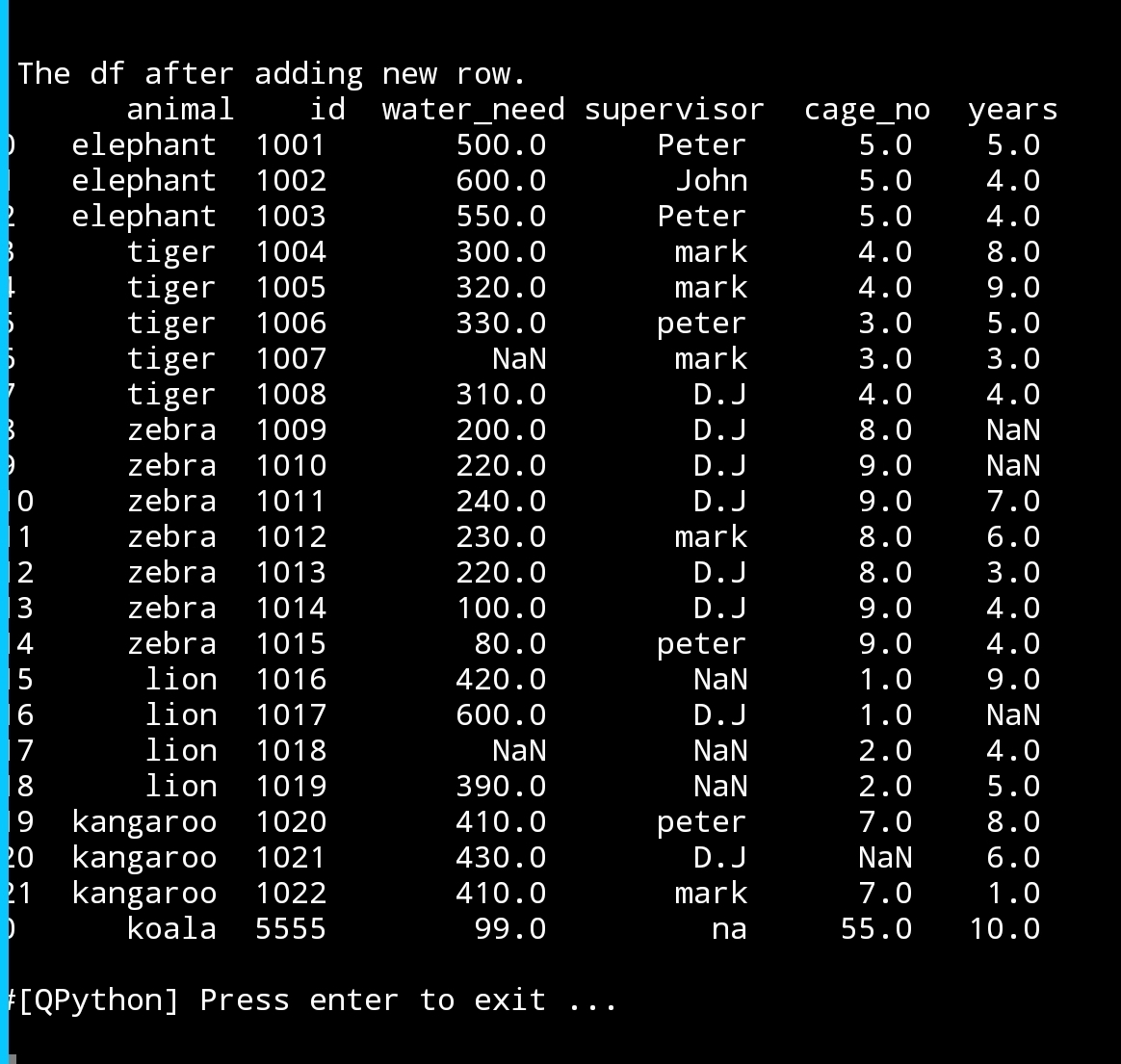
print(‘\n\n The df after adding one new row.\n’,df)
|
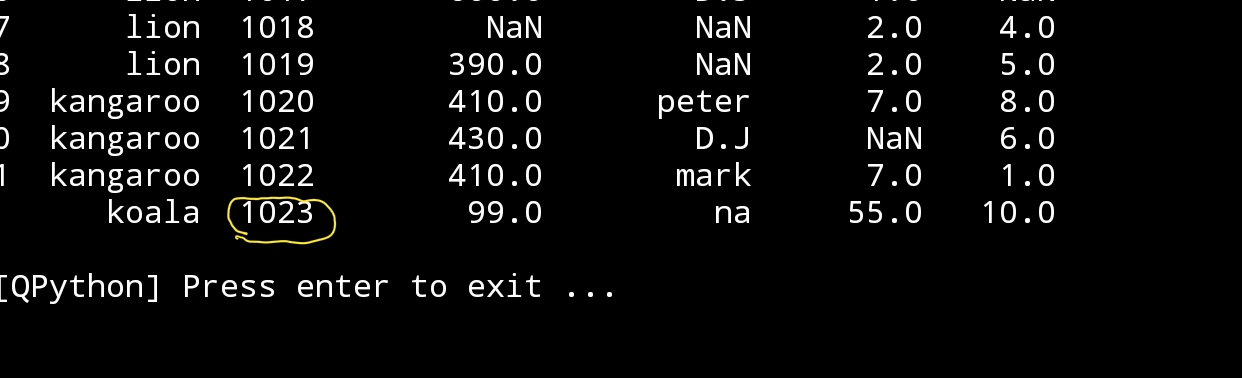
You can see that there is a problem here, the id of our new row was entered manually (in this example) but we need this to be automatic and to do so we must first get the max value in the id column, add 1 to it then use it for the new entry. So we need to add this code:
next_id=df[‘id’].max() + 1
new_row={‘animal’:’koala’,’id’:next_id,’water_need’:99,’supervisor’:’na’,’cage_no’:55,’years’:10}
|
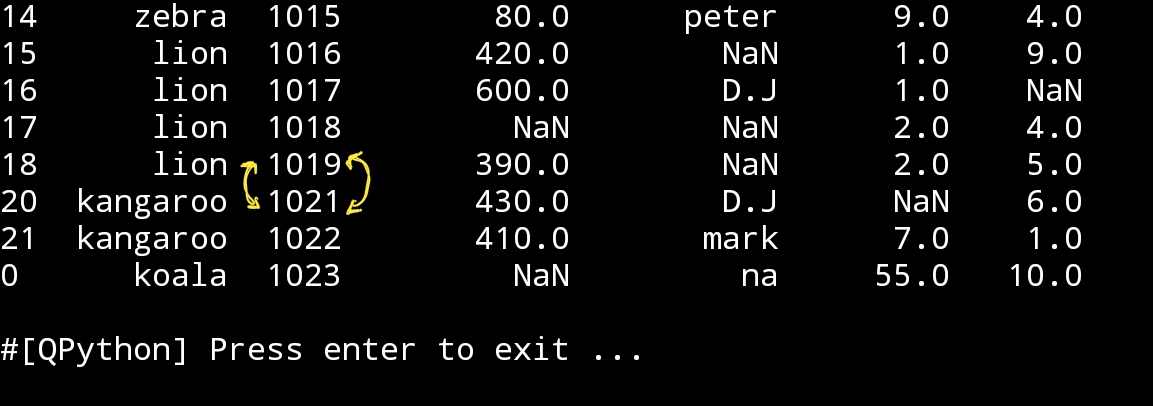
To delete a row, we simply re-define the df without that row we want to delete. Say we want to delete the row that has id = 1020. The id is a primary key in our data-set and there is no duplicated numbers in id column so we can use it to identify a specific row. I assume that we know that we read the datafram and we want to delete the row id number 1020, here is the code:
Delete the row with id = 1020
df=df[df.id !=1020]
print(‘\n\n df after deleting row id:1020\n’,df)
|
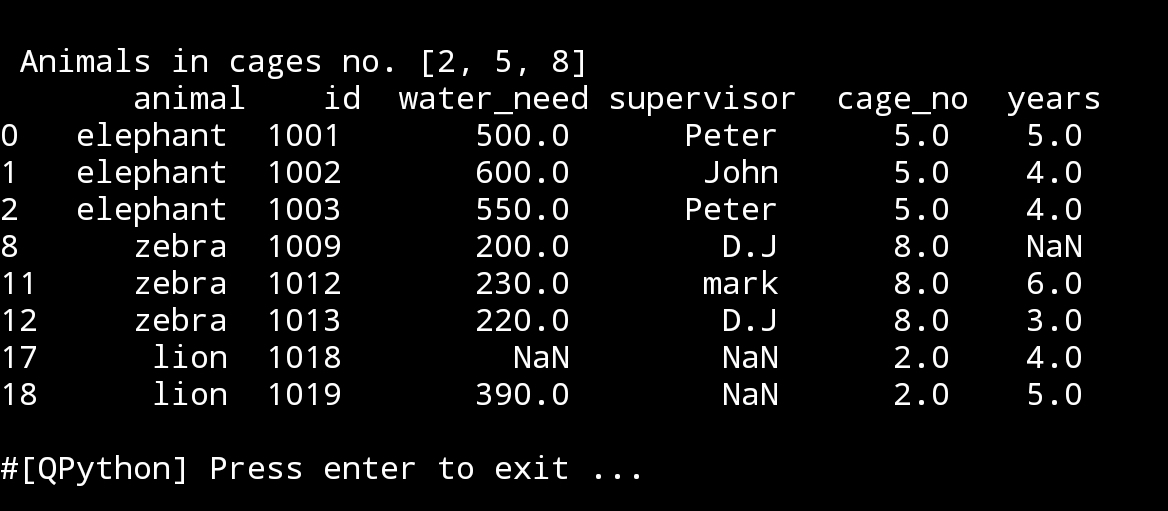
At the first paragraph i was talking about writing an app that fully manage the zoo file, so if the user want to read the rows based on a particular selection like : what are the animals in the cages number 2,5 and 8. Here is the code :
Animals in cage no 2,5 and 8
cage_arr=[2,5,8]
print(‘\n\n Animals in cages no.’,cage_arr,’\n’,df.loc[df[‘cage_no’].isin(cage_arr)])
|
:: Pandas Lessons Post ::
| Lesson 1 | Lesson 2 | Lesson 3 | Lesson 4 |
| Lesson 5 | Lesson 6 | Lesson 7 | Lesson 8 |
| Lesson 9 | Lesson 10 | Lesson 11 | Lesson 12 |

Taking pictures is not my main daily practices, but when i start playing with my camera, i really enjoy my self.
Thanks for visiting my Space..


 Ali's Photography Space...