Archive
Photos from Qatar _133

Photo of metro bus, these buses move between stations, also you can call them to meet you in any station to pick you up.
Bike Photography _4

Walking around, I noted this bike with a pattern background, the camera was with me, and I took the shor.
ISO 400, Shutter 1/1000s, F4 and I take it.
Python: Simple Ticket System _Part2
Subject: Writing a Simple Ticket System Application
Learning : Python, SQL, Logeic
In this part we will do the following:
- Write the code for [show_list] function.
- Write the code for [check_availabilty] function.
- Write the code for Priority function in Setting.
- Add New Priority.
- Edit a Priprity.
- Delete Priority.
- Write the code for Status function.
- Add New Status.
- Edit a Status.
- Delete Status.
Helping Function
Show List Function: Once the user to Edit or Delete a record from the dataBase, we will call this function to list-down whatever in the table, then the user will select the ID number of the entity to be Edited/Deleted.
Show List Function:
def show_list(dt,d_id):
“””
Function to Display the Data we have in the Lookup Tables based on the user selection function.Return: None
“””c.execute (f”select * from {dt} where {d_id} > 1 “)
dataset = c.fetchall()for d in range (0,(len(dataset)),3):
try:
print(‘ ‘*5,'{:<3}{:<20}'.format(dataset[d][0],dataset[d][1]),end="")
print(' '*5,'{:<3}{:<20}'.format(dataset[d+1][0],dataset[d+1][1]),end="")
print(' '*5,'{:<3}{:<20}'.format(dataset[d+2][0],dataset[d+2][1]))except:
pass
print('\n')
Check Availabilty Function:def check_availabilty(dt, d_id, check_id):
“””
Function to check if the passed ID available in the data-set or not.Arguments:
dt : Data-Table
d_id : Name of id column.
check_id : The id we want to search for.Return : True if ID is available, False if not.
“””c.execute (f”select * from {dt} where {d_id} = {check_id} “)
dataset = c.fetchone()return (dataset)
Priority Function:
In coming code section we will write three functions to Add, Edit and Delete a Priority [All the code is available in the file for downloading FREE].
Add New Priority:
def add_priority ():
os.system(‘clear’)
line2 =”Add New Priority Level”
header(line2,2,4)print(‘\n\t List of Priority Levels we have in the system:\n’)
show_list(‘priority_t’,’pr_id’)
new_pri = input(‘\n Enter the New Priority Level to be Added to the List. [E to Exit]. > ‘)# Check user input
if new_pri in [‘e’,’E’] or new_pri ==’ ‘ or new_pri == ”:
input(“\n\t You select to Exit from ‘Adding New Priority Level’.. Press any key to Exit. > “)
return
else:
# Code to add New priority level to the database
# Capitalize user input
new_pri = ” “.join([word.capitalize() for word in new_pri.split(” “)])
# Insert onto database
c.execute (“INSERT INTO priority_t (pri_level) VALUES(:pri_level )”,{“pri_level”:new_pri})
db_conn.commit()input(‘\n\t One Priority level been Added to the database. Press any key to Continue. > ‘)
Edit Priority:
 Click the image to enlarge Click the image to enlarge |
In this function, first we call show_list function to list down the priorities we have in the system and ask the user to select the ID of one to be Edit. Then we check if the user want to Exit from here!, If Not then we show him his selection and give the prompt so he can insert the corrected priority, and saving the changes. |
Delete Priority:
 Click the image to enlarge Click the image to enlarge |
In this function, first we call show_list function to list down the priorities we have in the system and ask the user to select the ID of one to be Deleted. Then we check if the user want to Exit from here!, If Not then we show him his selection and give the prompt so he can insert the corrected priority, and saving the changes. |
Show Priority:
 Click the image to enlarge Click the image to enlarge |
Last function is Show Priority, her we will list all the priorities we have in the table. |
Status Functions
For Status also we have three functions to Add, Edit and Delete a Status. In Status of a task we have “Not Started, In progress, Finished” and the user can add more to the list. [All the code is available in the file for downloading FREE].
Add New Startus
 [Click image to enlarge] [Click image to enlarge] |
First, we will display all the status we have in the system, and will ask the user to enter the new one to be added, we will perform a simple validation and then will save the New status into the table and show a confirmation of that on the screen. |
Edit Startus
 [Click image to enlarge] [Click image to enlarge] |
Her the user must select an ID of the status he want to edit, then entering the new one, confirming that, and we will save the change. |
Delets Startus
 [Click image to enlarge] [Click image to enlarge] |
Her the user must select an ID of the status he want to Delete,user must confirm that, and we will Delete and Save the change. |
Show Startus
def show_status():
os.system(‘clear’)
line2 =”Show Status List”
header(line2,2,4)
c.execute (“select * from status_t where st_id > 0 “)
stat_list = c.fetchall()
print(‘\n\n\t List of Status in the System…> ‘)
for stat in range (0,(len(stat_list)),4):
try:
print(‘ {:<3}{:<20}'.format(stat_list[stat][0],stat_list[stat][1]),end="")
print('{:<3}{:<20}'.format(stat_list[stat+1][0],stat_list[stat+1][1]),end="")
print('{:<3}{:<20}'.format(stat_list[stat+2][0],stat_list[stat+2][1]),end="")
print('{:<3}{:<20}'.format(stat_list[stat+3][0],stat_list[stat+3][1]),end="")
except:
pass
End of part two, we create all the sub functions in Priority and Status. In part 3, we will do all the sub functions in Department and category.
:: Ticket System ::
| Intorduction | Part 1 | Part 2 | Part 3 |
..:: Have Fun with Coding ::.. 🙂
To Download my Python code (.py) files Click-Here
 Follow me on Twitter..
By: Ali Radwani
Photos from Qatar _137

Street Photography for an old building with beautiful design and structure.
Image taken by Sony RX100vii camera set to ISO200, F4.5, Shutter 1/1000s.
Flowers Photography _4

Using a classic chrome picture profile on the Sony RX100vii camera, I take this image of the flower bouquet 💐 .
I take another shot of the same subject in black and white.
Qatar, DohaPort _15

DohaPort photography, using Sony RX100vii with portra400 picture profile colors.
Photos from Qatar _135

The entrance of a Hospital, photo taken by Sony RX100vii camera using classic chrome picture profile setting.
ISO 200, 24mm, F5, ev-1 and shutter 1/1000s.
Photos from Qatar _130
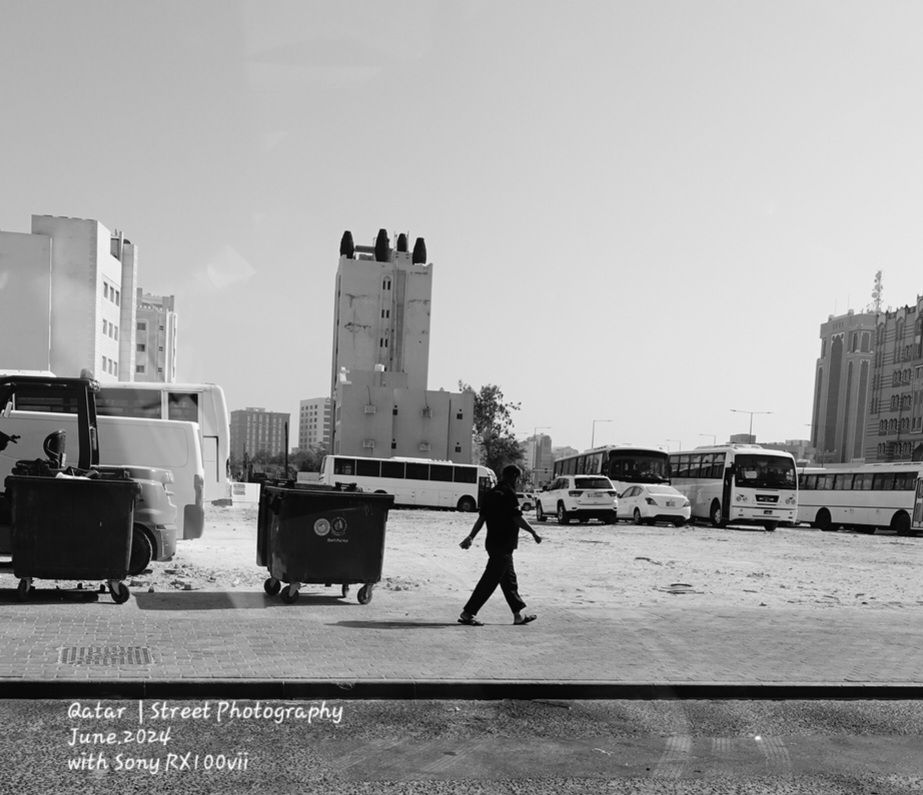
Empty land is a good parking for buses. Walking with my Sony RX100vii camera and was waiting for someone to pass there.
Photos from Qatar _128
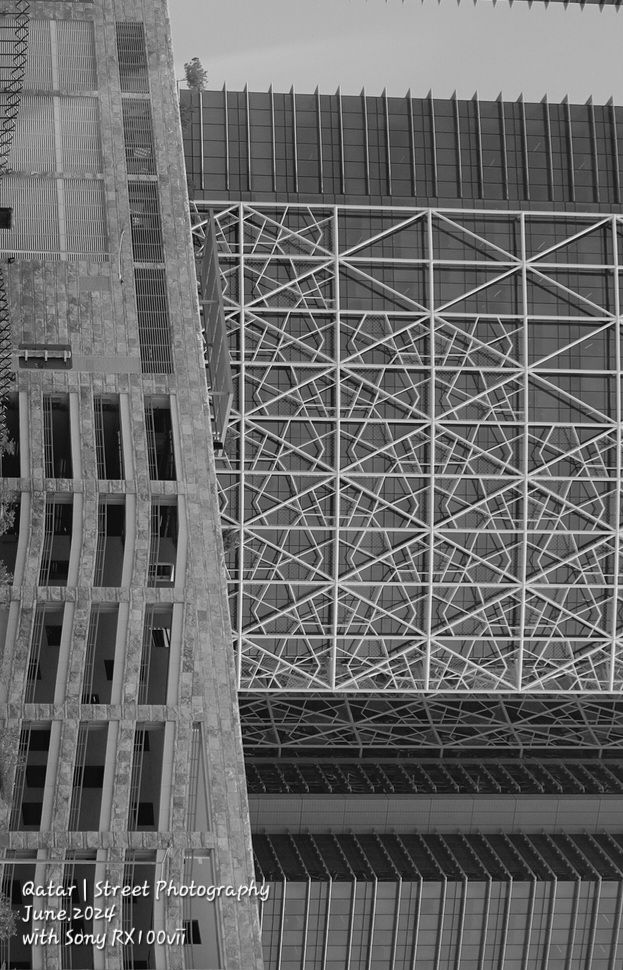
Street Photography from Qatar, Westbay, this photo been croped and rotated 90°.
I use the Sony RX100vii camera from 100-120 meters to take the shot.
Photos from Qatar _131
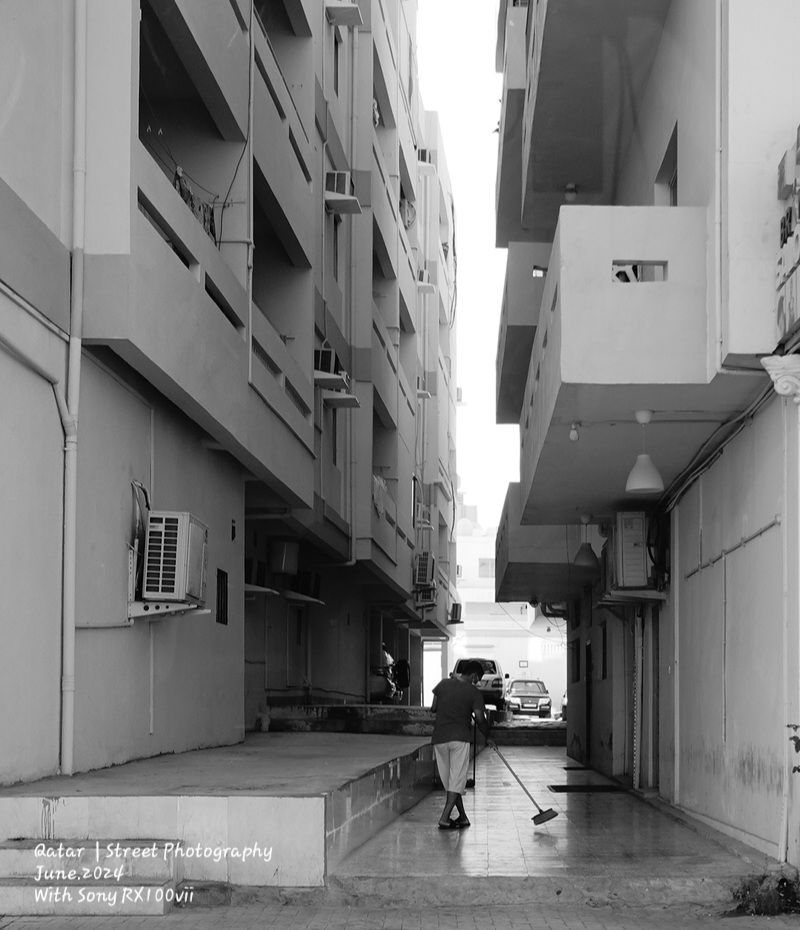
Cleaning the entrance of the building, I take the shot using Sony RX100vii camera.

Taking pictures is not my main daily practices, but when i start playing with my camera, i really enjoy my self.
Thanks for visiting my Space..


 Ali's Photography Space...