Archive
First water splash session
This is the first splash session i start it on 18 February 2009..See more of water splash in my flickr, Click Here
[Click the image to enlarge]
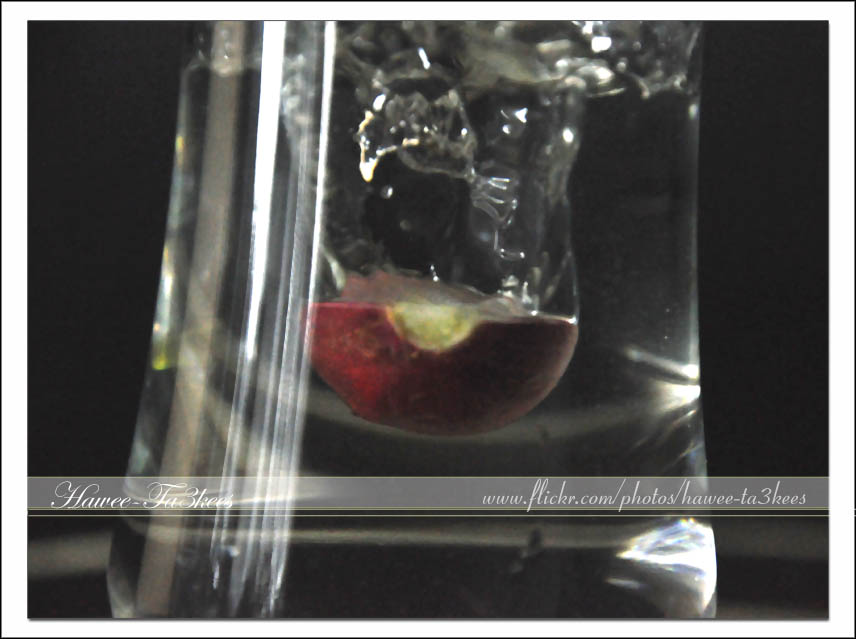
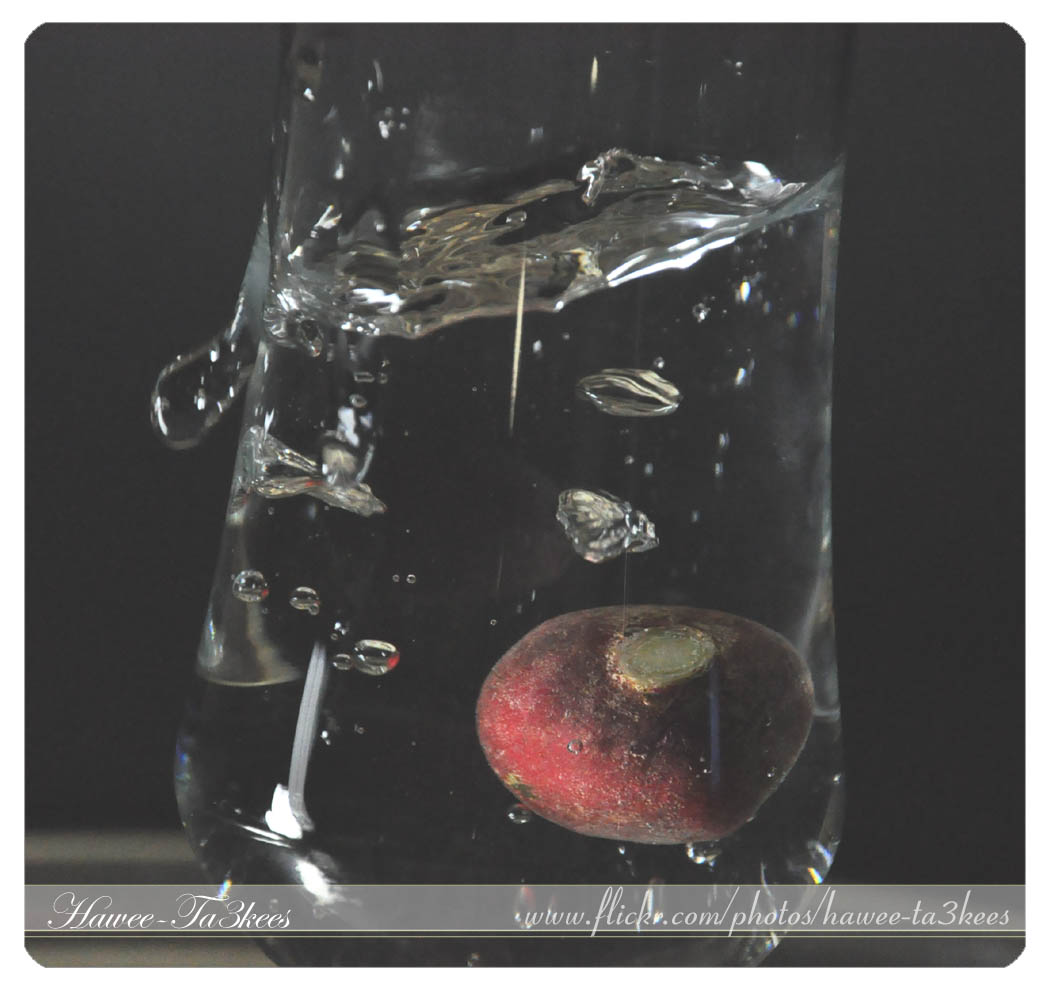
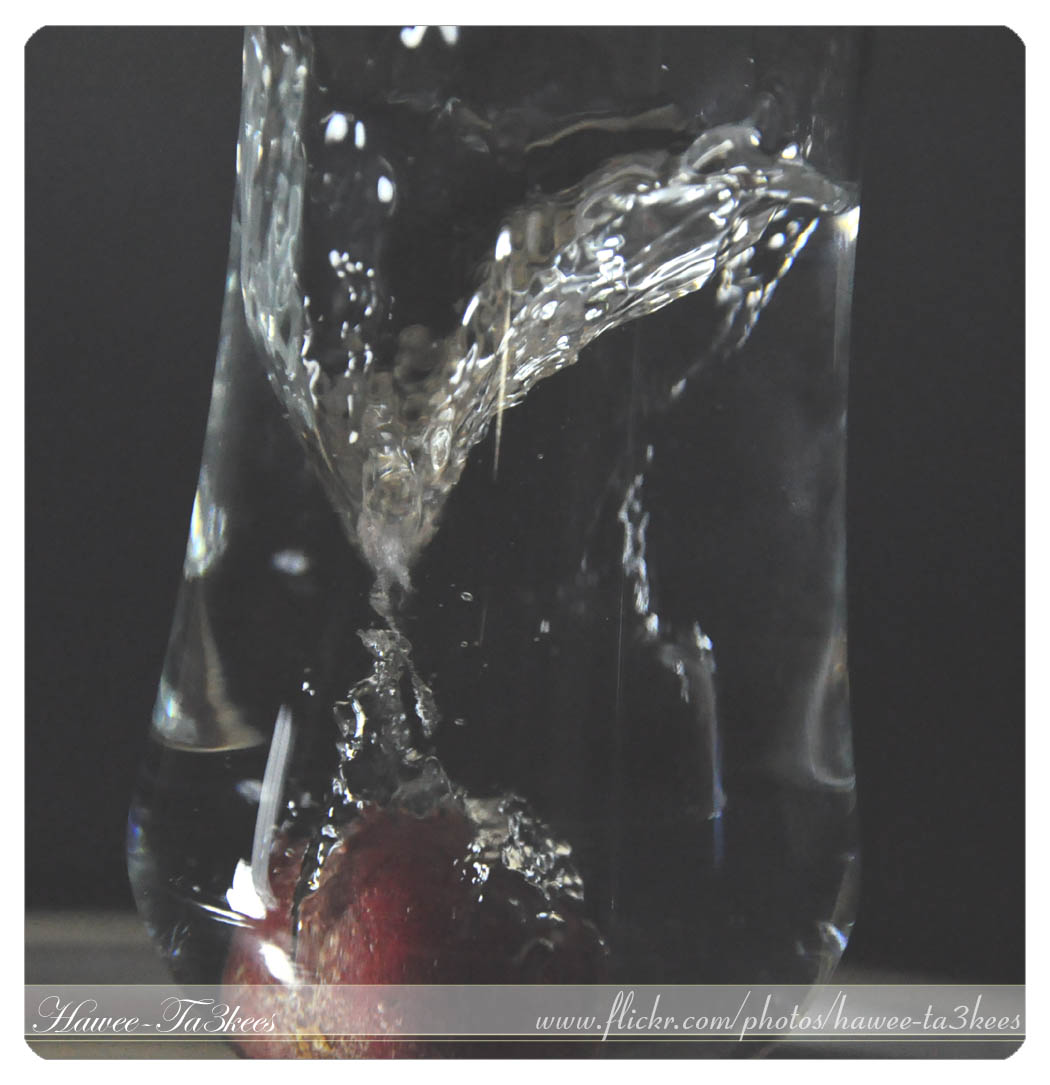
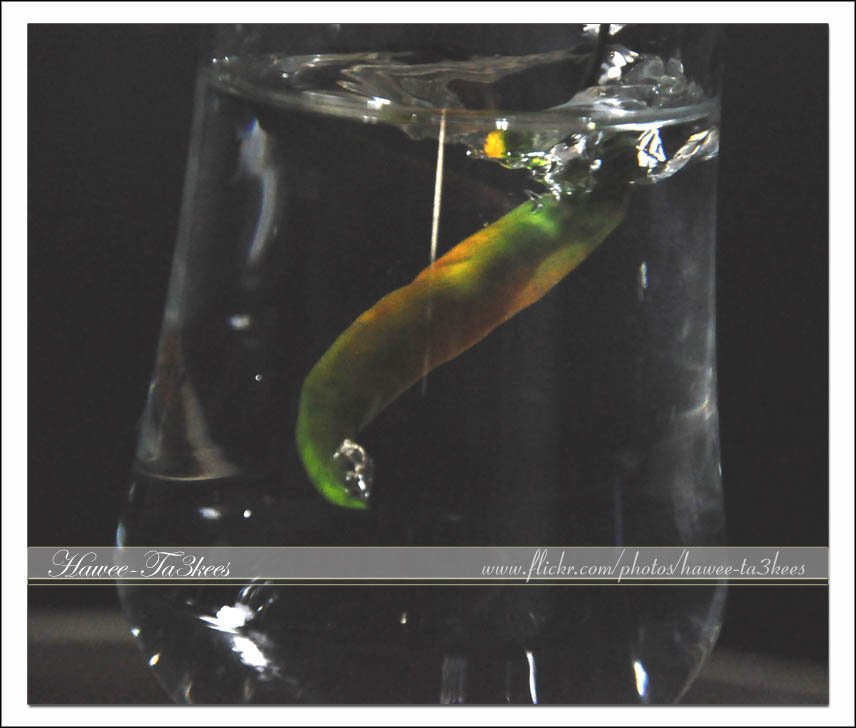
See more of water splash in my flickr, Click Here
Photo Frame by Photoshop Action..#3
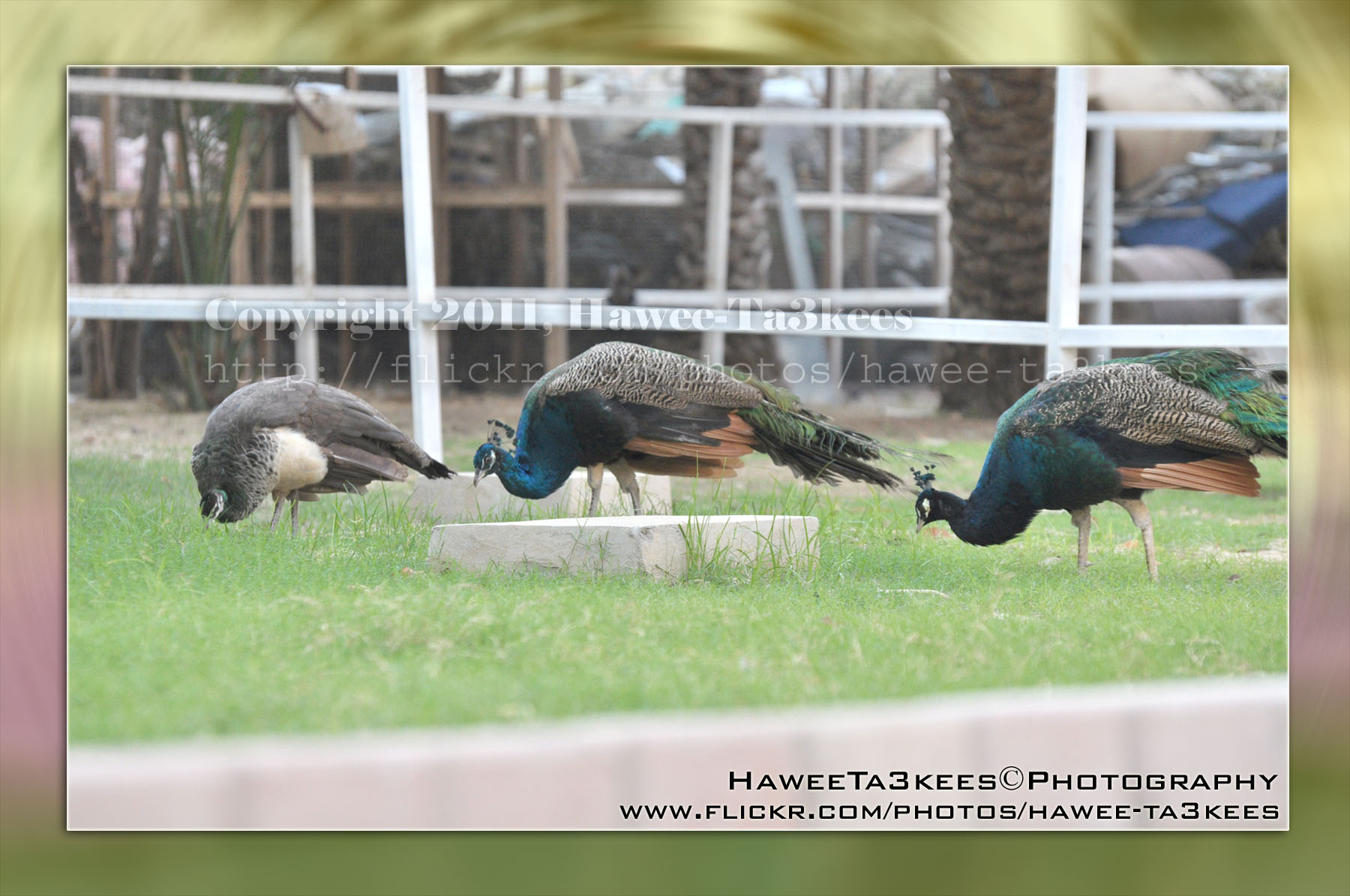
In this Action the file will be resized to 2500W, layer will be duplicated and resized, the Radial Blur effect will applied on the first layer, new layer filled with gray color and mode to be: Difference.
Name: Difference RadialBlur Frame.
Download: Download the File from the Photoshop Actions in my “Download Section“
Result: [Click the image to enlarge]

If you can change the color of the gray layer to yellow (R:251, G:250, B:193) you will get this:
[Click the image to enlarge]
Instruction:
– Un-ZIP the file.
– Copy the file to this folder :[Your Drive] .. Program Files\Adobe\Photoshop 7.0\Presets\Photoshop Actions
– Open the Photoshop (this sample is for Photoshop 7.0)
– Your image must NOT BE on the background Layer, copy it to new layer first.
For How to open an action file in Photoshop Click Here..
Photo Frame by Photoshop Action..#2
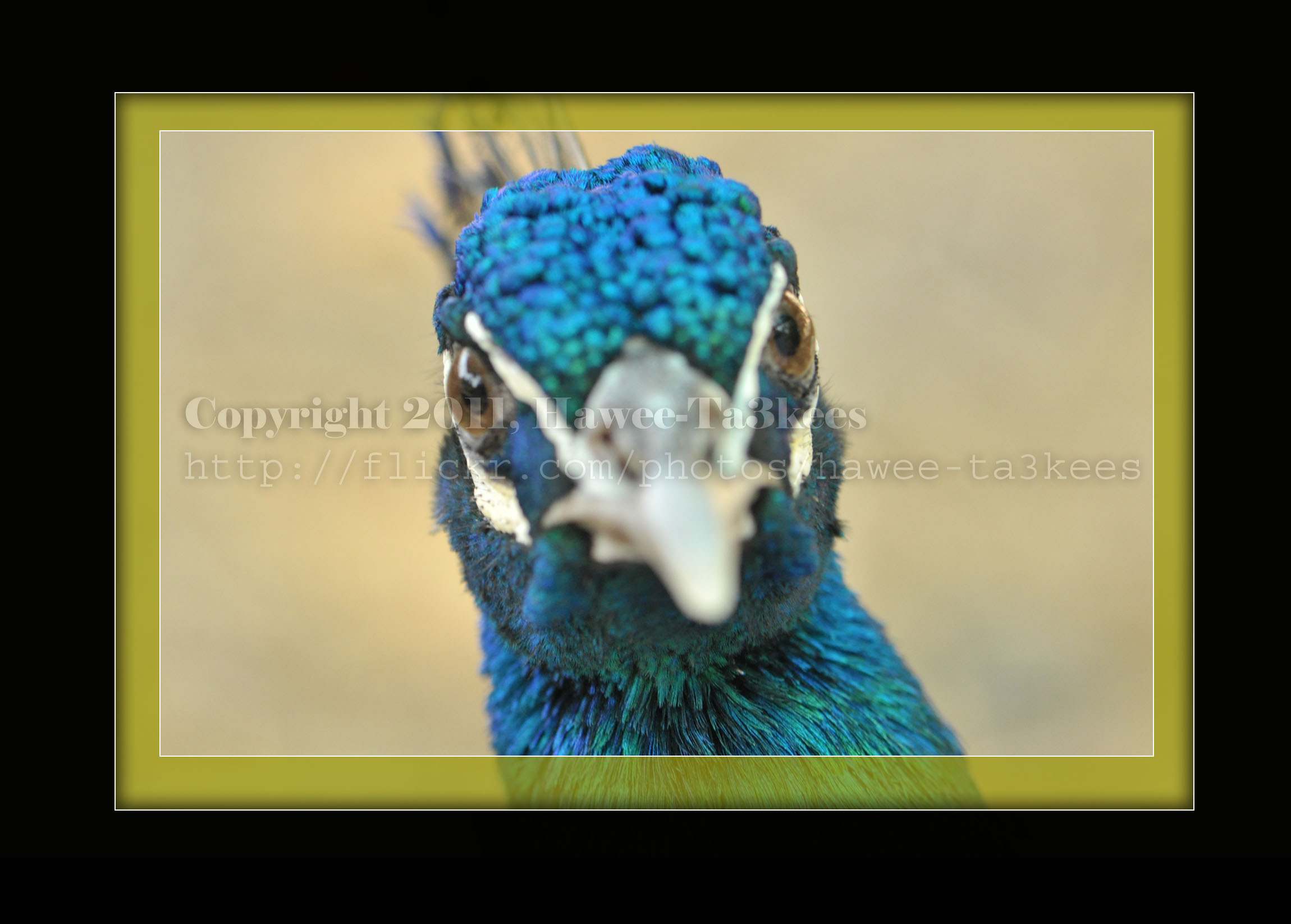
In this Action the file will be resized to 2500W, Black rectangular will be drown another yellow (olive) rectangular bigger than the black.
Name: Golden Black Frame.
Download: Download the File from the Photoshop Actions in my “Download Section“
Result: [Click the image to enlarge]
Instruction:
– Un-ZIP the file.
– Copy the file to this folder :[Your Drive] .. Program Files\Adobe\Photoshop 7.0\Presets\Photoshop Actions
– Open the Photoshop (this sample is for Photoshop 7.0)
– Your image must NOT BE on the background Layer, copy it to new layer first.
For How to open an action file in Photoshop Click Here..
Photo Frame by Photoshop Action..
This is the first Photoshop Action I upload.
Name: Frame Normal Shadow.
Result: [Click the image to enlarge]

Instruction:
– Un-ZIP the file.
– Copy the file to this folder :[Your Drive] .. Program Files\Adobe\Photoshop 7.0\Presets\Photoshop Actions
– Open the Photoshop (this sample is for Photoshop 7.0)
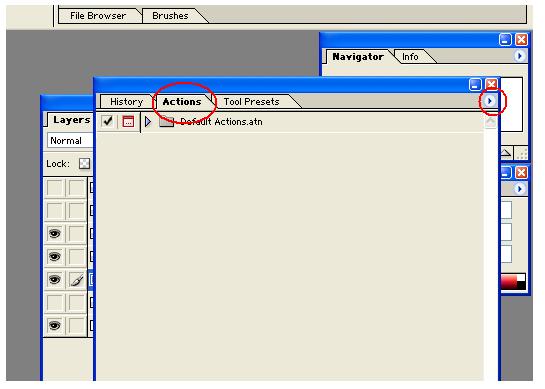
[::] If the Action panel not appear then: From the menu Press Windows > Action

[::] On the Action Panel press the small triangle on the right (see the image)
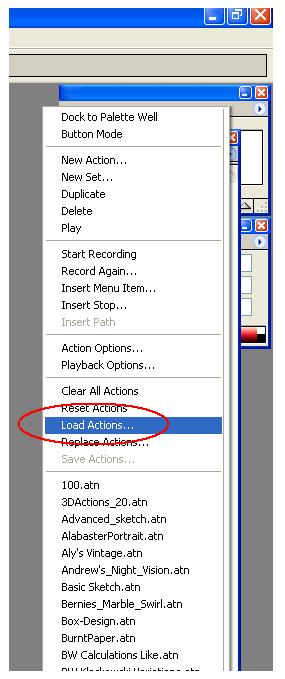
[::] Select the Load Action, then select the action file from you drive.
Note: You have to have your photo on a layer not on the Background layer, then run the action.
Download the File from the Photoshop Actions in my “Download Section”
The Fruit Market..
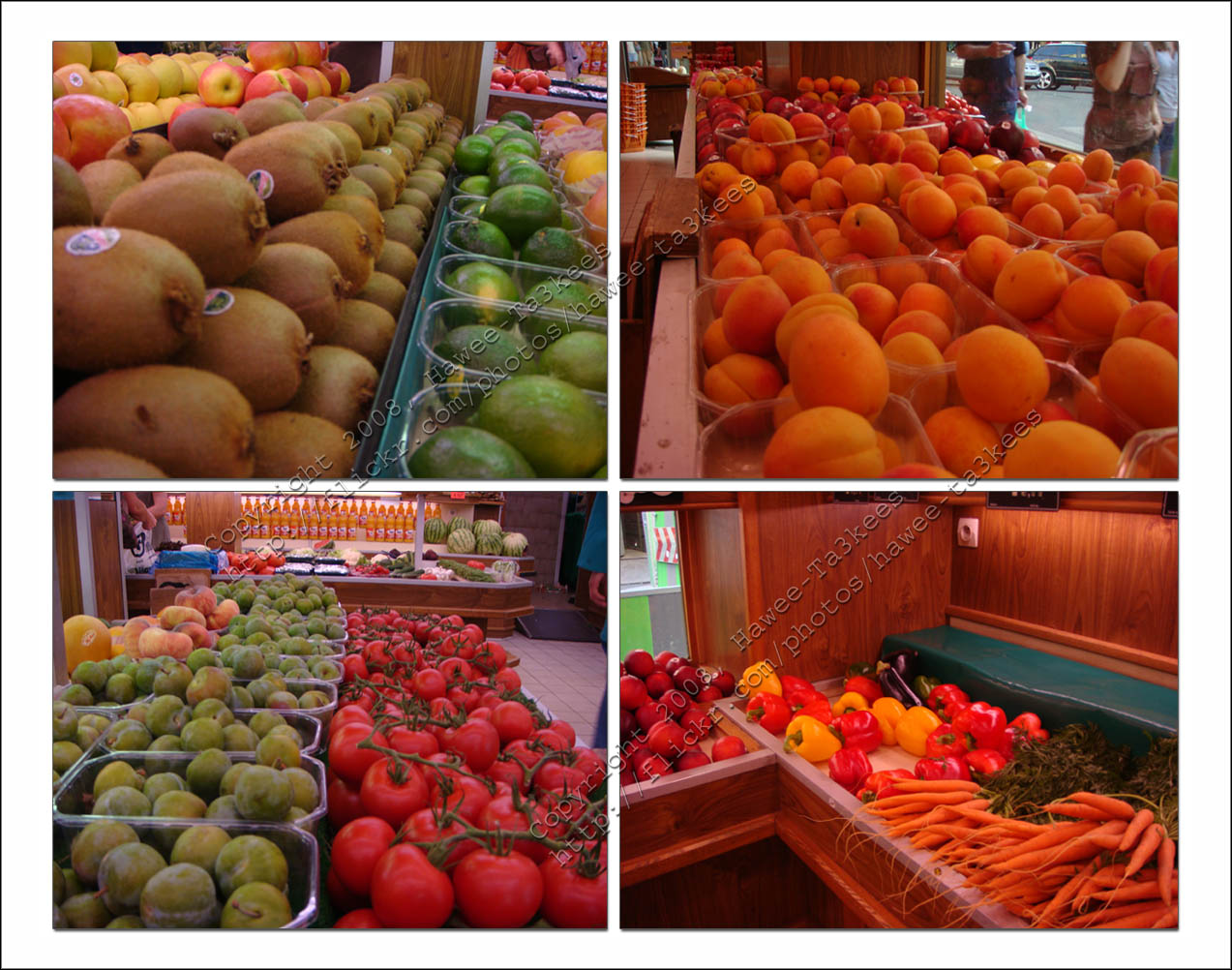
This photo back to my trip to Paris on 2008, and this is a Fruit Market you can see the Apples and Kiwi, Apricots, Tomato, Carrot.. and other fruits. Nice colors..
I used My Sony T100 camera.
The Bicycle..
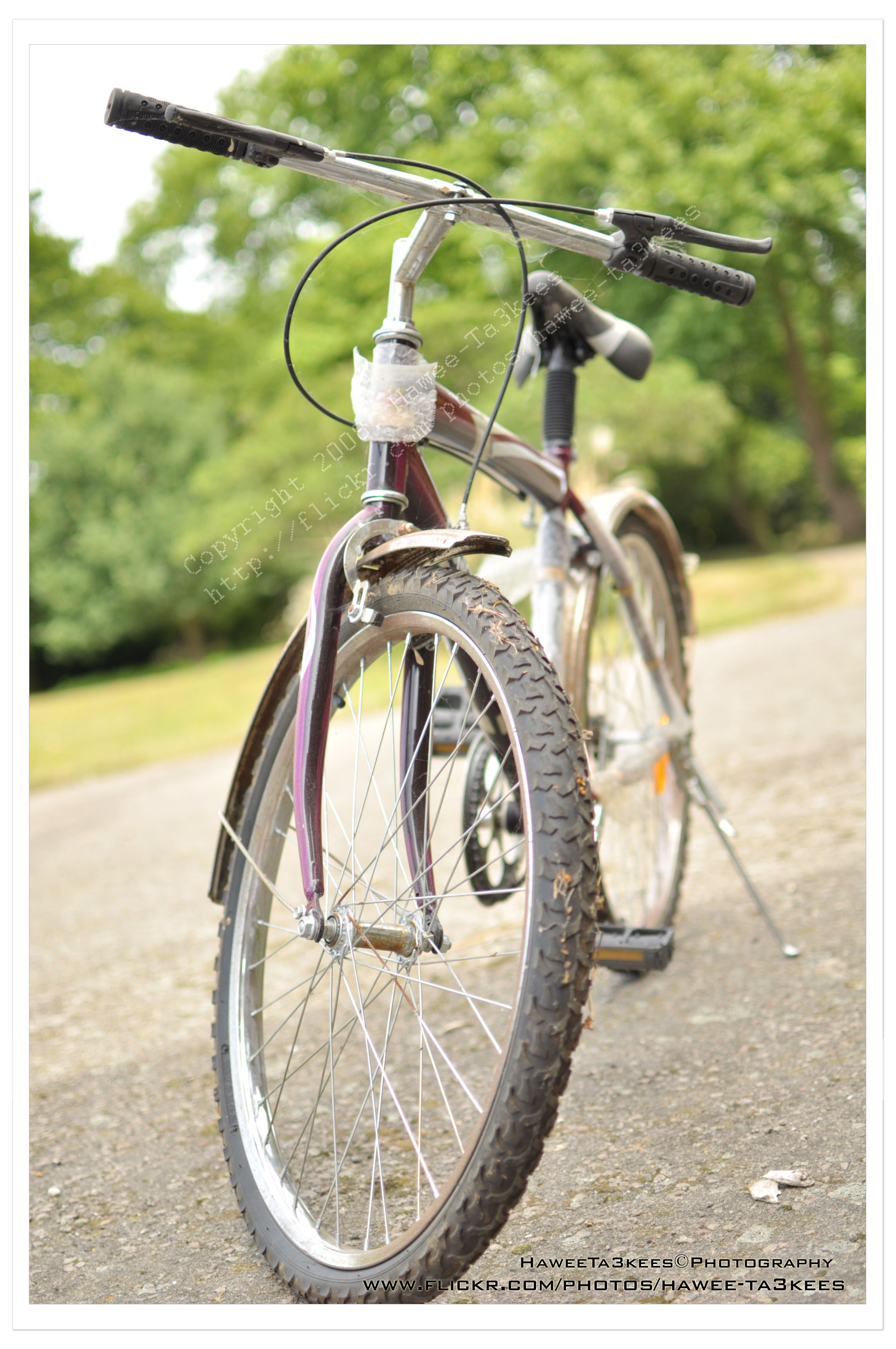
Here is another shot for a Bike with Nikon 35mm f/1.8 ..
More Information
Exposure: 1/1250″
f Number: F2
Exposure Mode: Manual
ISO: 200
Date Time: 2010-07-06 13:48:22
Exposure Base: +2.67EV
Metering Mode: Pattern
Light source: Cloudy weather
Flash: Off
Lens: 35mm
Flowers on the street..
This is one of my London Trip 2010 photos, i come up with +3500 photos, i used my D90 with Nikon 35mm and Nikon 70-300mm VR.
More Information:
Taken on 2010/07/05 23:41:06
Exposure: 0.025s (1/40)
Focal Length: 35.00mm
F/Stop: f/1.800
ISO Speed: ISO200
Exposure Bias: 0.67 EV
No flash
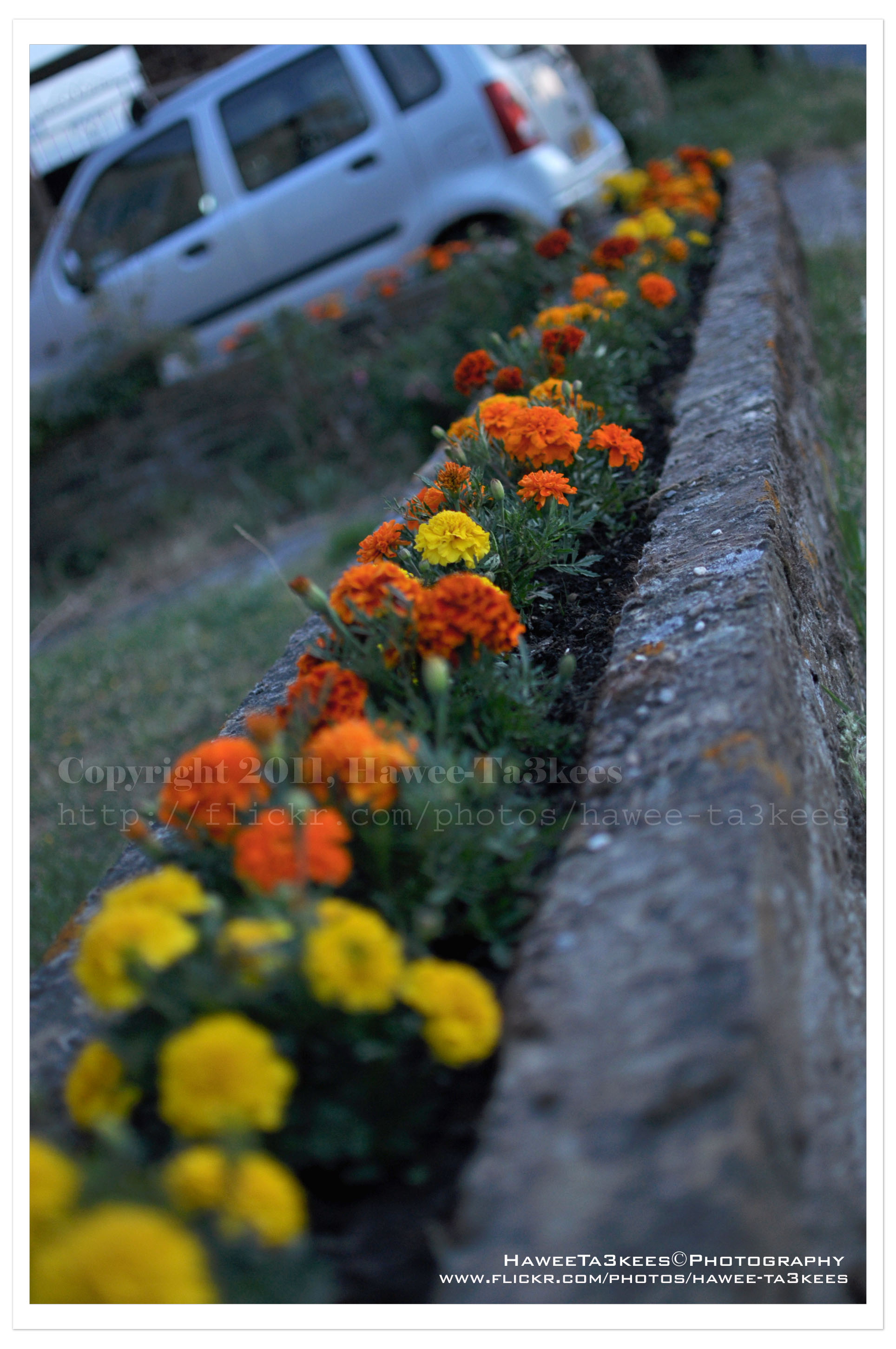
I take this image in Mountnessing, Brentwood, Essex to see it on Google map Click Here
[Click the image to enlarge]
The Door in KATARA
This is the door on a side of The Amphitheater I used the Reto effect on the Adobe lightroom in the second.
You can download the lightroom preset file from Download section on main menu or Click Here.
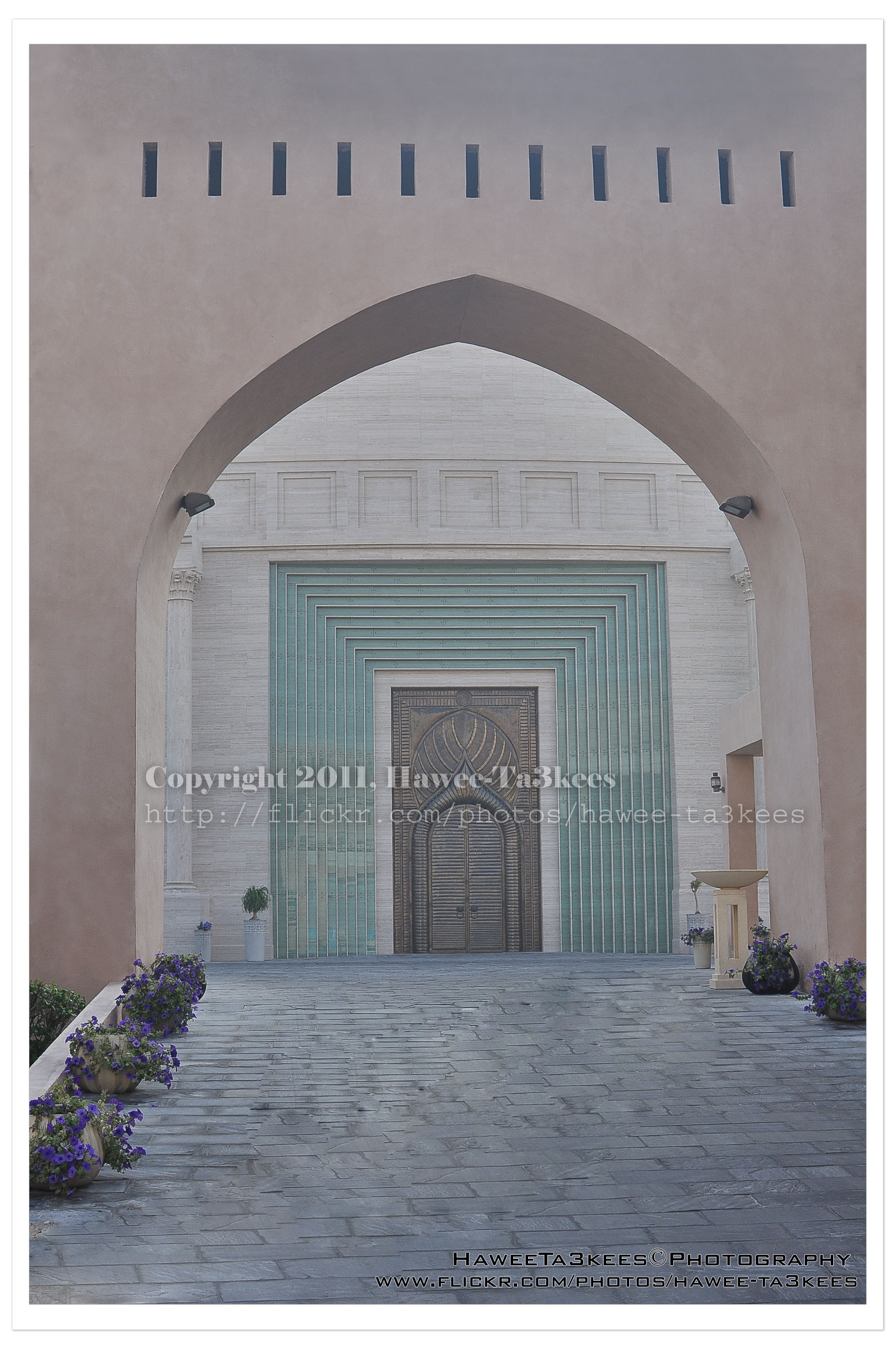 The original shot:
[Click the image to enlarge]
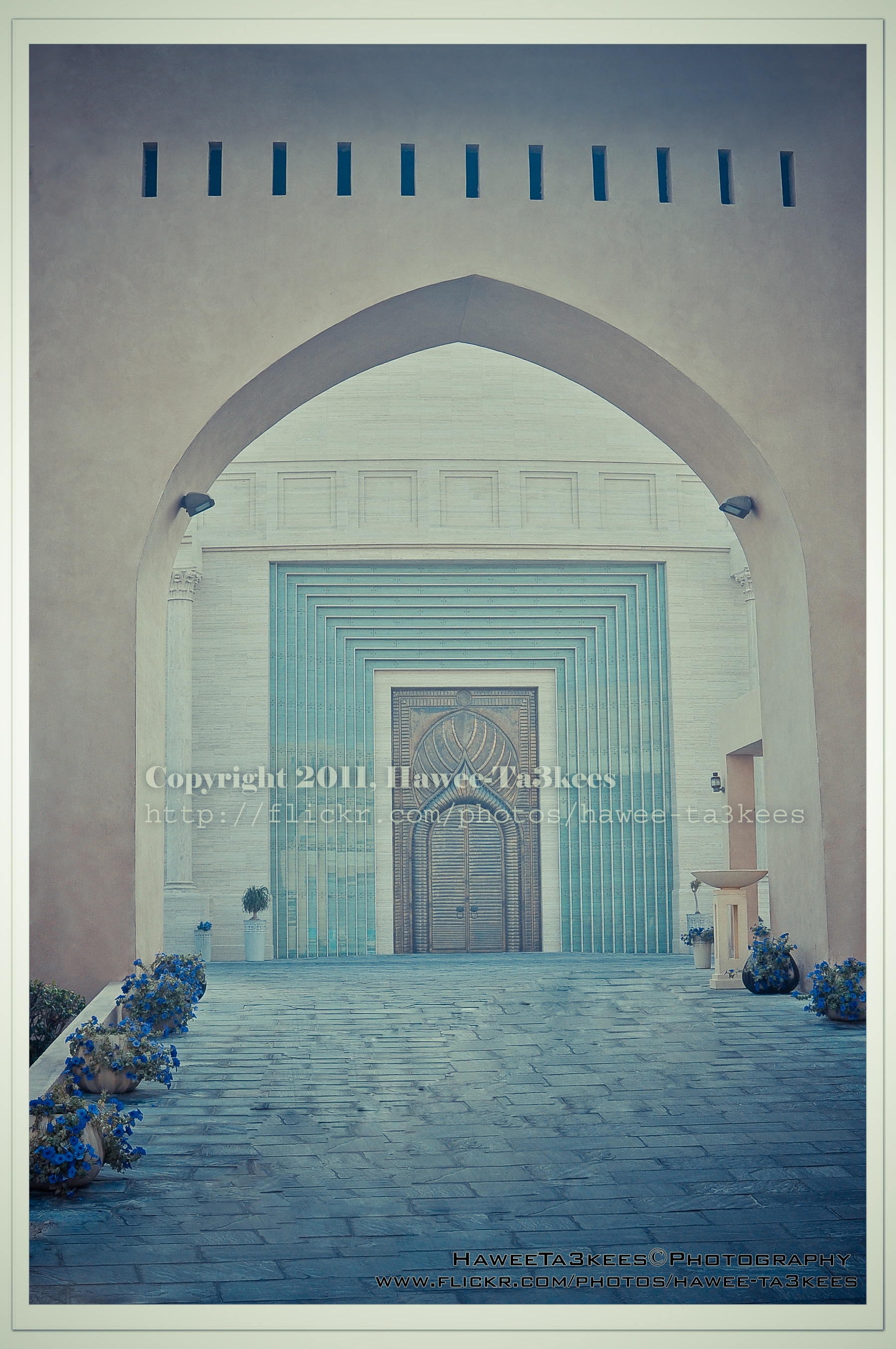 After Retro Effects:[Click the image to enlarge]
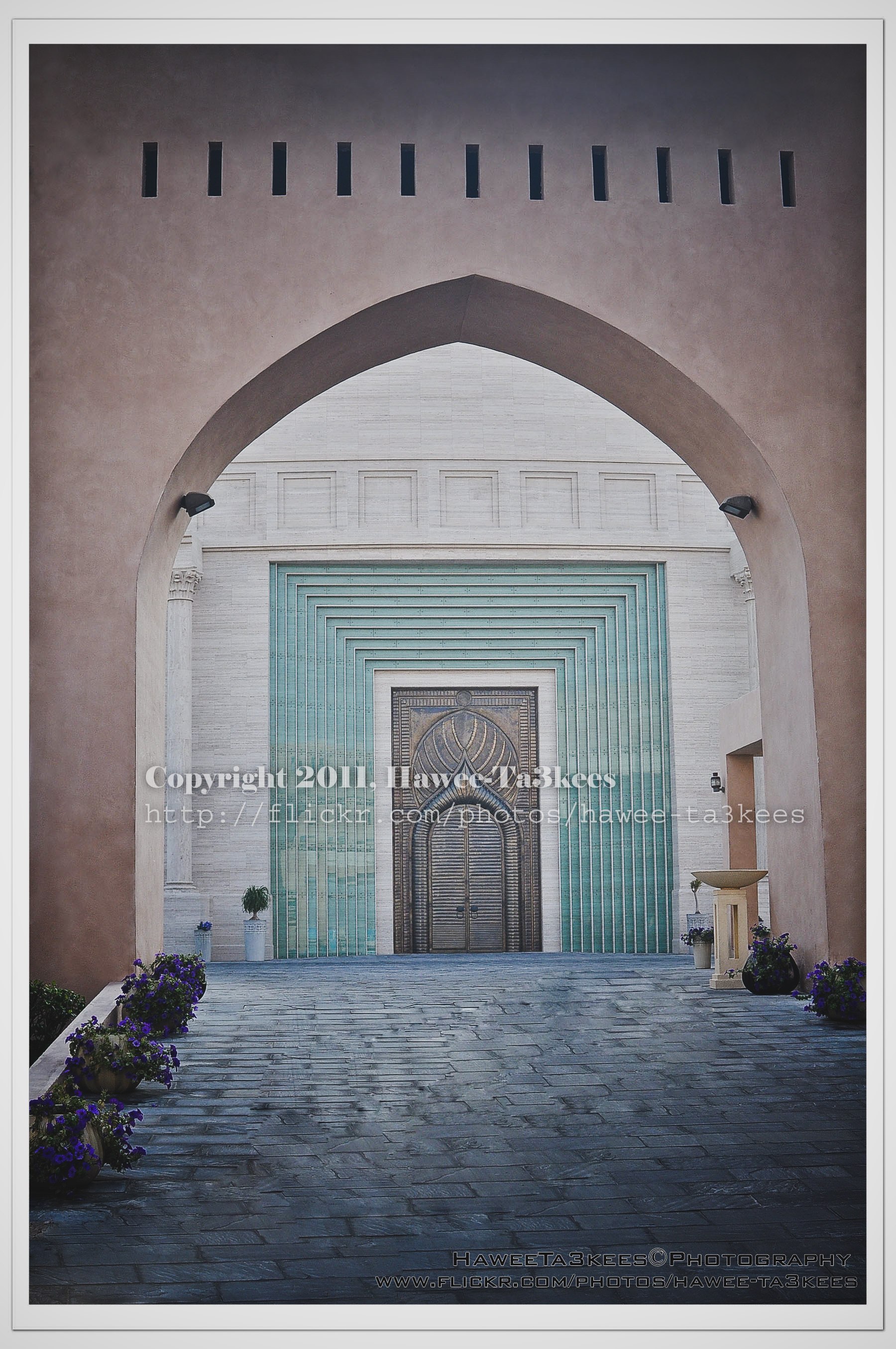 Another effect..[Click the image to enlarge]
Adobe Lightroom2 Before & After Part 2
Here are more sample for Adobe LightRoom2 effects, the shot is for somewhere in KATARA.
You can download the lightroom preset file from Download section on main menu or Click Here.
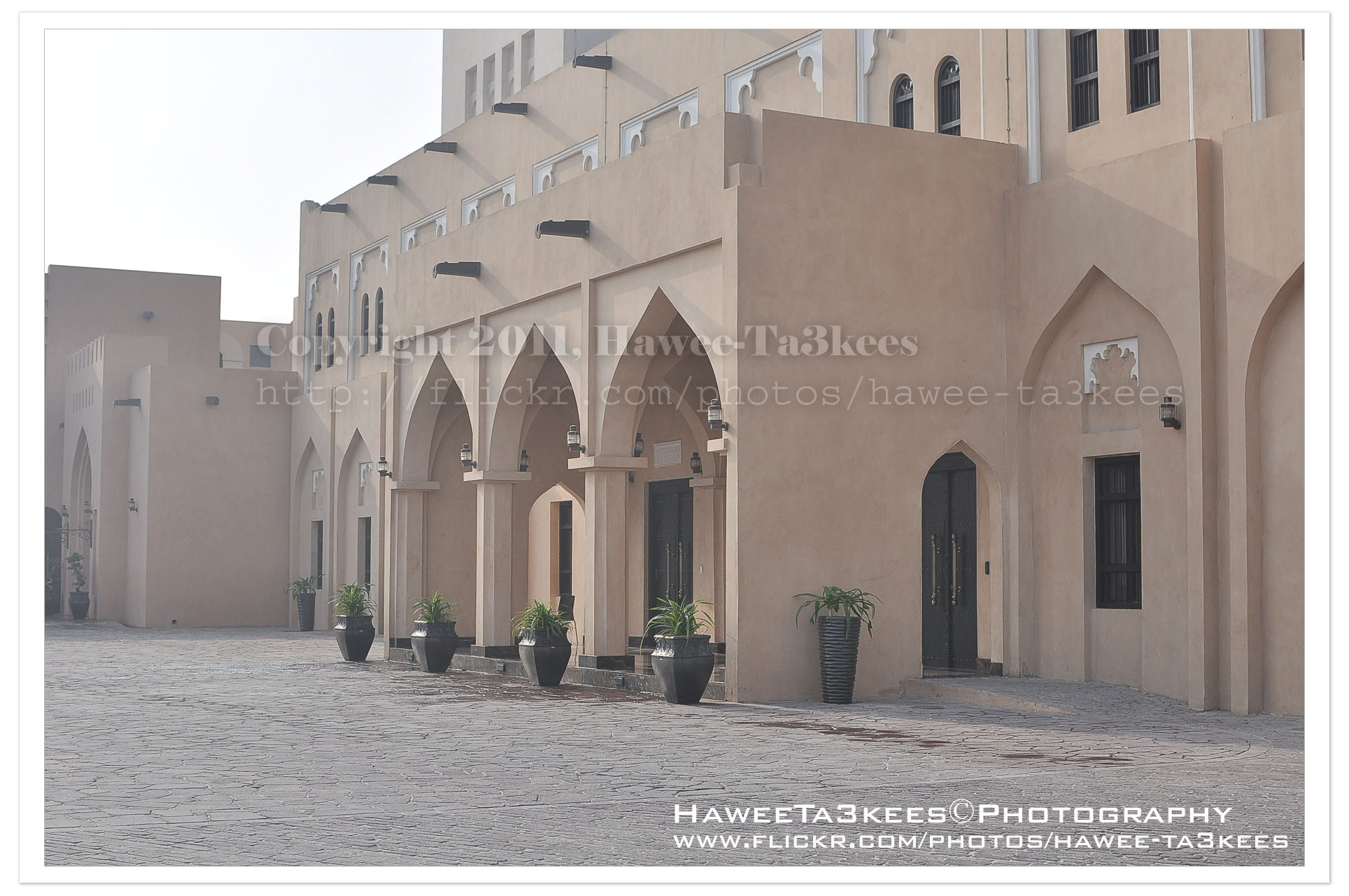
The Original Shot.[Click the image to enlarge]
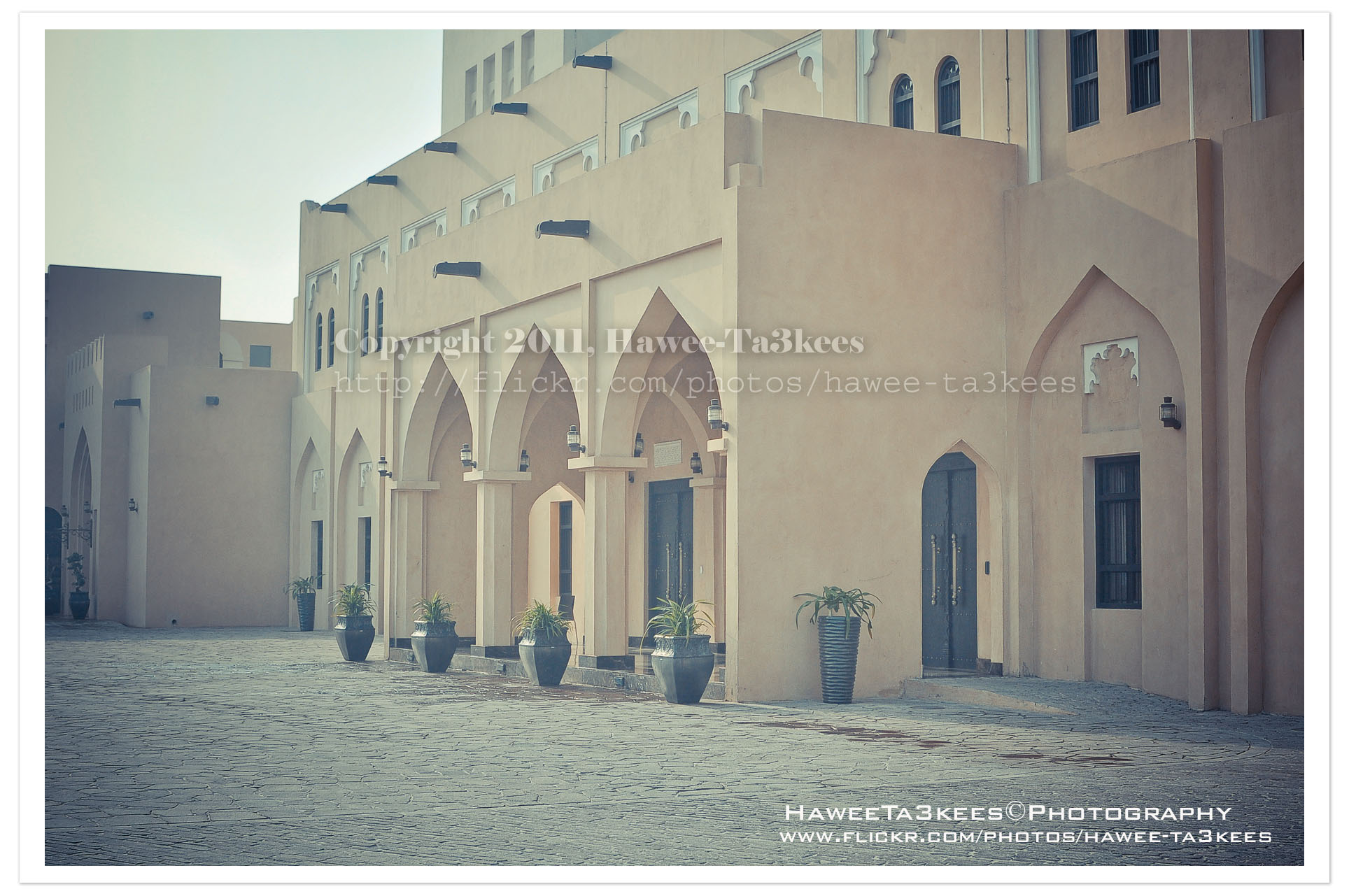
Retro soft with shadow[Click the image to enlarge]
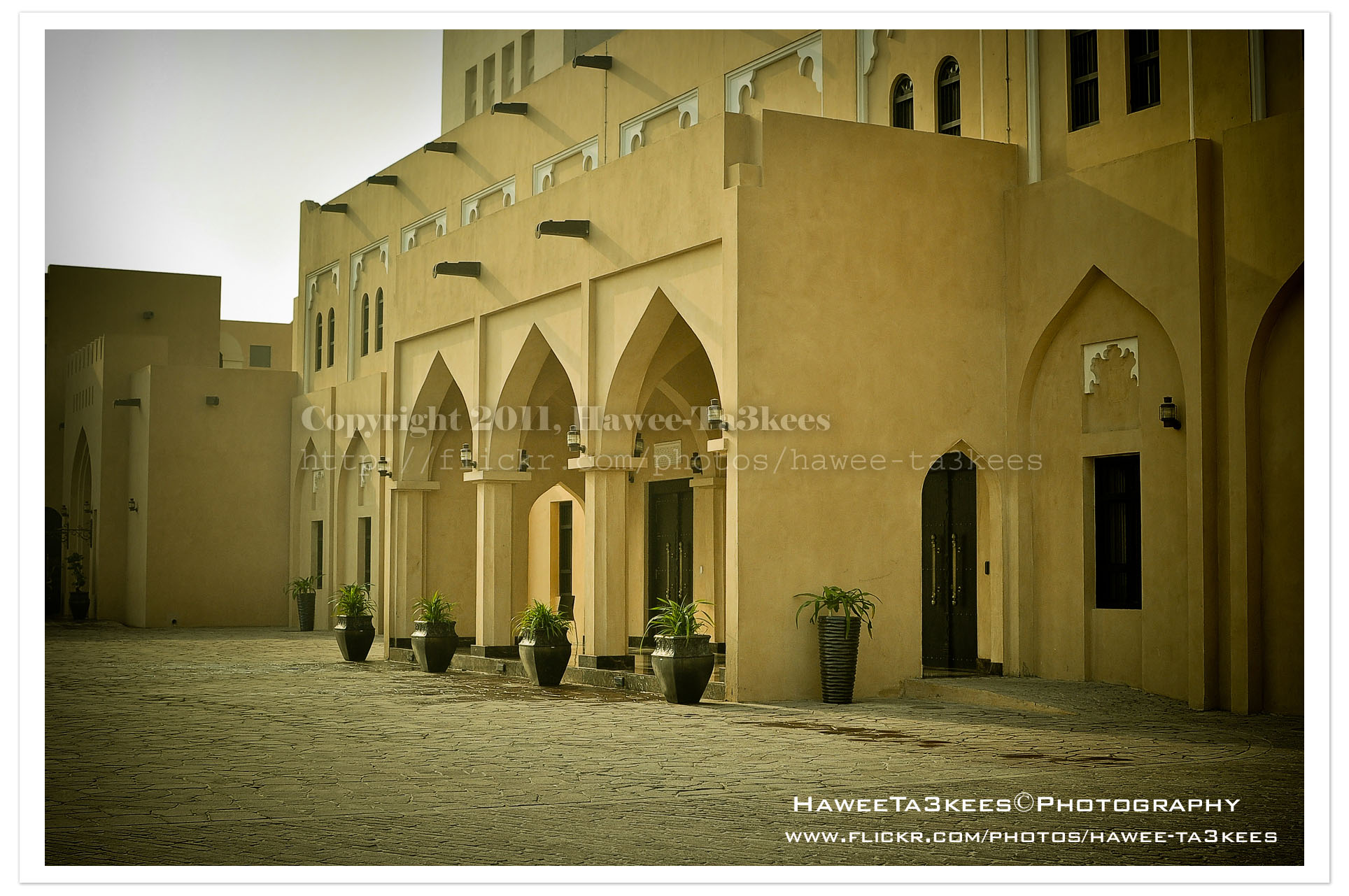
This is the More yellow effect.[Click the image to enlarge]
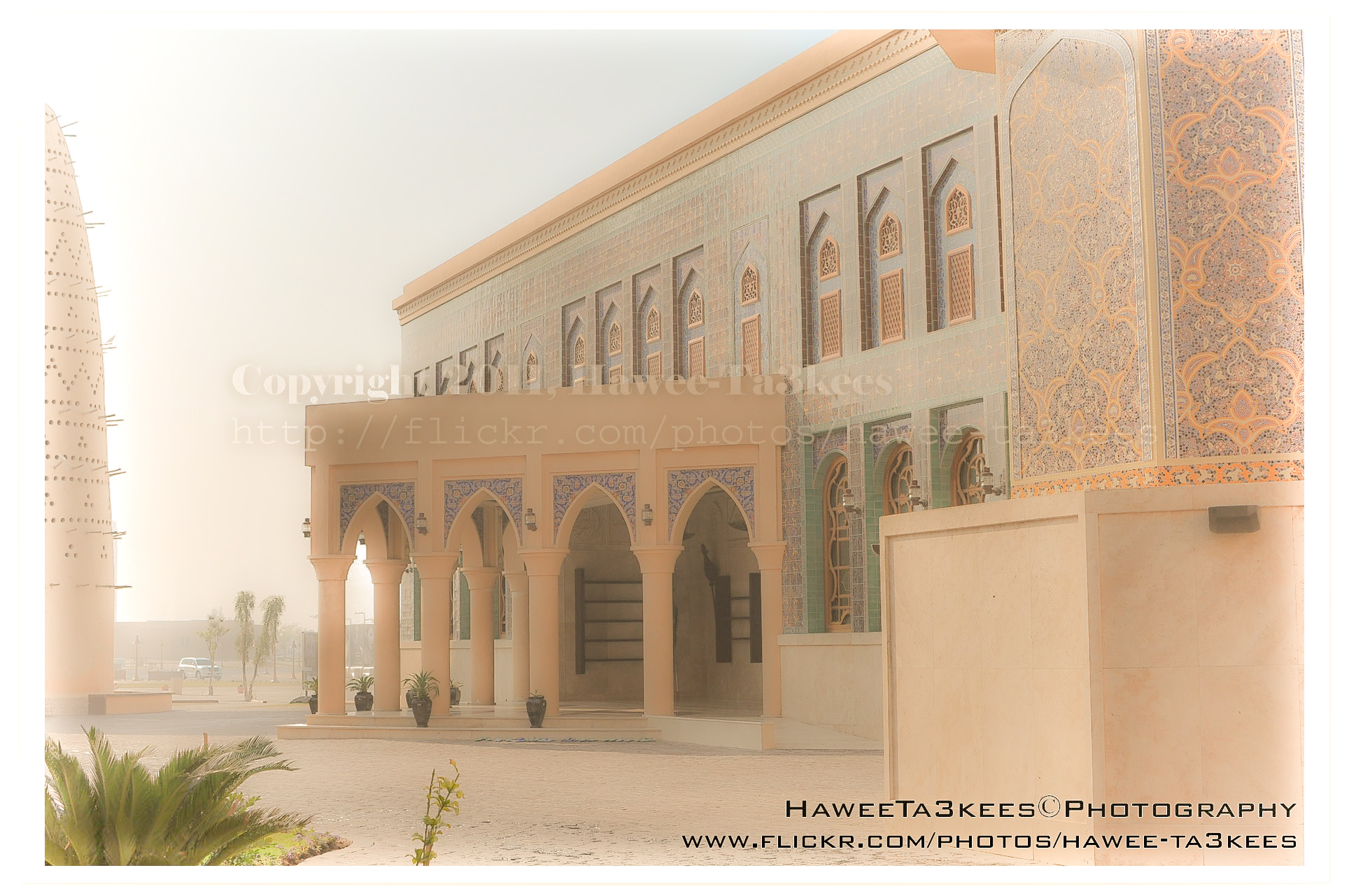
More soft lights.[Click the image to enlarge]
Other samples on the part 1. Click Here..
Adobe LightRoom2 before and..
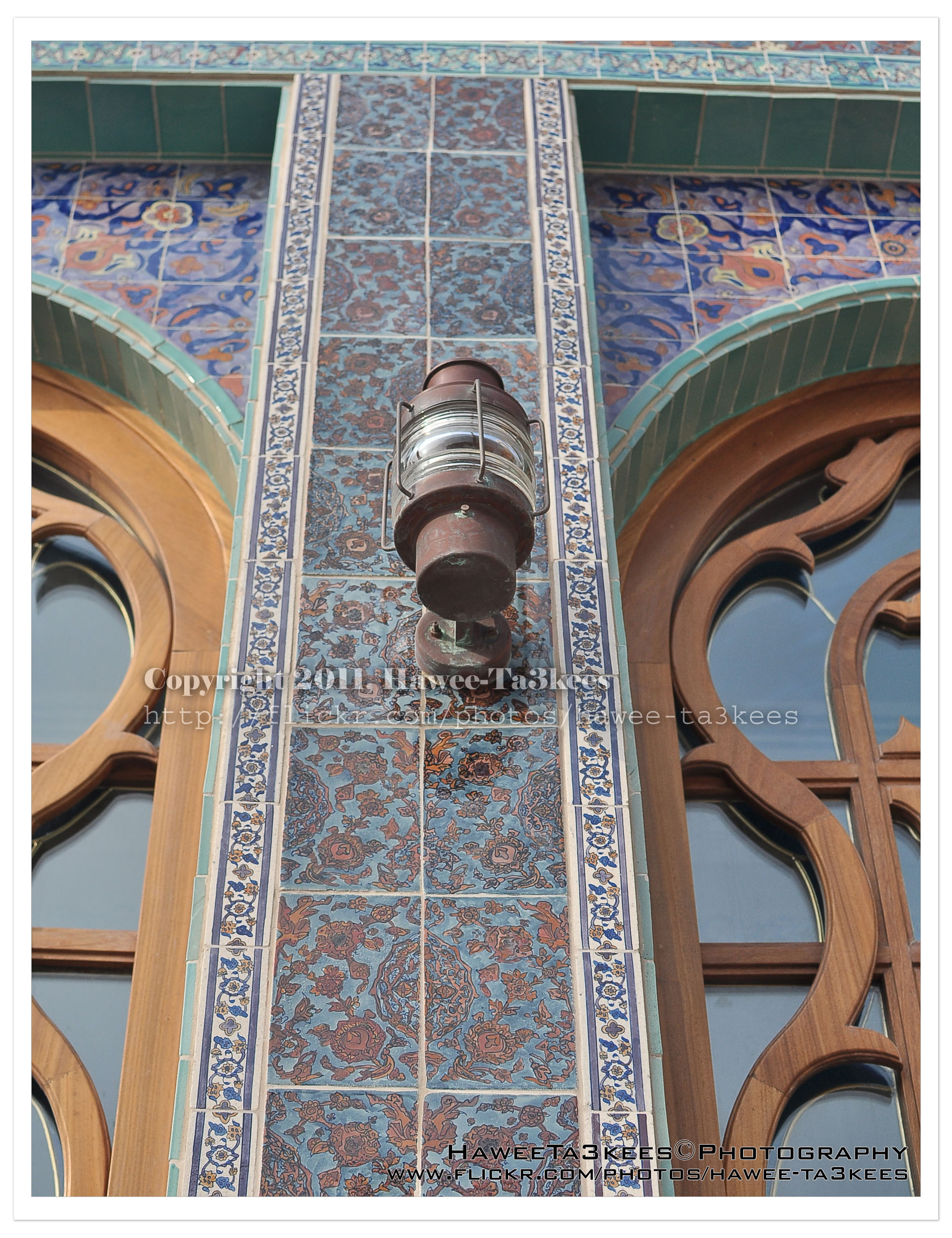
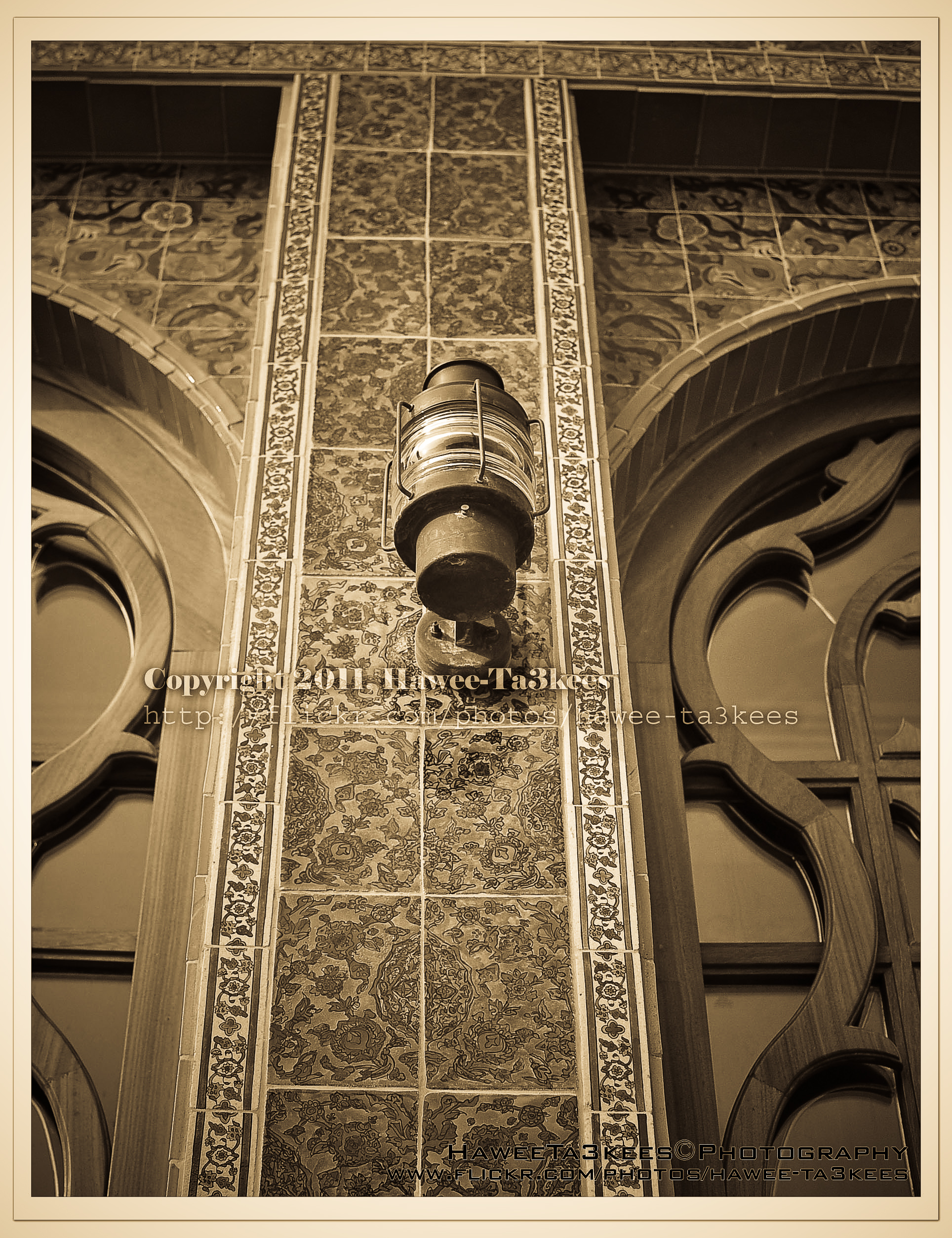
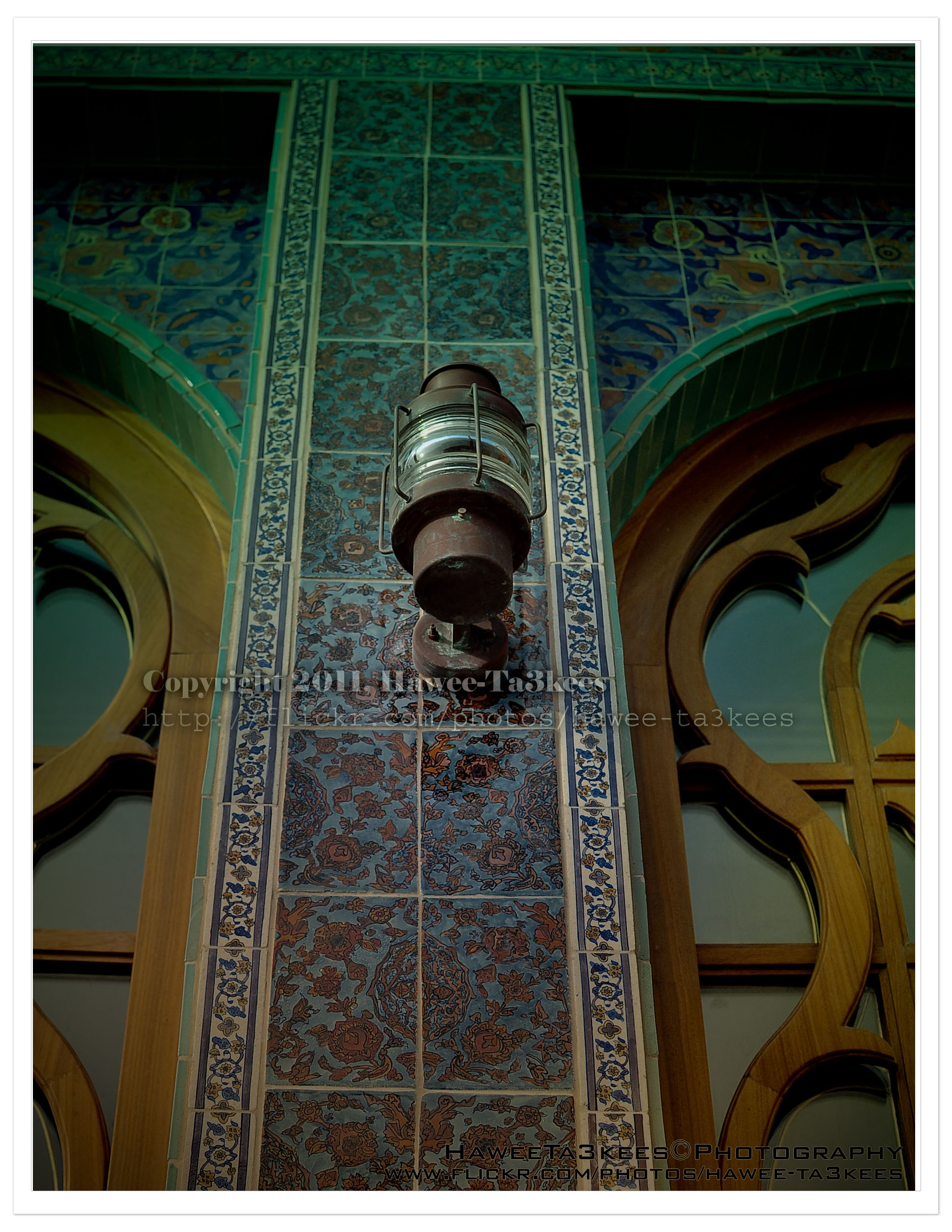
Adobe LightRoom is a great tool to add some light/shadow effects to the image, you may add colored lights or take the capture to the B/W channel.
The first photo is a part of the Mosque @ KATARA before any lightroom effect.[Click the image to enlarge]
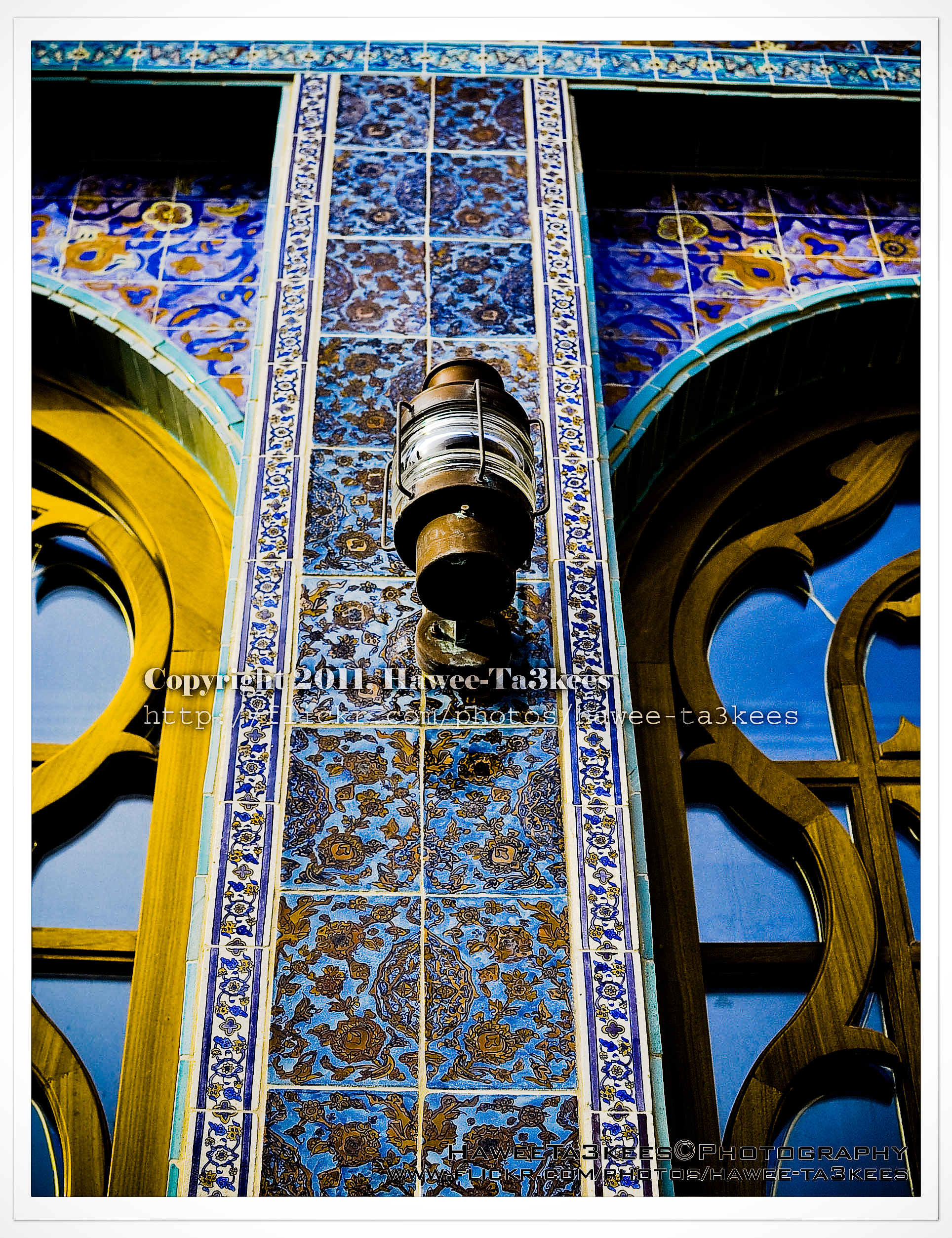

Taking pictures is not my main daily practices, but when i start playing with my camera, i really enjoy my self.
Thanks for visiting my Space..


 Ali's Photography Space...