Archive
Photo Frame by Photoshop Action..#6
In this Action the file MUST be resized to 2500W, the image will be Divided to three parts, the up & down are black with Fill 59%, Opacity 80% and white border. .
Name: Wide Double Black.
Download: Download the File from the Photoshop Actions in my “Download Section“
Result: [Click the image to enlarge]

Photo Frame by Photoshop Action..#5
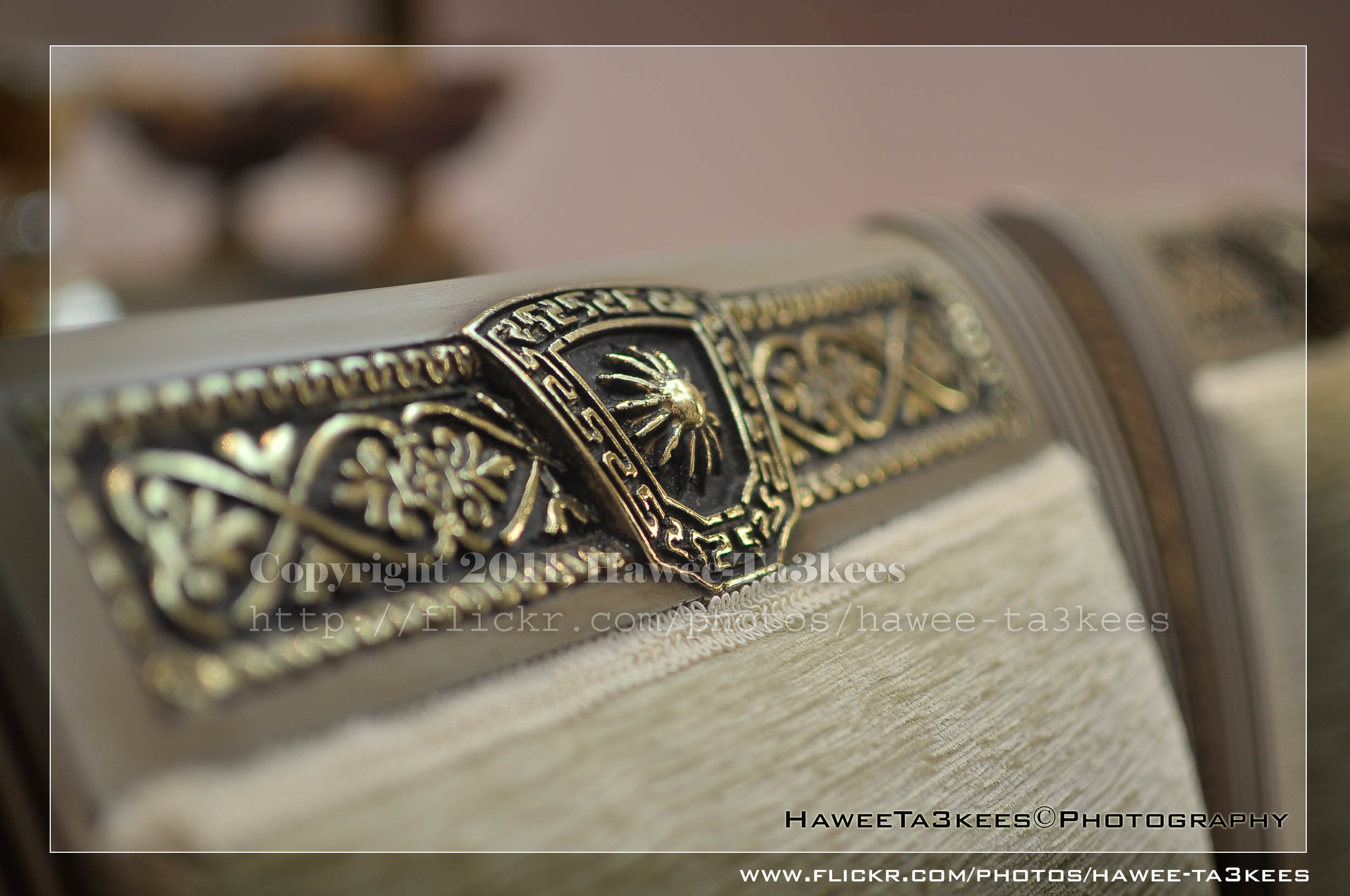
In this Action the file will be resized to 2500W, 0.5cm border will be selected and copied to new layer with multiply blinding mode finally white border the image will resized (about 0.5cm), New layer will be Created with two rectangular one as out border and the second is just bigger than the image.
Name: Simple Dark.
Download: Download the File from the Photoshop Actions in my “Download Section“
Result: [Click the image to enlarge]
Instruction:
– Un-ZIP the file.
– Copy the file to this folder :[Your Drive] .. Program Files\Adobe\Photoshop 7.0\Presets\Photoshop Actions
– Open the Photoshop (this sample is for Photoshop 7.0)
– Your image must NOT BE on the background Layer, copy it to new layer first.
For How to open an action file in Photoshop Click Here..
Photo Frame by Photoshop Action..#4
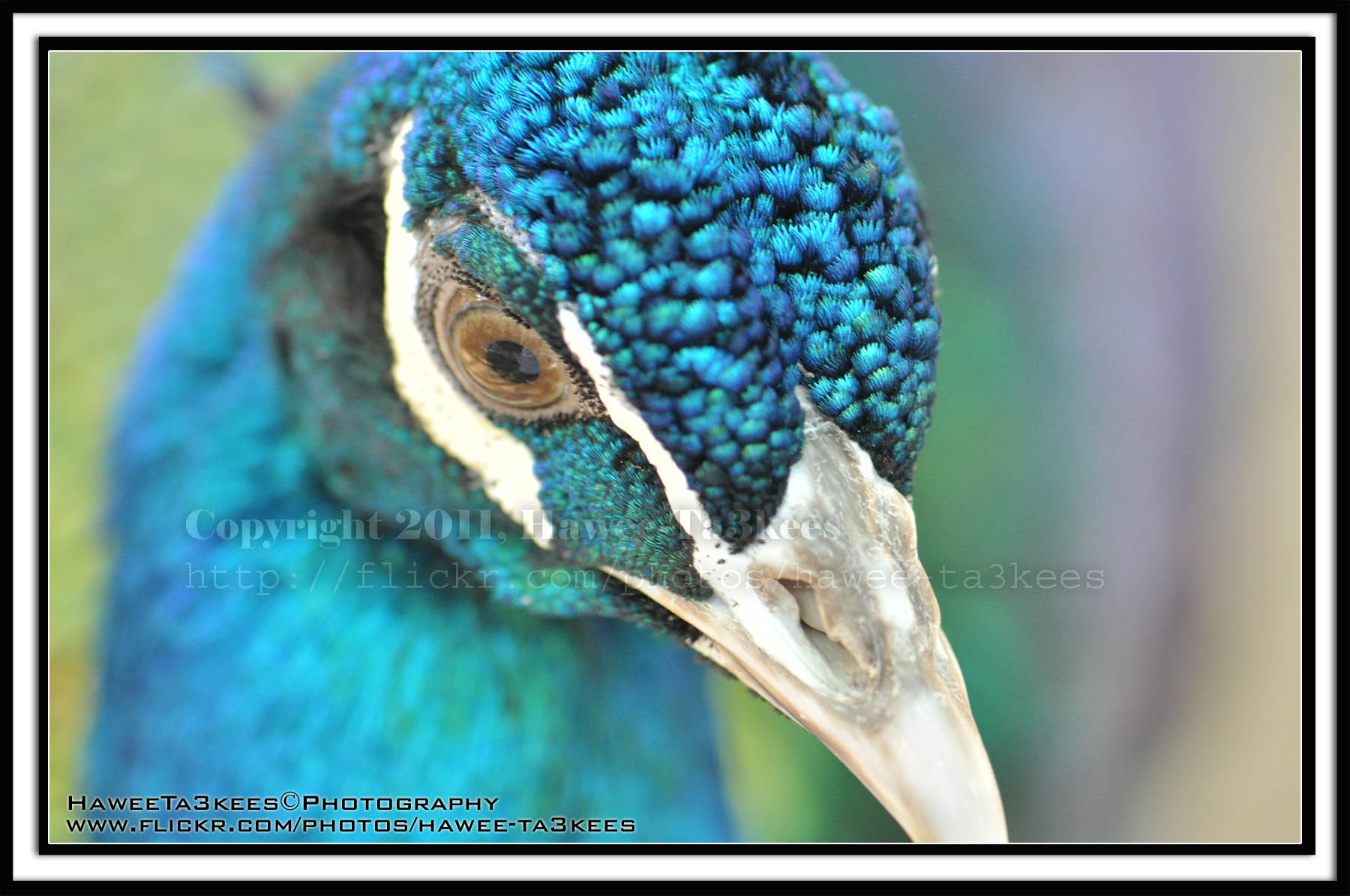
In this Action the file will be resized to 2500W and the image will resized (about 1cm), New layer will be Created with two rectangular one as out border and the second is just bigger than the image.
Name: Double Black.
Download: Download the File from the Photoshop Actions in my “Download Section“
Result: [Click the image to enlarge]
Instruction:
– Un-ZIP the file.
– Copy the file to this folder :[Your Drive] .. Program Files\Adobe\Photoshop 7.0\Presets\Photoshop Actions
– Open the Photoshop (this sample is for Photoshop 7.0)
– Your image must NOT BE on the background Layer, copy it to new layer first.
For How to open an action file in Photoshop Click Here..
Photo Frame by Photoshop Action..#3
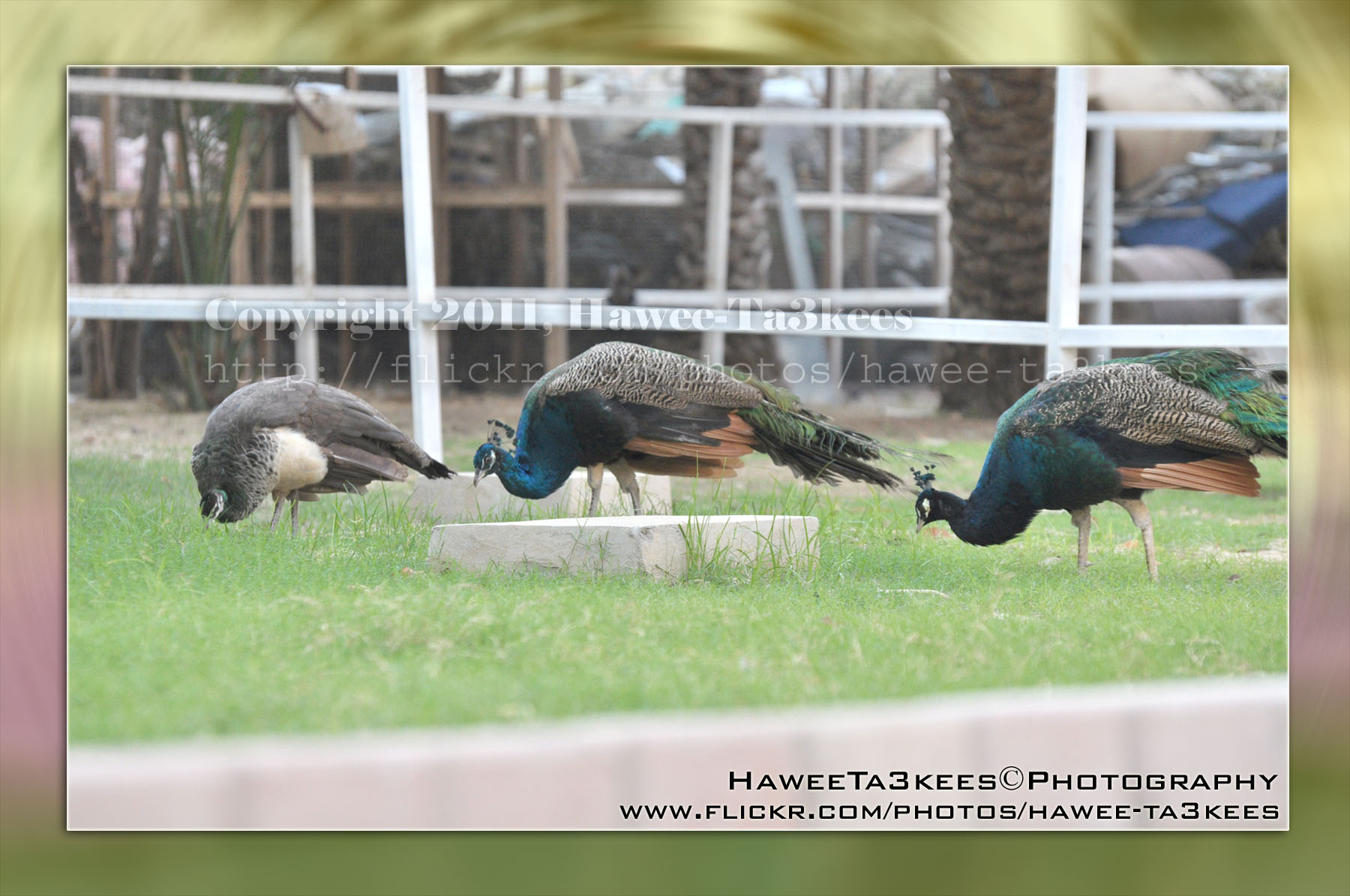
In this Action the file will be resized to 2500W, layer will be duplicated and resized, the Radial Blur effect will applied on the first layer, new layer filled with gray color and mode to be: Difference.
Name: Difference RadialBlur Frame.
Download: Download the File from the Photoshop Actions in my “Download Section“
Result: [Click the image to enlarge]

If you can change the color of the gray layer to yellow (R:251, G:250, B:193) you will get this:
[Click the image to enlarge]
Instruction:
– Un-ZIP the file.
– Copy the file to this folder :[Your Drive] .. Program Files\Adobe\Photoshop 7.0\Presets\Photoshop Actions
– Open the Photoshop (this sample is for Photoshop 7.0)
– Your image must NOT BE on the background Layer, copy it to new layer first.
For How to open an action file in Photoshop Click Here..
Photo Frame by Photoshop Action..
This is the first Photoshop Action I upload.
Name: Frame Normal Shadow.
Result: [Click the image to enlarge]
Instruction:
– Un-ZIP the file.
– Copy the file to this folder :[Your Drive] .. Program Files\Adobe\Photoshop 7.0\Presets\Photoshop Actions
– Open the Photoshop (this sample is for Photoshop 7.0)
[::] If the Action panel not appear then: From the menu Press Windows > Action

[::] On the Action Panel press the small triangle on the right (see the image)
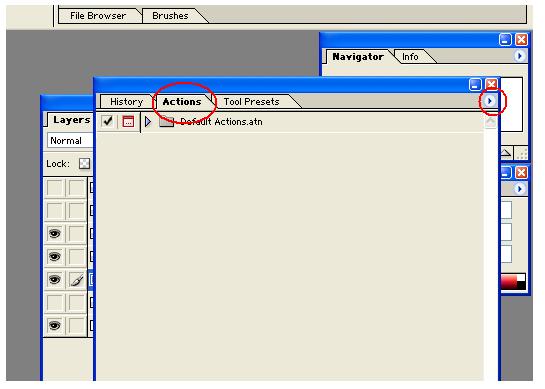
[::] Select the Load Action, then select the action file from you drive.
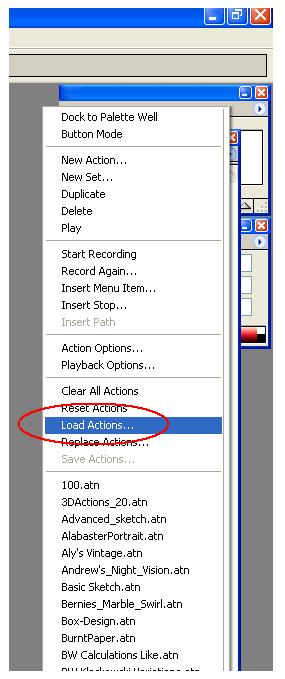
Note: You have to have your photo on a layer not on the Background layer, then run the action.
Download the File from the Photoshop Actions in my “Download Section”
The Door in KATARA
This is the door on a side of The Amphitheater I used the Reto effect on the Adobe lightroom in the second.
You can download the lightroom preset file from Download section on main menu or Click Here.
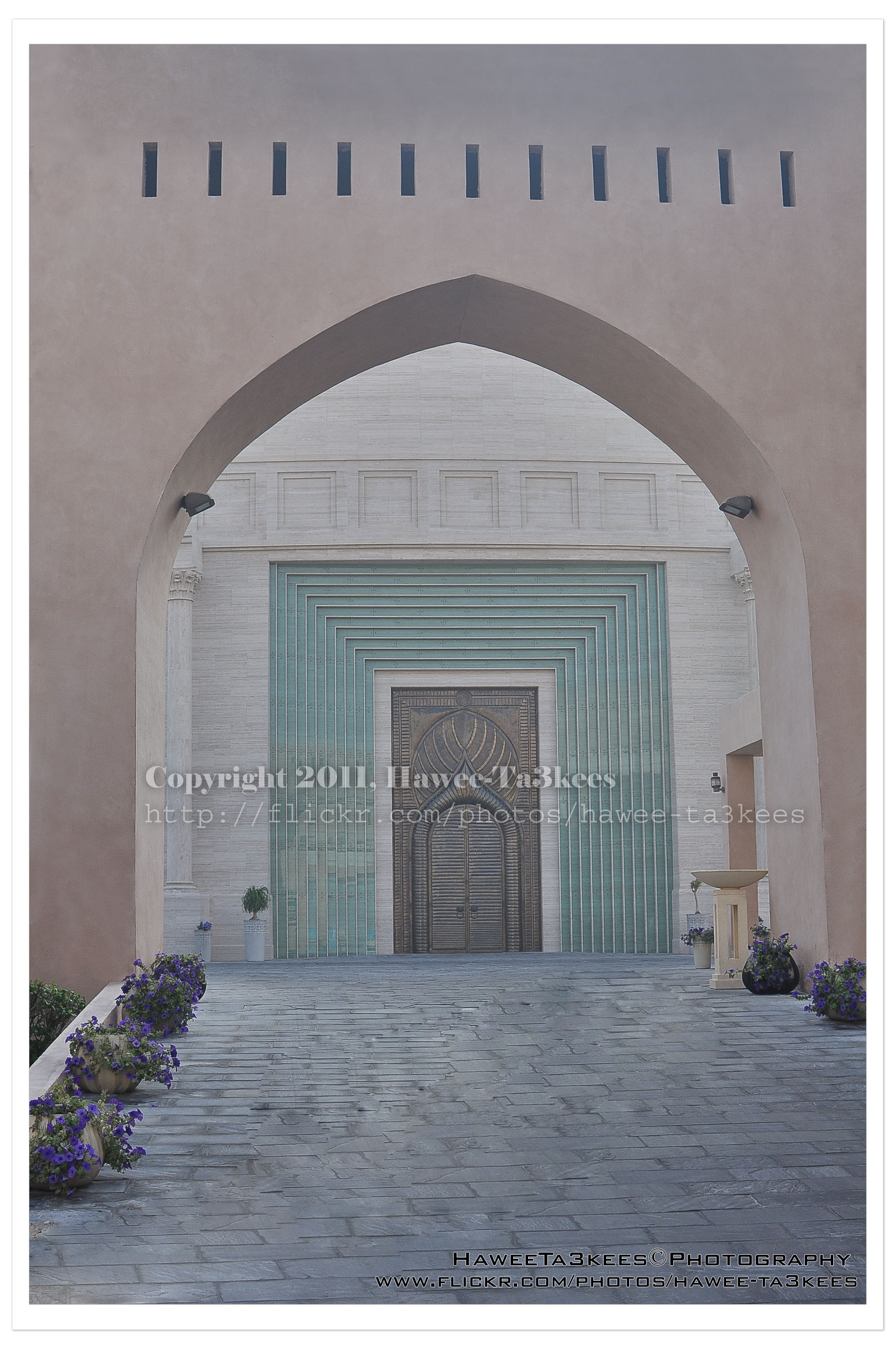 The original shot:
[Click the image to enlarge]
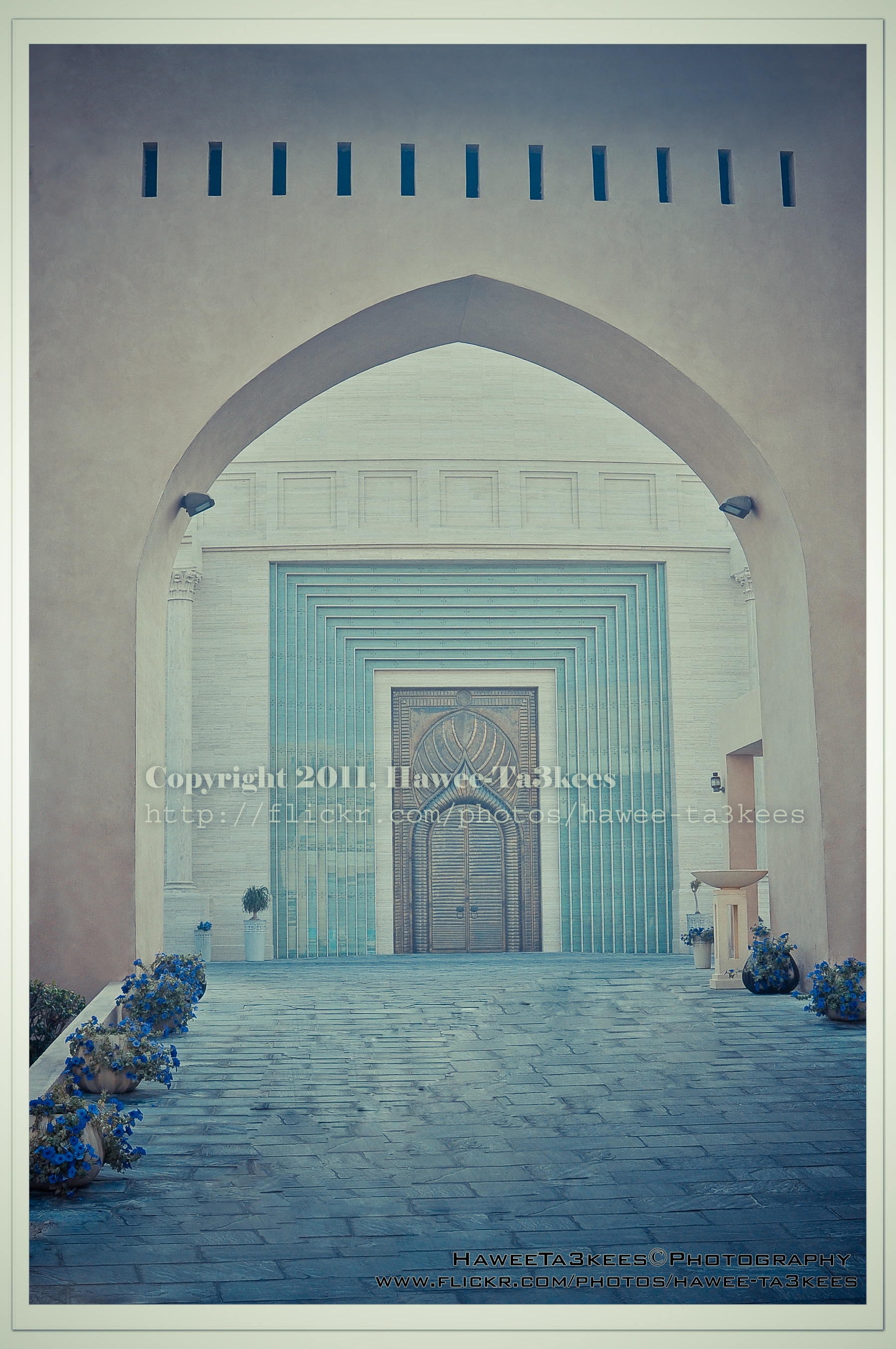 After Retro Effects:[Click the image to enlarge]
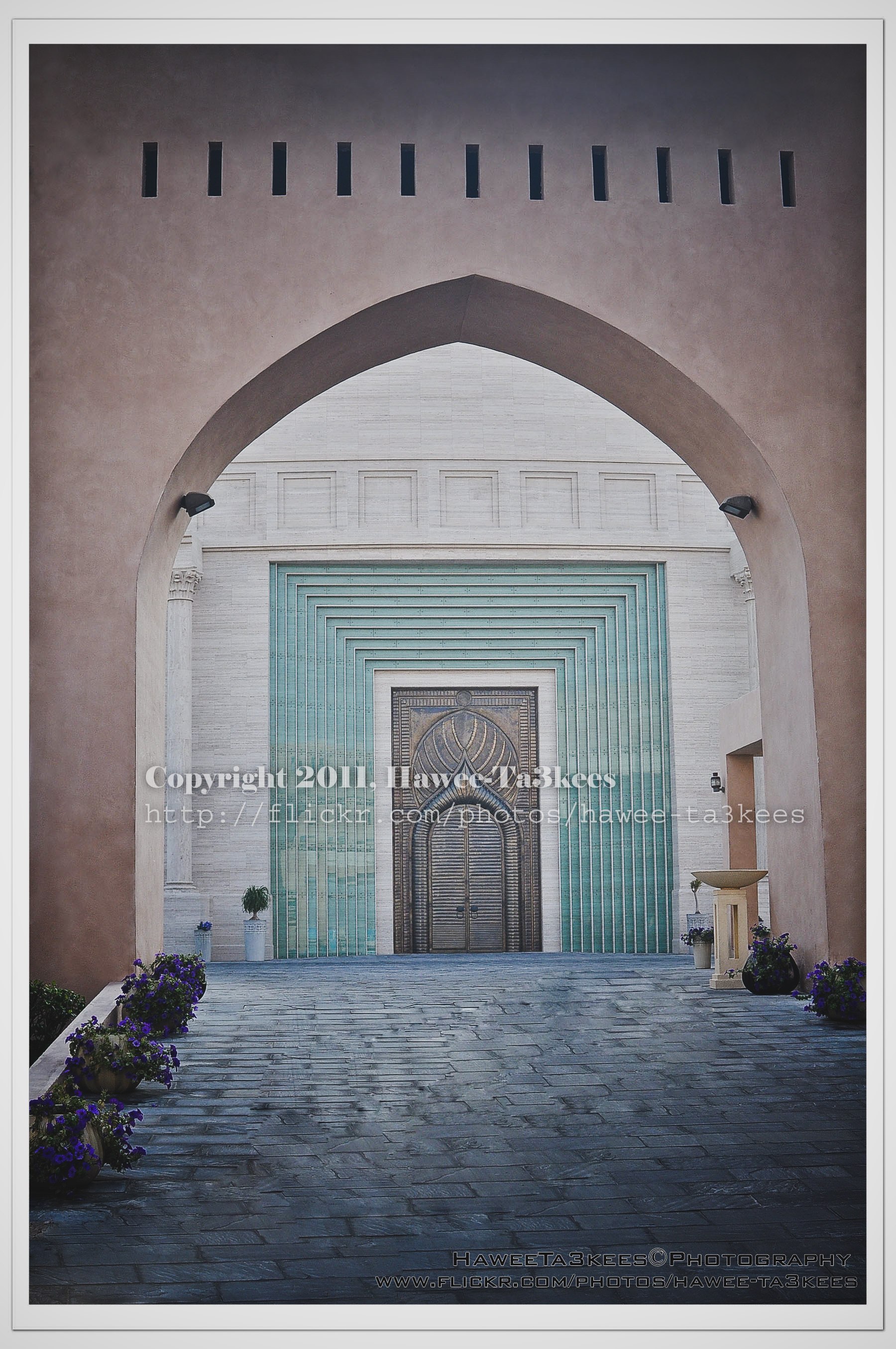 Another effect..[Click the image to enlarge]
Adobe Lightroom2 Before & After Part 2
Here are more sample for Adobe LightRoom2 effects, the shot is for somewhere in KATARA.
You can download the lightroom preset file from Download section on main menu or Click Here.
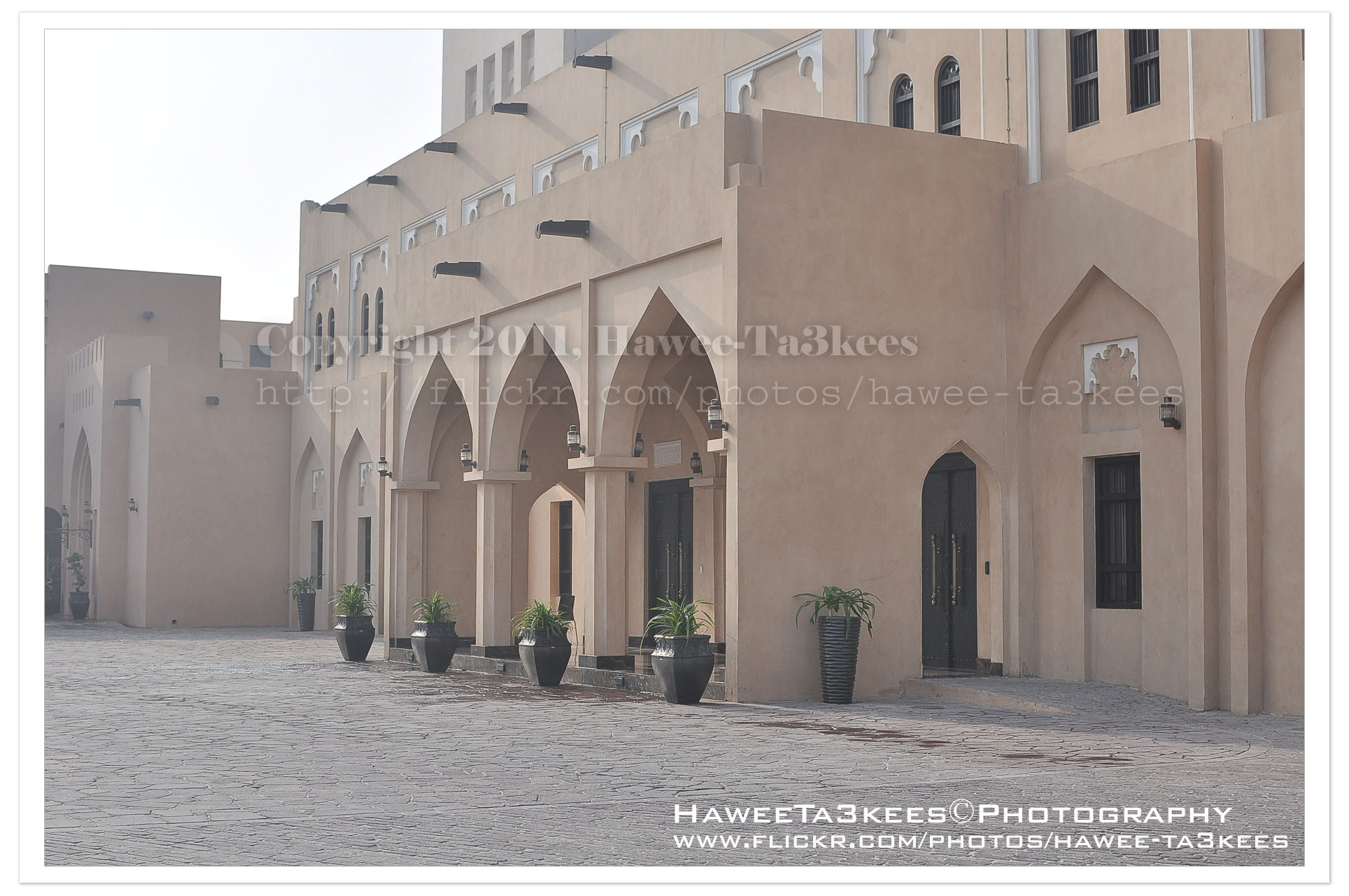
The Original Shot.[Click the image to enlarge]
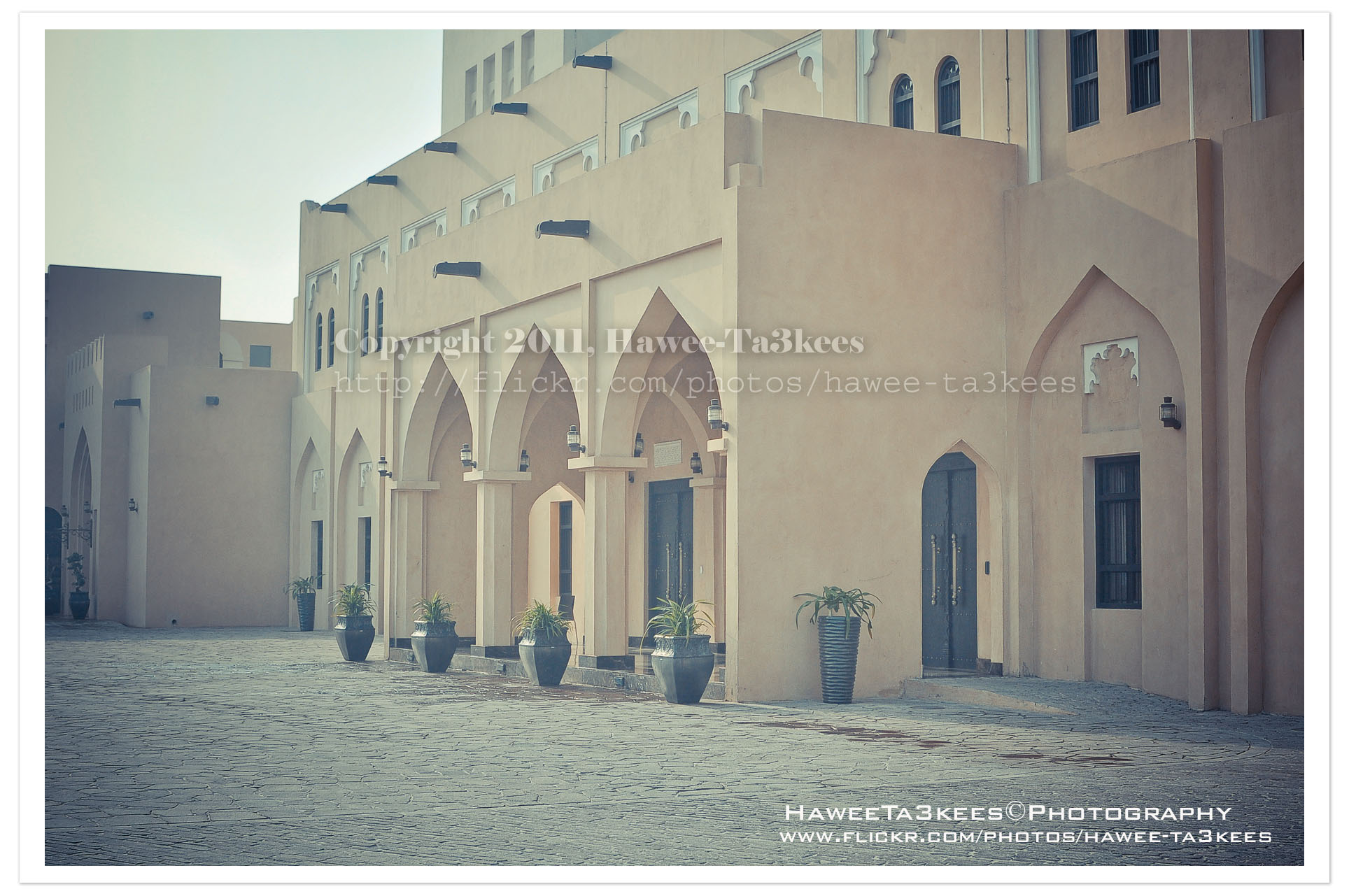
Retro soft with shadow[Click the image to enlarge]
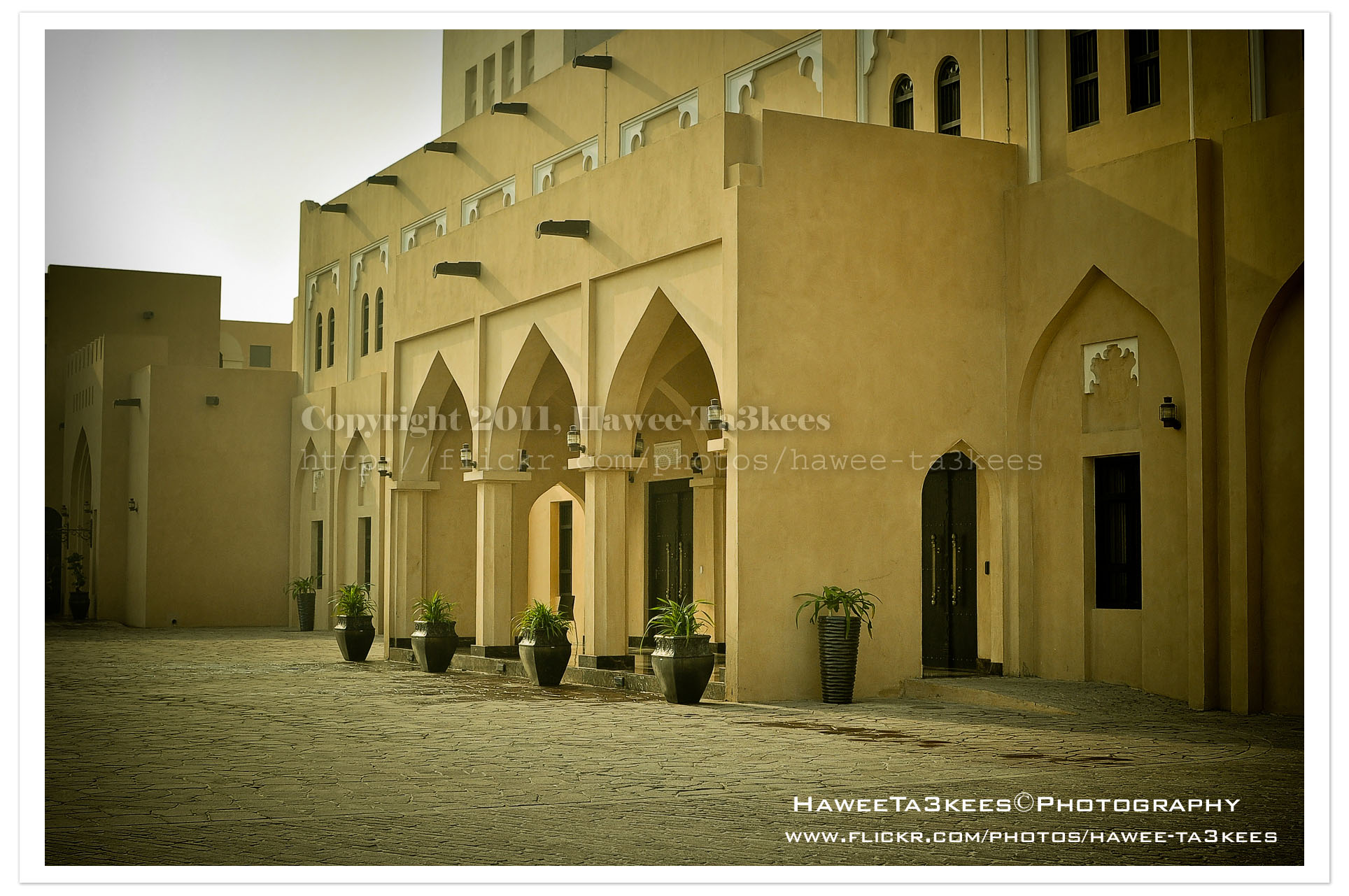
This is the More yellow effect.[Click the image to enlarge]
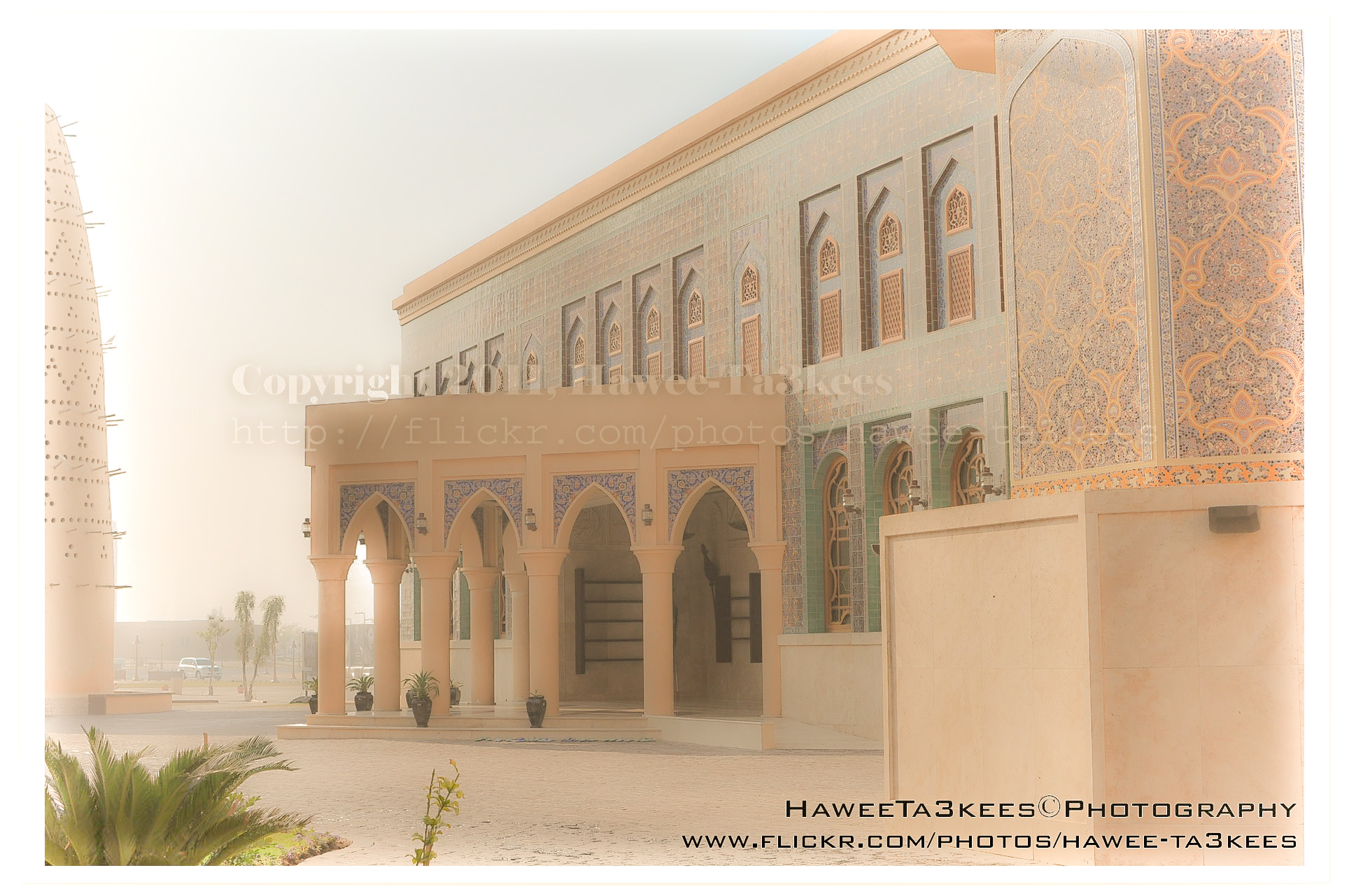
More soft lights.[Click the image to enlarge]
Other samples on the part 1. Click Here..
Adobe LightRoom2 before and..
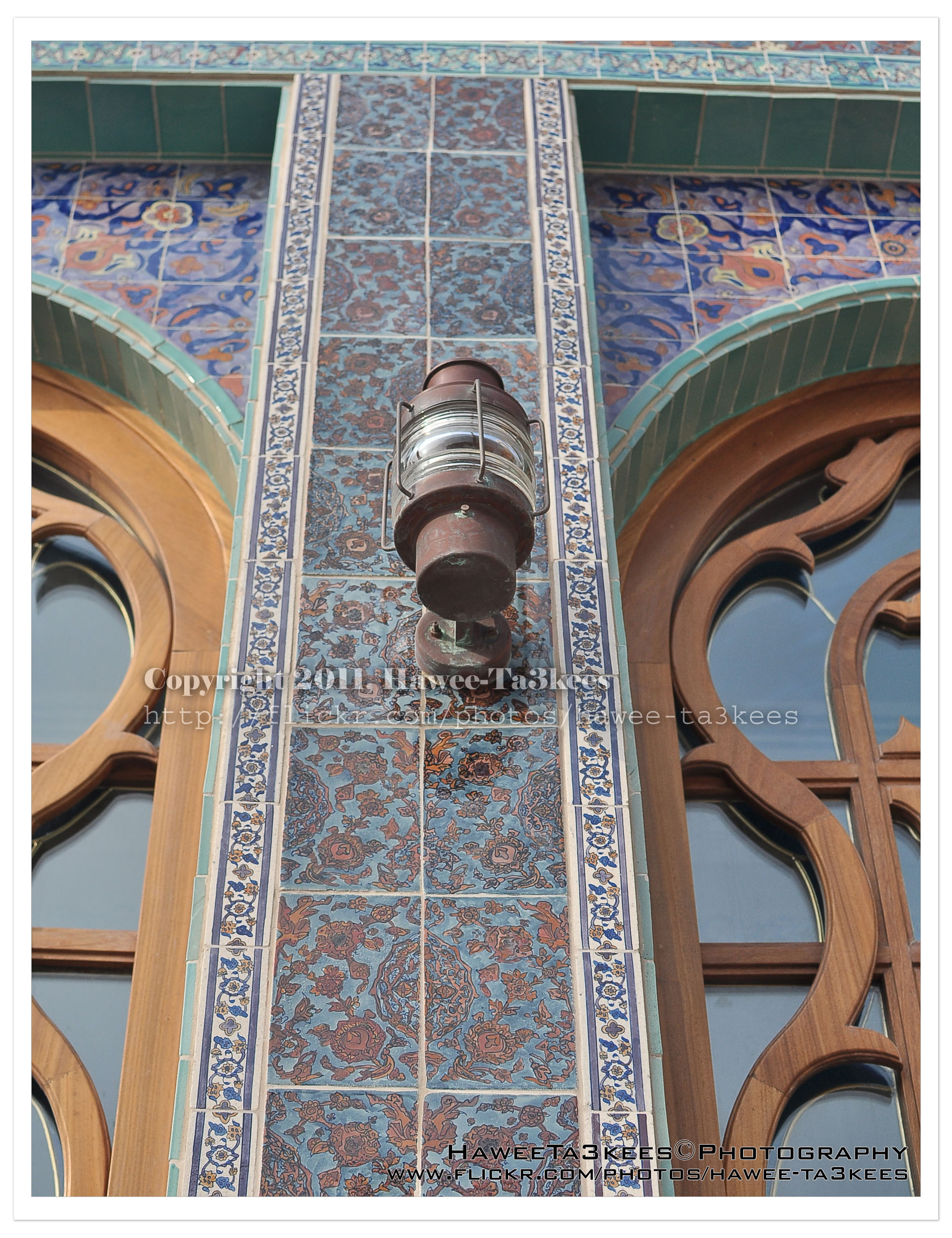
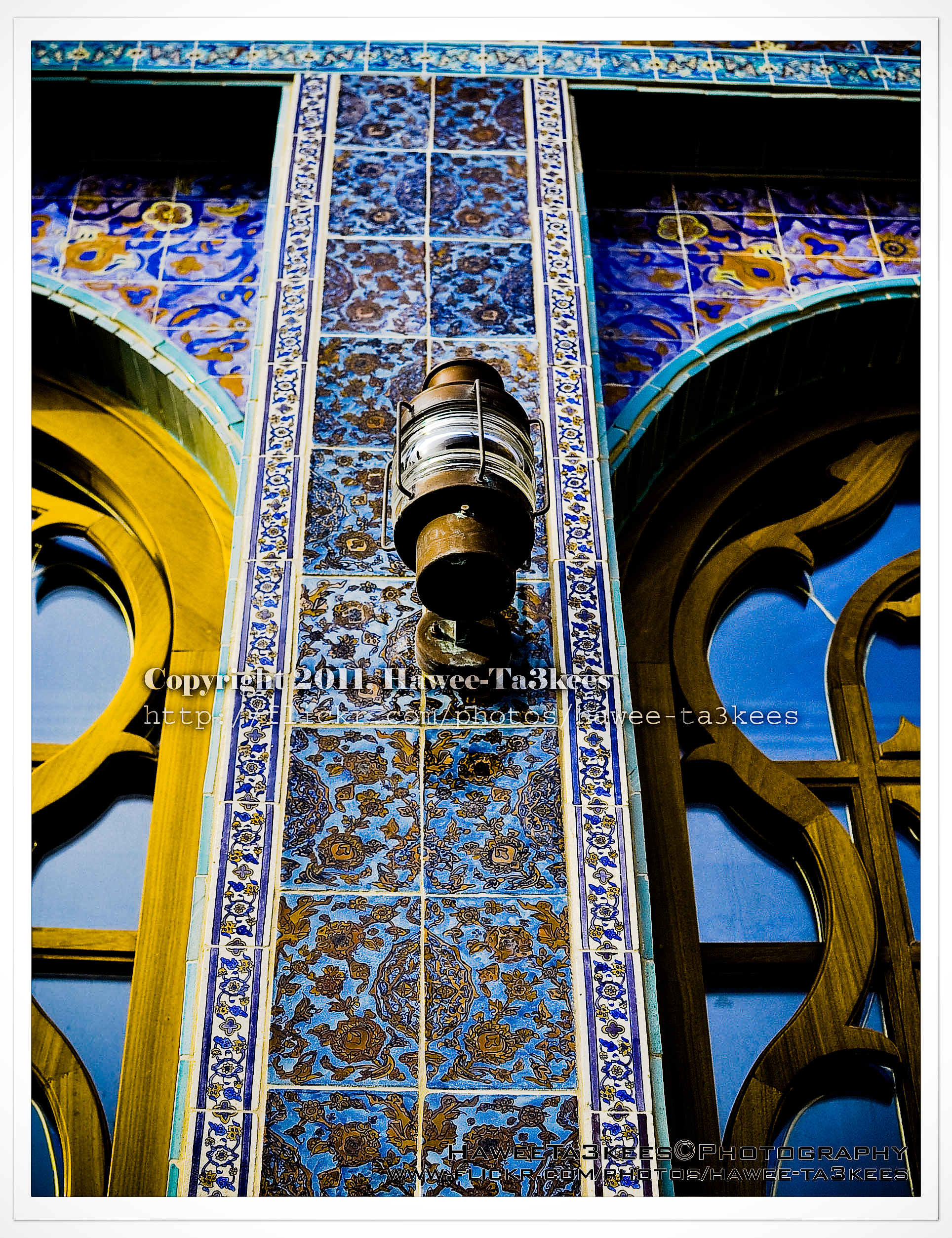
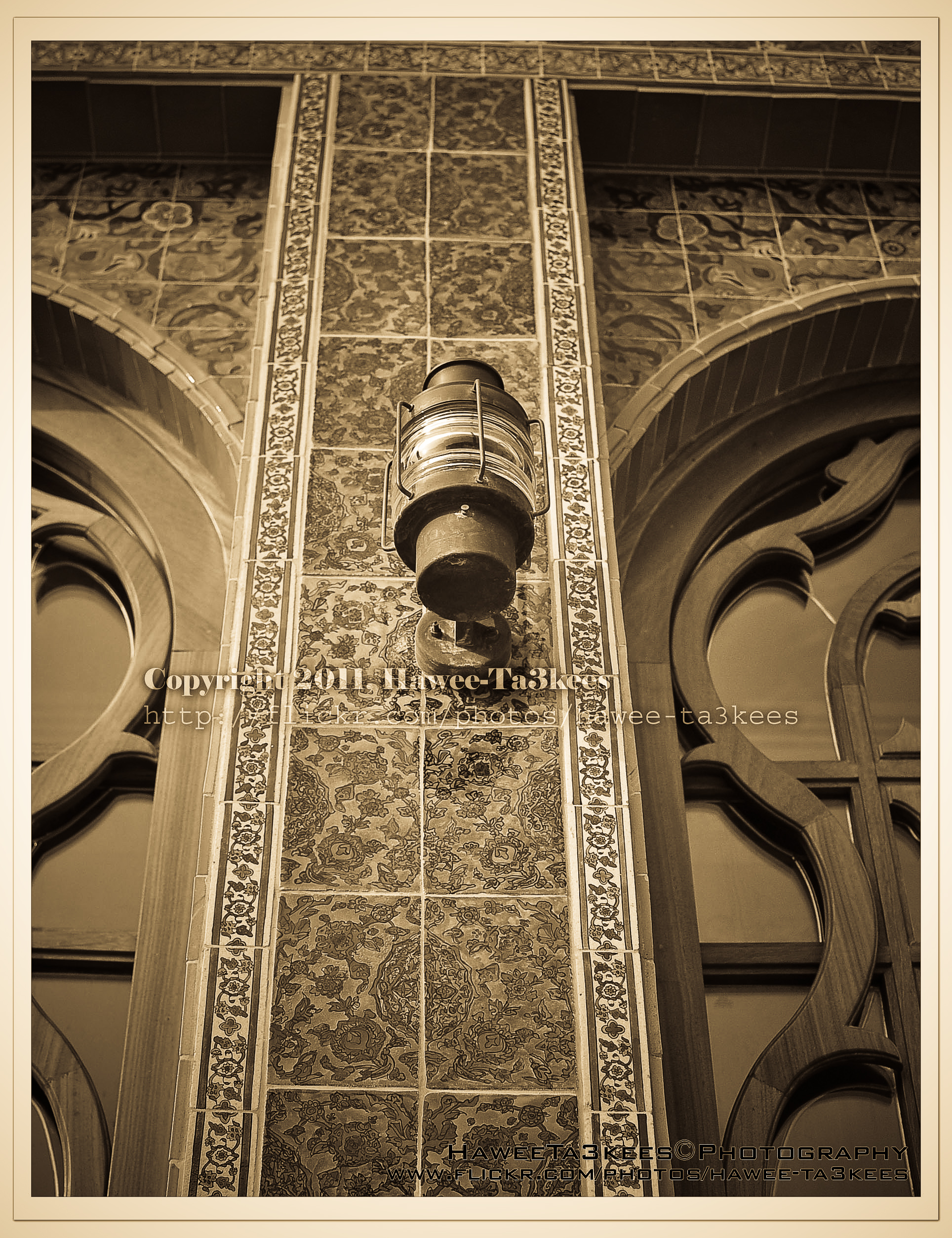
Adobe LightRoom is a great tool to add some light/shadow effects to the image, you may add colored lights or take the capture to the B/W channel.
The first photo is a part of the Mosque @ KATARA before any lightroom effect.[Click the image to enlarge]
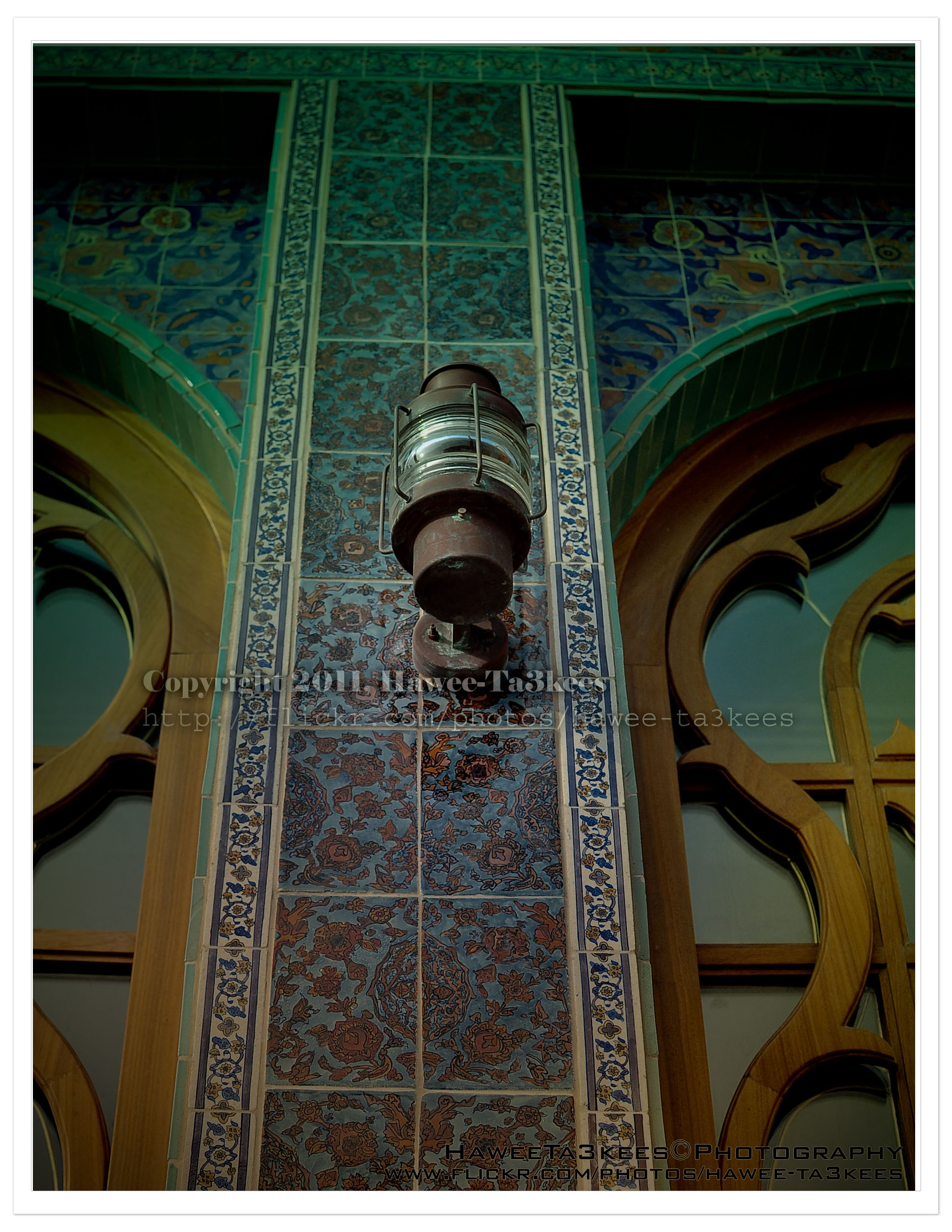
PhotoShop Touches
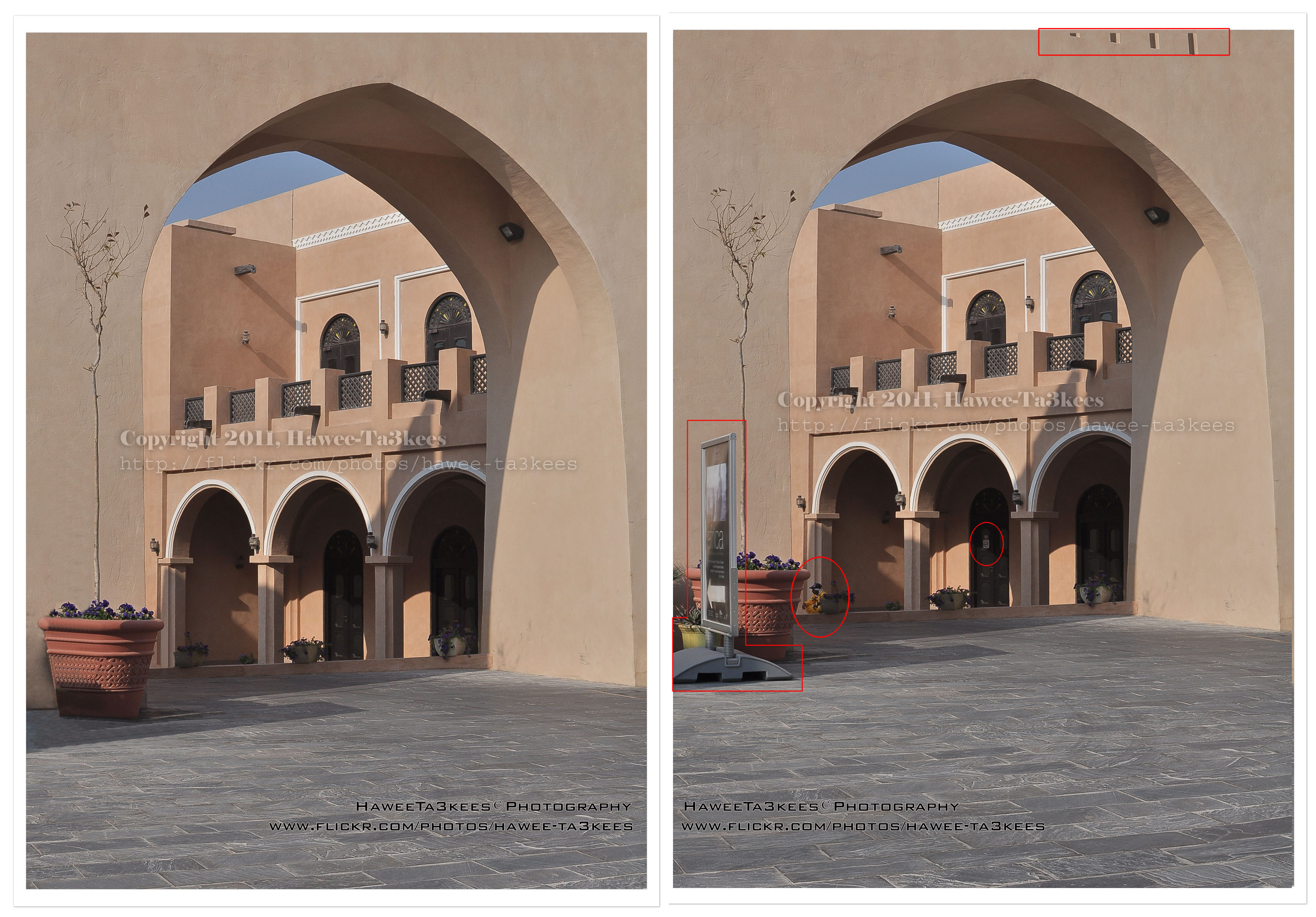 PhotoShop is one of greatest photo-edit software, you can remove lots of non-wanted objects from a capture you take. Here are tow photos from KATARA you can see the Before & After some PhotoShop Touches, see the circles.[Click the image to enlarge]
More photos of KATARA on my flickr Hawee-Ta3kees
Before & After Adobe LightRoom
Adobe LightRoom is a great tool to add some light/shadow effects and to the image, you may add colored lights or take the capture to the B/W channel.
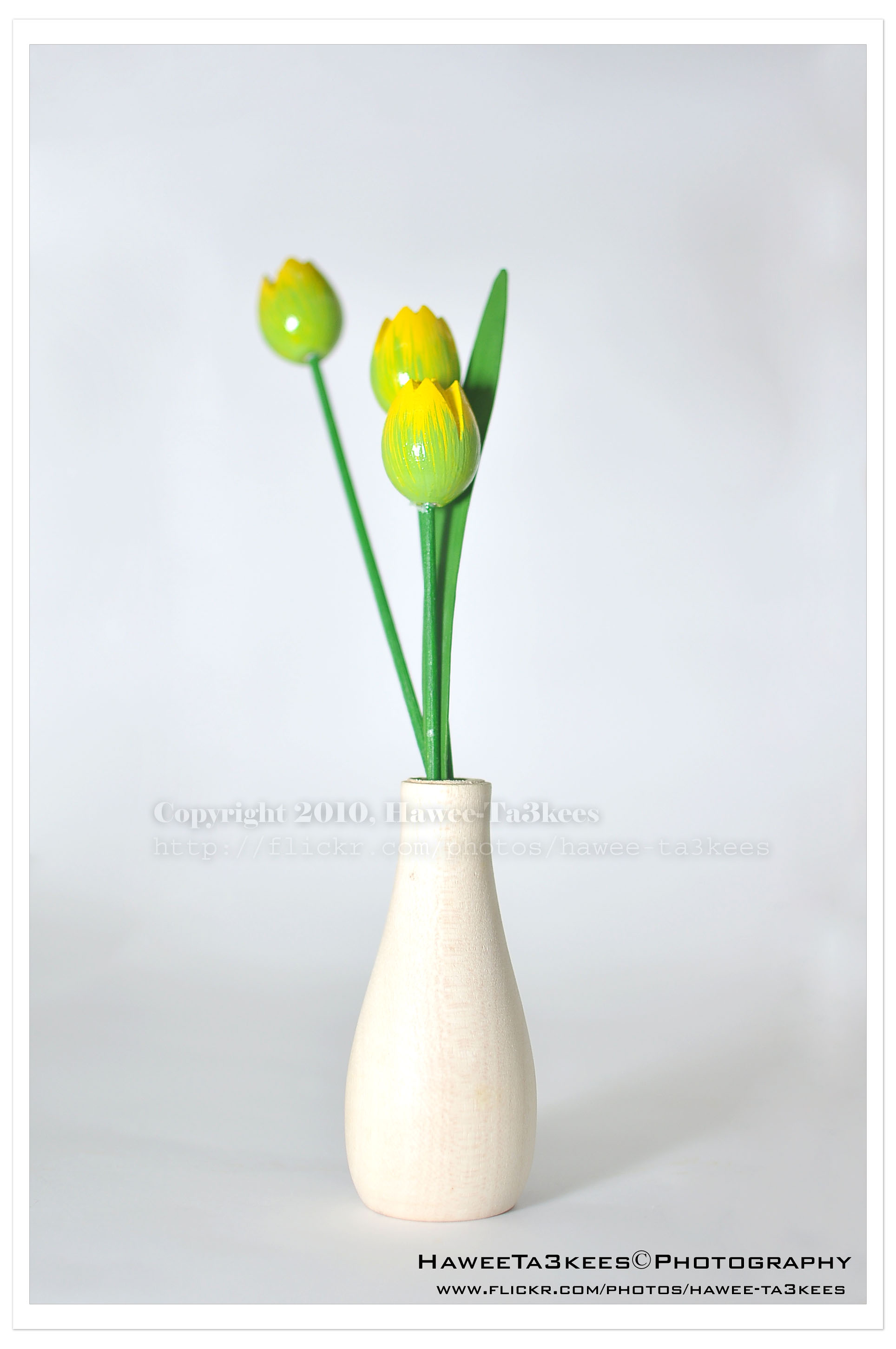
Here is a shot of a wooden flower vase in my lightBox.The first one is before the LightRoom effect, the light source is from the Nikon SB900 speed light. [Click the image to enlarge]
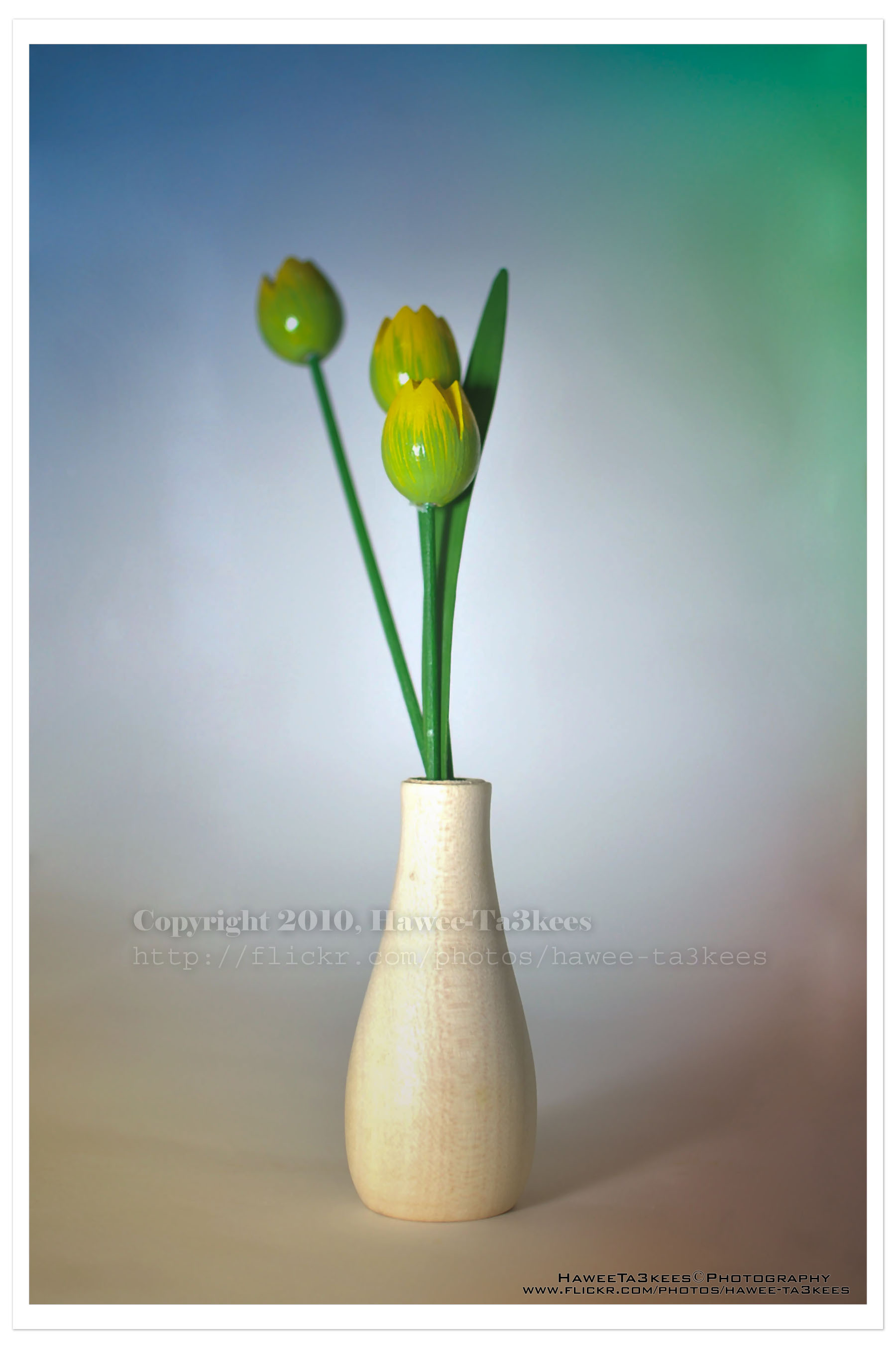
In this shot (same subject) I add four lights with colors in LightRoom, and some shadows.[Click the image to enlarge]

Taking pictures is not my main daily practices, but when i start playing with my camera, i really enjoy my self.
Thanks for visiting my Space..


 Ali's Photography Space...